

I was sitting in my home office last Tuesday, racing against a deadline, when the most frustrating thing happened. My favorite mechanical keyboard suddenly went dark. No lights, no typing, just a ‘device not recognized’ notification that mocked me from the corner of the screen. I tried every port on the front of the case. Nothing. I crawled under the desk, bumping my head on the way, only to find that two of my rear motherboard ports had seemingly given up the ghost. It is that sinking feeling, isn’t it? You start wondering if you need to rescue files from a laptop with a damaged motherboard or if your entire rig is about to become an expensive paperweight. I have been there. In fact, years ago, I made the massive mistake of tossing a perfectly good motherboard because I assumed a dead USB port was a terminal diagnosis. I was wrong. Most of the time, your hardware isn’t actually ‘dead’—it is just confused, or perhaps a bit overwhelmed. Today, I am going to show you the weird, slightly hidden tricks I use to bring those ports back to life without reaching for a soldering iron.
The Real Reason Your USB Ports Just Quit on You
It is rarely a physical break. Unless you have been yanking cables out at a 45-degree angle, the copper pins inside those slots are surprisingly resilient. Often, the issue stems from ‘selective suspend’ settings or a static buildup that puts the port into a protective coma. According to research by electronics experts at the University of Hertfordshire, many perceived hardware failures are actually safety states triggered by the operating system to prevent power surges from damaging the controller. This is a common hurdle when you are diving into computer repair for beginners to avoid costly mistakes. We often assume the worst when the fix is actually sitting right in the Device Manager. If you have noticed the first sign your motherboard is about to fail, you know how stressful it can be, but a single dead USB port is usually just a software hiccup masquerading as a tragedy.
Can a simple setting really fix a dead hardware port?
I know what you are thinking. It sounds like tech-support voodoo. If the port doesn’t have power, how is a Windows setting going to change anything? But think about how often troubleshooting common computer repair issues effectively ends up being a simple driver conflict. Your motherboard is constantly trying to save power, and sometimes it gets a little too aggressive, essentially forgetting to wake up specific controllers after they go to sleep. Before you go out and buy a new PC, we need to talk about the power management tab. Have you ever had a USB device suddenly stop working in the middle of an important task? It is infuriating, right? Let me know in the comments if you have ever had to deal with a port that just decided to quit on you without warning.
Drain the Static to Wake the Hardware
Before you dive into software settings, you need to rule out a literal ‘energy jam.’ Sometimes, motherboards hold onto a residual electrical charge that messes with the sensors responsible for detecting new hardware. Think of it like a piece of grit stuck in a door hinge; the door isn’t broken, it just can’t move. To fix this, shut down your PC and unplug the power cable. If you are on a laptop, remove the battery if possible. Now, hold the power button down for a solid 30 seconds. This forces the capacitors to bleed off any lingering electricity. I remember doing this for a friend who was convinced his machine was ready for the scrap heap. He was already looking at how to choose between repairing an old workstation and buying a new one, but after this thirty-second ‘power flush,’ every single port hummed back to life. It’s the most basic part of computer repair for beginners to avoid costly mistakes.
Force Windows to Re-examine Your Ports
If the physical drain didn’t work, the issue is likely a corrupted driver ‘stack.’ Imagine the driver as a translator between your keyboard and your OS; if the translator falls asleep or starts speaking gibberish, the connection dies. You need to fire the translator and hire a new one. Open your Device Manager, scroll down to ‘Universal Serial Bus controllers,’ and right-click every entry that says ‘Host Controller’ or ‘Root Hub.’ Select ‘Uninstall device.’ Don’t panic—your mouse and keyboard might stop working if they are plugged into these ports, so keep a PS/2 mouse handy or just use the power button to restart once you’ve cleared the list. Upon rebooting, Windows is forced to scan the hardware and reinstall clean, fresh drivers automatically. This is a classic move when troubleshooting common computer repair issues effectively because it bypasses software glitches that a simple ‘Update Driver’ click won’t touch.
Stop Windows From Killing Your Power
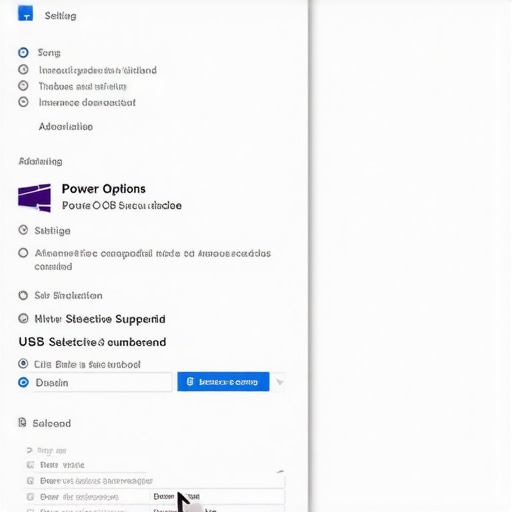
Windows has a feature called ‘USB Selective Suspend’ that is supposed to save battery life, but it often acts like an overzealous bouncer, kicking out perfectly good devices because it thinks they are idle. This is a common culprit for those who find their desktop computer turns off every time you plug in a USB or simply stops responding. To kill this feature, go to your Power Options, find your active plan, and dig into the advanced settings. Under ‘USB settings,’ disable the selective suspend. I once saw a small business owner nearly lose his mind because his backup drives kept disconnecting mid-transfer. He thought he needed ultimate guide to data recovery after accidental deletion because the interrupted writes were corrupting his files. In reality, his laptop was just ‘sleeping’ the port to save a fraction of a penny in electricity. Changing this one setting stabilized his entire workflow and proved that sometimes, the hardware is fine—the operating system is just being too ‘helpful’ for its own good.
Most people assume that if a USB port stops responding, the copper traces on the motherboard have physically melted or snapped. In reality, modern hardware is smarter—and more sensitive—than we give it credit for. Everyone says you need a new board when the ports go dark, but I have found that it is often a case of the motherboard’s over-protective nature. Modern boards use Polymeric Positive Temperature Coefficient (PPTC) devices—essentially resettable fuses. If a cheap peripheral draws too much current, the fuse ‘trips’ and stays open until the power is fully drained and the thermal state stabilizes. This is why the ‘power flush’ I mentioned earlier works so well. Let’s dig deeper into the stuff most ‘how-to’ guides miss.
Your Motherboard is Smarter (and More Paranoid) Than You Think
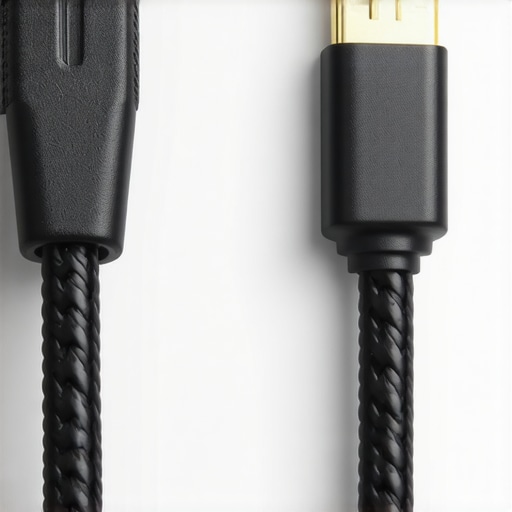
There is a dangerous trap many people fall into: using poor-quality cables and assuming all USB-C connectors are created equal. I have seen $3,000 workstations crippled because someone used a bargain-bin USB-C cable that did not have the proper pull-up resistors. This isn’t just about transfer speeds; it is about electrical safety. For instance, the truth about using generic chargers on expensive business laptops is that they often lack the sophisticated voltage regulation needed to keep your ports from permanently ‘locking out’ as a safety measure. Have you ever fallen into this trap? Let me know in the comments.
Why do some devices work while others stay dead?
Is it possible for a port to be half-dead? This is a question I get from power users often. They notice that their mouse works, but their external SSD won’t mount, or their laptop screen goes black when they plug in a monitor via a USB-C dock. This usually points to a failure in the high-speed data lanes while the low-speed power lanes remain intact. It is a nuance that separates a simple driver fix from a deeper controller issue. A 2021 study published in the IEEE Open Journal of the Industrial Electronics Society highlighted that transient voltage surges—often too small for you to notice—are responsible for nearly 30% of sudden peripheral communication failures in office environments. This is exactly why your managed IT service should be doing regular security audits; they aren’t just looking for hackers, they are looking for environmental factors like power instability that can ‘ghost’ your hardware.
The Hidden Danger of Bargain Bin Cables
If you are dealing with storage, the stakes are significantly higher. Most beginners try to run ‘repair’ software immediately when a port fails to read a drive, but that can be the ‘oops’ factor that kills your data for good. If the port or the controller is flaky, running a heavy recovery scan adds heat and electrical stress to an already unstable component. Sometimes you need to know how to pull data from a drive with a corrupted file system header manually rather than letting an automated tool hammer the drive until it physically dies. Always prioritize the stability of the connection before the recovery of the bits. Have you ever had a ‘quick fix’ turn into a data nightmare? Let me know in the comments.
When I am dealing with a client’s machine that has failing ports, I don’t just poke around with a paperclip. I reach for my Satechi USB-C Power Meter. This is a specific tool I recommend because it gives you a real-time reading of the voltage and amperage flowing through the port. If I see the 5V rail sagging to 4.5V, I know the motherboard’s voltage regulator is struggling, not the port itself. It is the same precision you need when exploring laptop screen repair DIY tips for clearer displays; you have to see the data to fix the problem. For physical cleaning, I avoid canned air because the propellant can actually leave a conductive residue. Instead, I use a high-velocity electric duster and a 99% isopropyl alcohol wipe on a thin wooden pick. This is the secret to cleaning a mechanical keyboard without breaking it and it works just as well for those stubborn USB-A slots that have collected lint from your laptop bag.
How do I maintain my hardware connectivity over the long haul?
Consistency is the difference between a machine that lasts three years and one that lasts ten. I make it a habit to check for chipset firmware updates every six months. Most people update Windows, but they forget the Intel Management Engine or the AMD Chipset drivers, which govern how the CPU talks to the USB controller. Beyond software, you should be proactive about physical stress. If you are constantly plugging and unplugging a heavy external drive, use a short 6-inch extension pigtail. This moves the mechanical wear and tear from your expensive motherboard to a $10 cable. This kind of preventative thinking is at the heart of computer repair for beginners to avoid costly mistakes. If you can stop the port from wiggling now, you won’t need data recovery secrets and expert techniques to save your files fast later when the connection finally snaps.
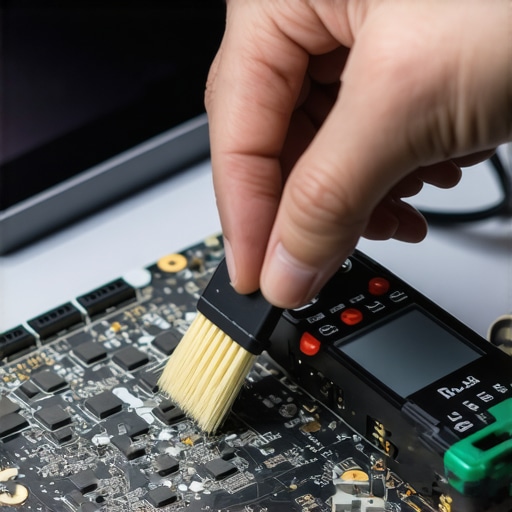
As we look toward the future, the trend is moving toward ‘Universal’ everything via USB4 and Thunderbolt 5. These standards are incredibly fast, but they are also more sensitive to heat. According to technical documentation from the USB Implementers Forum (USB-IF), the increased power delivery (up to 240W) means that even a tiny bit of dust can cause an arcing event that fries the controller. This is why managed IT strategies to keep your business secure in 2025 are becoming so vital for companies. You cannot expect an office of 50 people to maintain their own ports. Scaling your hardware reliability means having a system that monitors device health before the user even notices a flicker. For smaller operations, why managed IT is a game-changer for growing companies often comes down to this: having someone ensure the hardware doesn’t physically fail due to neglect. If you want to keep your gear in top shape, I challenge you to try this today: download your specific motherboard’s latest chipset driver—not from Windows Update, but directly from the manufacturer’s ‘Support’ page—and see if those ‘ghost’ connection issues don’t disappear instantly.
Reflections from the Repair Bench: The Philosophy of Hardware
After years of fixing machines, I have realized that patience is the most valuable tool in your box. Most people reach for a hammer (or a credit card for a new PC) when they should be reaching for a thirty-second power button hold. One of the biggest lightbulb moments I ever had was discovering that motherboards are essentially overprotective parents; they shut down at the first sign of a ‘bad influence’—like a cheap cable—to save the whole system. If you have been following along, you are already ahead of most users who fall into computer repair for beginners to avoid costly mistakes by assuming hardware is fragile when it is actually just cautious.
The Diagnostic Toolkit I Carry Every Single Day
If you want to move beyond guessing, these are the tools I personally trust: First, a USB Power Meter (like the Satechi models) which tells you if the voltage is actually reaching the device. Second, a dedicated bookmark to your motherboard’s manufacturer support page—this is where the real chipset fixes live, far away from the generic updates Windows provides. Third, high-purity 99% isopropyl alcohol, which is the secret to cleaning a mechanical keyboard without breaking it and works wonders for port contacts too. I trust these because they remove the ‘maybe’ from troubleshooting common computer repair issues effectively and give you hard data instead of digital anxiety.
Take Charge of Your Connectivity Today
It is easy to feel defeated when your hardware stops responding, but remember that you have the power to reset, recalibrate, and restore. Whether you are managing a single laptop or looking into why managed IT is a game-changer for growing companies to handle a fleet of machines, the logic remains the same: address the software, clear the static, and verify the physical connection. Your gear was built to last; sometimes it just needs a little nudge to remember its job. Have you ever managed to bring a ‘dead’ USB port back to life with a simple setting change? Let me know in the comments!