

I was sitting at my desk last Tuesday, nursing a lukewarm coffee and trying to finish a report, when it happened. My cursor started dragging a translucent tail behind it, like some sort of digital apparition. Every time I moved a window, a faint ghost of the previous frame lingered for a second too long. My heart sank. If you have been there, you know that immediate panic—the feeling that your expensive piece of hardware is finally giving up the ghost. I remember the first time I saw this years ago; I panicked and immediately assumed the worst. I actually went out and bought a replacement panel, thinking I was being proactive. Talk about computer repair for beginners and the classic mistake of throwing money at a problem before I even understood it. Turns out, that broken screen was perfectly fine, and I had just wasted two hundred bucks because I did not know about a simple refresh rate setting. Today, I am going to save you that money and stress by showing you exactly how to banish those trails.
Why your screen is haunting you right now
Ghosting isn’t usually a sign that your laptop is dying, even though it looks absolutely terrifying. Most of the time, it is just a communication breakdown between your graphics card and your display. It is that annoying lag where pixels cannot change colors fast enough to keep up with the action on the screen. Have you ever felt like your eyes were straining just to keep track of a moving mouse? This happens because the liquid crystals in your LCD aren’t flipping fast enough. Before you start looking up a laptop screen replacement step-by-step repair guide, take a breath. We are going to walk through the soft fixes first. Often, it is just a resolution mismatch—I have seen why your laptop screen resolution looks blurry on a high end display when the settings get knocked out of whack, and ghosting often tags along for the ride.
Does this only happen to cheap laptops?
You might think this is a budget brand curse, but I have seen two-thousand dollar workstations suffer from the same hazy trails. It is often a matter of response time and panel technology. According to research by DisplayMate, even high-end panels can exhibit motion blur or ghosting if the overdrive settings aren’t calibrated correctly for the current refresh rate. It is a technical hiccup, not a death sentence for your hardware. If you are worried about other visual glitches, you might also want to check out tips for troubleshooting laptop screen problems seamlessly. Have you ever had that mini-heart attack when your screen starts acting possessed? Drop a comment and tell me what your first thought was—did you think it was a virus or a hardware failure?Let’s get our hands dirty. The first thing you need to do is treat your monitor like a flipbook. If the pages do not turn fast enough, the story gets muddy. Most ghosting issues stem from a simple mismatch in refresh rates. I once had a client who was convinced their GPU was fried because their mouse cursor looked like a comet. It took me thirty seconds to realize their Windows update had reset their display to 30Hz. After we applied some laptop screen repair diy tips for clearer displays, everything snapped back into focus.
Sync your refresh rate to the native panel speed
Windows has a weird habit of defaulting to the lowest common denominator to save power. Right-click your desktop, hit ‘Display Settings,’ and scroll down to ‘Advanced Display.’ Look at your refresh rate. If you are on a 144Hz screen but it is set to 60Hz, you are essentially driving a Ferrari in first gear. Bump it up to the maximum available. This is often why your laptop screen resolution looks blurry on a high end display; the pixels are not refreshing in sync with the content, creating that smear.
Force your graphics card to talk properly
Sometimes the operating system says one thing, but the graphics driver says another. If your refresh rate is correct but the trails persist, you need to flush the ‘brain’ of your display. Go into your NVIDIA or AMD control panel. Look for a setting called ‘Response Time’ or ‘Overdrive.’ Manufacturers include this to push pixels to change color faster. Be careful, though—setting this to ‘Extreme’ can actually cause the opposite problem, where pixels overshoot their color and leave a bright trail instead of a dark one. It is a delicate balancing act.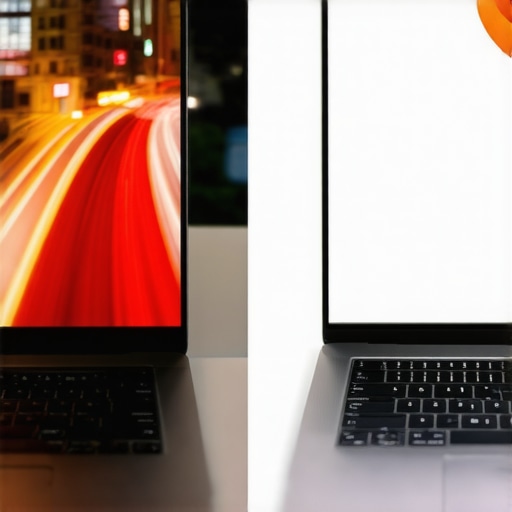
The overdrive toggle you probably ignored
If you are using an external monitor, dive into the physical buttons on the screen itself. Most modern panels have a built-in ‘Gaming’ mode or ‘Overdrive’ setting hidden in the On-Screen Display (OSD) menu. While you are at it, use the simple way to check your pc for hidden background processes to ensure your CPU is not being hammered by a rogue task, which can cause micro-stutters that look like ghosting. I remember wrestling with a laptop that ghosted only during video calls; it turned out a background update was eating 90% of the resources, making the GPU lag in its rendering.
Update the digital interpreter
Your drivers are the bridge between your software and your screen. A corrupt driver is like a translator who has started day-drinking; the message gets through, but it is messy. Visit the manufacturer’s website directly—do not just trust Windows Update. If you are still seeing movement artifacts, you might need to try tips for troubleshooting laptop screen problems seamlessly before deciding it is a hardware failure. If you have tried these software tweaks and the ‘ghosts’ are still there, we need to look at the physical connection.
Don’t let a loose cable trick you into a new purchase
Most people assume that if the software tweaks didn’t work, the panel itself is a lost cause. This is where most computer repair for beginners goes wrong. I have seen countless DIYers replace a perfectly functional $150 4K panel when the real culprit was a $12 eDP (Embedded DisplayPort) cable. These cables are thinner than a strand of hair and are routed through the laptop hinge. Every time you open or close your lid, that cable flexes. Over time, the internal shielding wears down, causing electromagnetic interference (EMI) that looks exactly like ghosting. If you’ve ever wondered why your laptop screen has a single vertical line that changes color, it is often that same hinge-wear issue. Before buying a new screen, try re-seating the cable on both the motherboard and the back of the panel. 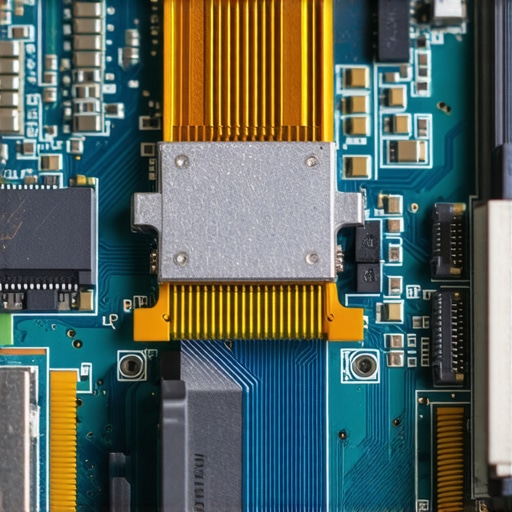
Why your power adapter might be the real ghost
Here is the nuance most experts miss: ‘Dirty’ power. If your laptop’s power brick is failing, it can send a ripple of electrical noise through the system. This noise interferes with the high-speed signaling required for modern LCDs. A technical paper by the Society for Information Display (SID) notes that liquid crystal response times are highly sensitive to voltage stability. If the voltage fluctuates even slightly, those crystals won’t flip fast enough, leading to that trail effect. I once spent three hours troubleshooting a ‘ghosting’ display only to find out the user was using a cheap, third-party charger from a gas station. It was literally poisoning the display signal.
Can a failing battery actually cause visual ghosting?
It sounds like a reach, but it happens more than you would think. When a battery begins to fail or swell, it generates excessive heat directly under the trackpad and motherboard. This heat can cause the GPU to throttle or the display controller to overheat. Knowing how to tell if your laptop battery is swelling before it breaks the case is crucial because that localized heat can mess with the panel’s TCON (Timing Controller) board. If that board gets too hot, it loses its ability to accurately time pixel transitions. If you’re managing a whole fleet of devices, this is exactly why managed IT strategies to keep your business secure in 2025 include regular hardware health audits. Don’t wait for the ‘ghosts’ to appear before checking your hardware’s vitals. The absolute biggest ‘oops’ factor is panicking and doing a factory reset without a backup. Ghosting is almost never fixed by a clean install, yet people wipe their drives daily in a desperate attempt to fix it. If you’ve already made that leap, you will need data recovery secrets expert techniques to save your files fast. Always differentiate between a ‘display’ problem and a ‘system’ problem. If you plug in an external monitor and the ghosting disappears, your GPU is fine; it is your cable or panel. Also, look out for symptoms like how to tell if your laptop screen backlight is actually failing to ensure you aren’t fighting two hardware battles at once. Have you ever fallen into this trap and replaced the wrong part? Let me know in the comments below.I have learned the hard way that a good toolkit is worth its weight in gold. When I am deep in the weeds of a repair, I do not just rely on my eyes; I use specific software to see what the hardware is hiding. For anyone serious about keeping their display pristine, I personally recommend using Monitor Asset Manager by EnTech Taiwan. It allows you to peek into the monitor’s EDID (Extended Display Identification Data) to see if the internal timing is actually what the manufacturer promised. If you are struggling with laptop screen repair how to fix common issues at home, having this level of data is the difference between a lucky guess and a professional fix. I’ve seen businesses lose days of productivity because of a fleet-wide driver bug that caused motion blur across fifty workstations. That is why I always lean on effective managed IT solutions for growing companies. It stops the digital fire before it even starts by automating the deployment of stable, tested firmware.
How do I keep my screen crisp for years?
Maintenance is not just about software; it is about physical environment and habits. First, stop carrying your laptop by the corner of the screen. I see this every single day, and it is the fastest way to cause internal layer separation. If you notice a faint indentation on your display, you should read about why your laptop screen has a strange pressure mark in the center before it turns into a permanent dead zone. Secondly, keep your workstation cool. Heat is the enemy of liquid crystals. If your office feels like a sauna, your screen’s response time will degrade over time as the internal components bake. This is especially true for servers and high-end rigs, which is why managed IT strategies to keep your business secure in 2025 focus so heavily on environmental monitoring.  I also highly suggest investing in a high-quality microfiber cloth and a dedicated, alcohol-free screen cleaner. Using Windex or harsh chemicals can strip the anti-glare coating, making your screen look hazy and ‘ghost-like’ even when it is turned off. According to the official VESA (Video Electronics Standards Association) white papers on DisplayPort 2.1, jitter and signal integrity are the primary killers of high-refresh-rate stability. If you are using an external monitor, do not cheap out on the cable. A certified VESA cable ensures that the ‘handshake’ between your PC and the monitor remains rock-solid, preventing those annoying trails. Looking ahead, I predict we will soon see ‘AI-driven display controllers’ that can predict pixel state changes and adjust voltage in real-time to eliminate ghosting entirely at the hardware level. Until then, we have to rely on good old-fashioned maintenance. If you are dealing with a screen that is already showing its age, understanding the power of data recovery tools what you need to know is a good backup plan in case the hardware failure leads to a full system crash. My challenge to you: Download the Blur Busters UFO Test right now and see how your screen actually performs under pressure. If it fails, try the ‘Response Time’ toggle we discussed earlier and see the difference for yourself.
Lessons from the Bench: What I Learned Fixing a Thousand Flickering Screens
Over the years, I have realized that screen artifacts are rarely as simple as they look. I once spent four hours diagnosing a ghosting issue that turned out to be a magnetic phone mount sitting too close to the screen’s internal signal path. Magnets can wreak havoc on high-speed data transmission. Another hard-earned lesson is to never trust the ‘Recommended’ tag in Windows settings; manufacturers often prioritize energy efficiency over visual fidelity, which can lead to suppressed refresh rates. Always check your accessibility settings too—I have seen many users panic over hardware failure when they simply had ‘Mouse Trails’ enabled in the control panel. If you are struggling, remember that troubleshooting common computer repair issues effectively starts with checking the most obvious software toggles before reaching for a screwdriver.
The Tools That Saved My Sanity and My Wallet
I do not go into any repair without a specific set of digital diagnostics. First, I always run the **Blur Busters UFO Test**; it is the gold standard for seeing exactly how much motion blur is occurring. Second, I rely on **Monitor Asset Manager** by EnTech Taiwan because it reads the raw EDID data from your screen, telling you exactly what the hardware is capable of regardless of what the driver claims. Lastly, I keep **Display Driver Uninstaller (DDU)** on a thumb drive. When a driver update goes south and starts causing visual trails, a standard uninstall often leaves behind ‘ghost’ files that continue the problem. Using these specialized tools is a key part of laptop screen repair diy tips for clearer displays that most people overlook.
Time to Banish Those Digital Apparitions
Dealing with trails and smears can make you feel like your hardware is failing, but most of the time, the solution is just a few clicks away. You don’t always need to jump straight to a laptop screen replacement step-by-step repair guide. By understanding how refresh rates, drivers, and physical cables interact, you can restore your display to its former glory without spending a dime. Don’t let a little motion blur distract you from your work or gaming. Whether you are dealing with a simple settings mismatch or learning how to fix a laptop screen that shows static like an old tv, stay patient and follow the data. Have you ever found a weird software setting that fixed what looked like a major hardware failure? Let me know in the comments below!