

I was three paragraphs into the most important email of my week when the cursor simply stopped. No warning. No blue screen. Just a frozen, mocking image of my own unfinished thoughts. I did what most of us do: I mashed the Escape key, rattled the mouse like a cage, and eventually held the power button down with a heavy heart. That was the third time it had happened that morning. I used to think my PC was just ‘getting old’ or that Windows was being its usual temperamental self. I even wasted a whole afternoon running those useless registry cleaners that promise the world but deliver nothing but bloatware. It was a classic case of computer repair for beginners mistakes—trying to patch a physical wound with digital Band-Aids. Today, I’m going to show you exactly how to stop that cycle of frustration by swapping out the three specific components that are likely choking your productivity right now.
Have you ever reached the point where you actually considered buying a whole new computer just because your current one keeps freezing up? Tell me about your most frustrating ‘freeze’ moment in the comments.
My Desktop Almost Became a Very Expensive Doorstop
For the longest time, I blamed my software. I thought maybe I had too many tabs open or a background process had gone rogue. But then I noticed a pattern. The freezes usually happened when I was doing something intensive, or ironically, right after I plugged in my backup drive. I started digging and realized that the sign your CPU is thermal throttling is often the first warning of a total system hang. According to research from Carnegie Mellon University on hardware reliability, hardware errors—specifically those triggered by heat and power fluctuations—account for a massive percentage of system instability that users often mistake for software bugs. I learned the hard way that a dusty fan or a failing capacitor isn’t something you can ‘update’ away.
Is it Worth Tearing Apart Your PC Just for a Few Crashes?
You might be worried that opening your case is a recipe for disaster, or that you’ll end up needing a data recovery expert if you touch the wrong wire. I get it. I used to be terrified of static electricity frying my motherboard. But these three swaps are essentially ‘plug and play’ for the modern office worker. We aren’t soldering microchips here; we are giving your PC the breathing room and steady diet of power it deserves. If you have ever noticed why your computer gets loud when you open more than five browser tabs, you already know your hardware is screaming for help. Let’s silence that noise and get your machine back to its silent, speedy self before we dive into the first and most critical component: your power supply.
Ditch the Shaky Power Foundation
Think of your Power Supply Unit (PSU) as the heart of your computer. If it delivers ‘dirty’ or inconsistent voltage, your CPU and motherboard will eventually glitch out to protect themselves. I once spent three days trying to fix a ‘software bug’ for a local law firm because their main workstation kept rebooting during document saves. It turned out they were using a generic, five-year-old PSU that couldn’t handle the minor spikes in power demand. In the professional world, why a cheap power supply is the biggest threat to your office hardware is a lesson usually learned through data loss. To swap it, first, document everything. Take a clear photo of where every single cable connects to your motherboard and drives. Unscrew the four mounting screws on the back of the case and gently pull the unit out. When you slide the new one in, prioritize a ’80 Plus Gold’ rated unit to ensure your components get a steady diet of clean electricity. Knowing how to tell if your computer power supply is failing or just dusty can save you a lot of manual labor, so check the intake vents for clogs before you commit to a full replacement.
Map Your Cables Before You Pull
The biggest mistake beginners make is yanking all the power cables at once. Modern motherboards have a primary 24-pin connector and a secondary 4-pin or 8-pin CPU power connector. If you miss that second one, your PC will turn on, but the screen will stay black, leading to a frantic search for troubleshooting common computer repair issues effectively. Label each cable with a piece of masking tape if you have to. It makes the ‘new heart’ transplant much less stressful.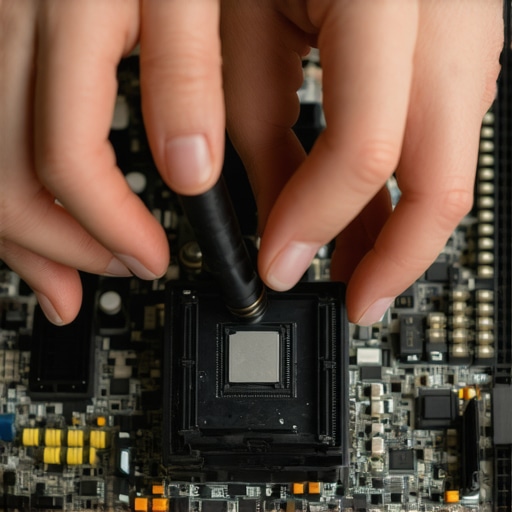
End the Memory Stutter for Good
Random freezes that require a hard reboot are frequently caused by failing RAM modules. Your RAM is the workbench where your computer keeps open programs. If a part of that workbench is broken, everything on it crashes. This is often the hardware swap that stops your browser from crashing when you have twenty tabs open. Start by ‘reseating’ the sticks—literally taking them out and clicking them back in. If that doesn’t work, test one stick at a time. I once fixed a designer’s PC simply by removing one faulty 8GB stick; the computer was slower, but it stopped freezing, allowing them to finish their project before buying a replacement.
Reseat Your RAM to Fix Random Freezes
To do this, press down on the plastic tabs at either end of the RAM slot. The stick should pop up. When putting it back in, align the notch in the gold contacts with the rise in the slot. Press down firmly until you hear a satisfying ‘click’ from both sides. If you don’t hear that click, the memory isn’t fully connected, and your PC likely won’t boot at all.
Break the Thermal Chokehold on Your CPU
If your computer works fine for twenty minutes and then suddenly crawls to a halt, you are likely dealing with heat. As I mentioned earlier, the sign your CPU is thermal throttling is a direct signal that your cooling system has failed. This usually comes down to the thermal paste—a tiny layer of conductive material between your processor and its metal heatsink. Over five or six years, this paste dries out and turns into a useless, chalky crust. Removing the heatsink, cleaning the old gunk with isopropyl alcohol, and applying a pea-sized drop of new paste can drop your temperatures by 20 degrees Celsius instantly. It is the cheapest and most effective way to restore ‘new PC’ performance without spending more than ten dollars.Let’s dig deeper into why your DIY efforts might actually be accelerating your hardware’s demise. Most people treat a hairline fracture on their display as a cosmetic nuisance, but the reality is much more technical. A compromised glass layer loses its structural tension, which allows microscopic amounts of moisture or even simple finger pressure to reach the delicate liquid crystal layer. This is exactly why a cracked laptop screen can eventually damage your motherboard; the liquid crystals can leak, or the digitizer can short-circuit the internal ribbon cable. It is not just a visual flaw; it is a ticking electrical bomb.  Then there is the ‘backup paradox’ that plagues small businesses and home users alike. You likely think your data is safe because it is on an external drive or ‘in the cloud.’ However, the mistake that makes your backups completely useless is the lack of integrity verification. According to a landmark study by Google on disk failure rates, even drives that pass basic health checks can suffer from ‘silent bit rot,’ where individual files become unreadable without the system ever alerting you. If you are not regularly performing checksums or test restores, your backup is essentially a Schrödinger’s box—you won’t know if the data exists until the moment you actually need it.
Can Your Office Network Handle a Sudden 40% Increase in Traffic?
As businesses scale, they often ignore the underlying plumbing of their IT. They add more laptops and more cloud services, but they keep the same basic networking gear. Moving toward effective managed IT solutions for growing companies requires understanding that hardware has a ‘ceiling.’ Once you hit 80% of your switch’s capacity, packet loss becomes inevitable, leading to those frustrating ‘random’ Zoom drops. Have you ever fallen into this ‘it works for now’ trap? Let me know in the comments. The biggest ‘Oops’ factor for enthusiasts is the temptation to ‘software-fix’ a physical failure. If your hard drive is making a rhythmic ticking or scratching sound, stop immediately. Running recovery software on a failing platter is the fastest way to turn a recoverable situation into a permanent loss. Professionals use data recovery secrets expert techniques to save your files fast, which often involves imaging the drive in a controlled environment before even looking at the files. Before you reach that point, learning how to check if your hard drive is about to fail using s-m-a-r-t-data can give you the 48-hour head start you need to move your files safely to a healthy drive.
I’ve learned that the difference between a tech guy and a pro is the toolkit you carry when the screen goes dark. I never walk into a server room without my custom-built NVMe diagnostic drive. It’s not just a storage device; it’s an emergency room for data. By using specialized bootable environments like Ventoy, you can bypass a corrupted OS to grab files before a total crash. This is the power of data recovery tools what you need to know when your primary boot drive decides to quit. I personally rely on HWiNFO64 for real-time sensor data because it catches the micro-spikes in voltage and thermal surges that standard Windows tools miss entirely.
Stop Guessing and Start Measuring with Real Data
If you want to avoid the panic of a dead workstation, you have to look at the telemetry. According to the Backblaze Q3 2023 Drive Stats report, even enterprise-grade boot drives show subtle signs of wear—like increased Media and Data Integrity Errors—long before they actually fail. I make it a habit to check S.M.A.R.T. data monthly. If I see those numbers climbing, I don’t wait for a blue screen; I move the data immediately. This proactive approach is exactly the move that saves your data when a partition table is corrupted because you aren’t fighting a failing physical component during the transfer. For business owners, this is where managed IT strategies to keep your business secure in 2025 come into play, shifting your mindset from reactive break-fix to predictive prevention.
How do I keep my gear running for a decade?
Maintenance isn’t just about blowing dust out of fans, though that is a great start. It is about monitoring the health of your software environment too. I’ve seen perfectly good laptops tossed in the bin because the user thought the hardware was failing, when in reality, it was just unmanaged background processes and licensing bloat. You should be asking why your managed it service should be tracking your software licenses, as zombie software can actually cause your CPU to run hotter and less efficiently. For mobile users, I always recommend looking into laptop screen repair diy tips for clearer displays and hinge maintenance. A loose hinge puts physical stress on the internal display cable, which can lead to a motherboard short over time. If you can learn how to identify a failing motherboard before it stops working, you can plan your upgrades on your own timeline, not during a Monday morning emergency.
Looking ahead, I predict we will soon see AI-driven BIOS modules that use machine learning to predict fan failure or capacitor leakage weeks before the physical symptoms appear. Until then, you are the first line of defense. Try this right now: Download a copy of CrystalDiskInfo and set the health alert threshold to notify you if your NVMe drive temperature exceeds 55°C. Most users ignore drive heat, but high temperatures are the silent killer of modern high-speed storage. Check yours today and see if your machine is actually as healthy as it feels.
Lessons Learned from a Decade in the Repair Trenches
After thousands of repairs, I’ve realized that 90% of “dead” computers are actually just victims of neglect or one cheap component. Here is the insider wisdom that changed how I approach technology:
- Cheap parts carry a hidden tax: I used to think saving $30 on a generic power supply was a win. It’s not. A bad PSU is the primary reason why a cheap power supply is the biggest threat to your office hardware, often taking the motherboard with it when it finally pops.
- Software can’t fix physical heat: No amount of Windows “optimization” will help a CPU that is baking at 95°C. Cleaning your fans and replacing thermal paste is the most underrated computer repair for beginners step you can take.
- Silence doesn’t mean safety: Your hard drive might be quiet, but it could still be dying. I always tell my clients that learning how to check if your hard drive is about to fail using s-m-a-r-t-data is the only way to avoid a midnight emergency call.
- Respect the structure: Never ignore a small crack. If you’ve seen why a cracked laptop screen can eventually damage your motherboard, you know that physical tension is vital for internal safety.
#IMAGE_PLACEHOLDER_E#
My Essential Repair Toolkit
You don’t need a massive laboratory to keep your tech healthy. These are the three specific resources I trust to keep professional workstations running at peak performance:
First, I never troubleshoot a slow PC without HWiNFO64. It provides the granular data you need to spot the sign your CPU is thermal throttling before the system hangs. Second, for businesses, I advocate for managed IT strategies to keep your business secure in 2025, which often includes automated software license tracking. Finally, if you’re dealing with display issues, follow my laptop screen repair diy tips for clearer displays to ensure you aren’t just wiping smudges over a dying backlight.
Stop Reacting to Crashes and Start Building Stability
The era of the “frustrating freeze” should be behind you now. By addressing the power foundation, the memory workspace, and the thermal health of your processor, you aren’t just doing a basic computer repair—you are engineering a more reliable daily experience. Remember that tech is a tool that should serve you, not a burden that demands your constant frustration. Whether you are dealing with a flickering display or looking for data recovery secrets expert techniques to save your files fast, the first step is always to stop, breathe, and look at the hardware data. You’ve got the knowledge; now go get your machine back in shape.
Have you ever successfully fixed a hardware issue only to realize it was something incredibly simple like a loose cable? Let me know in the comments below!