

I remember sitting at my kitchen table last Tuesday, deadline looming at 2 AM, when I noticed something weird. The edges of my screen weren’t crisp white anymore. They had this eerie, faint red glow, like a digital sunset I never asked for. It started small, just a blush in the corners, but within twenty minutes, it felt like my laptop was blushing with embarrassment—or maybe it was just screaming for help. I have spent years teaching people about computer repair for beginners, but even I felt that familiar pit in my stomach. Was my expensive workstation finally giving up the ghost? I checked my cables, rebooted twice, and even tried the classic ‘gentle tap’ on the bezel. Nothing. That red haze stayed right where it was, mocking my productivity. Have you ever seen that weird pinkish or reddish hue creeping in from the edges of your display? It is more common than you think, and usually, it is a sign that your hardware is tired, not dead.
That annoying red tint isn’t a new feature
You are probably staring at it right now, wondering if you need to drop a thousand dollars on a new machine. Trust me, I have been there. My biggest mistake early on was assuming that any visual weirdness meant the whole motherboard was fried. I actually tossed a perfectly good ThinkPad years ago because I didn’t know how to identify a dying backlight before things went totally dark. That was a costly lesson in impatience. Today, we are going to avoid that. We are going to look at whether it is a simple loose cable, a failing CCFL tube, or just your software throwing a tantrum. Sometimes the issue is as simple as a driver update, while other times it requires some laptop screen repair diy tips for clearer displays to get things back to normal. If the red glow only shows up when you move the lid, you might just need the fix for a laptop screen that only works at a certain angle, which is often a worn-out video cable.
Is my screen actually permanent gonzo?
Skepticism is good. You might think a glow is the end of the road, but often, it is just a hardware component waving a red flag (literally). According to technical research from the IEEE, aging cold-cathode fluorescent lamps (CCFLs) often shift toward the red or pink spectrum as they reach the end of their life cycle due to phosphor degradation and changes in gas pressure. It is pure science, not just bad luck. However, don’t let it linger; ignoring it can lead to other issues. For instance, why a cracked laptop screen can eventually damage your motherboard is a great example of how small screen problems cascade into total system failures. We are going to walk through the troubleshooting steps together, starting with the easiest software fixes before we start talking about hardware replacements. Does the red glow get worse when you turn up the brightness? If so, you are definitely dealing with a backlight reaching its golden years.
Start with the easiest diagnostics
Before you grab a toolkit or start browsing for replacement parts, we need to isolate where the failure actually lives. Think of your laptop’s display system like a plumbing network: you have the source (the graphics card), the pipe (the video cable), and the tap (the screen itself). If the water is coming out red, any of those three could be the culprit. I once had a client, Sarah, who brought in an older Dell that was glowing a deep, sunset crimson. She was convinced she needed a new machine. I started by performing a few troubleshooting common computer repair issues effectively, and it turned out the internal cable was just slightly ajar after she dropped her bag. Five minutes of work saved her $200.
The simple wiggle that saves hundreds
First, try the ‘lid test.’ Open and close your laptop very slowly while watching the red tint. If the color flickers, changes intensity, or disappears at a specific angle, you are looking at a physical cable issue. This is often the fix for a laptop screen that only works at a certain angle because the tiny wires inside the hinge have become frayed or loose. If the red hue is constant regardless of the lid’s position, the problem is likely deeper in the hardware or software.
Use an external monitor to find the culprit
This is the ultimate ‘is it dead?’ test. Grab an HDMI or DisplayPort cable and plug your laptop into a TV or a desktop monitor. If the external screen looks perfectly white while your laptop stays red, the good news is your graphics card is healthy. You aren’t dealing with a motherboard failure. However, if both screens are red, you need to learn how to spot a dying gpu before your screen turns into a wall of static. Isolated red tint on only the built-in display usually confirms a failing CCFL backlight or a damaged LCD panel. 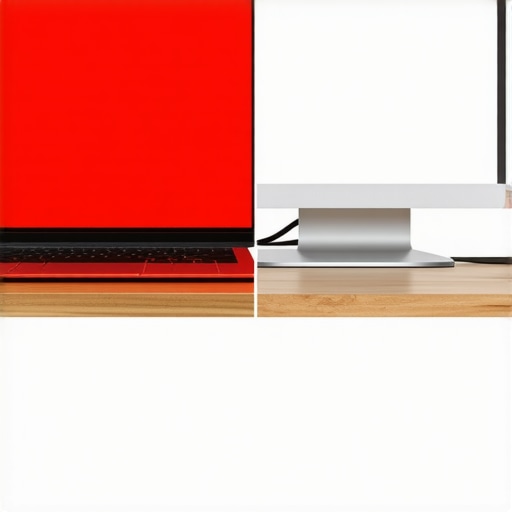
Update your drivers to clear the fog
I once spent three hours tearing down a client’s ultra-book only to realize the Windows ‘Night Light’ setting was stuck or the color profile was corrupted. It was a humbling moment. Before assuming it is hardware, go to your display settings and ensure no ‘blue light filters’ are active. Then, go to the Device Manager and roll back or update your display adapter drivers. Sometimes, a botched Windows update sends the wrong color instructions to your screen, making it look like a hardware disaster when it is actually just a software glitch. If that fails, you can try some laptop screen repair how to fix common issues at home by resetting the BIOS to default settings to see if the tint persists outside of the operating system.
Recognize when the hardware is retiring
If you have ruled out the cables and the software, and the red tint is most intense during the first few minutes of booting up, your backlight is likely on its last legs. In older laptops, the CCFL (Cold Cathode Fluorescent Lamp) uses mercury vapor that glows red when it can’t reach the proper operating temperature or when the gas is depleted. It is like an old fluorescent office light that flickers pink before it finally pops. At this stage, you are looking at a laptop screen replacement step by step repair guide to swap the panel. It is a precise job, but far cheaper than a whole new laptop. Just remember to work slowly; forcing a plastic bezel can cause more damage than the red tint ever would.
Why modern LED screens aren’t actually immune to the red glow
Common wisdom suggests that the ‘red tint of death’ is a relic of the past, something only older laptops with CCFL backlights had to worry about. I hear this all the time: ‘My laptop is from 2022, it’s an LED, it can’t be a hardware failure.’ While it is true that LEDs are far more durable, they aren’t magic. In my experience, a red or pinkish hue on a modern display often points to a corrupted color profile or a failing T-CON (timing controller) board, rather than the lights themselves. This is a common point of confusion when people look for laptop screen repair diy tips for clearer displays. According to research published in the Journal of Luminescence, even high-quality LEDs can experience a ‘red shift’ if the gallium-nitride crystals degrade under excessive heat, usually caused by a blocked cooling vent. If your laptop is running hot and looking red, you aren’t just looking at a screen problem; you’re looking at a thermal crisis.
Does a dying GPU produce a uniform tint or just static?
This is the question that separates the pros from the amateurs. Most beginners assume that any color weirdness is the screen’s fault. However, an advanced technician looks for patterns. A uniform red wash across the entire screen is almost always the panel or its backlight. But if you see red lines, floating ‘blocks’ of color, or flickering pixels that move when you scroll, you need to learn how to spot a dying gpu before your screen turns into a wall of static. A dying GPU doesn’t usually fail ‘gracefully’ with a pretty pink glow; it fails with chaos. If you suspect the GPU, check your BIOS; if the red tint is there too, your graphics chip is likely the culprit, and no amount of tips for troubleshooting laptop screen problems seamlessly will save it.
Stop cranking your brightness to hide the tint
Here is the ‘oops’ factor that kills more laptops than I can count. When the screen starts getting dim and red, the instinctive reaction is to pump the brightness to 100%. Don’t do this. If your backlight is failing, it’s likely drawing more current than it was designed to handle. Forcing it to run at full blast can overheat the inverter or the ribbon cable, leading to a short circuit. I’ve seen cases where a simple screen swap turned into a nightmare because the user ignored the warning signs and eventually fried the motherboard. This is exactly why a cracked laptop screen can eventually damage your motherboard—it’s all about the electrical strain. If you see the red tint, keep the brightness low until you can perform a laptop screen replacement step by step repair guide. 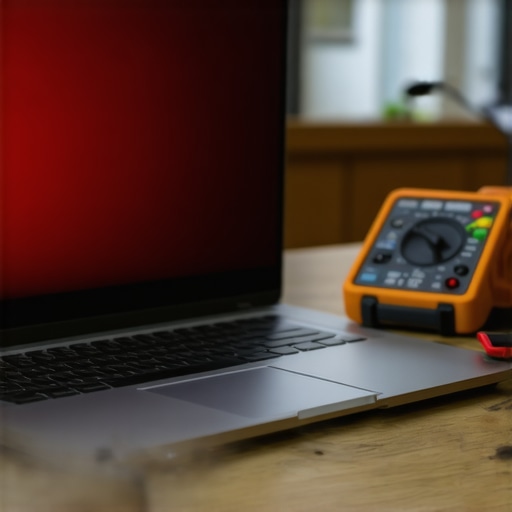
The data recovery trap you must avoid
If your screen is failing and you decide to take the laptop apart, please, back up your files first. I’ve seen enthusiasts get so focused on the screen that they accidentally static-shock the SSD or drop a screw onto the motherboard. If the screen is too red to see what you’re doing, don’t just guess. Use that external monitor trick we discussed earlier and follow the ultimate guide to data recovery after accidental deletion if things go south. For business owners, this is why managed IT solutions streamlining operations for small businesses are so vital; they ensure your data is in the cloud before the hardware starts showing its age. Have you ever fallen into this trap of trying to fix one thing only to break another? Let me know in the comments.
Once you have diagnosed the source of that eerie red tint, the real work begins—ensuring it never comes back. I have learned the hard way that computer repair is not just about the one-off fix; it is about building a system of maintenance that prevents your hardware from reaching that ‘sunset’ phase prematurely. When I am working on a workstation, I do not just swap the screen and call it a day. I look at the thermal environment. If your fans are clogged, your GPU runs hot, and that heat eventually warps the delicate layers of your LCD or stresses the CCFL tubes. I always tell my clients that the sign your cpu is thermal throttling and slowing down your work is often the first warning before your screen starts showing physical symptoms of distress. If you are ignoring the fan noise, you are essentially inviting the red glow to return.
Clean fans prevent a pink screen
I personally keep a can of compressed air and a soft-bristled brush in my desk drawer at all times. It sounds basic, but keeping the exhaust ports clear is the single most effective way to extend the life of your display’s inverter and backlight. According to technical documentation from VESA (Video Electronics Standards Association), consistent exposure to temperatures above 40°C can significantly accelerate the degradation of the phosphor coatings used in many display backlights. This is why I insist on performing laptop screen repair how to fix common issues at home by starting with a deep clean of the cooling system. If the heat cannot escape, it stays trapped behind the panel, cooking your pixels and the ribbon cables that feed them.
The one tool I never leave home without
While software fixes are great, I am a firm believer in having a physical multimeter in your kit. If you suspect a voltage issue is causing your screen to flicker or tint, a quick probe of the display connector can tell you if the motherboard is sending the correct 19V to the backlight. I use a Fluke 115 because it is rugged and accurate, but even a cheap digital multimeter can save you from buying a new screen when the problem is actually a blown fuse on the logic board. This level of precision is how you move beyond computer repair for beginners avoid costly mistakes and start treating your tech like a professional. Knowing exactly where the power is failing prevents you from throwing parts at a problem until your bank account is empty. 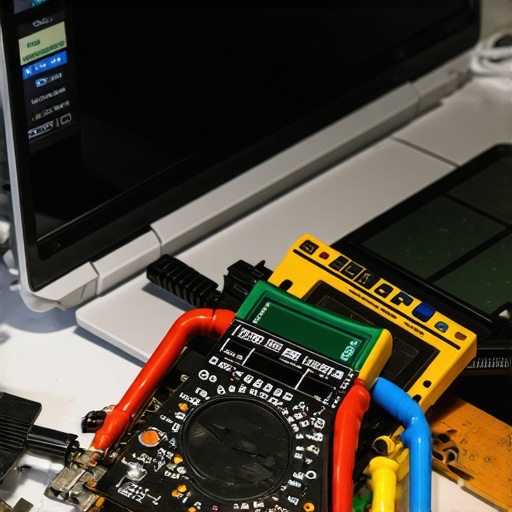
How can I maintain my laptop display to avoid future failures?
Maintenance is a marathon, not a sprint. First, stop closing your laptop by the corner; always use the center of the lid to avoid putting uneven torque on the hinges and the internal video cable. This prevents the fix for a laptop screen that only works at a certain angle from becoming a permanent necessity in your life. Second, use a microfiber cloth to clean the screen weekly. Avoid harsh chemicals that can seep into the bezel and corrode the T-CON board. Also, be mindful of why your laptop screen has a permanent mark from the keyboard, which is often a sign of physical pressure in your bag. A simple screen protector or a thin cloth between the keys and the display during travel can prevent permanent pressure spots and color distortion.
Look toward the future of predictive hardware
I predict that within the next three years, we will see BIOS-level AI that monitors the spectral output of our screens. Instead of waiting for the red tint to appear, your OS will alert you when the backlight gas pressure is dropping or when an LED is nearing its failure threshold. Until then, we have to be our own advocates. For business owners, this means shifting from reactive fixes to effective managed it solutions for growing companies. Instead of losing a week of productivity to a dead screen, these services monitor hardware health in real-time. I recommend you try this right now: Download HWiNFO64 and check your ‘Monitor’ health and GPU temperatures. If you see temperatures hitting 90°C during simple tasks, it is time to open that case before your screen pays the price. Using tips for troubleshooting laptop screen problems seamlessly before a total blackout is the smartest move you can make. Do not wait for the red haze; check your thermal health today.
Hard-Earned Lessons from the Tech Bench
If I could go back to that Tuesday at 2 AM, I’d tell myself one thing: don’t panic. The red glow is a signal, not a death sentence. Over the years, I’ve realized that many display issues are exacerbated by environmental factors. For instance, I’ve seen people replace perfect screens only to find out their desk lamp was casting a warm reflection that looked like a hardware failure. Also, never underestimate the power of a hard reset; sometimes the BIOS just needs to breathe to clear out a persistent color glitch. Most importantly, remember that hardware has a lifespan, and recognizing the early shift in color gives you the lead time you need to protect your files using data recovery secrets expert techniques to save your files fast before the panel goes dark permanently. Sometimes, if the issue is subtle, you might even find it is just a specific power mode causing it, so check how to fix a laptop screen that flickers only when the brightness is low to see if your battery settings are the real culprit.
The Exact Resources I Use to Kill the Crimson Glow
When it comes to hardware, I trust my eyes, but I verify with the right equipment. I always keep a decent external monitor nearby—it’s the fastest way to rule out a motherboard failure. I also swear by the official driver support pages from your laptop manufacturer rather than third-party ‘driver update’ software which often causes more harm than good. If you’re looking for more ways to enhance your view or perform a safe cleaning, these laptop screen repair diy tips for clearer displays have been my backbone for years. I also recommend keeping a small digital multimeter in your desk; even a basic one can help you confirm if your inverter is sending the right juice to that backlight.
Stop Stressing and Start Fixing Your Setup
Fixing a screen can feel like performing surgery, but with the right mindset, it is just another puzzle waiting to be solved. You don’t need to be an engineer to master tips for troubleshooting laptop screen problems seamlessly. You just need patience and the willingness to look at the small details, like a loose ribbon cable or a clogged fan. Your laptop is a vital investment in your productivity, and taking the time to address a red tint today saves you from a total blackout tomorrow. Go ahead, open those settings, check those connections, and get back to work with a crisp, clear view. Have you ever had your screen change colors on you when you were in the middle of a major project? Let me know your story in the comments below.