

I remember last Tuesday morning vividly. I had an urgent client call at 9:00 AM, so I pressed the power button at 8:45, thinking fifteen minutes was more than enough time to settle in. I was wrong. I sat there, watching my coffee go from steaming hot to a depressing lukewarm, while that little white circle spun endlessly against a black screen. By the time my desktop icons finally sputtered into existence, I was already five minutes late and my stress levels were through the roof. It is a specific kind of digital torture, watching a machine you spent hard-earned money on treat your time like it is worthless. If you have ever felt that urge to toss your laptop out the window during a ten-minute boot sequence, believe me, I have been there too.
The morning ritual I never actually signed up for
I spent a long time thinking this slow-motion startup was just a natural part of a computer getting older. I even made the rookie mistake of thinking I could fix it by deleting a few photos, which is one of those classic computer repair for beginners avoid costly mistakes I still kick myself for. In reality, the problem was much deeper than a few stray files. Today, I am going to share exactly how I reclaimed those lost minutes of my life, moving from a machine that felt like it was running through molasses to one that hits the desktop before I can even take a sip of coffee. We are going to look at the ‘why’ behind the crawl and the ‘how’ of the cure.
Is a ten-minute boot time actually a death sentence for your PC?
A lot of people worry that once a computer starts taking this long to load, the motherboard is failing or the CPU is fried. It is a valid fear! But in most cases, your hardware isn’t dying; it is just overwhelmed. It is like trying to run a marathon while wearing a heavy backpack filled with bricks. According to data from technology experts at Crucial, switching from a traditional spinning hard drive to a solid-state drive can reduce boot times by as much as 90 percent. You do not necessarily need a whole new computer, but you might need to stop the one you have from fighting against its own limitations every single morning.
Your hardware is likely gasping for air
The most common culprit I see is a mismatch between modern software demands and aging components. If you have noticed why your business computer is getting slower every monday morning, it is usually because your startup queue is packed tighter than a subway car at rush hour. Every app you install wants to be first in line when you turn the power on, and your hardware simply cannot keep up. I used to think I could just ‘optimize’ my way out of this with software cleaners, but eventually, I realized that the hardware swap that gives your old office pc a massive speed boost was the only way to truly fix the bottleneck. Have you ever actually timed your computer’s startup and felt your blood pressure rise? It is a frustrating experience that no one should have to deal with daily. Next, we will dive into the specific culprits hiding in your system settings that are stealing your time.
Stop the software stampede at startup
The first thing you need to do is look at who is trying to push through the door the moment you turn the power on. Think of your computer’s boot sequence like a narrow hallway. If every app you’ve ever installed is trying to run down that hallway at the same time, everything gets jammed. You can see this for yourself by hitting Ctrl+Shift+Esc and clicking the ‘Startup’ tab. I once helped a local business owner whose PC took twelve minutes to load because they had every chat app, cloud sync tool, and printer utility set to ‘High’ impact. By disabling the fluff, we cut four minutes off their wait time without spending a dime. It is a fundamental part of troubleshooting common computer repair issues effectively before you assume the machine is junk.
Finding the hidden resource hogs
It’s not just the apps you see; it’s the background services that eat up your memory. If you’ve ever wondered why your computer gets loud when you open more than five browser tabs, it is usually because your RAM is maxed out and the system is using the slow hard drive as ‘virtual memory.’ This creates a massive bottleneck that turns a fast processor into a paperweight.
Check if your hard drive is actually dying
Sometimes the slowness isn’t a software jam; it’s a mechanical failure. I learned this the hard way years ago with my first ‘serious’ work laptop. I noticed a slight stutter when opening folders, but I ignored it. Eventually, the system started throwing errors that I didn’t understand. I was lucky I didn’t have to use the power of data recovery tools what you need to know to get my files back, but many people aren’t. You need to check your drive’s health status immediately. The risk of ignoring that smart status bad warning on your pc is that one day it simply won’t turn on, and your data will be trapped behind a wall of dead sectors.
Listen for the clicking of doom
If you hear a rhythmic clicking or a grinding sound, stop what you are doing. That is the physical arm of a mechanical drive failing. At that point, software fixes are useless. I once spent three days trying to ‘repair’ a clicking drive for a client, only to realize I was making it worse. If you are in that spot, knowing data recovery secrets expert techniques to save your files fast is your only hope of keeping your photos and documents.
The hardware swap that ends the waiting game
If your drive is healthy but slow, the single best move is the SSD transition. A traditional hard drive is like a librarian who has to walk to a physical shelf every time you ask for a book. An SSD is like a librarian who has the entire library memorized and can give you the answer instantly. This is the hardware upgrade that actually speeds up your daily workflow more than a new CPU or more RAM ever could. When I finally swapped my old mechanical drive for an SSD, my boot time went from nearly three minutes to exactly fourteen seconds. It felt like I had bought a brand-new computer for the price of a nice dinner out. Just remember, the hardware part you should never buy used for your business is your storage drive—always buy your SSDs brand new to ensure the longest possible lifespan.
Stop trusting those ‘one-click’ fix-it apps
Most people assume that if a computer is slow, they just need to download a ‘cleaner’ or an ‘optimizer’ to sweep away the digital cobwebs. In my experience, these tools are often the very reason a system starts to stumble. They promise to scrub your registry and delete ‘junk,’ but modern operating systems like Windows 10 and 11 are actually quite good at self-maintenance. When you let a third-party app start ripping out registry keys, you are playing a dangerous game of digital Jenga. I’ve seen more blue screens caused by ‘optimization’ software than by actual viruses. Instead of reaching for a download link, you should be focusing on the physical health of your components.
The fatal mistake people make with clicking drives
One of the biggest ‘oops’ moments I see in the shop happens when a user hears a strange noise and decides to run a heavy data recovery scan. Everyone says ‘if it’s broken, run a scan,’ but if your drive is physically failing, that scan is a death sentence. A failing mechanical drive has a physical arm moving over a spinning platter; running a high-stress scan forces that arm to work overtime, often scratching the surface and making the data gone forever. This is the danger of using free file recovery tools on a failing mechanical drive that most YouTubers forget to mention. According to data recovery experts at Ontrack, DIY attempts on physically damaged hardware have a failure rate exceeding 90%, often turning a simple recovery into an impossible task.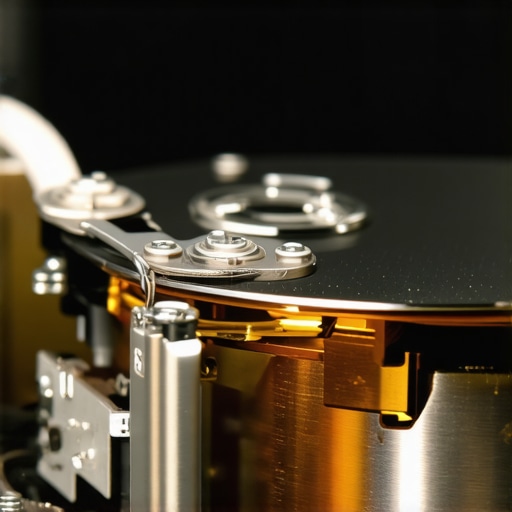
Does a cracked screen really lead to a dead motherboard?
It sounds like a scare tactic, but it is a very real nuance of modern laptop design. I often talk to clients who want to ignore a small crack because the display still works. However, why a cracked laptop screen can eventually damage your motherboard comes down to the voltage. Modern LED backlights require significant power, and a crack can cause a micro-short. Over time, that short can travel down the video cable and fry the display controller on your motherboard. It moves from a $150 screen swap to a $600 logic board replacement. If you’ve noticed how to fix a laptop screen that has white pressure spots, you’re already seeing the early signs of physical stress that needs attention before it escalates.
Think beyond the individual repair
For those running a small office, the ‘fix it when it breaks’ mentality is actually your most expensive strategy. People think they are saving money by not having a pro look at their systems until the spinning circle of death appears, but they’re ignoring the long-term security debt they’re building. Shifting toward managed IT strategies to keep your business secure in 2025 isn’t just about speed; it’s about making sure you aren’t the risk of ignoring that smart status bad warning on your pc. A managed approach catches that failing drive weeks before it crashes your Monday morning meeting. Have you ever fallen into the trap of trying to ‘clean’ your PC with a mystery app only to have it run slower? Let me know in the comments below, and let’s figure out what actually happened.I’ve spent thousands of hours in the trenches of computer repair, and if there is one thing I have learned, it is that a little bit of proactive care beats a frantic midnight data recovery session every single time. My personal toolkit isn’t filled with ‘magic’ cleaners; it’s built on raw data. For instance, I keep a dedicated bootable USB with GNU ddrescue. Unlike standard copy commands that give up when they hit a bad sector, ddrescue is designed to ignore errors and grab every possible bit of data before a drive completely dies. This is exactly why data recovery secrets expert techniques to save your files fast often involve low-level tools rather than fancy Windows apps. If you are serious about your hardware, you should be checking your drive’s health once a month using SMART data. I look at the ‘Reallocated Sectors Count’ specifically. According to the long-term reliability reports from Backblaze, a single reallocated sector makes a drive significantly more likely to fail within the next year, even if it seems to be working fine today.
How do I maintain my hardware health without becoming a full-time tech?
It’s easier than you think, but it requires breaking some bad habits. Start by keeping your machine cool. I’ve seen so many cases where the sign your cpu is thermal throttling and slowing down your work was simply a thick layer of dust in the fans. If you’re using a laptop, don’t keep it on your bed or carpet; that fabric acts like a vacuum for lint. Also, treat your screen with some respect. People often ask for laptop screen repair diy tips for clearer displays, but the best tip is pure prevention. Don’t pick up your laptop by the corner of the screen! That puts incredible torque on the hinges and the panel itself. I’ve seen dozens of people forced to research the fix for a laptop screen that shows strange horizontal black bars just because they were too rough with the lid during their morning commute. Beyond the physical, you need a strategy that scales as your business grows. If you are a business owner, you shouldn’t be the one manually checking these stats. That is where managed it solutions streamlining operations for small businesses really shine. They use RMM (Remote Monitoring and Management) tools to see a failing power supply or a dying SSD before you ever notice a lag in your workflow. I predict that in the next few years, we will see ‘self-healing’ BIOS systems become standard, where AI-driven diagnostics can actually reroute data around failing memory cells automatically. Until then, you are the first line of defense for your data. If you want to take your first step toward true PC mastery, stop guessing and start measuring. Download a tool like HWiNFO64 tonight and check your CPU temperatures while you’re working. If you’re seeing red numbers above 90°C, it’s time to stop ignoring the warning signs before troubleshooting common computer repair issues effectively becomes an emergency repair. You can always contact us if the numbers look scary and you need a pro to step in and save your system.
What Your Hardware Won’t Tell You Until It’s Too Late
After years in the repair shop, I’ve realized that digital health isn’t about one-time fixes; it’s about paying attention to the subtle hints your machine drops every day. A slight stutter in your cursor or a folder that takes an extra heartbeat to open are the early warnings of a system under stress. The risk of ignoring that smart status bad warning on your pc is that it turns a simple $100 maintenance task into a $1,000 emergency data recovery mission. I also learned the hard way that software ‘cleaners’ are rarely the answer for hardware-level lag. If your physical drive is struggling, no amount of registry scrubbing will give you back those lost minutes of your life.
The Secret Toolkit I Use to Keep PCs Running Like New
If you want to move from being a victim of your machine to its master, you need an arsenal of tools that focus on data, not fluff. I personally swear by HWiNFO64 to keep an eye on internal temperatures, as heat is the silent killer of both CPUs and SSDs. For those who want to be prepared for the worst, studying data recovery secrets expert techniques to save your files fast is a far better investment of time than hunting for the next ‘miracle’ optimization app. If you are running a business, the most powerful tool in your kit isn’t software at all—it’s a mindset shift toward managed it strategies to keep your business secure in 2025, which prevents these bottlenecks from happening in the first place.
#IMAGE_PLACEHOLDER_E#
Stop Watching the Circle and Start Working
You don’t have to accept a ten-minute boot sequence as an inevitable part of owning a computer. Whether you decide to perform a hardware swap yourself or simply prune your startup apps, taking action today will save you hours of frustration tomorrow. Modern computer repair is about being proactive rather than reactive. Don’t let your coffee go cold while you wait for a desktop to load; instead, take control of your storage health and thermal levels. If you’re dealing with physical issues beyond just speed, such as display glitches, you can check out laptop screen repair diy tips for clearer displays to see if it’s a fix you can tackle at home. Your time is your most valuable asset—don’t let an aging hard drive steal it from you. Have you ever ignored a strange clicking noise or a slow startup until your computer finally gave up? Share your experience in the comments below and let’s troubleshoot together!