

I was sitting at my kitchen table, the smell of burnt toast still lingering, staring at a progress bar on my laptop screen that hadn’t moved in twenty minutes. I had a deadline looming, a client waiting, and an office VPN that seemed to be powered by a literal hamster on a wheel. It’s that sinking feeling, isn’t it? You’ve got the fastest fiber at home, yet the moment you click ‘Connect’ to the office, everything grinds to a halt. I used to think it was just ‘one of those things’ we had to suffer through for the sake of security. I even made the rookie mistake of spending $300 on a high-end gaming router thinking it would solve the problem. Spoiler alert: it didn’t. I was chasing the wrong ghost. I almost sent my machine in for troubleshooting common computer repair issues because I was convinced my network card was failing. It wasn’t. Today, I’m going to share exactly what I learned so you don’t have to waste a Saturday morning swearing at your router.
Stop Blaming Your Wi-Fi for Your VPN Lag
We’ve all been there. You reset the router, you stand next to the access point, you even yell at your kids to get off Netflix. But the truth is, your home internet speed often isn’t the culprit. Most of the time, the bottleneck lives somewhere between your laptop and the server sitting in a dusty closet back at the main office. If your business is using managed IT solutions, you’d think they’d have this sorted, but sometimes even the pros overlook the basics of distance and protocol overhead. I remember one specific afternoon when I was trying to figure out which background program is eating your network bandwidth. I found nothing. The network was clean. The problem was that our VPN was using an outdated protocol that couldn’t handle the distance. We’re going to talk about MTU settings, server locations, and why public DNS might actually help your office network speed more than you realize.
Is a VPN actually worth the headache anymore?
You might be wondering if you should just ditch the thing entirely and use cloud-based tools instead. It’s a fair question. But for most of us, that’s not an option when sensitive data is on the line. According to research from the Global Connectivity Report, poorly configured VPNs can reduce effective bandwidth by as much as 40% due to encryption overhead alone. That’s a massive hit to your productivity. Before we dive into the technical weeds, have you ever felt like your VPN was specifically designed to make you hate your job? You should probably verify your employees are actually using the company VPN correctly, because sometimes the ‘slow’ connection is actually just a misconfigured client that’s trying to route your Spotify playlist through the office server. Let’s get into how we can turn that sluggish crawl back into a sprint.
Shrink Your Data Packets to Fit the Pipe
First, we need to address the Maximum Transmission Unit (MTU). Think of your internet connection like a narrow hallway and your data like a stack of moving boxes. If the boxes are too wide, they get stuck. VPNs wrap your data in an extra layer of encryption ‘bubble wrap,’ which makes the boxes significantly wider. If they exceed the hallway width, your computer has to tear the boxes apart and send them in pieces. This is called packet fragmentation, and it is a silent speed killer. I once helped a colleague who was looking for laptop screen repair diy tips for clearer displays because his video calls were so pixelated and choppy. He thought his hardware was failing. In reality, we just dropped his MTU setting from 1500 to 1400. Suddenly, those ‘broken’ video feeds were crystal clear because the data finally fit through the network pipe in one piece. 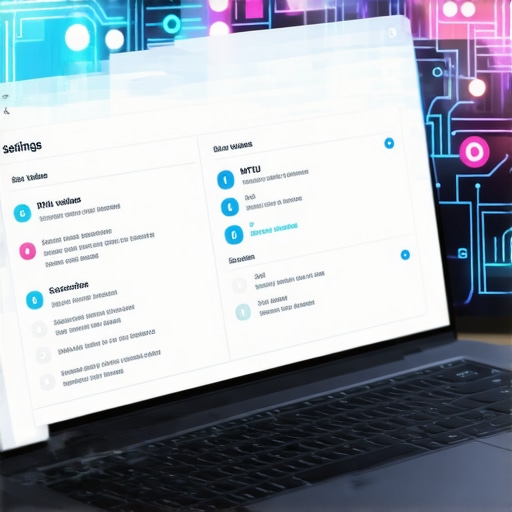
Cut Out the DNS Detour
Next, let’s look at your DNS settings. Most VPNs are configured to force all your web requests through the office server. If you have ever wondered about the truth about using public DNS for your office network speed, here is the short version: your office server is likely a bottleneck. Every time you click a link, your computer has to ask the office server for the address, wait for a reply, and then navigate there. If your office is across the country, you are adding hundreds of milliseconds of lag to every single click. If your security policy allows it, switching to ‘split-tunneling’ lets your VPN handle the sensitive work while your local connection handles the general web traffic. This is a staple in effective managed IT solutions for growing companies because it balances security with real-world usability.
Stop Thermal Throttling from Killing Your Connection
It sounds unrelated, but the physical state of your hardware impacts your VPN performance. Encryption is a CPU-intensive task. If your laptop is covered in dust or sitting on a blanket, it will get hot. When a processor gets too hot, it slows itself down to prevent permanent damage. You might notice why your laptop charger gets burning hot when you’re on a video call; this is a sign that your system is working overtime. I have seen users spend weeks trying to fix a ‘network issue’ when the real problem was that their CPU was throttled to 10% capacity because the fans were clogged. If you are constantly losing your signal, you should learn how to fix a laptop that keeps dropping the wi-fi signal, but don’t overlook the simple act of blowing some compressed air into your vents.
Audit the Traffic Jam on Your Own Network
Before you blame the office firewall, you need to be sure the call isn’t coming from inside the house. I remember a frantic Friday where I couldn’t even load an email. I was ready to call for troubleshooting common computer repair issues until I realized my own cloud backup was trying to upload 20GB of vacation photos in the background. If your connection is crawling, check for ‘rogue’ apps. Sometimes, the signs your office firewall is outdated and blocking the wrong traffic are actually just symptoms of a congested home upload stream. Your VPN requires a stable upstream to send your encryption keys and requests; if your kids are gaming or your photos are syncing, that VPN tunnel will collapse under the pressure.Most people think a slow VPN is a ‘line’ problem, but I’ve found that throwing more megabits at the problem is like putting a bigger engine in a car with the parking brake on. The real bottleneck is often your laptop’s processor struggling to keep up with encryption demands while juggling other tasks. If you’ve noticed why your laptop fan is screaming even when you are not using it, you are likely hitting a thermal limit. When the CPU throttles, it cannot process the VPN encryption packets fast enough. I have seen countless users make the computer repair for beginners-avoid-costly-mistakes error of replacing a perfectly good router when they just needed to learn how to clean a laptop fan without pushing dust deeper inside. 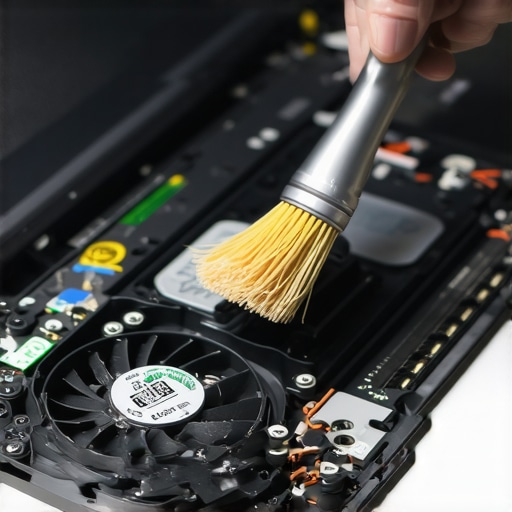 While we discussed MTU settings earlier, the advanced mistake is ignoring how your hardware handles those packets. Modern processors have AES-NI (Advanced Encryption Standard New Instructions), but if your laptop is several years old or running a restrictive power-saver plan, those instructions might be slowed down significantly. If you’ve been searching for the hardware component that causes the most blue screens of death, you might actually be looking at a RAM issue that only manifests when the VPN’s high-speed memory operations push your system over the edge.
Stop Running Recovery Software on a Clicking Drive
Another common ‘expert’ trap involves data. When a drive starts acting up, the instinct is to download a recovery tool. But here is the nuance: if your drive is making noise, software is your enemy. A study by data recovery firm Ontrack indicates that physical drive failures are exacerbated by up to 60% when users attempt DIY software recovery on failing mechanical parts. If you hear a click, stop. You need to know the danger of using free file recovery tools on a failing mechanical drive before you turn a simple recovery into a total loss. I’ve seen people lose years of photos because they didn’t understand that how to get files off a hard drive that makes a scraping sound requires a cleanroom environment, not a serial key from a website.
Does your 4K monitor setup actually throttle your office VPN?
It sounds like a stretch, but it’s a very real advanced mistake. High-resolution displays put a significant load on your GPU and CPU. If your machine is already working hard to push pixels to two 4K screens, it has fewer cycles left for real-time packet encryption. This is why tips for troubleshooting laptop screen problems-seamlessly often involves checking system resource allocation. If you’re seeing the reason your computer freezes specifically when you plug in a monitor, your VPN performance will inevitably tank. On the business side, I see a lot of ‘set it and forget it’ mentalities. Companies hire help but don’t realize why your managed it provider should be doing quarterly audits. Without these, your security protocols become ‘legacy’ overnight, slowing down your team with outdated encryption methods that don’t take advantage of modern hardware acceleration. You must ensure the reason your managed it provider needs a disaster recovery plan for you includes a performance audit, not just a security check. Have you ever fallen into the trap of buying new gear only to find out the problem was a simple setting or a dusty fan? Let me know in the comments.
It is easy to treat technology like a kitchen appliance—set it up once and forget it exists until it stops working. But a high-performance remote setup requires more than a passive attitude. If you want to avoid the frantic search for troubleshooting common computer repair issues effectively, you have to become proactive about your hardware’s health. I personally keep a can of compressed air and a high-quality microfiber cloth on my desk at all times. It sounds simple, but knowing how to clean a laptop fan without pushing dust deeper inside is the difference between a machine that lasts three years and one that dies in eighteen months. When your fans are clear, your CPU stays cool, which means your VPN encryption stays fast. I have seen too many people fall for computer repair for beginners-avoid-costly-mistakes by ignoring the physical buildup of grime that eventually throttles their entire workflow.
Keep Your Gear Cold and Your Connection Crisp
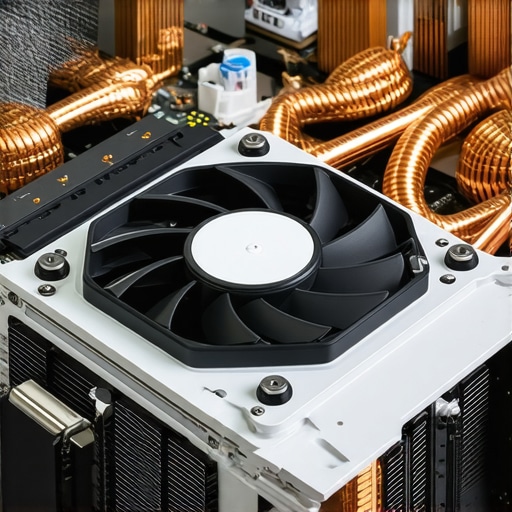
Beyond the physical cleaning, I recommend using a dedicated monitoring tool like HWMonitor or iStat Menus. These tools allow you to see exactly when your system starts to struggle. If you see your temperatures spiking over 90 degrees Celsius during a simple VPN-connected video call, you know you have a thermal issue, not a network one. This is also where you should be wary of the risk of ignoring that smart status bad warning on your pc. Your hard drive often gives you a final warning before it takes your data to the grave. According to the niche experts at Backblaze, whose 2023 Drive Stats report tracks thousands of units, drives that show even a single reallocated sector are exponentially more likely to fail completely within the next six months. If you catch these signs early, you can use data-recovery-secrets-expert-techniques-to-save-your-files-fast to migrate your life to a new drive before the ‘click of death’ starts.
How can I maintain my system performance over the long haul?
Consistency is the secret. I set a calendar reminder every quarter to audit my installed programs and network settings. For businesses, this is exactly why your managed it provider should be doing quarterly audits. They should be looking for ‘software rot’—those old, unused programs that start up with Windows and eat into the RAM your VPN needs. If you are growing a team, you will quickly realize why managed IT is a game changer for growing companies; it moves the burden of these ‘maintenance chores’ off your plate and onto a professional who uses automated scripts to keep everything optimized. Looking forward, I predict we will see more AI-driven local optimization tools that automatically adjust your MTU and packet priority in real-time based on your specific home network noise.
If you take away nothing else from my experience, take this: go into your VPN settings right now and check your protocol. If you are still on OpenVPN, try switching to WireGuard. It is leaner, faster, and much kinder to your laptop’s battery life and CPU. Let me know if that simple switch finally stops your fans from screaming during your morning meetings.
Lessons from the IT Trenches Most Users Overlook
Over years of helping people fix “slow internet,” I’ve realized that the bottleneck is almost always invisible. First, your internet service provider speed is often a marketing number rather than a productivity metric; you can have a gigabit connection, but if your VPN protocol is ancient, you are driving a high-performance car through a school zone. Second, physical dust is the primary enemy of encryption speed. A hot CPU is a slow VPN engine because it cannot handle the intense math required for secure tunnels. Finally, never trust a clicking hard drive to a software fix. If you want to avoid computer repair for beginners-avoid-costly-mistakes, learn to listen to your machine’s fans and vibrations before the hardware gives up entirely.
Steal My Performance Optimization Toolkit
To keep my own workflow from grinding to a halt, I rely on a few specific resources. For thermal monitoring, HWMonitor is my go-to for catching overheating before it throttles my connection. I also swear by the WireGuard protocol whenever a VPN allows it—it’s significantly more efficient than legacy options. For staying ahead of drive failures, I keep an eye on Backblaze’s annual drive stats to know which hardware to avoid. If you’re running a business, implementing managed IT as a game changer for growing companies ensures you have professionals using even better enterprise-grade monitoring tools on your behalf.
Reclaim Your Digital Peace of Mind
Technology should empower you, not become a second job where you spend all day troubleshooting common computer repair issues effectively. By taking these small steps—cleaning your fans, adjusting your MTU, and auditing your background apps—you’re not just fixing a laggy VPN; you’re extending the life of your entire system. If you ever hit a wall where software tweaks aren’t enough, don’t wait for a total crash to look for data recovery secrets and expert techniques. Stay proactive, stay cool, and keep your connection crisp. Have you ever discovered a surprisingly simple fix for a massive technical headache? Let me know in the comments below!