

I was halfway through a high-stakes Zoom presentation when the dreaded ‘Connecting…’ wheel of death appeared. My boss was mid-sentence, my screen froze into a pixelated mess, and my Wi-Fi signal just vanished. I was sitting five feet from my router. In that moment of pure, unadulterated frustration, I almost chucked my expensive laptop across the room like a Frisbee. We have all been there—that visceral panic when you realize your connection is about as stable as a house of cards in a hurricane. Whether you are trying to close a deal or just finish a Netflix binge, a flakey connection is more than a nuisance; it is a productivity killer.
Stop the Constant Disconnecting Without Losing Your Mind
If you have found yourself frantically toggling Airplane Mode just to get a website to load, I have some good news: you are not crazy, and your laptop probably is not broken beyond repair. Often, the culprit is hidden deep in your settings or is a result of simple interference that most people overlook. I remember when I first started tinkering with my own gear, I made the classic mistake of thinking I needed a brand-new router. I spent way too much money on a fancy mesh system only to realize the issue was a simple power-management setting in Windows that was putting my network card to sleep. It was an embarrassing lesson in computer repair for beginners that I do not want you to repeat. Today, we are going to look at the real reasons behind the reason your computer is freezing during high-definition video calls and how to lock down your signal once and for all. Have you ever felt like your laptop specifically waits for the most important moment of your day to drop the connection?
Is My Hardware Just Cheap or Is It Actually Broken?
A lot of folks worry that their network card is fried and they are looking at a massive bill. The truth is that according to the IEEE, up to 50% of signal degradation in residential areas comes from simple physical obstructions and signal overlapping from neighbors, not hardware failure. Before you start looking into troubleshooting common computer repair issues effectively, we need to rule out the simple stuff first. If you are running a company from home, you might even find that your small business should not rely on a single consumer-grade router to handle the heavy lifting. We are going to dive into the settings that actually matter and the physical tweaks that can turn a spotty connection into a rock-solid bridge to the internet.
Force Your Network Card to Stay Awake
The first thing you need to do is stop your laptop from being its own worst enemy. Windows has a notorious habit of trying to save battery life by essentially putting your Wi-Fi card into a nap. Imagine a security guard who decides to take a snooze every fifteen minutes just because the gate hasn’t opened; that is exactly what your Power Management settings are doing. To fix this, right-click your Start button and open Device Manager. Find the ‘Network adapters’ section, right-click your Wi-Fi card, and select Properties. Under the Power Management tab, uncheck the box that says ‘Allow the computer to turn off this device to save power.’ I once spent three hours rebuilding a Windows profile for a local accountant only to find this one tiny checkbox was the culprit. It was a humbling moment in troubleshooting common computer repair issues effectively that taught me to always check the ‘dumb’ settings first. 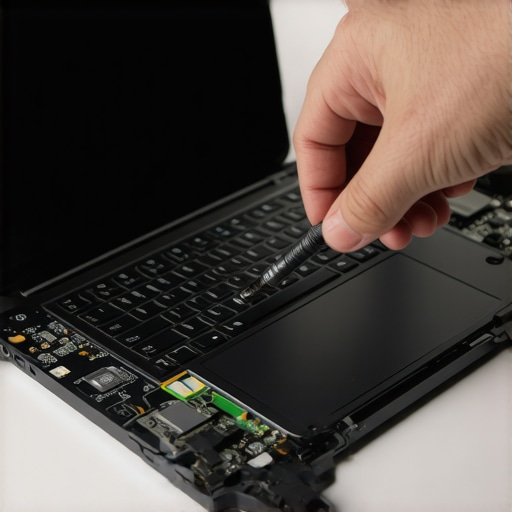
Identify the Bandwidth Vampires Hiding in Plain Sight
If your connection isn’t dropping entirely but feels like it is crawling through molasses, you probably have a background process eating your lunch. This is especially common during video calls. You might be focused on the meeting, but in the background, OneDrive or a Windows Update is trying to push 5GB of data through the same narrow pipe. You need to learn how to find out which background program is eating your network bandwidth before you blame your router. Open your Task Manager, click ‘More details,’ and sort by the Network column. If you see ‘Service Host’ or a cloud storage app hogging the megabits, kill the task and see if your signal stabilizes. This is a classic move that addresses the reason your computer is freezing during high-definition video calls without requiring a hardware overhaul.
Check Your Drivers Before You Buy New Parts
Drivers are the translators that help your hardware talk to your software. If the driver is outdated, the translation gets garbled, and the connection drops. Do not rely on Windows Update for this; it often pulls generic drivers that are ‘good enough’ but not optimal. Go directly to the manufacturer’s website (Intel, Realtek, or your laptop brand) and download the specific driver for your model. Sometimes, a simple software refresh is the the easiest way to upgrade a slow PC without buying a new one.
When the Hardware Is the Problem
If you have tried the settings and the drivers and you are still seeing the ‘No Internet’ globe, we have to look at the physical card. Over time, the tiny antenna cables inside your laptop can wiggle loose from the Wi-Fi card. I’ve seen this happen after a minor drop—even if the laptop screen repair wasn’t needed, the internal vibration was enough to pop a connector. If you are comfortable opening your machine, ensuring those two gold-plated wires are snapped firmly onto the card can save you a trip to the shop. If the card itself is failing, it might be one of the 3 hardware swaps that stop your office pc from freezing every hour that actually makes a difference.While we are on the subject of fixing things ourselves, I need to address the elephant in the room: the dangerous myth of ‘one-click’ data recovery. Most people believe that if a drive stops working, they can simply download a free utility and hit ‘Scan’ to get their files back. In my experience, this is the fastest way to turn a recoverable situation into a permanent data funeral. If your drive is making any noise—clicking, grinding, or buzzing—running software is the absolute worst move you can make. You are essentially forcing a damaged physical component to work harder, which often leads to the read-write heads scratching the actual platters. This is a classic trap in the danger of using free file recovery tools on a failing mechanical drive. I have seen clients lose a decade of irreplaceable business records because they tried a ‘deep scan’ on a drive with a failed bearing. Instead of a fix, they performed a digital autopsy while the patient was still alive. 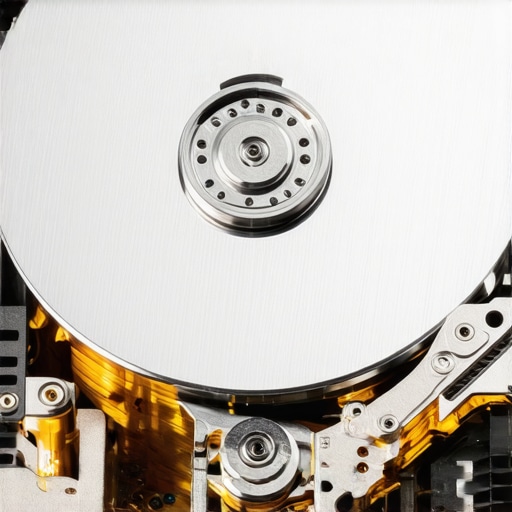
Can Software Really Fix a Drive That Sounds Like a Buzzsaw?
The short answer is a hard no. According to data analysis from Backblaze, mechanical failure rates typically spike after the four-year mark, and these are physical breakdowns that no amount of code can repair. When your computer stops seeing a drive, it might not be a total hardware failure yet; it could be a logical corruption. In those specific cases, you need to know how to pull data from a drive with a corrupted file system header using precise, low-impact tools rather than generic scanners. If you hear a physical ‘click,’ the ‘oops’ factor here is leaving the drive powered on. Every second that disk spins is a second it’s destroying itself. If the data is critical, the only move that works is immediate power-down and seeking data recovery secrets expert techniques to save your files fast.
Stop Playing Whack-a-Mole with Your IT Issues
This reactive ‘break-fix’ cycle is exactly what keeps small businesses in a state of constant anxiety. You wait for the Wi-Fi to drop or the server to click before you act, but the most sophisticated users have moved beyond that. This is where managed IT solutions streamlining operations for small businesses come into play. It is a shift in mindset from ‘how do I fix this’ to ‘how do I prevent this from ever happening.’ A nuanced approach involves monitoring the SMART status of your drives and the heat levels of your network cards before they fail. It’s about understanding why your business needs a disaster recovery plan before the storm hits, rather than trying to build a boat while you are already underwater. Relying on luck is not a strategy. Have you ever fallen into the ‘just one more scan’ trap? Let me know in the comments.When I am out in the field, I don’t just rely on luck; I rely on a specific diagnostic stack that gives me an edge. For instance, I always keep a dedicated bootable drive with MemTest86 to check for faulty RAM, which is often the hardware component that causes the most blue screens of death. For drive health, I use CrystalDiskInfo to monitor S.M.A.R.T. data. This allows me to see the risk of ignoring that smart status bad warning on your pc before the clicking starts. If you are handling sensitive client files, you need more than just software. You need to understand the power of data recovery tools what you need to know to keep those bits and bytes safe during a transfer.
How can I keep my hardware alive for five years or more?
Consistency is the only thing that works. You should be performing a physical audit every quarter. This includes checking for cable strain and knowing how to clean a laptop fan without pushing dust deeper inside. Overheating is the number one cause of component degradation. If you are a business owner, you also need to segregate your traffic; I always recommend that your business needs a separate wi-fi network for smart devices to prevent a compromised smart bulb from becoming a gateway to your server. As digital asset management expert Peter Krogh famously noted with his ‘3-2-1 rule,’ you need three copies of your data, on two different media, with one copy offsite. Anything less is just a countdown to a data disaster. 
Managed IT is the secret to scaling without the stress
As your business grows, you can’t be the person who checks every fan and every update. This is where managed IT strategies to keep your business secure in 2025 become essential. Scaling requires moving away from the ‘fix it when it breaks’ model to a proactive stance. You need effective managed IT solutions for growing companies that monitor your environment 24/7. In the near future, I predict we will see fully autonomous AI systems that not only predict hardware failures but also isolate compromised network segments before a human even sees an alert. If you want to get ahead of the curve, I highly recommend checking the first thing to check when your backup drive says it is full early to ensure your safety net hasn’t quietly failed you. Try this today: download a free S.M.A.R.T. monitoring utility and check the health of your main OS drive. If the health is below 90%, it is time to start planning your next move.
What the Repair Bench Taught Me About False Hope
After years of handling hardware, I have realized that the ‘one last try’ mentality is usually what kills a drive for good. If you hear a scraping sound, that is the physical disk being carved like a record. My biggest lightbulb moment was realizing that data isn’t just software; it is physical magnetism on a spinning platter. When that physical medium fails, you need data recovery secrets expert techniques to save your files fast rather than another reboot. I also learned that 90% of ‘bad’ Wi-Fi is actually just poor placement or outdated firmware, not a faulty chip. Don’t be afraid to move your router or update the bios; often, the scariest problems have the simplest solutions if you stay calm and systematic.
The Tools I Keep in My Digital First-Aid Kit
I never troubleshoot blindly. I always start with MemTest86 because RAM is secretly the hardware component that causes the most blue screens of death. For drives, I trust CrystalDiskInfo—it is the only way to see if you are at the risk of ignoring that smart status bad warning on your pc before the disaster strikes. For network issues, Wi-Fi Analyzer apps on your phone can show you exactly which channels your neighbors are crowding. Finally, always keep a high-quality screwdriver set like iFixit nearby; you would be surprised how many ‘dead’ laptops just have a loose internal ribbon cable. #IMAGE_PLACEHOLDER_E#
Build a Connection That Actually Lasts
You do not have to be a tech wizard to have a reliable setup. You just have to stop waiting for things to break. For a growing business, realizing why managed IT is a game changer for growing companies is the first step toward reclaiming your focus. By implementing managed IT strategies to keep your business secure in 2025, you turn your technology from a constant liability into a silent partner. Computer repair and network maintenance do not have to be a recurring nightmare if you build a foundation that prevents the fire in the first place. Have you ever ignored a clicking sound or a slow Wi-Fi signal only to have it fail at the worst possible moment? Share your story below.