

I remember it vividly. I was in a high-stakes client meeting—the kind that defines your quarter—and right as I was about to present the lead generation data, my screen locked up. My boss’s face became a pixelated mosaic, the audio stuttered like a broken record, and my laptop sounded like it was trying to launch into low-Earth orbit. It wasn’t just embarrassing; it was a wake-up call that my hardware was screaming for help. I used to think a quick reboot was the magic cure, but that’s like putting a band-aid on a broken leg. Today, I’m going to show you exactly how to identify the culprits behind these freezes so you can stop dreading the ‘Join Meeting’ button. [IMAGE_PLACEHOLDER]
Your PC Isn’t Breaking It Is Just Overwhelmed
It’s a common misconception that video calls are ‘light’ work. In reality, encoding high-definition video in real-time is one of the most taxing things you can ask a processor to do. Early in my career, I made the mistake of thinking my fan noise was just a quirk of the brand, but I was actually witnessing the sign your CPU is thermal throttling. When your computer gets too hot, it intentionally slows down to prevent melting itself, which leads to those agonizing freezes. Often, you might even notice that your laptop charger gets burning hot when you’re on a video call, which is a huge red flag that your system is drawing maximum power and generating massive heat.
Is My Hardware Just Too Old to Keep Up?
This is the biggest fear I hear from neighbors and clients alike. They worry they need to drop two grand on a new machine. While older chips do struggle, most of the time the issue is manageable through optimization or simple upgrades. According to hardware stress-test benchmarks from sites like Tom’s Hardware, even mid-range laptops from three years ago can handle 1080p calls if they aren’t choked by background processes or dust. You don’t always need a new PC; sometimes you just need the 3 hardware swaps that stop your office PC from freezing.
Stop the Jet Engine Noise Before the Crash
If your computer sounds like a turbine the second the camera turns on, you’re dealing with an airflow crisis. I once ignored a noisy laptop fan that sounded like a jet engine for months until the motherboard finally gave up the ghost. High-definition video requires consistent, high-speed calculations. If that heat isn’t moving out, the data stops moving too. Have you ever had your computer freeze right at the climax of a presentation? It’s a frustrating experience that usually boils down to a few specific settings or a bit of trapped lint. We’re going to dive into the settings you can toggle right now to breathe life back into your machine.
Look Under the Hood Without Opening the Case
To solve the freezing issue, you need to act like an air traffic controller for your computer’s data. Start by opening your Task Manager—just right-click your taskbar or hit Ctrl+Shift+Esc—and head straight to the ‘Processes’ tab. You are looking for anything highlighted in a deep orange or red. If your video call software is hovering at 90% CPU usage, you’re redlining your hardware. Often, the culprit isn’t the meeting software itself but hidden background tasks that have no business running during your pitch. You need to know how to spot a suspicious process in your task manager so you can kill the right tasks without crashing your system.
Clear Out Your Browser’s Hidden Weight
We all do it—keeping thirty tabs open because ‘I might need that later.’ Think of each tab as a separate person trying to talk to you at once; eventually, your brain (the CPU) stops processing information. If you notice your system lagging specifically when Chrome is open, it might be time for the hardware upgrade that stops your browser from crashing with too many tabs. I remember helping a local accountant who was ready to throw his laptop out the window during tax season. It turned out he had three different cloud-syncing apps and fifty tabs open. Once we upgraded his RAM from 8GB to 16GB, the freezes vanished instantly. #IMAGE_PLACE_HOLDER_B#
Stop the Heat from Killing Your Performance
If your PC sounds like a turbine, it’s struggling to breathe. There is a specific reason why your computer gets loud when you open more than five browser tabs, and it usually involves your processor working overtime to keep up with the data flow. When the heat builds up, the system throttles down its speed to stay safe, which is why your video stutters and your mouse feels like it’s moving through molasses. Grab a can of compressed air and clear those vents before you assume the motherboard is fried.
Hardware Swaps for a Faster Workflow
If software cleanup doesn’t do the trick, don’t rush to buy a new machine. Most office bottlenecks are caused by slow mechanical hard drives that can’t feed data to the CPU fast enough. Swapping an old HDD for a modern SSD is like trading a bicycle for a sports car. Focus on the 3 hardware swaps that stop your office PC from freezing to get the best return on your investment. I’ve seen five-year-old laptops outperform brand-new budget models just by making these quick, affordable changes. It is about maximizing the efficiency of your current workstation rather than starting from scratch.
Let’s dig deeper into the logic of why your system is actually failing, because most advice you find online is dangerously oversimplified. There is a persistent myth that if your computer starts freezing or making odd noises, you can simply download a ‘fix-it’ utility and call it a day. In reality, that is the fastest way to turn a minor repair into a total data disaster. Everyone says to try free software first, but in my experience, running scan-heavy utilities on a struggling drive is like asking a marathon runner to sprint on a broken ankle.
The Data Recovery Trap You Must Avoid
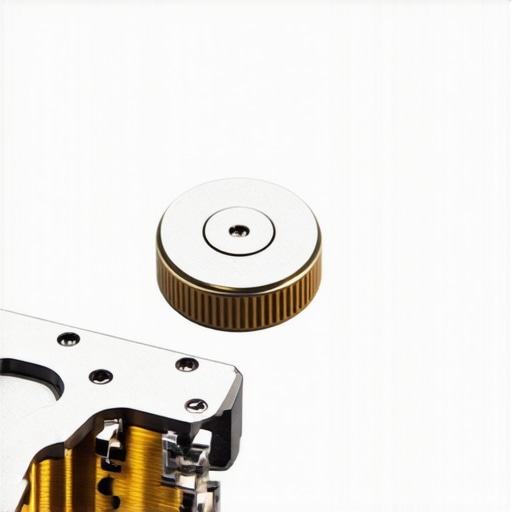
The biggest mistake I see involves the ‘click of death.’ If you notice why your office pc makes a clicking sound when you open files, stop everything. Most beginners think they can just run a file recovery program. However, according to data recovery experts at Kroll Ontrack, mechanical failure is a physical problem that software cannot fix. In fact, the danger of using free file recovery tools on a failing mechanical drive is that these programs force the drive to spin at high speeds, which can cause the read-write head to physically scrape the data right off the platter. If you hear grinding, you need to know how to pull critical data from a hard drive that makes a scratching sound before the surface is destroyed forever.
Why does my PC freeze specifically when I plug in a monitor or USB?
This is a sophisticated nuance that often points to a grounding issue or a failing power delivery system on the motherboard. It isn’t always a driver bug. I’ve seen cases where the reason your computer freezes specifically when you plug in a monitor is actually a tiny electrical short in the HDMI port. Similarly, the reason your computer freezes when you plug in a usb device can be a sign that your power supply (PSU) can no longer handle the sudden 5V draw required by the peripheral. These hardware-level conflicts are why ‘reinstalling Windows’ rarely fixes a freezing office PC. You are dealing with physical components that are reaching their end-of-life cycle.
Screen Issues Aren’t Always Screen Failures
Another common ‘oops’ factor involves laptop displays. People see a flicker and immediately order a new panel. Before you spend money, check if it is a power state issue. Sometimes, learning how to fix a laptop screen that is flickering only on battery power can save you hundreds, as the culprit is often an aggressive ‘Intel Power Saving’ setting rather than a broken screen. If the hardware actually is damaged, make sure you look for laptop screen repair diy tips for clearer displays to ensure you don’t snap the delicate ribbon cables during the swap. Have you ever fallen into the trap of buying a new part only to realize it was a software setting? Let me know in the comments.
Catch Failures Before They Catch You
I have spent years in the trenches of hardware diagnostics, and the one thing I’ve learned is that components rarely die without a warning. They whisper before they scream. I personally rely on a simple routine: every quarter, I run a diagnostic check using S.M.A.R.T. data monitoring tools. This isn’t just for tech geeks; it’s a survival tactic. You need to know how to check if your hard drive is about to fail using s.m.a.r.t data because it gives you a window of opportunity to clone your drive before the clicking starts. Many people see a pop-up and ignore it, but I’ve seen enough tragedies to know the risk of ignoring that smart status bad warning on your pc. It is essentially your computer telling you it is time to say goodbye, and you shouldn’t let that happen without a backup in hand.
How do I maintain my hardware health over the long haul?
Consistency beats intensity every time. Instead of waiting for a crash, I keep a can of compressed air at my desk and a specific software toolkit ready. Beyond just cleaning the dust out of your vents, you should be auditing your startup programs. I’ve seen brand-new workstations crawl because of bloatware. If you’re just starting to manage your own equipment, there are some critical computer repair for beginners avoid costly mistakes you should read to ensure you aren’t doing more harm than good. One specific tip I swear by is checking the reliability of your storage brands. According to the Backblaze Drive Stats reports, which track failure rates across thousands of drives, not all hardware is created equal. I use this data to decide the hardware part you should never buy used for your business, ensuring I’m never the bottleneck in my own workflow.

When to Step Aside and Let the Pros Handle It
There is a point where the ‘DIY’ spirit starts costing you more than a professional bill. If you are running a small team, your time is better spent on lead gen than on troubleshooting a patchy Wi-Fi signal. This is where moving from ‘fix-it-as-it-breaks’ to a proactive model changes everything. Understanding why managed it is a game changer for growing companies can be the difference between a minor hiccup and a week-long shutdown. It’s about having a safety net. For example, I always insist that your business needs a disaster recovery plan before the storm hits. If your office flooded tomorrow, would you know how to get your data back? If the answer is ‘no,’ you’re playing a dangerous game of Russian Roulette with your livelihood.
The Future of Predictive Hardware Health
Looking ahead, the trend is moving away from manual diagnostics and toward AI-driven predictive maintenance. We are starting to see software that can analyze the ‘hum’ of a fan or the slight voltage fluctuations in a PSU to predict a failure weeks in advance. This level of managed it strategies to keep your business secure in 2025 will become the standard. I predict that within five years, your laptop will proactively order its own replacement battery or SSD before you even notice a slowdown. For now, your best move is to be proactive. Go into your BIOS tonight, check your health logs, and if anything looks yellow or red, don’t wait. Download a reputable S.M.A.R.T. utility and check those drive hours today.
The Hard Truth About Why Some Repairs Just Can’t Wait
Over the years, I’ve seen hundreds of clients wait until their screen is a static mess before asking for help. The biggest lesson I’ve learned is that a $50 maintenance fix today prevents a $1,500 replacement tomorrow. You don’t need to be a tech genius to troubleshoot common computer repair issues effectively; you just need to listen when your machine starts complaining. I once ignored a slight rattle in my own desktop and ended up losing a whole week of work because I didn’t want to open the case. Don’t be like younger me—take the warning signs seriously.
Another lightbulb moment for me was realizing that most ‘software’ slowdowns are actually hardware cries for help. If you know how to identify a failing motherboard before it stops working, you can migrate your data while the system is still stable. It turns out that ‘turning it off and on again’ only resets the clock; it doesn’t fix the underlying heat or power delivery problem.
[IMAGE_PLACEHOLDER]
Where I Turn When My Own Workstation Acts Up
I don’t just guess when things go wrong; I use a specific set of tools that keep my business running smoothly. For anyone looking to get serious about their hardware health, I highly recommend keeping a copy of data recovery secrets expert techniques to save your files fast in your digital bookmarks. Beyond software, I rely on hardware monitoring tools like HWMonitor to keep an eye on those thermal levels we discussed earlier. If you are running a business, you shouldn’t be doing this alone. Switching to effective managed IT solutions for growing companies was the best decision I ever made for my own sanity, as it moves the burden of ‘what if’ onto a team of pros.
Build a Setup That Works as Hard as You Do
Your computer is the engine of your career. Treat it with the same respect you’d give a high-performance vehicle. By being proactive with your computer repair and maintenance, you aren’t just saving money—you’re saving yourself from the gut-wrenching stress of a mid-meeting crash. Start with one small change today, whether it’s cleaning your vents or auditing your startup apps. The managed IT strategies to keep your business secure in 2025 are already here, and they favor those who take action early. Have you ever ignored a weird clicking noise or a hot charger only for your PC to fail at the worst possible moment? Let me know in the comments below!