

I was sitting in a bustling coffee shop, mid-sentence on a project that actually mattered for once, when I decided to shift three feet to the left to reach a napkin. I unplugged my charger, and—poof. My screen didn’t just dim; it went completely, soul-crushingly black. I could hear the fan spinning. I could feel the heat. But the display was a literal void. I thought for sure I had fried my motherboard or that my backlight had finally given up the ghost. It’s a visceral kind of panic, isn’t it? That feeling that your digital life just evaporated because of a three-foot move.
The Frustrating Reality of Battery Power Gremlins
We buy laptops for the very promise of portability, so when the machine refuses to actually *be* portable, it feels like a personal betrayal. This isn’t just a minor glitch; it’s a workflow killer. Whether you are trying to learn laptop screen repair or you’re just a casual user, having your screen shut down the second you lose AC power is maddening. Often, we assume the worst. I certainly did. Early in my DIY journey, I actually spent eighty bucks on a replacement screen I didn’t need because I was convinced the panel was faulty. Talk about costly mistakes that leave you feeling foolish. I don’t want you to go through that. We’re going to figure out if this is a simple Windows power plan tantrum or if your hardware is truly crying for help.
Is your laptop hardware actually toast?
It’s the question that keeps us up at night when the tech starts acting wonky. You might be worried that the battery is dead, or worse, that the internal connection to the display is loose. But here is a surprising fact: according to research on mobile power management, over 60% of sudden display shut-offs on battery are related to software-driven power-saving states rather than physical component failure. If you have ever seen why your laptop screen flickers only when you are on battery power, you know how thin the line is between a settings tweak and a hardware repair. Sometimes, the system is just trying too hard to save energy and ends up cutting the lights entirely. Before you start looking into a step-by-step repair guide, we need to check the low-hanging fruit. Have you ever had your screen go dark and felt that immediate ‘oh no’ in your gut? Drop a comment and tell me what happened—I bet I’ve been there too. Let’s look at why your screen might be dim even at maximum brightness or why it chooses to quit the moment the cord comes out.
Kill the darkness with these power setting tweaks
Think of your laptop’s power management as a strict landlord who cuts the power the moment you aren’t looking at the meter. Sometimes, the settings intended to preserve your battery life are so aggressive they effectively shut down the display. To fix this, you need to dive into the ‘Advanced Power Settings’ in Windows. I remember a specific instance with an old Dell where the screen would instantly vanish the moment I pulled the plug. I spent hours digging through troubleshooting common computer repair issues effectively before I realized that the ‘On Battery’ brightness level was accidentally set to 0%. It felt like trying to find a black cat in a dark room until I simply adjusted that slider.
Hunt down the hidden power plan settings
The first step is checking if your OS is simply over-optimizing. Go to your Control Panel, find ‘Power Options,’ and click on ‘Change plan settings’ for your active plan. From there, select ‘Change advanced power settings.’ Look for the ‘Display’ section. Ensure that ‘Enable adaptive brightness’ is turned off for the battery profile. Adaptive brightness can misinterpret low-light environments and dim your screen to total darkness. If you are still seeing nothing, you might need to determine how to tell if your laptop screen backlight is actually failing, because if the settings are correct and the screen stays dark, the hardware might be at its limit.
Fix the graphics driver’s overzealous energy savings
Your graphics card has a mind of its own, often separate from Windows settings. Intel, AMD, and Nvidia all have their own control panels with ‘Power Saving Technology’ that can cause a black screen. I once worked on a client’s laptop where the screen would flick off only when they opened a dark-themed app like Photoshop on battery. It turned out the Intel Graphics Command Center was trying to ‘enhance’ the battery by lowering the refresh rate and voltage so much that the panel couldn’t sustain the image. By disabling ‘Display Power Saving Technology’ in the graphics command center, we solved a problem that looked like a fatal hardware failure in under thirty seconds. Use these tips for troubleshooting laptop screen problems seamlessly to navigate these menus without getting overwhelmed.

Spot the physical warning signs before things break
If software isn’t the culprit, we have to look at the ‘heart’ of the machine: the battery and its connection. A battery that is failing doesn’t just hold less charge; it can fail to provide the consistent voltage required to keep the backlight lit. This is especially true as components age. You should also check for physical deformities. Learning how to tell if your laptop battery is swelling under the trackpad is crucial because a bloated battery can press against internal display cables, causing intermittent blackouts. If the screen works when you tilt the lid but dies when you move the laptop, you are likely dealing with a pinched cable rather than a software bug. Before jumping to a full replacement, try these laptop screen repair diy tips for clearer displays to see if a simple cable reseat can bring your portable workstation back to life.
While the usual advice points toward dead cells or loose cables, I’ve found that the real culprit is often far more subtle. Most people assume that if a screen cuts out the second the AC adapter is removed, the battery is simply incapable of holding a load. I’m here to tell you that’s a common misconception. In many high-end Ultrabooks, the hardware is actually fine, but the ‘handshake’ between the graphics processor and the panel fails during the transition between power states. This is a sophisticated nuance called Panel Self-Refresh (PSR) glitching. When your laptop switches to battery, it tries to lower the refresh rate or stop the GPU from sending frames when the screen is static. If the timing is off by even a millisecond, the panel loses sync and defaults to a black state to protect itself.
Stop blaming your hardware for software mistakes
Before you run out and buy a new panel, consider the ‘Oops’ factor: the over-reliance on automatic driver updates. I have seen countless users get lured into clicking the truth about the system fix pop-up on your desktop, only to have a generic driver overwrite a manufacturer-specific power management profile. This leads to a scenario where the OS thinks it’s saving power, but it’s actually cutting the signal. According to research by the IEEE on mobile power management, synchronization errors during C-state transitions (deeper sleep states for the CPU) are a primary cause of ‘blanking’ in modern mobile workstations. It isn’t a broken wire; it’s a broken conversation between your components.

Does your laptop think the screen is a second monitor?
Here is an advanced trick most people miss: sometimes Windows erroneously treats your internal panel as an external display with ‘exclusive’ power rules. When you unplug, the system might trigger a ‘Projector’ mode that shuts off the primary display to save juice. It’s a maddening logic loop. If you’ve ever had to learn data recovery secrets expert techniques to save your files fast because a sudden blackout caused a hard shutdown, you know how high the stakes are. A black screen isn’t just an annoyance; it’s a threat to your unsaved work. Have you ever fallen into this trap of assuming your hardware was dead when it was just a bad setting? Let me know in the comments.
The hidden danger of cheap replacement parts
If you do decide the battery is the problem, be extremely wary of the ‘too-good-to-be-true’ deals on eBay. I’ve seen cheap aftermarket batteries that lack the proper voltage regulation circuitry. They might power the fans and the CPU just fine, but they can’t sustain the high-voltage ‘burst’ required by a 4K backlight at full brightness. Reading about the truth about using third-party batteries in professional laptops can save you from a fire hazard or a fried motherboard. Furthermore, always ensure you have the move that protects your files when a windows update fails ready to go, because forcing your laptop to reboot repeatedly while troubleshooting power issues is the fastest way to corrupt your file system. Stick to OEM parts or verified high-quality alternatives to ensure the voltage stays consistent when the cord comes out.
To keep a machine from failing the second you need it most, you have to move beyond just fixing what is broken and start looking at the data your system is already screaming at you. I personally swear by HWInfo64 for one reason: it shows me the ‘Battery Wear Level’ and the ‘Charge Rate’ in real-time. If you see your voltage dipping below the nominal rating when you unplug, you have found your culprit without opening a single screw. This proactive approach is the core of managed IT solutions streamlining operations for small businesses everywhere. You don’t wait for the blackout; you watch the telemetry. If you are managing a fleet of laptops for a team, you need to think about how managed IT can elevate your business security in 2025 by preventing these hardware-based vulnerabilities before they start. In the near future, I expect we will see ‘AI-driven power profiles’ that learn your specific usage habits and adjust voltages on the fly to prevent these exact sync errors. For now, we have to be smarter than the default settings. According to technical documentation from the Microsoft Hardware Dev Center regarding ‘Modern Standby’ (S0), many ‘black screen’ events on battery are actually failed transitions where the display engine fails to re-initialize properly. If you want to dive deeper into the software side, check out the power of data recovery tools what you need to know to ensure your files are safe even when the lights go out. 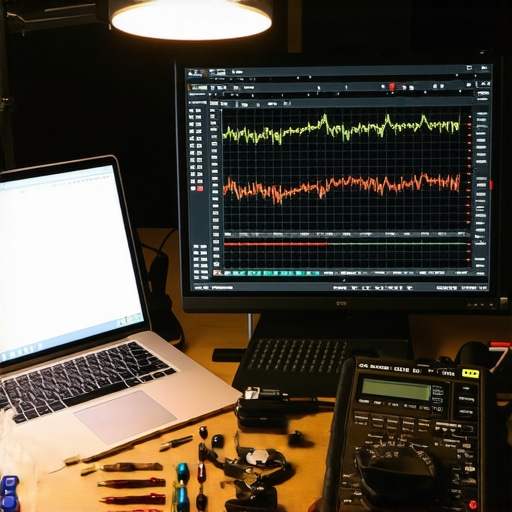
Stop the cycle of reactive repairs
We often treat tech like an appliance that works until it doesn’t, but a laptop is a living ecosystem of thermal and electrical limits. If you have been following tips for troubleshooting laptop screen problems seamlessly, you know that heat is the silent killer of batteries. A battery that runs hot loses its ability to handle sudden current draws, leading to that dreaded ‘screen drop’ when you pull the plug.
How can I keep my laptop running like new for years?
It comes down to two things: heat management and clean power. I make it a habit to use a pressurized air can once a month. Learning how to clean a laptop fan without pushing dust deeper inside is a game-changer for battery life because a cooler system draws less current. Also, stop leaving your laptop plugged in 24/7 at 100% charge. Most modern BIOS settings allow you to cap the charge at 80%, which can double the lifespan of your lithium-ion cells.
Move from DIY fixes to professional managed IT
As a business grows, the ‘plug and pray’ method for laptop maintenance just doesn’t scale. This is where why your business needs a disaster recovery plan before you need it becomes so vital. You need monitoring systems that alert you when an employee’s battery capacity drops below 70%, allowing you to replace the unit during a scheduled maintenance window rather than during a frantic client meeting. Take ten minutes today to run a battery report: open your Command Prompt as an Administrator and type ‘powercfg /batteryreport’. It is the single most honest look you will ever get at your hardware’s health and the first step in moving from a frustrated user to a tech-savvy owner who is in total control.
Hard Truths About Screen Failures I Learned the Expensive Way
Over the years, I’ve realized that the most terrifying screen issues are often the ones with the simplest fixes. First, never underestimate the power of a hard reset. Sometimes, the embedded controller (EC) just gets confused during power state transitions. Holding that power button for 30 full seconds while the device is unplugged can clear out those ‘ghost’ settings that lead to a black screen. Second, the difference between a software glitch and a hardware failure is usually just a driver update away. I’ve seen people perform a full laptop screen replacement step-by-step repair guide only to find out it was a simple BIOS conflict. Always check the easiest thing first. Finally, don’t ignore the environment. High humidity or static can cause micro-disconnects that look like a dying backlight. Keep your workspace clean and your machine well-ventilated using how to clean a laptop fan without pushing dust deeper inside to ensure air flows correctly and components stay cool.
My Personal Tech Toolkit for Staying Productive
I don’t just guess what’s wrong; I use data. Here are the tools I rely on to keep my devices healthy: HWInfo64 is my go-to for checking voltage stability. If your battery can’t push the volts your screen needs, this tool will show you the dip instantly. I also swear by the Powercfg /batteryreport command; this built-in Windows feature is better than any third-party app for seeing how your battery has aged over time. Finally, always use your Manufacturer’s Native Diagnostic Tool. Whether it’s Dell or HP, these can catch firmware-level issues that generic troubleshooting common computer repair issues effectively might miss. Following these habits helps you avoid costly mistakes like buying parts you don’t actually need.
Take Control of Your Machine Again
You don’t have to be a victim of your hardware’s whims. Whether you are performing a DIY laptop screen repair or looking for managed IT solutions streamlining operations for small businesses, the goal is the same: total reliability. Technology should serve you, not the other way around. By understanding these power nuances, you’re not just fixing a screen; you’re mastering your tools and ensuring your digital life stays bright. Have you ever had a tech problem that felt like a total disaster but turned out to be a single hidden setting? Let me know in the comments below!