

I was sitting at my desk at 2 AM, the blue light of my monitor stinging my eyes, when the silence was broken by a frantic click-click-click-whir. My heart dropped. That drive held three years of family photos and my entire freelance portfolio. Windows gave me the ‘USB Device Not Recognized’ error, and I felt that cold pit of dread in my stomach. I assumed the worst. I assumed I needed expensive data recovery secrets or that my data was gone forever. But then I noticed something. The drive wasn’t hot; the light on the case was just flickering weakly. It was a lightbulb moment that changed how I look at hardware failure.
Don’t Throw Away a Drive That Might Still Be Alive
Most of us buy those sleek, branded external drives from big-box stores, but we rarely think about what is actually inside that plastic shell. It is just a standard internal hard drive plugged into a tiny, often cheap, SATA-to-USB bridge board. These boards are notorious for failing long before the actual spinning platters or SSD chips do. I learned this the hard way when I almost threw out a perfectly good 4TB drive because I didn’t understand how to start troubleshooting common computer repair issues effectively. According to storage industry data, nearly 20% of external drive ‘failures’ reported by home users are actually just failures of the interface hardware, not the storage medium itself. This is a huge distinction that could save you hundreds of dollars in unnecessary replacements.
Is the Risk of Opening the Case Really Worth It?
I know what you are thinking. You are worried that if you crack open that plastic housing, you will somehow destroy the data inside or make a laptop screen repair look easy by comparison. I felt that same hesitation years ago. In fact, one of my biggest early mistakes was trying to ‘fix’ a drive by software-formatting it before I even checked if the physical connection was stable. I ended up losing files that were perfectly fine just because the enclosure was flaky. It was a disaster. But here is the truth: the drive inside is remarkably resilient once you get it out of its cheap plastic coffin. Today, we are going to solve the mystery of whether your drive is truly a goner or if it just needs a new ‘home.’ Have you ever had a drive stop working and just assumed it was toast? Let me know! We are going to look for signs like a mechanical hard drive making a high-pitched whining noise or even a drive that acts as finicky as a laptop screen that shows static like an old TV. If the light on your drive blinks but the disk doesn’t spin, the bridge chip is likely dead, not the motor.
Break the Shell Without Ruining Your Life
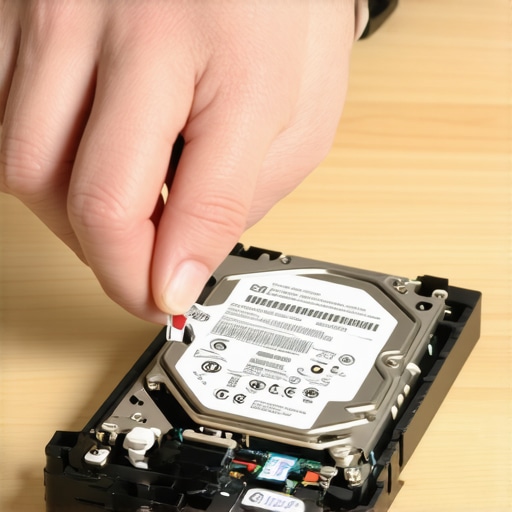
Removing the internal drive from its external enclosure—a process enthusiasts call ‘shucking’—is your first real move. I remember the first time I did this; I was terrified. I used a dull butter knife and a flat-head screwdriver on an old Seagate expansion drive. I ended up scratching the plastic housing pretty badly, but that didn’t matter. What mattered was the 2TB of data trapped inside. Most enclosures are held together by plastic clips rather than screws. Use a prying tool or an old credit card to slowly work your way around the seam. If you are doing computer repair for beginners avoid costly mistakes by not forcing it; if a clip resists, look for a hidden screw behind a rubber foot. Once you pop it open, you will see the drive is just sitting there, connected to a tiny green board. Pull the drive straight out from that board. You have just eliminated the most likely point of failure.
Plug It Into a Reliable Port
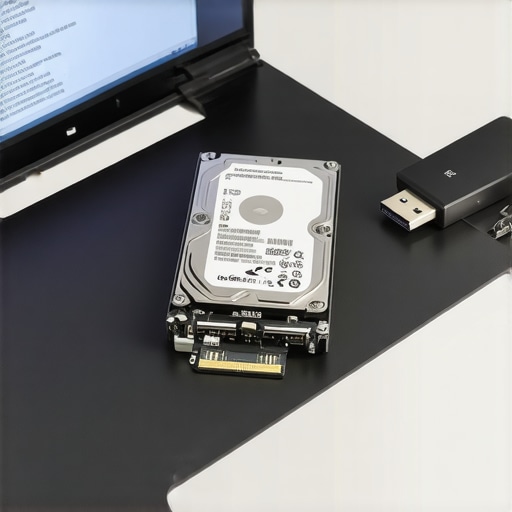
Now that you have a ‘naked’ drive, you need a way to read it. If you have a desktop PC, plug it directly into a SATA port on the motherboard. If you are on a laptop, you will need a SATA-to-USB adapter or a hard drive dock. This is where you find out if the drive itself is healthy. Often, a drive that ‘died’ was just suffering because the first thing to check when your usb ports stop working is actually the power draw of the bridge chip, not the disk motor. If the drive spins up and shows up in Disk Management, you are 90% of the way home. If it doesn’t, listen closely for a mechanical hard drive making a high-pitched whining noise, which usually indicates a seized spindle. In that case, you are looking at professional recovery, but for most, this direct connection fixes the ‘unrecognized’ error instantly.
Why Single Points of Failure Kill Productivity
While you are waiting for files to copy, it is a good time to think about why this happened. If this was a business drive, you would quickly realize why managed IT is a game-changer for growing companies—they do not rely on single points of failure like a cheap external drive from a big-box store. For my freelance work, I now use a redundant NAS because I never want to be prying open a case at 3 AM again. If the drive mounts but the folders look empty or throw errors, do not panic. You need to learn the trick to getting files off a drive with a corrupted file system. Often, the partition table is just messy from the bridge board’s sudden death. Tools like PhotoRec or Recuva can often see through the ‘raw’ filesystem and pull your JPEGs and PDFs back into the light.
Don’t Let Hardware Encryption Lock You Out
A major hurdle people hit is hardware-level encryption. Some specific brands of external drives encrypt the data at the bridge board level. If you pull the drive out and it looks like gibberish or asks to be formatted, you might be dealing with this. This is a nightmare scenario, but before you give up, check for data recovery secrets expert techniques to save your files fast. Sometimes, you can find a replacement bridge board on eBay from the exact same model to swap in. It is a long shot, but when three years of photos are on the line, it is worth the twenty-dollar gamble. I have seen this save a client who thought their entire business history was vaporized. Before you attempt any invasive write-operations on the disk, make sure you perform the simple check to see if your hard drive is encrypted to avoid permanent data loss.
Common wisdom suggests that the moment you hear a click or see a ‘RAW’ partition, you should fire up the first free recovery tool you find on Google. I am here to tell you that this is the fastest way to turn a recoverable situation into a permanent digital graveyard. Most people think software is the first step, but in my experience, the first step is actually silence. If you keep a struggling drive powered on while a generic scanner beats against its failing sectors, you are effectively sanding down the very platters that hold your memories. This is one of the most overlooked data recovery secrets every business should know today: software is a scalpel, not a sledgehammer, and you don’t use it until the patient is stable.
Stop Blindly Trusting Data Recovery Software
The ‘Oops’ factor here is massive. Most DIY-ers run a deep scan directly on the failing hardware. This is a fatal trap. Every second a failing head spends seeking data, it risks a head crash. Instead, pros use a bit-level cloning tool like ddrescue to create an image of the drive first. You should only ever run the power of data recovery tools what you need to know on the clone, not the original disk. This nuance is why professional labs have such high success rates compared to home attempts. Have you ever tried to run a scan only for the drive to disappear halfway through? Let me know in the comments! If that has happened, you have likely pushed the firmware into a corner it can’t get out of.
Is the Notorious Freezer Trick Still a Valid Strategy?
You have probably heard the old myth: ‘Put your hard drive in the freezer to shrink the parts and get it spinning again.’ In the early 2000s, this occasionally worked for specific stiction issues, but today, it is a death sentence. Modern drives have such tight tolerances that any moisture—which turns into ice crystals inside the drive—will destroy the read heads instantly. Instead of freezing it, you need to understand recovering data from a drive with a cyclic redundancy check error requires stabilized power and proper interface handling. According to data recovery experts at Kroll Ontrack, nearly 25% of the ‘unrecoverable’ drives they receive have been physically compromised by well-meaning users following outdated internet advice. This is exactly why your it consultant should be talking to you about cyber insurance and proper backup protocols before the hardware fails.
The Clone-First Rule That Saves Your Files
When dealing with a drive that is throwing errors, you are in a race against time. If the drive is making a noise, refer back to the guide on why your mechanical hard drive makes a high-pitched whining noise to see if it is a mechanical failure or a spindle issue. If it is mechanical, no amount of software will help. But if it is a logical error, follow the ultimate guide to data recovery after accidental deletion only after you have secured a block-level copy. This protects your data from the physical degradation of the disk. Remember, every time you reboot that machine, you are rolling the dice with the drive’s remaining life. If you aren’t comfortable with Linux-based cloning tools, it is time to step away from the screwdriver and call a pro before the platters are physically scored.
Once you have moved past the initial panic and secured a bit-level clone of your drive, the real work begins. I have a very specific shelf in my office dedicated to what I call the ‘Resurrection Kit.’ It is not fancy, but it is effective. My most trusted piece of hardware is a simple StarTech SATA to USB adapter with an external power supply. I prefer this over a standard dock because it allows the drive to lay flat on a static-shielded mat, reducing vibration. I also keep a copy of GNU ddrescue on a bootable Linux Mint USB stick. Why ddrescue? Unlike standard copying tools, it doesn’t give up when it hits a bad sector; it maps the damage and moves on, returning later to try and scrape data from the edges of those failing spots. This is the core of the power of data recovery tools what you need to know: it is about persistence, not just speed.
How can I keep my hardware healthy for the long haul?
Maintenance is not just about running a defrag once a year. In fact, if you are using an SSD, defragging is actually harmful. To keep things running smoothly, I use CrystalDiskInfo (on Windows) or Smartmontools (on Linux/Mac) to monitor the S.M.A.R.T. status of my drives weekly. You should specifically look at the ‘Reallocated Sectors Count.’ If that number is anything other than zero, the drive is actively dying. This is one of those troubleshooting common computer repair issues effectively habits that separates the pros from the victims. If you are a business owner, these manual checks are likely a waste of your time. This is why managed IT is a game-changer for growing companies; they use automated RMM (Remote Monitoring and Management) tools to spot these failures months before they actually happen. If you want to avoid computer repair for beginners avoid costly mistakes, you should set a calendar reminder right now to check your drive health.
When your business outgrows the DIY approach
There is a ceiling to what you can do with a screwdriver and a YouTube tutorial. When your company scales, the complexity of your data environment does too. You transition from single external drives to RAID arrays and cloud-integrated local storage. At this level, you need managed IT strategies to keep your business secure in 2025. I have seen too many entrepreneurs lose sleep because they were trying to manage their own server backups while also trying to close sales. It is a recipe for a disaster recovery nightmare. According to the Backblaze Drive Stats 2024 report, different drive models have wildly varying failure rates, sometimes jumping from 0.5% to over 10% as they age. A professional managed service provider tracks these trends and swaps out hardware before the failure occurs, ensuring that you never have to learn data recovery secrets expert techniques to save your files fast under duress.
Looking toward the future, I see the landscape of recovery shifting. We are moving away from mechanical failures and toward ‘firmware locking’ and proprietary encryption on SSDs. This means that in five years, the ‘shucking’ method I described might be obsolete because the data will be tied to the specific controller on the original board. This makes it more important than ever to have a proactive stance. I strongly suggest you download a tool like HWMonitor today and check your system temperatures. If your drive is consistently running above 50°C, you are cutting its life in half. Take action now: go check your ‘Reallocated Sectors Count’ and if it is not zero, back up your data and replace that drive immediately.
What the Pro Labs Won’t Tell You About Your Failing Drive
After years of prying open cases and sweating over progress bars, I have realized that the line between a ‘dead’ drive and a minor inconvenience is thinner than you think. First, always suspect the cable before the component. I once spent four hours troubleshooting a complex server issue only to realize the first thing to check when your usb ports stop working was a frayed $5 micro-USB lead. Second, heat is the silent killer. If your drive feels like a heating pad, stop immediately. Third, never ignore the warning signs. Most people think a little noise is fine, but the risk of ignoring a clicking external drive is a total platter scratch that no software can fix. #IMAGE_PLACEHOLDER_E#
The Survival Kit for Your Digital Life
I don’t leave my data to chance anymore, and neither should you. My go-to resource for hardware stats is the Backblaze Drive Stats report; it tells me which brands to avoid before I even spend a dime. For the actual recovery, I swear by a dedicated Linux environment—Windows often tries to ‘fix’ a drive by writing to it, which is the last thing you want. If you are overwhelmed, looking into effective managed it solutions for growing companies can take the burden of backups off your plate entirely. I also recommend keeping a physical log of your drive ages, because learning how to tell if your ssd is wearing out from too many writes is a skill that saves you from the 3 AM panic attack.
Stop Being a Victim of Hardware Failure
Hardware is temporary, but your memories and business data don’t have to be. By moving from a reactive mindset to a proactive one, you turn a potential catastrophe into a minor tech hurdle. Whether you are performing a laptop screen repair or digging through a corrupted partition, the key is patience and the right information. You now have the data recovery secrets every business should know today to handle the next ‘unrecognized device’ error like a professional. Have you ever managed to save files from a drive that everyone else said was toast? Let me know your success stories in the comments!