

I was sitting in a crowded coffee shop, sweating over a deadline, when my cursor decided to go on a solo mission to the top-right corner of the screen. I wasn’t even touching the thing. I tried clicking a button, but it just jittered like it had too much espresso. I looked like a madman, poking at my laptop and muttering under my breath. If you’ve ever wanted to throw your machine out a window because the pointer won’t stay put, I’ve been there. It is one of the most frustrating [link: computer repair for beginners] hurdles because it feels so personal—like the computer is actively working against you.
You Can Stop Fighting That Ghostly Cursor Right Now
It feels like a poltergeist has moved into your chassis, doesn’t it? For the longest time, I assumed my hardware was just “old” or “broken.” I actually made the mistake of buying an entirely new palmrest assembly once, only to realize the problem wasn’t the pad—it was a cheap power brick I’d bought off a bargain site. I felt like an idiot. Whether your pointer is jumping, clicking on its own, or just being generally uncooperative, I’m going to show you how to fix a laptop touchpad that has become erratic and jumpy without spending a dime on parts you might not need. We are going to walk through the environmental triggers, the driver hiccups, and those weird hardware quirks that most people overlook. Usually, when you are troubleshooting common computer repair issues effectively, the simplest answer is the one we ignore because we are too busy panicking about the repair bill.
Is Your Hardware Actually Dying or Just Annoyed?
Most people jump straight to the “I need a new laptop” conclusion. But here is a reality check: a lot of the time, your touchpad is just reacting to static or poor grounding. According to research on human-computer interaction from sources like the IEEE, external electrical noise is a frequent culprit for capacitive sensor failure in consumer electronics. I’ve seen cases where a simple move that keeps your laptop from overheating on your lap or unplugging a generic charger solved everything instantly. Before you get frustrated, have you ever noticed if the jumping stops when you unplug the power cord? Let me know in the comments if yours only acts up when it’s charging, because that’s a huge clue. We are going to look at everything from how to tell if your laptop battery is swelling under the trackpad—which is more common than you’d think—to basic software recalibration to get your workflow back on track. [image]
Pull the Plug to Find the Culprit
If your cursor is dancing a jig the moment you plug into a wall outlet, your power supply is likely the ghost in the machine. Capacitive touchpads work by detecting the minute electrical charge in your fingertips. When you use a low-quality or damaged power brick, it introduces ‘electrical noise’ that confuses those sensors. I once spent three hours helping a client who thought they needed a full system replacement, only to discover that the culprit was a $5 charger they bought at a gas station. As soon as we unplugged it, the cursor stayed perfectly still. This is why the truth about using generic chargers on expensive business laptops is often a lesson learned the hard way through hardware malfunctions. Check your cable for frays and try a different outlet before you touch a single software setting.
Refresh the Brain of Your Pointer
Software glitches are the next most likely offender. Think of your driver as the translator between your finger and the operating system; if the translator is confused, nothing makes sense. Start by hitting the Windows Key + X and opening Device Manager. Find ‘Mice and other pointing devices,’ right-click your touchpad, and select ‘Uninstall device.’ Don’t panic—restarting your computer will force Windows to reinstall a clean version of the driver. If you are just starting out, this is a core part of computer repair for beginners that saves you from over-complicating a simple fix. In many cases, a simple driver refresh is how to fix a laptop trackpad that clicks on its own without opening the chassis.
Scrub Away the Invisible Static
Sometimes the problem is literal dirt. Oils from your skin, crumbs, or even high humidity can create a conductive layer on the pad that mimics a finger touch. Use a lint-free cloth dampened with a tiny amount of isopropyl alcohol (70% or higher) to wipe the surface. Ensure the laptop is off before you do this. While you are at it, check the edges of the pad. If grit gets stuck in the seam, it can register as a permanent click. For businesses, keeping hardware clean is just as vital as having managed IT solutions streamlining operations for small businesses, as it prevents avoidable downtime.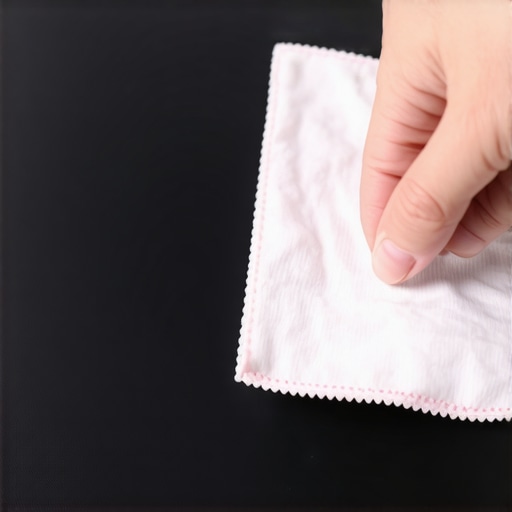
Is Your Battery Pushing Back?
This is the ‘silent killer’ of touchpads. Most modern laptops place the lithium-ion battery directly underneath the trackpad. When these batteries fail, they can swell like a loaf of bread. This physical pressure pushes against the underside of the touchpad, making it jumpy, erratic, or impossible to click. If you notice your trackpad is slightly raised or feels ‘stiff’ to press, you need to learn how to tell if your laptop battery is swelling under the trackpad immediately. Ignoring this isn’t just a repair issue; it’s a fire hazard. Similar to how you would follow tips for troubleshooting laptop screen problems seamlessly, you should inspect the bottom of your laptop case for any bulging or gaps in the plastic seams. If the case looks bloated, stop using it and get that battery out.
Stop Blaming Windows for a Hardware Grounding Issue
Everyone on the forums tells you to ‘update your drivers,’ but in my experience, software is only the culprit about 40% of the time. If you’ve already tried the clean install and your pointer is still acting like it’s possessed, we need to talk about the physical ‘drain’ of the device. Capacitive touchpads are incredibly sensitive to stray voltage. I’ve seen countless users go through the nightmare of a full factory reset—which, by the way, is a great way to lose files if you haven’t read an ultimate guide to data recovery after accidental deletion—only to find the jumping persists. The real ‘nuance’ is often a tiny piece of conductive tape inside the chassis that has lost its stickiness or a mounting screw that has slightly loosened, breaking the ground circuit. Without that path to ground, static builds up on the sensor and registers as ‘ghost’ touches. Have you ever fallen into the trap of reinstalling Windows three times only to find out it was a loose screw? Let me know in the comments. 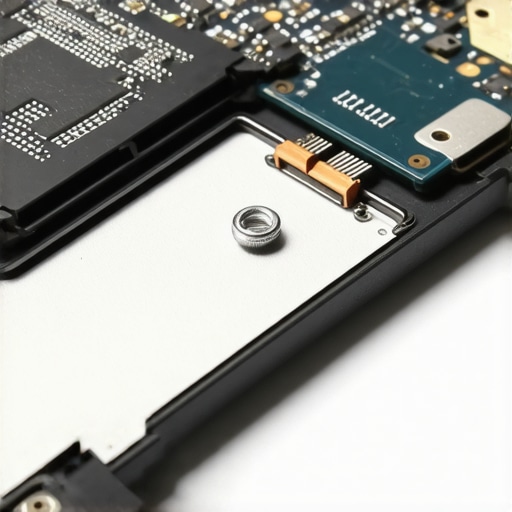
Does Your Cursor Only Jump When You’re Using an External Monitor?
This is a sophisticated question I get from power users all the time. If your touchpad behaves perfectly until you plug in an HDMI cable or a secondary display, you’re likely dealing with a ground loop or Electromagnetic Interference (EMI). Research published in the Journal of Electrostatics confirms that unshielded cables can create enough of an electrical field to disrupt sensitive capacitive sensors. When you are troubleshooting common computer repair issues effectively, look at the peripherals. A high-quality shielded cable or a simple ferrite bead can stop that interference in its tracks. This is the kind of technical detail that managed IT solutions streamlining operations for small businesses look for to prevent those mysterious ‘ghost’ problems that frustrate employees and kill productivity.
Avoid the Liquid Trap That Turns a Simple Clean Into a Total Short
Here is the ‘Oops’ factor you must avoid: never spray anything directly onto the trackpad. I’ve seen people use window cleaners or heavy-duty disinfectants thinking they are being thorough, but those liquids seep into the microscopic gaps of the assembly and cause micro-shorts. If you have looked at laptop screen repair DIY tips for clearer displays, you’ll know that moisture is the enemy of all things electronic. For the trackpad, use a barely damp, lint-free cloth. If you’ve already used too much liquid and the pad is now dead, you might be looking at a hardware swap, much like a laptop screen replacement step-by-step repair guide would suggest for physical damage. We also need to consider if your display settings are confusing your input; sometimes, why your laptop screen resolution looks blurry on a high-end display can actually be related to scaling issues that make the mouse feel ‘floaty’ or imprecise, leading you to think the hardware is failing when it’s actually just a mismatch in Windows Display Settings. Don’t let a simple software scaling issue trick you into thinking you need a new motherboard.I’ve learned that the right tools make the difference between a five-minute fix and a five-hour headache. When I’m working on a client’s machine, I always reach for my anti-static wrist strap and a high-quality ESD (Electrostatic Discharge) mat. I use these because capacitive sensors are incredibly sensitive to the electrical potential of your body; if I’m not grounded, my very presence can make the cursor jump while I’m trying to test it. If you are just starting out with computer repair for beginners, invest in a basic grounding kit. It is the most underrated way to ensure you aren’t accidentally introducing ‘noise’ into the system while you work. I also keep a copy of HWInfo64 on a thumb drive. I use this specific tool to check the ‘Battery Wear Level’ and ‘Charge Capacity.’ If the wear level is over 30%, that battery is a prime candidate for physical expansion, which leads directly to how to tell if your laptop battery is swelling under the trackpad before it causes permanent damage to the chassis.
How can I keep my laptop hardware running smoothly for years?
To keep your machine in peak condition, I recommend a ‘clean and check’ every six months. This isn’t just about blowing out dust; it’s about recalibration. I use a specific sequence where I discharge the static from the motherboard by holding the power button for 30 seconds while the battery is unplugged. It’s like a ‘reset’ for the electrical state of the laptop. While the case is open, I always verify that the trackpad mounting screws are snug but not overtightened—if they are too tight, the physical click mechanism fails. This proactive approach is part of the power of data recovery tools and hardware maintenance that prevents your system from crashing when you need it most. 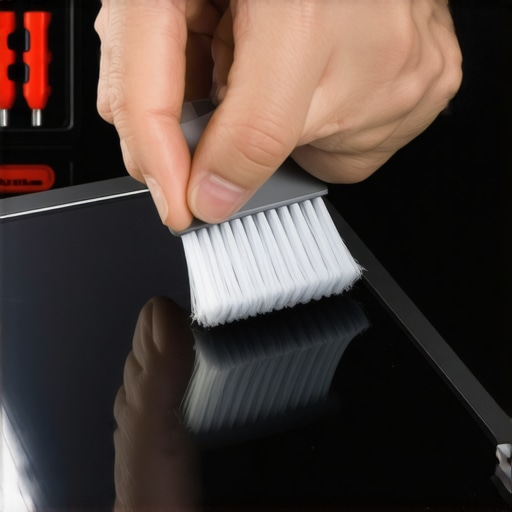
Stop Fixing the Same Problem Twice
For those of you running a small office, these individual hardware quirks can become a massive drain on productivity. This is where managed IT solutions streamlining operations for small businesses really shine. Instead of one person struggling with a jumpy mouse, a managed provider ensures that hardware is standardized. When you standardize, you can apply the same driver fixes across fifty machines at once rather than playing detective every Monday morning. You should also ensure your provider knows the secret to getting a laptop to recognize a new battery correctly, as improper calibration after a replacement can lead to the same erratic cursor issues all over again. I’ve seen companies lose dozens of billable hours because they ignored these minor hardware ‘gremlins’ until they became full-blown system failures. Even your digital environment needs this level of care; that’s why your managed IT service should be auditing your cloud permissions alongside their physical hardware checks.
The Future is Haptic and Less Fragile
I predict that in the next few years, the physical ‘clicking’ trackpad will be entirely phased out in favor of haptic-engine sensors like those found in the high-end MacBooks and Dell XPS ‘Plus’ models. These have no moving parts, which solves the dust and hinge-snap issues, but they introduce a new reliance on firmware. According to the Synaptics TouchPad Interfacing Guide, these capacitive sensors require a perfectly stable ‘floating’ ground to function. This means that while we might stop seeing mechanical failures, we will see a rise in ‘firmware ghosts’ that require even more specialized software knowledge to fix. Don’t wait for your cursor to start flying across the screen on its own—go into your BIOS or use a tool like HWInfo64 today to check your battery health and ensure your system is grounded correctly.
Lessons Learned From My Most Frustrating Ghost Mouse Repairs
Over the years, I’ve realized that a jumping cursor is rarely a sign of a dead laptop. One major lightbulb moment for me was discovering that grounding is often the silent culprit; if your laptop isn’t properly grounded through its charger, the touchpad loses its ability to distinguish your finger from background electrical noise. I also learned that you should never ignore a ‘stiff’ click, as that is usually the first sign of physical pressure from a failing internal component. Most importantly, I’ve found that computer repair for beginners often starts with a simple environmental check—like moving away from a microwave or changing your power outlet—before you ever need to touch a single line of code.
My Go-To Toolkit for Taming Erratic Pointers
If you want to handle this like a pro, you need the right gear in your drawer. First, I always keep a bottle of 99% isopropyl alcohol and a lint-free microfiber cloth; it is the safest way to remove conductive oils that mimic ‘ghost’ touches. For diagnostics, HWInfo64 is my absolute favorite free tool because it reveals hidden battery wear and voltage fluctuations that the OS hides from you. I also recommend referencing the Synaptics Gesture Suite documentation if your laptop uses specialized hardware, as it helps you identify if your specific model requires a legacy driver to maintain stability. Keeping these tools handy is just as essential as knowing troubleshooting common computer repair issues effectively when a deadline is looming.
Reclaim Control Over Your Digital Workspace
Don’t let a jittery pointer drive you to the point of exhaustion. By walking through these grounding and software checks, you’ve moved from being a frustrated user to someone who understands the nuanced relationship between hardware, electricity, and software. Learning how to fix a laptop touchpad that has become erratic and jumpy is more than just a quick repair; it’s about taking ownership of your technology so it works for you, not against you. Now that you know the secrets of the ghost in the machine, you can get back to your projects with total precision. Have you ever discovered a weird physical cause for your mouse acting up, like a specific desk surface or even a certain type of clothing? Let me know in the comments below!