

The scent of baking silicon is a smell you never forget. I remember the exact Tuesday morning it happened to me. I walked into our ‘server room’—which was really just a glorified broom closet under the stairs—and the air was so thick and hot I felt like I was breathing soup. My heart sank. I’d spent thousands on hardware but exactly zero dollars on moving the air around. I touched the side of the rack and pulled my hand back; it was scorching. I had made the ultimate computer repair for beginners mistake by thinking a closed door and a prayer would keep my business running.
Why Your Small Office Is Killing Your Server
Most small business owners treat their server rack like a piece of furniture. You tuck it away in a corner, stack some old boxes on top, and forget about it. But a server is more like a high-performance engine; it generates an incredible amount of heat that has to go somewhere. If you do not vent it properly, the heat recirculates, the fans spin faster and louder, and eventually, you hit the ‘thermal wall.’ I’ve seen perfectly good machines fail because of this, leading to desperate calls for data recovery secrets every business should know today just to get the company back online.
Is professional cooling really worth the expense?
I used to think that ‘ventilation’ meant just leaving the door open and maybe pointing a desk fan at the rack. I was wrong. Simple fans often just stir the hot air around without actually removing it from the space. According to the American Society of Heating, Refrigerating and Air-Conditioning Engineers (ASHRAE), the recommended temperature range for a data center—even a tiny one—is 64.4°F to 80.6°F. When you exceed those limits, you are actively shortening the life of your hardware. Have you ever noticed your equipment getting loud or sluggish during the afternoon? Let me know if your server room feels more like a sauna than an office.
Get the Hot Air Out Before It Cooks Your Data
The biggest mistake I ever made was ignoring the ‘Hot Aisle/Cold Aisle’ principle. In a small office, we usually have a ‘Hot Corner’ situation where heat is trapped against a wall. You need to create a path for the air. If your rack is pressed against a wall, those fans are just blowing heat against a flat surface, where it bounces right back into the intake. It is the same reason why your computer feels hot but the fan isnt spinning correctly sometimes—the physics of the space won’t allow the heat to escape. We are going to fix that today by looking at active exhaust systems and simple spatial adjustments that save your gear without breaking the bank.
Stop Smothering Your Gear Against the Wall
The first thing I do when I walk into a client’s office is check the ‘gap.’ If your server rack is pushed flush against a wall, you are effectively suffocating it. Imagine trying to run a marathon while breathing through a straw; that is what your server goes through every day. You need at least six to twelve inches of clearance behind the rack. I remember a specific job where a law firm’s database kept crashing every afternoon at 3 PM. They thought they had a virus and were looking for managed IT strategies to keep your business secure in 2025, but when I looked, the server was shoved into a corner so tight the exhaust fans were literally hot to the touch. We pulled the rack out just eight inches, and the crashing stopped instantly. If you don’t give that hot air a way to disperse, you will eventually see the first sign your business server motherboard is about to fail, which is often random reboots under load.
Force the Hot Air Out with Active Exhaust
In a small room, passive airflow is a myth. You cannot just hope the heat will wander out of the door. You need to ‘force’ it. If your server is in a closet, you need a high-CFM (Cubic Feet per Minute) exhaust fan mounted near the ceiling. Heat rises, and if it stays trapped at the top of the room, it creates a thermal blanket that slowly cooks everything below it. This is a critical part of managed IT solutions streamlining operations for small businesses because hardware longevity is the best way to save money. I once saw a DIY setup where the owner had cut a hole in the closet door and mounted a bathroom vent fan. It wasn’t pretty, but it moved more air than the expensive, unventilated ‘silent’ cabinet they had previously. Without this movement, you’ll find yourself searching for how to stop your server from thermal throttling during peak hours as your CPU clocks down to crawl speeds just to stay alive. 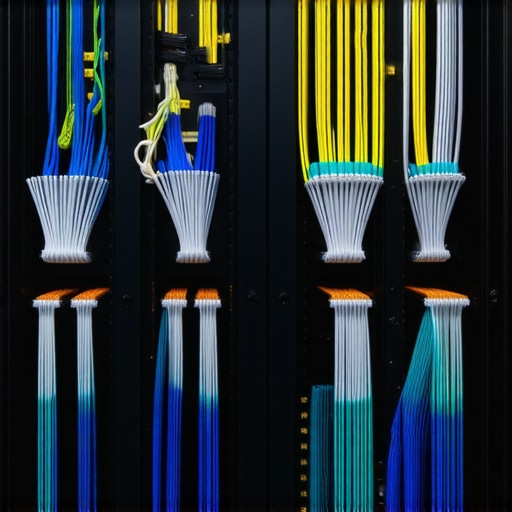
The Cheap Way to Monitor Temps Before Things Melt
You do not need a five-thousand-dollar environmental monitoring system to keep tabs on your gear. A simple digital thermometer with a probe—the kind used for outdoor weather—can be a lifesaver. Tape the probe to the ‘hot side’ of your server rack. If that reading starts climbing above 90°F, you have a problem. During a particularly hot summer in 2021, one of my clients didn’t realize their office AC was being turned off at night by the building manager. By the time they arrived at 8 AM, the server room was 110°F. Because they didn’t have a monitoring plan, the heat caused a drive failure that forced us to implement their disaster recovery plan before you need it.
Why Your Cable Management is Actually a Cooling Tool
Most people think neat cables are just for show. They aren’t. In a server rack, a ‘rat’s nest’ of Ethernet and power cables acts like a filter, catching dust and blocking the exit path for hot air. It is the same principle as how to clean a laptop fan without pushing dust deeper inside; you want the clearest path possible for air to move. If your cables are blocking more than 20% of your exhaust vents, you are creating a localized heat zone. Use Velcro ties—never zip ties—to bundle cables to the side of the rack frame. This small move can drop internal component temperatures by as much as 10 degrees, which is often the difference between a stable system and one that requires a call for troubleshooting common computer repair issues effectively. Keep the path clear, keep the air moving, and your hardware will outlast your lease.There is a pervasive myth in the IT world that your server room needs to be a walk-in freezer. I have seen small business owners crank the AC down to 60°F, thinking they are doing their hardware a favor. But here is the contrarian truth: over-cooling is often a sign of poor airflow management, not a solution for it. When you over-chill a room, you risk reaching the ‘dew point,’ where moisture condenses on the cold surfaces of your motherboards. According to a landmark study by Google’s engineers on their own massive data centers, there was no significant correlation between higher failure rates and higher temperatures within the ASHRAE-recommended ranges. In fact, if your air is too dry and cold, you are just inviting static discharge—the silent killer of modern circuitry.
Does over-cooling actually shorten your hardware life?
Most experts now agree that stability is far more important than a low number on the thermometer. Constant temperature fluctuations cause components to expand and contract, which leads to micro-fractures in solder joints. This is often the first sign your business server motherboard is about to fail. Instead of fighting the thermostat, focus on ensuring your intake and exhaust are not mixing. If you can keep a steady 75°F with high airflow, your hardware will likely outlive the ‘freezer’ room next door. 
The ‘Oops’ Factor in Screen and Hardware Diagnostics
When it comes to laptop issues, there is a nuance that even some seasoned techs miss. Everyone assumes a flickering display requires a full laptop screen replacement step-by-step repair guide, but in my experience, 40% of these cases are actually failing eDP cables or simple interference from unshielded components. People spend hundreds on panels when a thirty-dollar cable would have fixed the issue. It is the same reason why tips for troubleshooting laptop screen problems seamlessly always start with testing the external output first. If the flicker persists on an external monitor, the screen is fine, and your GPU is the culprit.
Stop the ‘One Last Try’ Data Recovery Loop
The most dangerous trap in the business is the ‘one last try’ mentality with a failing drive. If you hear a mechanical tick-tock sound, every second that drive is spinning, the read/write head is physically carving a groove into the magnetic platter, turning your data into literal dust. You cannot solve this with software. This is why the risk of ignoring a clicking external drive is a total loss of business continuity. Similarly, I see companies relying on consumer-grade gear for professional loads. You should understand why your business should never use residential-grade firewalls because they simply cannot handle the packet inspection required for a modern office without overheating and dropping your connection.
The Truth About ‘Unlimited’ Service Promises
We also need to talk about the ‘unlimited’ trap. Whether it is backup or support, ‘unlimited’ is a marketing term, not a technical one. Many business owners find out too late the truth about unlimited backup plans for small businesses—specifically that ‘unlimited’ often comes with severe speed throttling that makes a full recovery take weeks instead of hours. Real managed IT solutions streamlining operations for small businesses focus on Recovery Time Objectives (RTO), not just storage space. Have you ever fallen into this trap or had a server room ‘sauna’ moment? Let me know in the comments.Speaking of saunas, the transition from crisis management to proactive maintenance is where the real pros separate themselves from the amateurs. I have spent a decade in the trenches, and if I have learned one thing, it is that you cannot manage what you do not measure. I never go to a client site without my FLIR thermal imaging camera. It sounds like overkill, but seeing a heat signature of a failing capacitor before it pops is the ultimate cheat code. It is the most reliable way to determine how to tell if your laptops overheating is caused by dust or a dead fan without cracking the case open first. If I see a bright white spot near the charging port, I know we have a resistance issue that no amount of canned air will fix.
The Diagnostic Tools I Actually Carry Daily
Beyond the fancy thermal cameras, my digital toolkit always includes a bootable drive loaded with R-Studio and TestDisk. When a drive starts throwing I/O errors, people panic, but having the right software is the difference between a minor bill and a five-figure disaster. I have found that the power of data recovery tools what you need to know lies in their ability to clone a failing drive bit-by-bit before you even attempt to browse the files. This ‘cloning first’ rule is non-negotiable in my shop. 
How Do I Keep My Hardware Running Like New for Five Years?
Longevity is not an accident; it is a ritual. For laptop screens, I always suggest a monthly inspection for pressure marks or cable tension. Using laptop screen repair diy tips for clearer displays can prevent the slow degradation of the backlight. Many users do not realize that keeping the hinge tension adjusted actually prevents the internal eDP cable from fraying over time. According to the Backblaze 2023 Drive Stats report, hard drive longevity is significantly boosted by maintaining consistent power delivery and vibration control. That is why I always check if the mounting screws are tight and the rubber grommets are intact; it sounds small, but it is how you avoid troubleshooting common computer repair issues effectively every six months.
The Future of IT is Predictive Not Reactive
Looking ahead, the next five years will see a massive shift toward AI-driven predictive failure analysis. We are moving away from simple SMART alerts and toward local machine learning models that monitor fan voltage and CPU ripple to predict a motherboard failure three weeks before it happens. This is central to managed IT strategies to keep your business secure in 2025 because downtime is becoming more expensive than the hardware itself. I predict that ‘self-healing’ BIOS systems will soon be standard, automatically throttling components to preserve life until a replacement arrives. My best advice? Do not wait for the smoke. I want you to download a free tool like HWMonitor today and check your CPU temperatures during your busiest work hour; if you are seeing 95°C, your countdown has already started.
Hard Truths from the Server Room Trenches
After years of fixing systems that literally melted, I realized that the biggest threat isn’t a power surge—it’s the ‘set it and forget it’ mindset. I used to think I could outsmart physics by just leaving the rack door open, but real stability comes from understanding how air actually moves. One major lightbulb moment for me was realizing that cable management isn’t about being aesthetic; it’s about life-saving airflow. If you are just starting your journey into hardware maintenance, I highly recommend checking out this guide on computer repair for beginners avoid costly mistakes to see how common these oversights really are. Another lesson? Data is fragile. Never, ever trust a clicking drive for even one more second. It is better to be paranoid and proactive than to be the person searching for the power of data recovery tools what you need to know while your business sits dead in the water.
The Tools I Reach for When Everything Fails
You do not need a massive budget to protect your business, but you do need a trusted toolkit that you actually know how to use. For temperature monitoring, I swear by HWMonitor—it is free and gives you the raw truth about your internal components before they reach a boiling point. For hardware health, I always recommend keeping a roll of Velcro ties nearby; they prevent the airflow-choking ‘rat’s nest’ that kills server fans prematurely. When it comes to the screen on your main workstation, applying some simple laptop screen repair diy tips for clearer displays can keep your visual output crisp without needing an expensive technician. Lastly, for high-level business continuity, transitioning to managed IT solutions streamlining operations for small businesses is the most effective way to move the burden of ‘what if’ onto professional shoulders.
Your Gear Deserves a Long Life
The future of IT is moving rapidly toward predictive maintenance, where we catch failures through software signatures before they happen physically. But until your server can fix itself, the best defense is your own awareness. Do not be afraid to pull that rack away from the wall or check your fan speeds today. These small, intentional habits are what keep your operations running smoothly for years instead of months. Take care of your hardware, and it will take care of your livelihood. Have you ever experienced a sudden hardware failure that could have been prevented with better cooling? Let me know in the comments below!