

I stood there, coffee getting cold, staring at a screen that felt like a brick wall. It was 8:15 AM on a Monday, and instead of my desktop icons, I was greeted with that cold, clinical message: “The User Profile Service failed the sign-in.” My heart did a slow somersault. Every spreadsheet, every family photo, and every saved password felt like it had been sucked into a black hole. I had been through this before, and the last time I panicked, I ended up paying a fortune for [computer repair for beginners](https://computerrepairmasters.com/computer-repair-for-beginners-avoid-costly-mistakes) advice I could have found myself. But this time was different. I realized that Windows wasn’t dead; it just lost the map to my house. Today, I am going to show you the exact sequence of steps—the move—that gets your data back safely without needing a PhD in computer science or a $500 service fee.
Your Files are Hiding in Plain Sight
Let me tell you the mistake I made early on. I assumed that if I couldn’t log in, the files were gone. I once tried to ‘reset’ Windows thinking it would keep my files, only to find out that a botched reset can be more dangerous than the original error. It’s a common trap in [troubleshooting common computer repair issues effectively](https://computerrepairmasters.com/troubleshooting-common-computer-repair-issues-effectively). The truth is, your data usually sits untouched in a folder called ‘Users’ on your C: drive, even when your profile is throwing a tantrum. If you can get to that folder from the ‘outside,’ you win. This is [the trick to getting files off a drive with a corrupted file system](https://computerrepairmasters.com/the-trick-to-getting-files-off-a-drive-with-a-corrupted-file-system) that professionals use every day. Have you ever seen that spinning ‘Preparing Windows’ circle and felt your blood pressure rise? Tell me in the comments if you have ever been locked out by your own computer at the worst possible moment.
Should You Trust Windows to Fix Itself?
Short answer: Not blindly. While Windows has built-in repair tools, they often focus on getting the OS to boot, not necessarily on protecting your unsaved documents. According to research from various data recovery specialists, software-related issues like profile corruption account for nearly 44% of data loss incidents, yet most users assume it is a hardware failure. If you start running aggressive ‘chkdsk’ commands without a plan, you might be looking at [recovering data from a drive with a cyclic redundancy check error](https://computerrepairmasters.com/recovering-data-from-a-drive-with-a-cyclic-redundancy-check-error) later on. Instead of letting Windows take the wheel, we are going to use a surgical approach to extract your life’s work before we even think about ‘repairing’ the login screen. It is the same mindset I recommend for [data recovery secrets expert techniques to save your files fast](https://computerrepairmasters.com/data-recovery-secrets-expert-techniques-to-save-your-files-fast). Now, grab a USB drive, and let’s get to work.
Force Your Way into Safe Mode
To fix a computer that won’t let you in, you have to stop trying to use the front door. We need the service entrance. This is called Safe Mode. It’s like a house with the power turned off—only the emergency lights are on. To get there, hold the Shift key while clicking ‘Restart’ from the login screen. This small act is often the first step in troubleshooting common computer repair issues effectively. Once you’re in the blue ‘Choose an option’ menu, head to Troubleshoot > Advanced options > Startup Settings and hit Restart. When the list appears, press 4 or 5. If you see your desktop now, don’t celebrate yet—you’re in a temporary bubble. Use this moment to plug in that USB drive and copy your ‘Users’ folder immediately. I learned this the hard way years ago when I tried to fix the software first, only for the hardware to give up the ghost twenty minutes later.
Realign the Registry Name Tags
Windows identifies you by a string of numbers called a SID (Security Identifier). When the ‘User Profile Service’ fails, it’s usually because Windows has two name tags for you: one that works and a ‘backup’ tag ending in .bak. It gets confused and decides to lock you out entirely. To fix this, you’ll need to open the Registry Editor (type ‘regedit’ in the start menu). Think of the registry as the DNA of your computer; one wrong snip and things go sideways. Navigate to HKEY_LOCAL_MACHINE\SOFTWARE\Microsoft\Windows NT\CurrentVersion\ProfileList. You’ll see folders starting with S-1-5. Look for the two that are identical, except one ends in .bak. This is the move that protects your files when a windows update fails and causes these profile collisions. You simply need to rename them so the .bak version becomes the primary one. 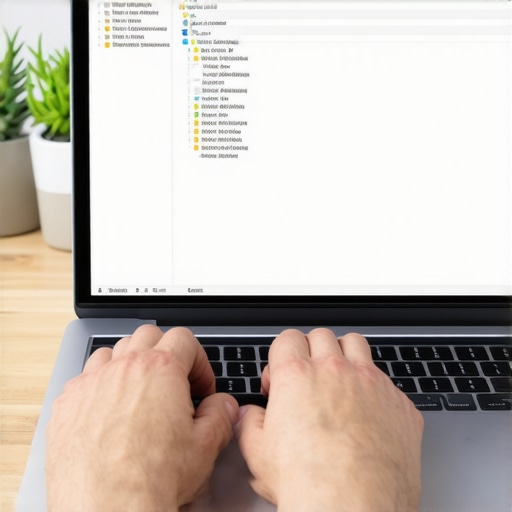
Move Your Life to a New Digital Home
Sometimes the damage is too deep for a simple rename. If the registry fix doesn’t stick, you need to create a new user account and move your soul—meaning your data—over to it. I remember a client who brought me a machine with a laptop screen that shows a check cable message, but once I fixed the display, we found the user profile was completely shredded. We couldn’t save the ‘old’ login, so we built a new one. We used the power of data recovery tools what you need to know to pull his hidden Outlook PST files and browser bookmarks. The trick is to go to C:\Users\OldAccount and copy everything *except* three specific hidden files: Ntuser.dat, Ntuser.dat.log, and Ntuser.ini. If you copy those, you’ll just break the new account too. It’s a tedious game of digital Tetris, but it’s the most reliable way to ensure you don’t lose years of work.
Watch for the Signs of a Dying Drive
If you’ve fixed the profile and it breaks again a week later, you aren’t dealing with a software glitch; you’re dealing with a physical failure. Profile corruption is often the ‘smoke’ before the ‘fire’ of a hard drive crash. You should be listening for the risk of ignoring a clicking external drive or internal HDD. If you hear rhythmic clicking or grinding, stop everything. At that point, standard Windows fixes won’t help, and you’ll need to look into an ultimate guide to data recovery after accidental deletion or sector failure to rescue what’s left before the platters stop spinning for good.While the registry rename feels like magic when it works, there is a dangerous misconception that this is a ‘permanent’ fix. Most people assume that if the login screen works, the problem is solved. In my experience, treating a profile error as a standalone software bug is the biggest gamble you can take. If the corruption was caused by a bit flipping on a failing sector, every second you spend in the Registry Editor is a second you are not backing up your data.
Stop Blindly Trusting Automated Repair Tools
Most users, and even some technicians, reach for ‘Startup Repair’ or ‘System Restore’ as their first line of defense. However, if your hardware is the culprit, these tools can be the final nail in the coffin. A study by data recovery firm Ontrack found that logical errors—like profile corruption—often hide underlying physical degradation in nearly 25% of all analyzed cases. This is the ‘Oops’ factor: if you run a heavy repair tool on a drive that has physical damage, the intense read/write cycles can cause the drive head to crash or the NAND cells to lock up permanently. You effectively turn a simple software fix into a high-stakes recovery job. Have you ever fallen into this trap of trying to fix the software while the hardware was dying? Let me know in the comments. 
Why Does My Profile Keep Breaking After a Clean Install?
If you find yourself repeating these steps every few months, you aren’t dealing with a Windows update gone wrong. You’re likely seeing the early warning signs of an SSD reaching its write limit. Knowing how to tell if your ssd is wearing out from too many writes is vital because modern drives don’t always give you the ‘click of death’ that old mechanical drives did; they just start corrupting random files—like your user profile. Modern SSD controllers are incredibly good at hiding flaws through wear leveling, but by the time a profile service failure hits your screen, the drive might have already exhausted its reserve sectors.
Ditch the Patch and Clone the Drive Instead
For business owners, this is where the stakes get high. Relying on manual fixes for every workstation is a recipe for massive downtime. Instead, implementing managed IT strategies to keep your business secure in 2025 ensures that your data lives in a redundant environment, making a local profile crash a minor inconvenience. You should be using the power of data recovery tools what you need to know to clone the entire drive the moment corruption appears, rather than trying to ‘patch’ the existing OS. It is a surgical mindset: save the patient (your data), then worry about the clothes they were wearing (the Windows installation). This is the level of data recovery secrets expert techniques to save your files fast that separates the experts from the beginners. Even in an ultimate guide to data recovery after accidental deletion, the first rule is to stop writing new data to the disk. If you encounter a recovering data from a drive with a cyclic redundancy check error during this process, stop immediately—that is the definitive ‘Check Engine’ light for your hardware. Professionals don’t just fix the error; they find the root cause to ensure it never happens again.
Stop the Spin Before the Crash Happens
I’ve seen too many people fix a software glitch only to ignore the ticking time bomb inside their laptop. If you want to stop playing digital whack-a-mole, you need to look at the health of your hardware. My go-to tool for this isn’t a Windows built-in; it is Hard Disk Sentinel. I use it because it gives me a clear health percentage instead of just a vague ‘OK’ status. When you start seeing how to tell if your ssd is wearing out from too many writes, it isn’t just about the numbers—it is about timing your exit before the drive locks into read-only mode. I personally never trust a drive that drops below 80% health. At that point, the ‘User Profile Service’ failure is just the first symptom of a total blackout. This is where the power of data recovery tools what you need to know becomes your insurance policy. If your health score is low, don’t try to repair Windows. Clone the drive immediately using a tool like Rescuezilla or Macrium Reflect. This creates a bit-for-bit copy so you can work on the software fix without risking the original physical data. 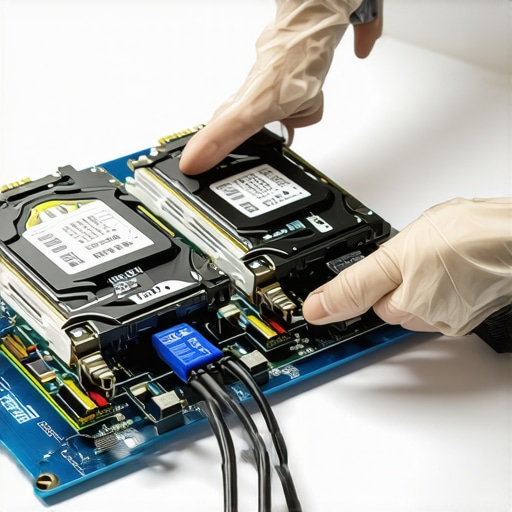
How can I keep my system running smoothly for years?
Maintenance isn’t a one-time event; it is a rhythm. First, you need to address the heat. If you’ve ever wondered how to tell if your laptops overheating is caused by dust or a dead fan, just listen. A fan that sounds like a jet engine is usually fighting a wall of dust. I recommend a deep clean and a repaste of the CPU every two years. Second, stop the ‘bloat’ before it starts. Use the simple way to check your pc for hidden background processes to see what is eating your RAM. Overloaded memory leads to hard page faults, which forces the SSD to work harder, accelerating wear. In the future, I predict we will see AI-driven self-healing file systems that can automatically relocate a corrupted user profile to healthy sectors before the user even notices a login delay. Until then, you are the pilot.
Scale Up Before You Fail Out
If you are running a small office, you can’t afford to be the ‘tech guy’ every Monday morning. This is why why managed it is a game changer for growing companies. Instead of reacting to a ‘Service Failed’ message, a managed environment uses RMM (Remote Monitoring and Management) tools to catch sector errors weeks before they corrupt a registry hive. Transitioning to managed it strategies to keep your business secure in 2025 means moving your user profiles to the cloud or a local server with RAID redundancy. According to the annual reports from Backblaze, drive failure rates can spike unexpectedly based on specific batches or environmental heat, so having a redundant data path is the only real way to achieve 99.9% uptime. Don’t wait for the next brick wall. I challenge you to download a portable disk health checker today and see your drive’s ‘real’ age. If it is under 90%, it is time to start your data recovery secrets expert techniques to save your files fast plan before the next Windows update arrives. Even for those just starting with computer repair for beginners, knowing the physical state of your hardware is the most advanced move you can make.
What Years of Blue Screens Taught Me About Digital Resilience
After a decade in the trenches of technical support, I’ve realized that a profile error is almost never just a software hiccup; it’s a conversation your computer is trying to have with you. Here is what the textbooks do not tell you:
- The Registry is a Canary in the Coal Mine: If your profile hive is corrupting, it is often because the physical storage cells underneath those registry entries are failing. Do not just fix the SID; check the health of the silicon immediately.
- Speed Trumps Perfection: In a crisis, spend thirty minutes on a registry fix. If that fails, move straight to data extraction. I have seen too many people lose everything because they spent five hours trying to ‘save’ a broken OS while the hardware was actively dying.
- Managed Environments are a Cheat Code: If you are tired of being the emergency tech support for your office, implementing managed IT strategies to keep your business secure in 2025 is the only way to sleep soundly. Redundancy is the only true fix for permanent peace of mind.
My Personal Survival Kit for Failing Drives
When the screen goes black, these are the only tools I trust to get the job done without making things worse. I recommend keeping these on a dedicated ‘Rescue USB’ in your desk drawer at all times.
- Hard Disk Sentinel: This is my gold standard for knowing how to tell if your ssd is wearing out from too many writes. It gives you a plain-English health percentage that is far more reliable than Windows’ own cryptic alerts.
- Macrium Reflect: When a drive starts acting up, I do not copy files one by one—I clone the whole thing. This tool is surgical and can often bypass the minor read errors that make standard file transfers hang.
- The Data Recovery Handbook: For more advanced situations, I always point people toward the power of data recovery tools what you need to know to understand the difference between a logical glitch and a physical mechanical failure.
Taking Control Before the Next Error Appears
Facing a ‘User Profile Service’ failure is a rite of passage for many Windows users, but it does not have to be a disaster. By treating your data as a separate entity from your operating system, you ensure that even a total system crash is nothing more than a temporary inconvenience. Whether you are just diving into computer repair for beginners or you are an experienced tech, the goal is always the same: protect the files first, and fix the machine second. You have the tools and the knowledge now—do not be afraid to use data recovery secrets expert techniques to save your files fast to keep your digital life intact and your stress levels low.
Have you ever successfully used a registry edit to save a locked-out account, or did you have to start fresh with a completely new user profile? Let me know your experience in the comments below!