

I was sitting in my home office last Tuesday, squinting at my screen as the clock hit midnight. I’d just finished a marathon session of accounting and finally closed the spreadsheet. But the spreadsheet didn’t really leave. Even though my desktop wallpaper was a beautiful mountain range, I could still see the faint, haunting outline of those grid lines and the ‘Total’ column. It felt like my laptop was trying to tell me I wasn’t actually done working. It’s a frustrating phenomenon that makes you feel like your hardware is failing right before your eyes. In this guide, I am going to share exactly why this happens and how you can reclaim your clear display without spending a fortune. [IMAGE_PLACEHOLDER]
That Eerie After-Image Won’t Go Away
It’s unsettling. You move a window, and a faint ghost of it lingers behind like a technological poltergeist. I remember the first time I saw this; I panicked and thought I’d permanently ruined a $1,200 device. I actually made the rookie mistake of trying to ‘massage’ the pixels out with a damp cloth, which is a big no-no. It didn’t work, obviously, because the problem wasn’t on the surface. If you’re seeing this, you aren’t alone, and in most cases, your screen isn’t toast. We are going to dive into the fix for a laptop screen that has a ghosting effect so you can stop seeing your old browser tabs in your sleep. Have you ever looked at your screen and realized you could still see a YouTube video you closed ten minutes ago?
Is this ghostly image actually permanent damage?
That’s the fear, right? You think you’ve got burn-in like an old plasma TV. While permanent burn-in is possible, especially on OLED panels, most laptop screens use IPS or TN panels where this is usually just temporary image persistence. According to technical testing by RTINGS, modern LCDs are remarkably resilient, though static images left for hours can still cause voltage issues in the liquid crystals. This isn’t a death sentence for your hardware, but it is a sign that your settings or habits need a quick adjustment.
The Difference Between a Glitch and a Dying Panel
Sometimes, what looks like a ghost is actually a software hiccup or a weird color profile. I’ve seen cases where a screen looks washed out after a software update, making everything look like a faded memory. Before you start looking for a replacement, we need to rule out the simple stuff. You might just need to adjust your refresh rate or run a specific software tool to ‘exercise’ the pixels. In fact, you can often fix a laptop screen with a stuck pixel using software tools, and those same tools can sometimes clear up ghosting by cycling colors rapidly. If the issue persists across different backgrounds, it’s time to look at laptop screen repair DIY tips for clearer displays to see if a hardware reset is in order.
Run a High-Intensity Pixel Workout
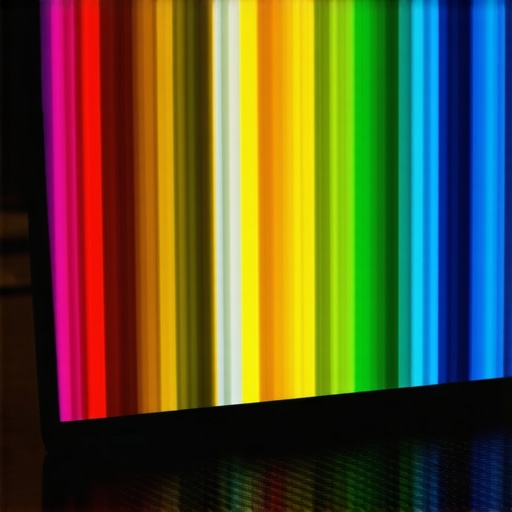
The first and least invasive step is to force your liquid crystals to change state rapidly. Think of image persistence like a muscle cramp in your display; it just needs a bit of movement to release the tension. I once worked on a high-end Ultrabook where the owner had left a static stock ticker running for twelve hours straight. The ghosting was so bad you could still read the price of Apple stock even while watching a movie. We didn’t replace the panel. Instead, we used a browser-based tool designed to fix a laptop screen with a stuck pixel using software tools. By letting the screen cycle through rapid-fire bursts of red, green, and blue for about two hours, the ‘stuck’ crystals finally loosened up, and the image cleared completely. If you are seeing faint outlines, find a full-screen color cycler and let it run while you grab lunch.
Stabilize Your Refresh Rate to Stop the Blur
Sometimes the ‘ghost’ isn’t a physical remnant of a past image but a synchronization error between your GPU and your screen. If your refresh rate is set incorrectly, the screen can’t clear the previous frame fast enough, creating a trailing effect. Head into your display settings and ensure your refresh rate matches the native specifications of your hardware—usually 60Hz or 120Hz. Interestingly, I’ve seen instances where a screen looks washed out after a software update because the operating system defaulted to a generic driver that didn’t support the panel’s high-speed timing. Reinstalling the official manufacturer drivers often provides the fix for a laptop screen that has a ghosting effect by restoring proper signal communication.
The Ribbon Cable Reality Check
If the ghosting persists or looks like a ‘shadow’ shifted slightly to the side, you might be dealing with a loose or damaged internal connection. This is the ‘double image’ phenomenon. I remember a specific repair where a student brought in a laptop that had a constant blur. Every time she adjusted the lid angle, the blur would sharpen or fade. This told me immediately that the issue wasn’t the pixels themselves, but the EDP cable—the thin ribbon that carries data from the motherboard to the screen. If you’re comfortable with a screwdriver, you can look for laptop screen repair DIY tips for clearer displays to learn how to re-seat that cable. A loose connection can cause signal interference that looks exactly like ghosting, but is actually just a laptop screen that shows a double image due to data packet loss.
Kill the Heat to Clear the Image
Excessive heat is the silent enemy of display clarity. When a laptop runs too hot, the liquid crystals in the panel can become less responsive, leading to significantly increased response times and visible trailing. I’ve noticed this frequently on workstations where the sign your cpu is thermal throttling is actually preceded by a weird, sluggish visual experience. If your fans are screaming and your screen is ghosting, the heat from the internal components might be affecting the panel’s driver board. Clean out your vents and ensure your laptop isn’t sitting on a blanket. Giving the hardware some breathing room can often resolve ‘temporary’ ghosting that only appears after an hour of heavy use.
While heat is a major factor, I need to point out a nuance that most ‘how-to’ guides completely miss: the power brick. Everyone assumes ghosting is a failure of the liquid crystals themselves, but in my years of experience, I’ve seen countless cases where a cheap power supply is the biggest threat to your office hardware. If your AC adapter isn’t providing a clean, stable DC signal, it can introduce electrical noise into the display’s timing controller (T-CON). This noise results in frames not clearing properly, creating that ghostly trail. If you only see the issue when plugged in, your screen isn’t the problem—your charger is. 
The Trap of the Bargain Replacement Screen
If you do decide that the hardware is toast, don’t fall for the ‘OEM-Compatible’ trap on discount auction sites. Many people trying laptop screen repair DIY tips for clearer displays end up buying B-grade panels with terrible response times. These panels might have a 25ms response time instead of the 5ms your original screen had. The result? Permanent, ‘built-in’ ghosting that no software tool can fix. It’s better to follow a proper laptop screen replacement step-by-step repair guide and source a verified A-grade panel. I once saw a client spend $80 on a cheap panel only to realize the real reason your laptop display looks pixelated was simply the poor sub-pixel density of the replacement.
Can a software glitch actually mimic hardware failure?
Absolutely. According to experts at DisplayMate, the way a GPU handles ‘overdrive’—a technique where extra voltage is applied to speed up pixel transitions—can backfire if the driver is corrupted. If the voltage is too high (overshoot), you’ll see a bright ‘inverse ghost’ behind moving objects. This looks like a hardware defect, but it’s actually a math error in your GPU’s firmware. Before you start unscrewing things, ensure you’ve checked tips for troubleshooting laptop screen problems seamlessly to rule out these high-level driver conflicts. Also, be wary of why your screen looks washed out after a software update, as incorrect gamma settings can make minor persistence look much worse than it actually is.
Avoid This Costly Diagnostic Mistake
The biggest mistake I see? People assume a ghosting screen means the GPU is dying. They go out and buy a new motherboard or a whole new laptop. Stop. If the ghosting appears on an external monitor, then yes, it might be the GPU or a software issue. But if the external monitor is crystal clear, the problem is localized to your laptop’s internal panel or the ribbon cable. You can save hundreds by checking for a laptop screen that only works at a certain angle, which usually points to that ribbon cable we discussed earlier. Have you ever fallen into the trap of replacing the wrong part? Let me know in the comments below, and let’s figure out if we can save your hardware together.
Stop the Burn Before It Starts
I’ve learned the hard way that prevention is always cheaper than a replacement, and your screen is no exception. Beyond the quick fixes, you need a proactive habit. I personally set my display to sleep after five minutes of inactivity—never a screensaver, which just keeps pixels firing. If you are just starting out, check out these tips for computer repair for beginners to avoid costly mistakes. By reducing the cumulative ‘on-time’ of static elements like your taskbar, you effectively stall the chemical degradation of the panel. I also recommend a monthly ‘pixel workout’ where you run a full-screen white background for ten minutes to ensure even wear across the entire sub-pixel matrix.
Why I Trust Specialized Diagnostic Software
In my toolkit, I keep a dedicated USB drive loaded with display utilities. I don’t just guess; I use software that can isolate specific color channels to see if a particular sub-pixel is lazy or truly dead. This is similar to how we use the power of data recovery tools to look deep into a drive’s structure. For ghosting specifically, tools like JScreenFix or specialized LCD conditioners are my go-to. They work by rapidly cycling the liquid crystal state, which often clears up stubborn persistence that a standard reboot won’t touch. I’ve seen this save dozens of high-end monitors that were destined for the scrap heap.

The Managed IT Secret for Hardware Longevity
If you’re running a business, you can’t manually check every screen. This is where effective managed IT solutions for growing companies become a lifesaver. We use centralized monitoring to push out display-out timers and brightness caps across an entire fleet of laptops. This isn’t just about saving electricity; it’s about ensuring that you can how to extend the life of your office PCs by three years through smart power management. When a screen starts to show early signs of backlight failure or ghosting, our telemetry picks it up before the employee even notices the flicker.
How can I actually keep my display healthy for the long haul?
Maintenance is about consistency. Keep your laptop out of direct sunlight, as UV rays can accelerate the yellowing of the polarizer film. According to technical documentation from VESA (the Video Electronics Standards Association), maintaining a stable operating temperature is critical for the timing controller (T-CON) to function within its design voltage, which prevents the very signal noise that causes ghosting. If you notice your laptop getting hot, remember that the hardware swap that gives your old office PC a massive speed boost—like moving to a more efficient SSD—can actually lower internal case temperatures and save your screen from heat-induced artifacts.
What the Future of Your Display Looks Like
I predict that within the next three years, we will see AI-integrated display controllers become standard. These chips will use machine learning to ‘predict’ pixel wear and automatically adjust the voltage of individual pixels to compensate for aging in real-time. We are moving away from passive glass and toward intelligent hardware that heals its own visual flaws. Until that becomes affordable, your best bet is a solid maintenance routine. **My challenge to you:** Run a full-screen color-cycling test today. You might find that your screen isn’t ‘old’—it’s just tired and needs a software-based reset to look brand new again.
What I Learned After Rescuing Fifty Screens from the Trash
One thing I have realized after years of troubleshooting is that screen issues are rarely a death sentence. Most people assume the worst when they see a faint outline, but usually, it is just a sign of heavy usage rather than hardware failure. I have seen countless users panic and start looking for a replacement when they only needed a bit of patience and a few software tweaks. One major lightbulb moment for me was realizing that environmental factors, like room temperature, play a massive role in how fast those pixels recover.
- Always check the refresh rate first; a mismatch often creates artificial lag that mimics a physical ghost.
- If you are unsure if the issue is the panel or the graphics card, plug in an external monitor immediately. If the external screen is clear, your GPU is fine.
- Don’t underestimate the power of a proper software cleanup using tips for troubleshooting laptop screen problems seamlessly to rule out driver glitches.
The Survival Kit for Your Display
I do not leave display health to chance. When I am performing laptop screen repair how to fix common issues at home, these are the specific resources and tools I keep pinned to my taskbar to ensure everything stays sharp and responsive:
- JScreenFix: This is a free web-based tool that cycles pixels at high speed. It is my first stop for clearing up stubborn persistence without opening the chassis.
- HWiNFO: I use this to monitor internal thermals. If you see the sign your cpu is thermal throttling, your screen ghosting is likely a symptom of heat affecting the display’s driver board.
- VESA Technical Standards: This is the gold standard for understanding how display timings work and why your laptop screen replacement step-by-step repair guide needs to prioritize high-quality panels over cheap knockoffs.
Take the Ghost Out of the Machine
Dealing with a display that seems to have its own memory can be frustrating, but with the right approach, you can restore that crisp, clear view you had on day one. Whether you are a hobbyist trying laptop screen repair diy tips for clearer displays or a business owner looking into effective managed it solutions for growing companies, the key is to act before the persistence becomes permanent. Reclaiming your workspace starts with understanding the limits of your hardware and giving it the maintenance it deserves. Before you consider buying a whole new device, try the fix for a laptop screen that has a ghosting effect and see if you cannot squeeze another three years of life out of your current hardware. Have you ever seen the ghost of an old spreadsheet while you were trying to watch a movie? Let me know what worked for you in the comments below!