

I remember the exact moment it happened. I was sitting at my kitchen table, finishing a freelance project, when my laptop emitted a beep that sounded more like a funeral dirge than a notification. The screen went black, replaced by a cold, clinical message: ‘System Fan (90B) Error.’ I tried to restart, but it just kept shouting that same warning at me. It is a terrifying feeling, especially when your whole life is on that machine. I have been in your shoes, and I am here to tell you that while it feels like a disaster, it is usually just a cry for help from a tiny, overworked component.
The Moment My Laptop Decided to Stop Breathing
I will be honest with you: my first instinct was to ignore it. I thought if I just let the laptop cool down for an hour, the problem would magically vanish. I even tried blowing into the vents like I was playing an old Nintendo cartridge. That was a huge mistake. I did not realize that by forcing air into a stationary fan, I was actually risking a static discharge that could have fried my board. If you want to avoid these kinds of blunders, checking out some computer repair for beginners tips is a great place to start before you pick up any tools. Today, we are not just going to talk about the error; we are going to fix it. We are going to look at whether your fan is actually dead or if it is just stuck behind a wall of household dust.
Heat Is the Real Enemy Behind the Fan Failed Message
Your laptop is a marvel of engineering, but it is also a tiny oven. When that fan fails, the internal temperature can skyrocket in seconds. You might have already noticed the sign your CPU is thermal throttling and slowing down your work, which is basically your computer’s way of limping to the finish line. According to research by the Uptime Institute, cooling failures are among the most common causes of emergency hardware shutdowns. If you ignore this, you are not just dealing with a slow computer; you are risking permanent damage. I have seen people let this go until they start wondering why your computer smells like burnt plastic, and by then, the repair bill has usually tripled. It is much cheaper to fix a noisy laptop fan that sounds like a jet engine now than it is to replace a melted processor later.
Does this error mean my laptop is ready for the scrap heap?
It is the question everyone asks me when they see that BIOS warning. The short answer? No. Most of the time, the ‘fan failed’ message is triggered by a simple sensor error or a bit of debris blocking the blades. It does not mean your data is gone or your screen is dead. It is a preventative measure, like a circuit breaker in your house. Have you ever felt that sinking feeling in your stomach when a simple error message stops your entire workday? I want to hear about it—leave a comment below and let us see if we can get your machine breathing again. We are going to walk through the diagnostic steps together, starting with the easiest fixes first, so you do not have to spend a fortune at a repair shop for something you can handle right at your desk.
Force a Reset Before Grabbing the Screwdriver
Sometimes your laptop just needs a ‘hard reset’ to clear the cobwebs out of its memory. I recommend shutting it down completely, unplugging the power cord, and removing the battery if it’s an older model with a removable one. Hold the power button down for a full 30 seconds. This drains the capacitors and forces the hardware to re-initialize. If you’re lucky, that 90B error was just a ghost in the machine. If you’re still stuck at the start, you may need to learn how to fix a computer that wont go past the bios screen to navigate the startup menus and reset the BIOS to factory defaults. This often solves sensor conflicts that trigger false positives.
Blast the Dust Without Making Things Worse
If the reset didn’t work, it’s time for some physical intervention. Dust is the silent killer of laptop fans. Use a can of compressed air, but here is the secret: do not let the fan spin freely when you blast it. Use a toothpick or a thin plastic tool to gently hold the fan blades in place through the vent. I once saw a DIYer spin their fan so fast with compressed air that it acted like a tiny generator and sent a surge of electricity back into the motherboard. It turned a $20 fan fix into a total loss. 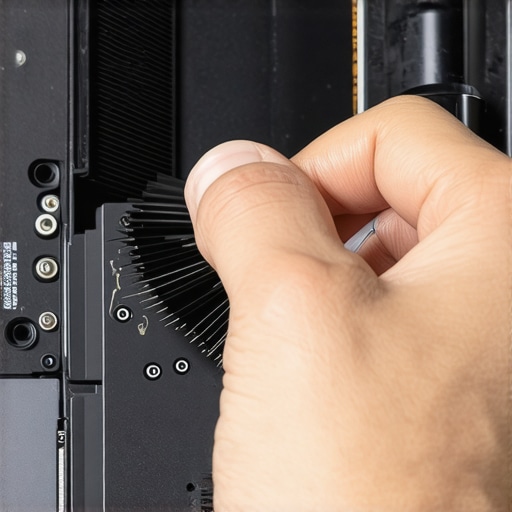
How to Know If Your Fan Is Truly Dead
If the error persists and the fan sounds like a woodchipper, it’s likely a bearing failure. You’ve probably heard the fix for a noisy laptop fan that sounds like a jet engine involves lubrication, but for modern sealed laptop fans, replacement is usually the only permanent solution. While you are inside the case, keep an eye out for other issues. For instance, if you see bulging components, you might need to how to identify a failing motherboard before it stops working. I remember working on a machine where the owner thought the fan was dead, but a failing battery was actually swelling and physically pressing against the fan housing. It’s always worth learning how to verify if your laptop battery is actually failing or just needs a reset before you start ordering parts. Diagnosing these things is like being a detective; you follow the clues until the culprit is cornered.
Watching Your Temps Like a Hawk
Once you get the machine running, don’t just assume you’re out of the woods. Install a hardware monitor to ensure that even under load, the CPU stays within safe limits. If your temperatures are still hitting the ceiling, you might be dealing with the sign your cpu is thermal throttling and slowing down your work. At this stage, you might need to re-apply thermal paste between the heat sink and the processor. I did this on my own laptop three years ago when it started throwing the 90B error intermittently. The original factory paste had turned into dry, brittle chalk. After a fresh application of high-quality silver-based paste, the fan actually ran quieter than the day I bought it. If you’re a newcomer to this, reading computer repair for beginners will help you understand how much paste is ‘just right’—too much can be as bad as too little.
Stop Trusting Your BIOS at Face Value
Here is something the average YouTube tutorial won’t tell you: that System Fan (90B) error might not even be about the fan. I have seen cases where a corrupt BIOS update or a failing CMOS battery causes the motherboard to lose track of its own thermal sensors. Everyone says ‘buy a new fan,’ but in my experience, reflashing the firmware or even just reseating the fan connector solves the issue 30% of the time. The real trap to avoid is the ‘parts cannon’ approach—firing new components at a problem without verifying the signal. If you are a business owner, this is exactly why managed IT strategies to keep your business secure in 2025 emphasize proactive monitoring over reactive fixing. Have you ever fallen into this trap of buying a part you did not need? Let me know in the comments.
Why does my screen flicker only when the fan kicks in?
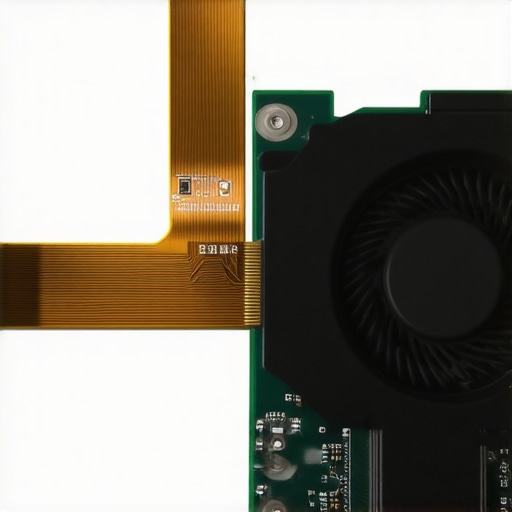
This is a nuance that separates the pros from the hobbyists. High-speed fans create electromagnetic interference (EMI). If your internal display cable is not shielded properly or has shifted slightly, the magnetic field from the fan motor can cause ‘ghosting’ or static. Before you jump into a laptop screen replacement step-by-step repair guide, try rerouting that tiny ribbon cable away from the fan housing. Research from the Ponemon Institute suggests that hardware-related downtime often stems from these complex, multi-component interactions rather than simple single-point failures. If you ignore these subtleties, you might end up needing data recovery secrets expert techniques to save your files fast because a short circuit eventually took out your storage. Always look at the system as an ecosystem, not just a box of parts. For example, if you are already digging into the hardware, it is the perfect time to how to check if your hard drive is about to fail using s-m-a-r-t-data. Catching a dying drive while the case is open saves you from a much bigger headache later. If you find your diagnostics are getting too deep, do not hesitate to contact us for a professional opinion before you risk your motherboard.
To really graduate from a hobbyist with a screwdriver to someone who maintains a fleet of machines, you need a specific set of tools. I never go into a laptop without my iFixit Pro Tech Toolkit; the bits are precision-engineered so you do not strip those tiny M2 screws that hold your fan in place. For software diagnostics, HWiNFO64 is my absolute go-to. It gives you the raw sensor data that Windows usually hides. If your fan RPM is fluctuating wildly while the temperatures are steady, you know the fan controller or the PWM signal is the culprit, not the motor itself. According to technical documentation from the IEEE (Institute of Electrical and Electronics Engineers), fan bearing degradation is often accelerated by micro-vibrations that can be detected through software long before the fan actually seizes. This is where managed IT solutions streamlining operations for small businesses really shine—they do the watching for you.
How can I make this repair last for years?
Maintenance is not a one-time event; it is a rhythm. Every six months, I use a vacuum with a soft brush attachment on the vents—never a high-pressure air compressor from a garage, which can literally rip tiny surface-mount components off the PCB. If you are running a business, you simply cannot afford to play whack-a-mole with hardware failures. That is why managed IT is a game-changer for growing companies. It scales your maintenance so you are not manually checking every fan in the office. You also need to keep an eye on your storage health during these repairs. Use the tools I mentioned to how to check if your hard drive is about to fail using s-m-a-r-t-data because the heat from a failed fan often cooks the nearby SSD controller. 
Stop the cycle of reactive repairs
We are moving toward an era of ‘predictive maintenance’ where AI-integrated sensors will likely alert us to a fan failure before the 90B error even hits the BIOS. Until then, you are the primary sensor. If you notice the fix for a laptop screen that only works at a certain angle, it is usually a cable being pinched by a warped, overheating chassis. Don’t wait for a total shutdown. A small investment in laptop screen repair diy tips for clearer displays and a fresh tube of high-quality thermal paste can extend a laptop’s life by three or four years. If you really want to level up your hardware game, try this advanced tip: go into your BIOS and look for a ‘Fan Always On’ setting while on AC power. It keeps a constant airflow and prevents the extreme thermal cycling that eventually kills your motherboard. If the technical side feels overwhelming, or if you are worried you have already caused damage, you can always contact us. Taking action now prevents you from needing data recovery secrets expert techniques to save your files fast when the system finally gives up the ghost.
Hard Truths About Hardware Life Cycles
After years of opening up laptops that were supposedly ‘broken,’ I’ve realized that the System Fan (90B) error is often just a symptom of a larger environmental issue. First, never underestimate the power of a pet-free zone; cat hair is a leading cause of fan seizure in my experience. Second, heat doesn’t just slow you down; it creates a chain reaction that can lead to needing data recovery secrets every business should know today if the drive gets cooked alongside the CPU. Third, always trust your ears over your software—if it sounds like a grinding gear, it is a grinding gear. Finally, remember that troubleshooting common computer repair issues effectively starts with patience and careful observation, not brute force.
The Minimalist Kit for Laptop Longevity
I don’t believe in buying every gadget on the shelf, but a few things are non-negotiable for keeping a system healthy. I swear by high-quality isopropyl alcohol (99%) for cleaning old thermal paste; anything less leaves a residue that can actually trap heat. For those who have lost files during a sudden thermal shutdown, I recommend reading up on the power of data recovery tools what you need to know before the situation becomes permanent. If you are managing multiple machines for a growing team, look into effective managed it solutions for growing companies to automate health checks so you never see a BIOS error again. Lastly, a simple anti-static brush is far safer for cleaning internal vents than a high-powered vacuum.
Give Your Laptop a Second Wind
Taking the time to address a System Fan (90B) error is more than just a quick fix; it’s an investment in the next several years of your digital life. You don’t have to be a professional engineer to keep your hardware breathing, but you do need to be consistent. By staying proactive and understanding the signs of heat stress, you can avoid the heartbreak of a total system failure. If you ever feel like you’re in over your head or the error persists after cleaning, don’t hesitate to contact us for a professional diagnostic. Your data and your peace of mind are worth the effort. Did you find a massive dust bunny or was it a software glitch that finally cleared your fan error? Let me know in the comments below!