

I remember it like it was yesterday: 2:15 AM, the smell of lukewarm coffee, and a 20-page proposal that was roughly 98% finished. Then, the silence. My laptop didn’t just freeze; it breathed its last breath with a pathetic little ‘click’ and a black screen. I hadn’t hit ‘Save’ in at least an hour. My heart didn’t just drop—it plummeted. That visceral panic is something I never want you to feel, which is why I’m sharing the hard-learned lessons from my own digital disasters. I’ve spent years figuring out how to pull data back from the brink, and today, I’m going to show you how to do it too. Whether you’re a student or a business owner, we’re going to find that file. We’ll look at everything from built-in recovery tools to some of the data recovery secrets the pros use every day.
Take a deep breath before you touch the power button
When my screen first went dark, my instinct was to jam the power button repeatedly. I thought if I could just force it to wake up, my document would be right there. That was my first big mistake. Panic-restarting can sometimes interrupt the very background processes that save your temporary files. If you find yourself in this spot, step back. Give the machine a moment. Most of the time, Microsoft Word has been quietly saving snapshots of your work in the background. If you’re new to this, checking out a few tips on computer repair for beginners can help you avoid making things worse. I once lost an entire day’s worth of writing because I was too aggressive with a reboot. I thought I knew better than the system, but I just ended up clearing the cache that held my progress. Don’t be like younger me. We’re going to approach this with a cool head and a systematic plan.
Will my hard work actually survive a total system failure?
It’s the question that keeps us up at night when the fans stop spinning. The truth is, your data is a lot tougher than you think. Even if your motherboard has fried, your hard drive likely still holds every single word you typed. I’ve seen people give up hope far too early, thinking their life’s work vanished into a black hole. In reality, nearly 140,000 hard drives fail every week in the U.S. alone, yet a huge percentage of that data is recoverable if you know the right tricks. Whether you need to learn how to rescue files from a laptop with a damaged motherboard or just find a lost folder, the ‘deleted’ or ‘lost’ tag is often just a software lie. Have you ever stared at a crashed screen and felt that exact moment of pure, unadulterated dread? It’s a club nobody wants to join, but we’ve all been there. Let’s get to work and find that document. For those who have suffered a total deletion, our ultimate guide to data recovery after accidental deletion is a great next step after we try the quick fixes first. We’re going to dive into the AutoRecover folder next and see what the software managed to tuck away for you.
Hunt down the ghost of your document in AutoRecover
When a program crashes, it often leaves a spectral trail of your progress behind. Most modern office suites are designed for this exact brand of human error. I remember a specific Tuesday when my system decided to update in the middle of a spreadsheet marathon. I didn’t just lose the file; I lost my sanity for about ten minutes. But here is the trick: Microsoft Word and Excel store temporary files in a hidden directory. You need to navigate to the ‘Recover Unsaved Documents’ section within the software. It’s essentially a digital lost-and-found bin. If the file itself is there but won’t open, you might need to learn how to recover documents from a corrupted excel file using the ‘Open and Repair’ feature. This simple move has saved more careers than I can count, yet most people skip right over it in their rush to reinstall everything.
Fix the map before you blame the drive
Think of your hard drive like a massive library. When you ‘delete’ a file or a partition goes missing, the computer doesn’t actually burn the books; it just rips up the index cards. The data is still sitting on the shelf, but the librarian (your operating system) doesn’t know where to look. If your drive suddenly appears as ‘Unallocated Space,’ do not format it. Formatting is the equivalent of clearing the shelves to make room for new books. Instead, you need to use software that can how to pull data from a drive with a corrupted file system header. I once helped a local bakery owner who thought three years of recipes were gone because their drive letter vanished. By using a partition recovery tool, we rebuilt that ‘index’ in under twenty minutes. It is a common issue, especially when you need to how to recover a partition that vanished after a windows update. 
Get your data out when the power port is toast
If your laptop is completely dead—no lights, no fans, no life—the problem is likely the power delivery, not your data. I once had a client bring in a laptop that had been dropped directly onto the charging cable, snapping the internal pins. They were convinced the data was pulverized. We didn’t even need to fix the laptop to get the files. We simply removed the back panel, unscrewed the hard drive, and plugged it into a SATA-to-USB adapter. This turns your old internal drive into an external one you can plug into any working computer. Knowing how to get files off a laptop with a broken power charging port is a foundational skill for anyone trying to avoid expensive lab fees. If the issue is deeper within the circuitry, you might need to look at how to rescue files from a laptop with a damaged motherboard, but the ‘adapter trick’ works for about 80% of dead-battery or dead-port scenarios.
Stop an SSD failure in its tracks
Solid State Drives (SSDs) are fast, but they are sensitive to power spikes. Unlike old spinning drives that click when they die, an SSD just disappears. I’ve seen this happen after a summer thunderstorm where the power flickered just enough to confuse the drive’s controller. There is a specific ‘power cycle’ trick where you leave the drive powered on but without data activity for thirty minutes to let the internal firmware reset itself. It sounds like tech-voodoo, but it is actually the move that stops an ssd from failing during a power surge. For anyone managing a small fleet of computers, this is why the power of data recovery tools is so vital; you need to have your toolkit ready before the storm hits, not while you are staring at a blank screen in the dark.While we’ve covered the quick wins, there is a dangerous misconception I see constantly: the idea that software can solve a hardware problem. I’ve watched brilliant people download ‘recovery suites’ the moment they hear a weird grinding noise from their computer. Let me be clear—if your drive is physically failing, running software is like forcing a marathon runner to keep going on a shattered leg. You are literally scraping the magnetic coating off the platters every second that drive spins. The risk of ignoring a clicking external drive is that you turn a simple head swap into a permanent data graveyard.
Software won’t save a mechanical scream
Most people think the ‘Blue Screen of Death’ is the worst-case scenario, but a rhythmic ‘click’ is far more ominous. If you hear that, shut it down immediately. For professional-grade physical failures, why drive savers remains the only choice for physically damaged drives is due to their certified cleanrooms and specialized tooling. I once saw a client try to ‘freeze’ their hard drive—an old-school myth from the early 2000s that supposedly realigned the platters. All it actually did was introduce internal condensation and ruin the logic board permanently. Don’t gamble with your life’s work on a tip you found on an outdated forum. 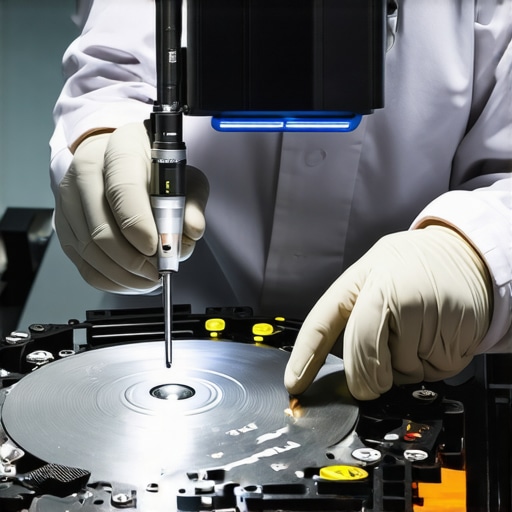
Can you actually trust a ‘Healthy’ status on your drive diagnostics?
Not always. SMART data (Self-Monitoring, Analysis, and Reporting Technology) is a fantastic tool, but it is a lagging indicator, not a crystal ball. A comprehensive study by experts at Google found that over 36% of failed drives showed no SMART warnings before they died. This is why managed it strategies to keep your business secure in 2025 focus on redundant, off-site backups rather than just monitoring drive health. If you are a business owner, relying on a ‘Healthy’ green icon is a recipe for disaster. You need effective managed it solutions for growing companies that automate the recovery process before the hardware even flinches.
The white screen trap that drains your wallet
It happens in a flash: you open your laptop, and the screen is glowing pure white, but nothing else appears. Most users immediately assume they need an expensive replacement. They buy a new panel, wait for shipping, install it, and the screen is still white. The ‘Oops’ factor here is overlooking the internal video cable or the motherboard’s LVDS connector. Knowing the reason your laptop screen is white and wont show the desktop can save you from buying parts you don’t need. Sometimes it’s just a loose ribbon cable caused by the how to tell if your laptop hinges are about to snap the frame. Always test with an external monitor first; if that display works, your GPU is fine, and the problem is likely just a $15 cable. Have you ever fallen into this trap of replacing the wrong part? Let me know in the comments.
I’ve seen far too many people treat their laptops like appliances—as if they should just work forever without a single thought given to the dust bunnies clogging the vents. If you want your hardware to survive the long haul, you have to treat it like a high-performance engine. Heat is the number one killer of silicon. Over the years, I’ve learned that simply knowing how to clean a laptop fan without pushing dust deeper inside can add two or three years to a machine’s lifespan. When that fan is screaming, it’s not just noise; it’s a cry for help as your CPU throttles itself to prevent a permanent meltdown.
Keep the heat away if you want your chips to last
Every time your laptop hits those high temperatures, the thermal paste between your processor and the heatsink dries out a little more. Once it turns into a brittle, chalky mess, the heat can’t escape anymore. I personally make it a rule to repaste my main workstations every two years using high-end non-conductive paste like Grizzly Kryonaut. It’s a small maintenance task, but it keeps the system stable under load. If you aren’t comfortable opening things up yet, start with laptop screen repair how to fix common issues at home to build your confidence with small connectors before moving to the motherboard. Once you master the basics, you’ll realize that the hardware upgrade that actually speeds up your daily workflow often starts with better cooling and an SSD swap.
#IMAGE_PLACE_HOLDER_D#
Invest in a real toolkit instead of a kitchen knife
I can always tell when someone tried to fix their own computer using a butter knife or a flathead screwdriver they found in the garage. Stripped screws are the bane of my existence. I use an iFixit Pro Tech Toolkit every single day because the bits are hardened and precisely machined. Using the wrong bit size is how you turn a simple ten-minute repair into a nightmare where you’re drilling out a rounded-off screw head. When you have the right tools, performing a laptop screen replacement step-by-step repair guide becomes a satisfying puzzle rather than a stressful gamble. It’s about having the right leverage and the right static protection to ensure you don’t fry a $400 logic board with a single spark from your fingertip.
How do I keep my laptop running like new for years?
Maintenance isn’t just physical; it’s about the data environment you build. For my business clients, the transition from ‘reacting to breaks’ to ‘proactive monitoring’ is where the real magic happens. This is why managed it solutions streamlining operations for small businesses are so effective. Instead of waiting for a drive to click, we have software that monitors sector health and triggers an automated backup the second a threshold is crossed. According to technical documentation from the Storage Networking Industry Association (SNIA), ‘bit rot’ and silent data corruption are far more common than people realize, especially in drives that aren’t regularly exercised. If you are scaling a team, you absolutely need how managed it can elevate your business security in 2025 to keep your fleet synchronized and safe. It’s much cheaper to pay for a monthly audit than it is to pay for a $2,000 emergency recovery service. This is specifically why your managed it provider should be doing quarterly audits to catch these small hardware drifts before they become total failures.
Predictive AI is the future of hardware longevity
Looking ahead, I see a major shift in how we handle computer repair. We are moving toward a world where AI models integrated into the BIOS will predict a motherboard failure weeks before it happens by analyzing tiny fluctuations in voltage. We won’t just be ‘fixing’ things; we’ll be swapping parts during lunch breaks before the user even notices a glitch. This level of foresight is already starting to appear in high-end managed it strategies to keep your business secure in 2025. My advice? Don’t wait for the future to arrive. Download a hardware monitor like HWMonitor today and check your idle temperatures. If you’re idling above 60°C, take that as your sign to clean your fans before the weekend is over. It’s the easiest win you’ll get all month.
The Hardest Lesson I Learned While Chasing Lost Data
Over the years, I’ve realized that 90% of technical disasters are actually just miscommunications between hardware and software. I used to think a dead screen meant a dead computer, but often it’s just a loose $15 cable. The most painful lesson was learning that data isn’t truly gone until you overwrite it or physically destroy the drive. If you find yourself in a panic, remember that data recovery secrets every business should know today usually start with simply stopping and thinking before you click ‘Format’. Also, never underestimate the power of static electricity; one spark from your finger can turn a simple RAM upgrade into a motherboard funeral. Always use an anti-static wrist strap or touch a grounded metal object frequently to stay safe.
The Tools I Reach for When Everything Fails
If you’re serious about maintaining your own gear, you need more than just a kitchen screwdriver. I swear by my precision bit set for any laptop screen repair diy tips for clearer displays. Beyond the physical tools, I rely on software like CrystalDiskInfo to spot failing sectors before they become a crisis. For business owners, I can’t recommend why managed IT is a game changer for growing companies enough—it’s the ultimate tool because it works while you sleep. Finally, keep a SATA-to-USB adapter in your desk drawer; it is the single most effective way to rescue files from a laptop that refuses to boot without needing to repair the entire system first.
Building a Future Where You Never Lose a File Again
Technology is incredible, but it is also fragile. The goal isn’t to never have a problem, but to be so prepared that a crash is merely a minor inconvenience rather than a life-altering event. Whether you are performing a laptop screen replacement step-by-step repair guide or setting up a robust backup routine, you are taking charge of your digital life. Don’t be afraid to open that case and learn how your machine breathes. If you ever feel stuck, you can always contact us for expert advice. You’ve got the knowledge now—it’s time to put it to work. Have you ever managed to save a file at the very last second using one of these recovery tricks? Let me know your best recovery story in the comments below!