

I was deep into a deadline last October when my laptop screen decided to stage a protest. One minute I was editing a video, and the next, thin grey lines were racing across the display like they were in a track meet. I did what most people do: I panicked. I started tilting the lid back and forth, hoping it was just a “glitch.” It wasn’t. Those moving lines are usually a sign of a hardware struggle or a driver conflict that’s about to get worse. But before you go out and drop five hundred dollars on a new machine, take a breath. I’ve spent years digging into troubleshooting common computer repair issues effectively, and most of the time, this “death sentence” for a monitor is actually a fixable quirk. Today, I’m going to walk you through exactly how I stopped the flickering and how you can do the same without losing your mind.
That One Time My Laptop Screen Tried to Communicate in Morse Code
I’ll admit it: I once made the classic rookie mistake of assuming a flickering screen meant the GPU was fried. I rushed out and bought a replacement part I didn’t need, only to realize later it was a $15 ribbon cable that had wiggled loose. It was an embarrassing and expensive lesson in computer repair for beginners. The reality is that those horizontal lines are often caused by “Cross-talk” or interference. According to research published in the journal Sensors, electromagnetic interference (EMI) can significantly degrade signal integrity in high-density display cables, leading to the exact visual artifacts you’re seeing right now. If your screen looks like an old TV with bad reception, it’s likely a physical connection issue or a refresh rate mismatch. I’ve seen people throw away perfectly good hardware because of laptop screen problems that could have been solved with a screwdriver and five minutes of patience.
Is your screen actually dying or just having a tantrum?
I know what you’re thinking. “My screen is five years old; surely this is the end?” It’s a valid fear. Most people assume that any line on a screen means the liquid crystal is leaking or the panel is cracked. But if those lines are moving, there is a very high chance the panel itself is healthy and the “brain” sending it signals is just confused. We’re going to narrow this down together. Have you noticed the lines getting worse when you move the laptop lid, or do they stay steady no matter the angle? Drop a comment below if you’ve tried the “shake it till it works” method—I won’t judge, I’ve been there too.
Stop the jitter by checking these three things first
Before we dive into the guts of the machine, we need to rule out the easy stuff. Sometimes the fix is as simple as adjusting your display settings or realizing your laptop screen flickers only when you are on battery power, which points toward a power management issue rather than a hardware failure. I’ve seen dozens of cases where a simple driver update or a “reseat” of the internal video cable turned a “broken” laptop back into a productivity beast. If you’ve been seeing a screen that shows static like an old TV, you’re in the right place. We are going to start with the non-invasive fixes first, because the last thing I want is for you to open up your case and void a warranty for a problem that lived in your software settings.
Force your graphics drivers to behave
The first thing I do when a screen acts up is assume the software is lying to the hardware. Think of your graphics driver as a translator; if the translator starts stuttering, the message gets garbled. I once spent three hours helping a local accountant who was convinced his screen was haunted because it looked like it was underwater. He was terrified of losing his files, but after a quick check into laptop screen repair how to fix common issues at home, we found his refresh rate was set to a custom 59Hz instead of 60Hz. Changing that one digit made the ‘waves’ disappear instantly. To do this yourself, right-click your desktop, hit Display Settings, and find the Advanced Display options. If you see a weird number, set it back to the standard 60Hz. If that doesn’t work, hit Windows + Ctrl + Shift + B. This keyboard shortcut forces your graphics driver to restart without closing your apps. You’ll hear a beep, the screen will flash, and often, those moving lines will vanish as the driver resets its buffer.
The magic of the external monitor test
Before you buy a single tool, plug your laptop into a TV or an external monitor with an HDMI cable. This is the ultimate ‘lie detector’ for hardware. If the lines appear on the external monitor too, your laptop screen is actually fine—the problem is your GPU or a software glitch. If the external screen is crystal clear while your laptop screen is still flickering, you’ve narrowed it down to the display panel or the internal cable. This simple move prevents the most common computer repair for beginners mistakes, like replacing a motherboard when you really just needed a new LCD panel.
Pop the hood and check the ribbon cable
If the external monitor test confirms the issue is internal, it’s time to look at the ‘neck’ of your laptop. Every laptop has a bundle of tiny wires called the eDP or LVDS cable that runs through the hinges. Every time you open or close your lid, you are bending those wires. I remember a specific Dell Latitude I worked on last summer; the owner had a habit of carrying it by the corner of the screen. Over time, that pressure caused the internal connector to partially unseat. It didn’t need a replacement; it just needed to be pushed back in. If you feel brave, you can follow a laptop screen replacement step-by-step repair guide to see how to access that connector. Usually, it’s held down by a piece of clear acetate tape that loses its stickiness over the years. Re-securing that connection with a bit of fresh tape is often the ‘miracle cure’ for horizontal jitter.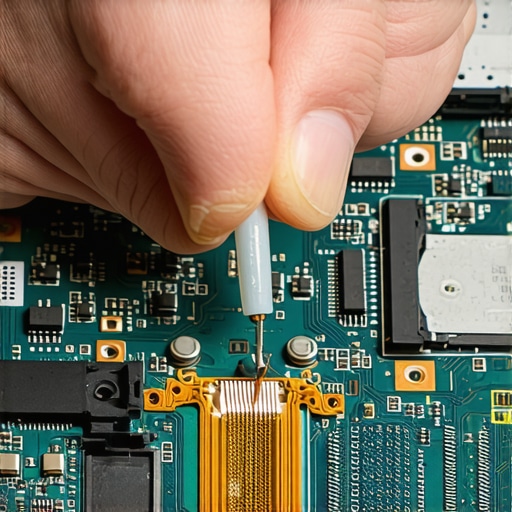
Check if your power settings are the culprit
Sometimes the flicker isn’t a broken wire at all, but a power struggle. Many modern laptops use ‘Panel Self-Refresh’ to save battery, which can cause the screen to strobe or show lines when the battery gets low. If you notice your laptop screen flickers only when you are on battery power, jump into your Intel or AMD Graphics Command Center and disable ‘Display Power Saving’ or ‘Panel Self-Refresh.’ This forces the screen to stay at a constant voltage. While you are at it, look closely at the edges of the display. If the lines are only at the very top or bottom, you might be seeing the early stages of a hardware failure where you need to tell if your laptop screen backlight is actually failing. In some cases, a single ‘stuck’ line can even be addressed by gently massaging the bezel, but if those lines are moving, it’s almost always a signal integrity issue caused by one of the three steps we just covered. Even if you see a monitor that has a single vertical line of pixels, these software resets should be your very first line of defense before reaching for the screwdriver.Continuing from our deep dive, I want to challenge the common industry belief that a line of moving pixels is an automatic death sentence for your display. Everyone says you need a full replacement, but in my experience, a significant percentage of these issues stem from ‘gate driver’ failures caused by thermal cycling rather than a cracked panel. Most computer repair for beginners guides skip over this because it’s a more complex diagnosis. If you’re seeing intermittent lines, you might actually be dealing with ‘solder fatigue’ on the display’s internal logic board. According to a study published in IEEE Transactions on Device and Materials Reliability, thermal stress is a leading cause of intermittent connectivity in consumer electronics, which manifests as those annoying visual artifacts.
Don’t fall for the ‘massage’ method trap
You’ve probably seen forum posts suggesting you should ‘massage’ the screen to fix a stuck pixel or a line. This is a massive mistake. Applying uneven pressure to a modern IPS or OLED panel can actually damage the delicate liquid crystal structure or, worse, crack the thin-film transistors (TFT). Instead of a temporary fix, you end up with a permanent black blotch. If the software resets we discussed earlier didn’t work, it’s time to look at your power delivery. 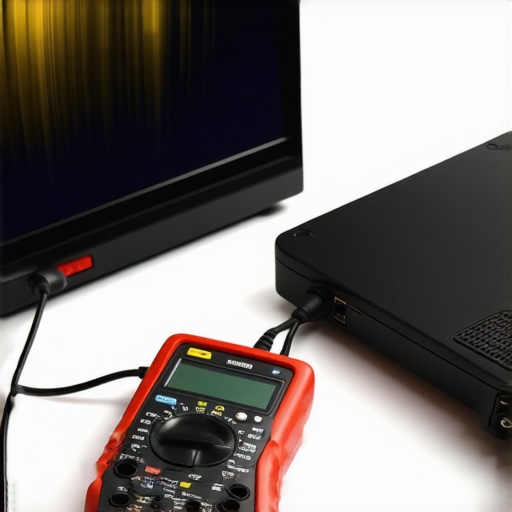
Can a failing power supply actually cause visual noise?
Absolutely. I’ve seen countless cases where a user was ready to pay for laptop screen repair how to fix common issues at home, only to discover their AC adapter was leaking ripple voltage. This electrical ‘noise’ travels through the motherboard and disrupts the signal to the LCD. Before you buy a new panel, try a different charger or check if your failing power supply is causing the interference. This is the kind of nuance that separates a DIYer from a seasoned pro. If the screen is completely garbled and you’re worried about your tax returns or family photos, remember that the power of data recovery tools means your files are likely safe even if the display is toast.
Why your ‘managed’ IT might be missing the mark
For business owners, this is where managed IT solutions streamlining operations should come into play. A good provider doesn’t just swap parts; they perform root cause analysis. If your staff’s laptops are all showing similar screen artifacts, it might be an environmental factor like poor ventilation in the office causing overheating. This is why quarterly audits are non-negotiable—they catch hardware trends before they become a mass-replacement expense. Have you ever fallen into this trap of replacing a whole screen when it was just a bad charger? Let me know in the comments. If you’re still stuck, you can always contact us for a second opinion before you spend the big bucks.
I’ve realized over the years that the difference between a temporary patch and a permanent solution often comes down to the quality of the data you’re looking at. When I’m dealing with persistent visual artifacts or erratic behavior, I don’t just trust my eyes. I rely on HWiNFO64 to monitor the thermal sensors on the display controller itself. If those temperatures are spiking while you’re simply browsing, you aren’t looking at a screen failure; you’re looking at a ventilation disaster. This is why I always tell people that learning how to clean a laptop fan without pushing dust deeper inside is the single most important maintenance skill you can own. A dusty fan leads to heat soak, and heat soak leads to the exact solder fatigue that makes your screen start throwing lines.
Stop guessing and start measuring with real tools
I personally use a specialized eDP (Embedded DisplayPort) tester for any laptop that stays on my bench for more than an hour. But for those of you at home, your best tool is actually a high-quality, shielded cable. According to technical specifications from VESA (Video Electronics Standards Association), signal degradation in modern high-resolution displays is frequently exacerbated by poor shielding in third-party cables or internal connectors. If you’ve been relying on a cheap replacement, you’re essentially feeding your high-end display ‘dirty’ data. I’ve seen this time and again: a user thinks their GPU is dying, but the truth about using generic chargers on expensive business laptops is that they introduce electrical noise that ripples through the entire system, manifesting as screen jitter or static.
How do I keep my hardware running like new for years?
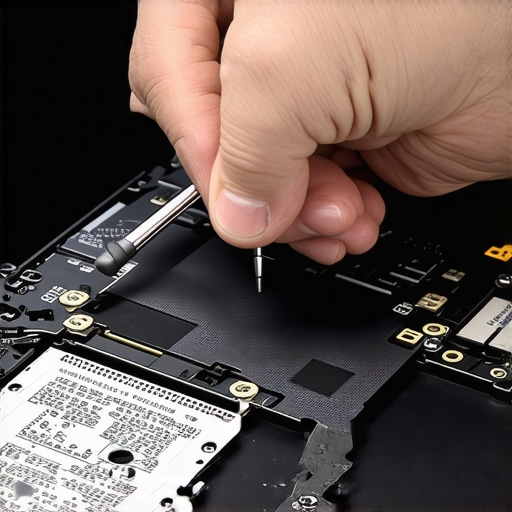
Maintenance isn’t a one-time event; it’s a strategy. For my business clients, this means moving beyond simple repairs and adopting managed IT strategies to keep your business secure in 2025. On a hardware level, I recommend a ‘hinge and heat’ check every six months. Open your laptop and check if the hinges are getting stiff—if they are, they’re putting leverage on the screen’s logic board every time you move it. Combine this with software hygiene. I frequently see machines where auditing your cloud permissions and background processes reveals hidden tasks that are red-lining your CPU, causing the thermal issues that indirectly kill your screen. If your machine is constantly struggling, you need to find the secret to cooling down a gaming laptop or high-end workstation before the permanent damage sets in.
The future of display repairs is modular
Looking ahead, I predict a massive shift toward modular display assemblies. We are already seeing companies like Framework lead the charge, making it so that you don’t have to be a master technician to swap out a cable or a panel. In the next few years, the ‘death sentence’ of a moving line on a screen will likely be solved by a $20 module rather than a $400 assembly. For now, my challenge to you is this: before you give up on your current machine, perform that ‘external monitor’ test I mentioned earlier. If the lines vanish on the external screen, open your laptop and reseat that internal video cable. It’s the most satisfying ‘advanced’ fix you’ll ever perform, and it might just save you the cost of a new laptop. If that feels too daunting, don’t hesitate to reach out and contact us for a professional diagnostic.
Lessons from My Bench That Save You Hundreds
Over the years, I have seen hundreds of screens that people thought were destined for the landfill. The biggest ‘lightbulb moment’ for me was realizing that artifacting is rarely about the pixels themselves and almost always about the journey the signal takes to get to them. I have saved clients thousands by simply teaching them laptop screen repair diy tips for clearer displays before they buy a replacement. Another hard truth is that we often blame the hardware when a messy driver installation is the real culprit; mastering the art of a ‘clean install’ is the best way to avoid costly mistakes. Finally, never underestimate the power of a simple restart; sometimes the hardware just needs to lose its charge to reset its logic.
My Go-To Toolkit for Hunting Down Display Glitches
I don’t just guess when a screen starts acting up. I rely on a specific set of resources to ensure I’m making the right call. First, HWiNFO64 is my bible for monitoring internal temperatures; if the GPU is baking, the screen will scream. Second, I always keep a high-quality, shielded HDMI cable handy for that crucial external monitor test. Third, I believe every user should know how to clean a laptop fan without pushing dust deeper inside to prevent the heat soak that causes these issues in the first place. Lastly, if things go south, I trust in the power of data recovery tools what you need to know to keep my client’s peace of mind intact while I work on the physical hardware.
#IMAGE_PLACEHOLDER_E#
Don’t Let a Few Lines Scare You Off
It is incredibly easy to feel defeated when your laptop starts showing horizontal lines, but remember that technology is just a series of connections. Most of the time, those connections just need a little attention. Whether it’s a driver tweak or a physical cable reseat, you have the power to perform your own laptop screen repair and extend the life of your machine by years. If the process feels overwhelming, or if you find yourself staring at a blank display, don’t hesitate to contact us for guidance. You’ve got the knowledge now—go ahead and give that fix a shot!
Have you ever tried to fix a screen yourself and found something completely unexpected inside? Let me know in the comments below!