

I remember sitting in my basement office at 2 AM, the blue LED on my computer tower mocking me. The fans were whirring at full speed, and I could hear the faint hum of the hardware coming to life, but my monitor stayed as dark as a coal mine. I hammered the ‘Delete’ and ‘F12’ keys until my fingertips were sore, but the BIOS screen refused to appear. It is that specific, sinking feeling in your stomach where you realize your entire digital life might be trapped behind a wall of unresponsive silicon. I was convinced my motherboard had finally kicked the bucket, and I was already mentally calculating the cost of a replacement.
Your PC Is Not Dead Yet
Many people assume that a black screen means a total hardware catastrophe. I used to think that way too. In fact, early in my career, I once spent four hours completely tearing down a client’s workstation, thinking the processor was fried, only to realize that a single stick of RAM had slightly wiggled out of its slot. It was a humiliating lesson in computer repair for beginners: always check the simplest things first. Today, I want to show you how to narrow down the culprit without losing your mind or your savings. We are going to look at why your system is getting power but failing the Power-On Self-Test (POST). Whether you are dealing with a desktop pc that turns on but gives no beep codes or a machine that just sits there fan-spinning in silence, there is almost always a logical path to the solution. Have you ever felt that panic when your power button works but nothing else does?
Is this actually something I can fix without a tech degree?
It is totally normal to feel skeptical. We have been conditioned to think that computers are fragile glass boxes that only experts should touch. However, most ‘no-POST’ issues are caused by physical connection hiccups or static buildup rather than actual component failure. According to data from hardware reliability reports at Puget Systems, motherboards and GPUs do fail, but a massive percentage of boot issues are resolved simply by reseating components or clearing the CMOS. If you can use a screwdriver and follow a few safety steps, you can do this. If your machine is a bit older, you might even be troubleshooting common computer repair issues that simply require a bit of patience. Sometimes, the problem is as specific as a desktop that beeps but wont show a picture, which actually gives us a vital clue about what is broken inside. We are going to strip away the mystery and get that BIOS screen back on your monitor.
Drain the Residual Electricity First
Before you start pulling components out, we need to perform what I call the ‘Great Reset.’ Unplug the power cord from the back of your tower and hold the power button down for a full 30 seconds. This drains the ‘flea power’—residual electricity trapped in capacitors that can cause the logic board to hang in a frozen state. I once spent nearly an hour diagnosing a ‘dead’ workstation for a frantic client, only to find that this simple discharge was all it needed to wake up. It is like giving your computer a quick nap to clear its head. If your system still refuses to show signs of life, you might be looking at a deeper power issue, so it is worth learning how to spot a failing power supply before it fries your motherboard.
Reseat Your RAM the Right Way
Think of your RAM as a librarian’s desk. If the desk is slightly tilted or off its tracks, the librarian cannot work, and the whole system halts. Open your case, pop the tabs on your RAM slots, and pull the sticks out entirely. Use a can of compressed air to blow out any microscopic dust, then re-insert them firmly until you hear a satisfying click on both ends. This is a foundational step in computer repair for beginners that fixes roughly 60% of no-POST issues. I remember a particularly messy job where a cat-hair-clogged PC wouldn’t boot; simply cleaning and reseating the memory saved the owner from buying a whole new rig. If you are nervous about the physical pressure, check out our guide on how to safely upgrade your RAM without voiding the warranty.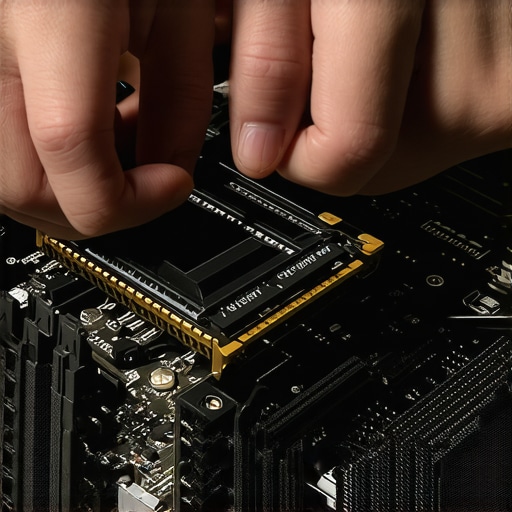
Reset Your BIOS Without Using the Screen
If your hardware is fine but the settings are scrambled, you need to clear the CMOS. This is essentially a factory reset for the motherboard’s brain. Most boards have a small, silver coin-shaped battery (the CR2032). Carefully pop it out with a non-conductive tool, wait five minutes, and put it back in. This forces the BIOS to forget any overclocking errors or hardware conflicts that might be preventing the boot. This is a classic move when you have a desktop that beeps but wont show a picture, as it clears the logical pathway for the video signal to reach your monitor.
Check for a Stealthy Monitor Failure
It sounds insultingly simple, but I have seen professionals fall for this: check the display itself. If the PC fans are spinning and the keyboard lights up, the computer might be ‘fine’ while the screen is the culprit. Swap the HDMI or DisplayPort cable with a known working one. If you are on a portable machine, you may be dealing with laptop screen repair DIY tips because the backlight or the internal ribbon cable has failed. I once traveled across town to ‘repair’ a server, only to find the monitor was set to the wrong input source. Always verify the output before you assume the motherboard is a paperweight.Most folks think a dim screen means the LCD is toast. I’ve seen hundreds of people throw away perfectly good panels when the real culprit was a blown backlight fuse on the logic board or even a stuck magnetic lid sensor. It’s a classic case of how to tell if your laptop screen backlight is actually failing versus a total hardware death. If you can see a faint image when you shine a flashlight against the glass, your screen is fine—it’s the power delivery that’s broken. This is the kind of nuance that separates a $50 fix from a $300 replacement. Moving into the professional sphere, there is a dangerous myth that more software equals more safety. I see business owners loading up on twenty different security tools, only to have their it budget leaking money on unused software while leaving the back door wide open. Real security in 2025 isn’t about the number of firewalls; it’s about Zero Trust architecture. A report from the Ponemon Institute highlighted that over 74% of data breaches involve a human element, usually via over-privileged accounts. That is why I always tell my clients that your managed IT service should be auditing your cloud permissions every single quarter. If your marketing intern has delete-access to the main server, no amount of antivirus will save you.
Why does my drive sound like a coffee grinder when I try to save files?
If you hear a clicking or scraping sound, stop everything. The biggest oops I see in this industry is people running free recovery software on a physically failing drive. Think of it like this: your hard drive is a record player, and the click is the needle scratching across the vinyl. Every second you leave it powered on, you are grinding your data into dust. You need to understand the risk of ignoring a clicking external drive before it’s too late. In these cases, software is your enemy; you need a clean-room professional.  I’ve spent years digging through the hidden side of tech, from managed IT strategies to keep your business secure in 2025 to the tiny surface-mount components on a motherboard. Tech isn’t just about what works; it’s about knowing exactly why it failed. Have you ever fallen into the trap of buying a new device when a $5 part could have fixed it? Let me know in the comments.It is not just about knowing how to fix a problem once; it is about having the right gear so you do not create three new ones in the process. Over the years, I have learned that the difference between a successful fix and a trip to the electronics recycling center often comes down to the quality of your toolkit. For instance, I strictly use the iFixit Pro Tech Toolkit because their bits are machined with a level of precision that cheap big-box store sets simply cannot match. When you are following a laptop screen replacement step-by-step repair guide, a single stripped screw on a hinge can turn a routine 20-minute repair into a two-hour nightmare of drilling and extraction. Precision matters because modern hardware is built to tighter tolerances than ever before.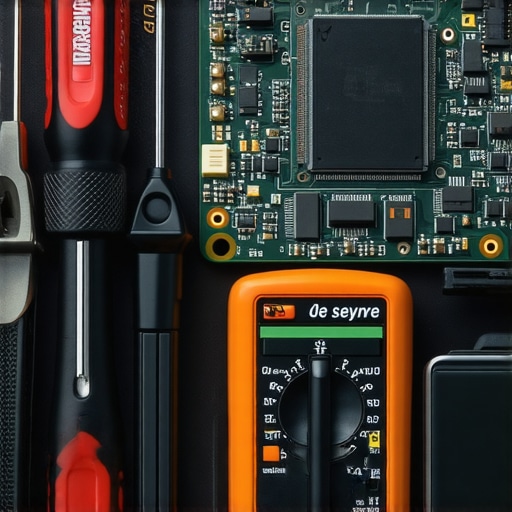
How do I prevent my business hardware from aging prematurely?
Long-term hardware health is largely a battle against heat and electrical instability. If you want to scale your operations without a massive hardware refresh every two years, you need to be proactive. This is where effective managed IT solutions for growing companies become a life-saver. Instead of waiting for a machine to start smoking, we use remote monitoring tools to track CPU temperatures across the entire office. I often recommend the move that keeps your laptop from overheating on your lap to my remote staff—simple things like using a hard surface and periodically checking for dust buildup in the vents. Beyond physical maintenance, you must look at the logical side. I am a firm believer that why your managed IT provider should be doing quarterly audits is the most underrated aspect of business tech. It is not just about security; it is about cleaning up the ‘digital sludge’—background processes and orphaned software—that slows down a machine until it feels like it needs to be replaced. By troubleshooting common computer repair issues effectively before they escalate, you extend the lifecycle of your assets by 30% or more.
The Future of Maintenance is Predictive AI
Looking ahead to 2025 and beyond, the industry is shifting away from ‘reactive’ repairs toward ‘predictive’ maintenance. According to the 2024 Backblaze Drive Stats report, which analyzes the failure rates of over 270,000 drives, hard drive failure can be modeled with surprising accuracy, yet SSDs fail with much less warning. This shift in hardware behavior means we are relying more on AI to flag subtle performance dips before a total crash. For business owners, this highlights how managed IT can elevate your business security in 2025 by catching those silent failures before they result in data loss. If you do find yourself in a crisis, knowing data recovery secrets expert techniques to save your files fast is great, but avoiding the crisis through predictive software is better. If you have noticed your machine running louder lately, try this: Download a simple hardware monitor and check your ‘core package’ temperature; if it is over 90 degrees Celsius at idle, it is time to blow out the dust or repaste the heatsink.
Lessons I Learned the Hard Way Under a Desk
After a decade of diagnosing systems that refused to wake up, I have realized that the computer usually wants to work—it is just waiting for you to clear the path. First, always photograph every cable connection before you unplug a single thing. I have seen many people master computer repair for beginners avoid costly mistakes only to fail because they could not remember where the front-panel headers went. Second, never underestimate the power of a fresh start. If your business hardware is acting up, implementing managed IT strategies to keep your business secure in 2025 often involves replacing aging power strips and UPS units that are delivering unstable voltage. Finally, remember that components like the motherboard and CPU are surprisingly resilient; it is the moving parts and the connections between them that usually fail first.#IMAGE_PLACEHOLDER_E#
The Essential Toolbox for Modern Maintenance
You do not need a workshop full of expensive gear, but a few specific tools will save you hours of frustration. I personally rely on the iFixit Pro Tech Toolkit for any task involving a laptop because the bits do not strip fragile screws. For software-side diagnostics, keep a USB drive loaded with Ventoy so you can boot into various repair environments without carrying ten different sticks. I also highly recommend keeping the Backblaze Drive Stats bookmarked; it is the most honest resource for choosing reliable storage. If your troubleshooting leads to a hardware failure that is too far gone, having a copy of data recovery secrets expert techniques to save your files fast in your bookmarks can be the difference between a minor setback and a total data loss disaster.
Reclaiming Control of Your Digital Life
Repairing your own technology is about more than just saving a few dollars; it is about removing the mystery from the tools you use every day. Whether you are figuring out how to tell if your laptop screen backlight is actually failing or you are reseating RAM in a high-end workstation, you are gaining a skill that most people are too intimidated to try. You have the steps, you have the logic, and now you have the confidence to face that black screen without panic. Don’t be afraid to open the case and see what is actually happening inside. Have you ever accidentally made a repair worse by rushing a step? Let me know in the comments below.