

I remember sitting at my desk, deadlines looming like a dark cloud, staring at a cursor that refused to budge. I had a report due in an hour, but every time I dared to click that colorful Chrome icon, my entire system turned into a digital paperweight. It is a special kind of frustration. You can move the mouse for a second, then—bam—everything stops. I used to think I was tech-savvy until I faced this specific nightmare. Early on in my journey, I made the classic rookie mistake of assuming my hard drive was failing and almost paid for expensive services before I learned how to avoid costly mistakes by starting with the basics. Today, I am going to show you exactly how to reclaim your workspace without throwing your laptop out the window. Have you ever felt that sinking feeling when the screen just locks up on you?
Why Your Hardware and Browser Are Fighting Right Now
The reality is that Chrome is a resource hog, but a freeze usually means something deeper is clashing under the hood. It is rarely just one thing. Sometimes it is a conflict with your graphics drivers, and other times, your system is literally gasping for breath because of a lack of memory. If you have ever wondered about the hardware upgrade that actually speeds up your workflow, you probably know that RAM is usually the culprit when browsers get greedy. According to a study by StatCounter, Chrome holds over 65% of the global browser market share, which means its complex updates often outpace what older hardware can handle comfortably. We are going to look at the settings that cause these collisions and how to neutralize them. Before you start thinking about troubleshooting common computer repair issues effectively, let’s take a breath. Most of the time, this is a software-level dispute that we can settle in five minutes.
Is my computer actually broken beyond repair?
I get this question from my neighbors all the time. They see a frozen screen and assume the motherboard is melting. Most of the time, the answer is a resounding no. Your PC is likely just overwhelmed by how Chrome tries to use your graphics card to render pages. In the next section, we will dive into the specific toggle switches in your settings that can stop these freezes instantly, but first, we need to make sure your basic system health isn’t the hidden bottleneck.
Kill the Hardware Acceleration Conflict
Chrome tries to be helpful by asking your graphics card to do the heavy lifting for images and videos. Think of it like a relay race: Chrome hands the baton to your GPU. If the GPU drops it, the whole system trips. I remember once I was trying to present a slide deck to a room full of potential clients. Every time I hit ‘Play’ on a video, the screen would turn into a pixelated statue. I was sweating through my shirt while the client stared at my frozen cursor. The fix? I dug into the Chrome settings, went to ‘System,’ and toggled off ‘Use hardware acceleration when available.’ Just like that, the stuttering stopped. It sounds counterintuitive to turn off a ‘speed feature,’ but for older hardware, it’s a life-saver. This is often the hidden cause behind why your computer keeps freezing when you watch youtube videos, especially on laptops that lack a dedicated graphics card.
Ditch the bloated extensions immediately
If your browser is the engine, extensions are the aftermarket accessories. Too many ‘spoilers’ and ‘neon lights’ and your car won’t even make it out of the driveway. You need to be ruthless. Open your extension manager and ask yourself: ‘When was the last time I actually used this coupon finder?’ If you aren’t sure, disable it. Some extensions are poorly optimized and leak memory like a cracked radiator. This is a primary reason why you might need troubleshooting common computer repair issues effectively before they escalate into a full system crash. I once found an extension that was refreshing in the background every five seconds, eating up 2GB of RAM just by itself. Once I deleted it, the laptop felt brand new and the fan finally stopped screaming.
The hidden Task Manager inside your browser
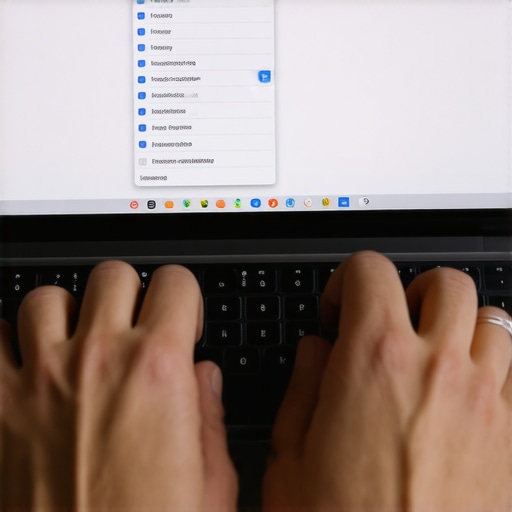
Most people know about Ctrl+Alt+Delete, but did you know Chrome has its own internal task manager? Press Shift + Esc while your browser is open. It shows you exactly which tab or plugin is sucking the life out of your processor. If you see a tab taking up more memory than the OS itself, kill it right there. This simple trick can save you from a hard reboot and prevent data loss in other open apps. It is a much faster solution than worrying about the hardware component that causes the most blue screens of death because it targets the software culprit directly before it can destabilize the kernel.
Update your drivers before things get ugly
Your operating system needs a translator to talk to your hardware. These are called drivers. If the translator is speaking a version of English from 1995, and your hardware is modern, things get lost in translation. Go to your device manager and check your Display Adapters. If your screen is doing weird things like why your computer monitor is displaying the wrong colors after an update, the driver is almost certainly the culprit. While you’re at it, keep an eye on your physical memory. If you’re constantly hitting 90% usage, you should look into how to safely upgrade your RAM without voiding the warranty. For businesses, this is where why your managed IT service should be doing regular security audits becomes essential; they ensure every machine is running the latest stable drivers to prevent these workflow-killing freezes before they even start.
The Data Recovery Myth That Kills Your Files
In my years of tearing down machines, I’ve seen more data lost to ‘free recovery software’ than to actual hardware failure. Most people assume that if a drive isn’t showing up, they just need a more powerful app to ‘find’ it. In reality, if your drive is making any noise, running software is the worst thing you can do. Every second that disk spins, the read/write head could be physically scratching your data off the platters. I call this the ‘Software Trap.’ People think they are saving money on computer repair for beginners, but they end up making the recovery ten times more expensive. If you hear a noise, stop. Identifying the risk of ignoring a clicking external drive early is the difference between a $200 fix and a $2,000 lab bill. A study by Ontrack revealed that roughly 40% of hardware-related data loss is exacerbated by users attempting DIY software fixes on failing physical components. If you’re in deep water, knowing why drive savers remains the only choice for physically damaged drives is advanced knowledge that saves careers.
Can I really fix a flickering screen without buying new parts?
I get this question from DIYers who are ready to order a $150 replacement panel. The truth? A flickering screen is often just a loose eDP cable or a power management conflict rather than a dead LCD. Before you reach for the screwdriver, check if your laptop screen flickers only when you are on battery power. If it does, your ‘hardware’ problem is actually a software ‘Intel Graphics’ setting. This is the kind of nuance that separates a pro from a parts-swapper. I’ve seen people perform a full laptop screen replacement only to find the new screen flickers too because the issue was a $10 cable. Always check the easiest path first. If your display is doing something weird like showing a white screen, it’s a signaling issue, not necessarily a broken glass panel. 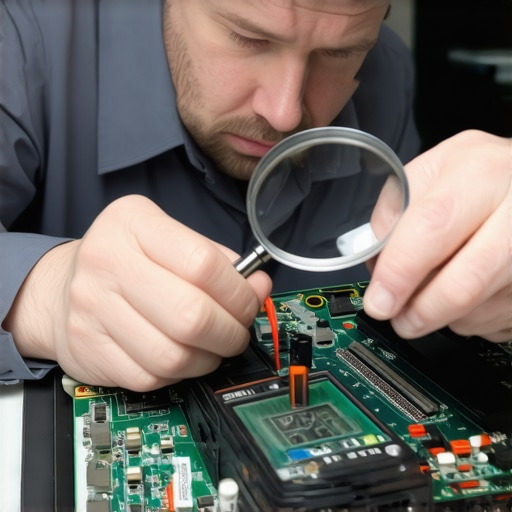
Stop Treating IT Like a Plumber
The biggest mistake small business owners make is using ‘break-fix’ IT. You wait until the server screams before calling for help. This is like only seeing a doctor when you’re already in the ER. By the time you need expert data recovery techniques, you’ve already lost thousands in downtime. This is why effective managed IT solutions for growing companies are worth the investment; they catch the first sign your business server motherboard is about to fail before your employees show up to a dead office. It’s about proactive health, not reactive repairs. Have you ever fallen into this trap of waiting for a total crash before taking action? Let me know in the comments below.
The Hidden Cost of ‘Good Enough’ Hardware
I see it every week: a business buys twenty cheap laptops to save $2,000 upfront. Six months later, they are paying me $3,000 to fix hinge failures and thermal throttling. There is a massive hidden cost of buying cheap consumer laptops for your staff because they aren’t built for 8-hour daily workloads. Professional-grade machines use better soldering and thermal management. If you are struggling with a slow fleet, the hardware upgrade that actually speeds up your daily workflow might just be a simple SSD swap, but only if the chassis is worth saving. Don’t be afraid to ask for a repair vs. buy consultation before you sink money into a sinking ship. Knowing when to quit is a professional skill in itself. For more specialized tips on keeping your workflow smooth, you can always contact us for a deep dive into your specific setup.
Once you’ve sorted the immediate crisis of a frozen browser or a flickering screen, the real challenge begins: longevity. I’ve seen too many people fix a problem only to have it return three months later because they ignored the environment. My personal ‘secret sauce’ for maintenance isn’t a spray or a brush; it’s a tiny piece of software called HWInfo64. I use it to monitor junction temperatures on the CPU. If I see those numbers creeping above 90°C during a standard Chrome session, I know it’s time to learn how to clean a laptop fan without pushing dust deeper inside before the heat kills the motherboard. Stop guessing when your hard drive will die. I religiously run CrystalDiskInfo on every machine that crosses my desk. It reads the S.M.A.R.T. data to give you a heads-up on reallocated sectors. This is critical because the risk of ignoring a clicking external drive is too high to play games with. According to the 2023 Backblaze Drive Stats, which tracks over 270,000 drives, certain models show a failure rate spike after year three. If you aren’t tracking your drive health, you’re just waiting for a disaster. Understanding the power of data recovery tools-what you need to know is great, but seeing the failure coming is even better.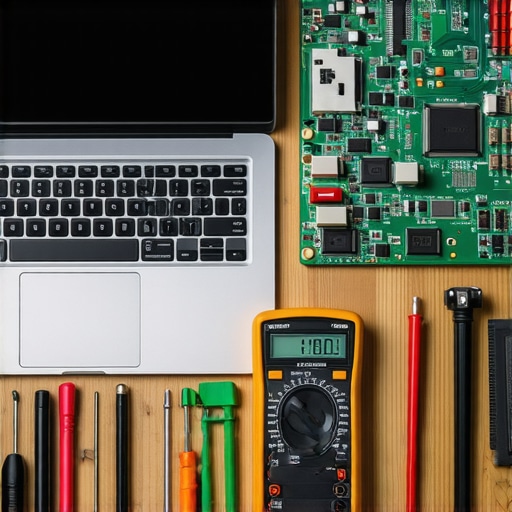
How do I keep my laptop screen and hardware healthy over time?
Maintenance is a habit, not a one-time event. For screens, the biggest threat is actually physical pressure and hinge tension. I always tell my clients to open their laptops from the center, not the corners, to avoid warping the frame. Beyond that, keeping the software side clean involves more than just deleting files. You need a proactive approach. This is where managed IT strategies to keep your business secure in 2025 come into play for larger setups. They automate the boring stuff—driver updates, security patches, and registry cleanups—so you don’t have to. If you’re a DIY enthusiast, you can still get professional results by following laptop screen repair-diy tips for clearer displays and keeping your resolution settings native.
Why your small business needs to ditch the Break-Fix mentality
As we look toward the future, the trend is shifting heavily toward predictive AI diagnostics. Within the next few years, your OS won’t just tell you that it crashed; it will tell you that your RAM is likely to fail in the next 48 hours based on subtle voltage fluctuations. We are moving away from reactive repairs toward total uptime. For now, the best thing you can do is get a baseline of your system’s health. I want you to try this: Download a portable version of CrystalDiskInfo and check your ‘Health Status’ right now. If it’s anything other than a blue ‘Good,’ you need to start backing up immediately. If you’re managing a whole office and this sounds like a full-time job, it might be time to look into effective managed IT solutions for growing companies to handle the heavy lifting for you.
Three Hard Truths About Fixing Your Own Gear
After years of opening up laptops, the biggest lesson I can share is that stability is a result of environment, not just software settings. I have seen people spend days reinstalling Windows only to find that learning how to clean a laptop fan without pushing dust deeper inside would have fixed the thermal throttling in ten minutes. Secondly, always trust the hardware diagnostic before the software repair. If a drive is clicking, no amount of formatting will save it. Finally, troubleshooting common computer repair issues effectively means knowing when to stop; sometimes a $50 part is worth more than five hours of your life.
My Secret Tech Survival Kit
I do not leave the office without a few specific tools. I rely on CrystalDiskInfo to catch failing drives before they become a nightmare and HWInfo64 to watch for motherboard voltage drops. Understanding the power of data recovery tools is essential, but these diagnostic monitors allow you to act before the data is even at risk. For business owners, I recommend moving toward managed IT strategies to keep your business secure in 2025 to automate this monitoring process entirely.
Your Roadmap to a Faster Workday
You do not have to be a tech genius to maintain a high-performance system; you just have to be observant. Whether you are dealing with a flickering display and need laptop screen repair-diy tips for clearer displays or you are trying to squeeze more life out of an old workstation, the key is proactive care. Taking the lead on your computer repair and maintenance today prevents the dark cloud of deadlines and frozen cursors tomorrow. Have you ever found a weird trick that stopped your browser from freezing? Let me know in the comments below.