

It was a rainy Tuesday when my bag didn’t quite zip shut, and a sudden downpour turned my laptop into a very expensive aquarium. I felt that cold pit in my stomach instantly. All my photos, my taxes, and three years of writing were sitting in a puddle of rainwater. I did what most people do: I panicked. My first big mistake was thinking that if the screen lit up, I was safe. I tried to turn it on, and I heard a sickening pop. That was the sound of a short circuit. I learned the hard way that avoiding expensive repair blunders starts with one simple rule: keep the power off. Today, I am walking you through the triage steps I used to eventually get my files back, so you do not have to experience that same sinking feeling.
Your Wet Laptop Needs Immediate Action Not a Bowl of Rice
For years, people have sworn by the ‘rice trick’ like it is some kind of magic voodoo. Let me tell you from experience: it is a myth. Rice does not draw moisture out of the internal components; it just gets gummy dust stuck in your USB ports and fan vents. You need to focus on air circulation and removing every possible power source immediately. I eventually had to use expert recovery techniques that prioritize the health of the storage drive over the aesthetics of the laptop case. If you have dropped your machine in the sink, a pool, or even a puddle, time is your biggest enemy because of corrosion.
Is Liquid Damage Actually Game Over for Your Files?
You might think that once the motherboard is toasted, the data is gone too, but that is rarely the case. Your data usually lives on a separate SSD or hard drive that can be surprisingly resilient. Even if the laptop refuses to turn on, those files are often sitting there, perfectly intact, waiting to be rescued. According to hardware recovery experts at Kroll Ontrack, nearly 75% of data loss incidents are recoverable if the physical storage media hasn’t been physically crushed or completely corroded by salt water. This means there is a very high chance we can get your life back. Have you ever had that heart-stopping moment where a drink spilled toward your tech? Let me know in the comments if you went for the rice or if you knew to pull the battery! Before we get into the heavy lifting, you should check out what you need to know about professional recovery tools to see what we are up against. I am going to show you how to safely get that drive out and what to do next.
Stop the Current Before It Fries Everything
Once you have pulled the plug, you need to treat your laptop like a patient in the ER. Electricity and water are the ultimate enemies because liquid creates a bridge for power to go where it does not belong. When I spilled coffee on my old workstation, I did not just turn it off; I yanked the battery out so fast I nearly broke the clips. If you have a modern ultrabook where the battery is internal, you will need to open the bottom panel immediately. This is where troubleshooting common computer repair issues effectively starts—by removing the source of the short circuit. Think of the battery as a pressurized water main; as long as it is connected, the flood inside your circuits is still active and destructive.
Get the Storage Drive Out of the Splash Zone
Most people focus on drying the keyboard, but your priority is the SSD or Hard Drive. It is usually a small rectangular piece held in by one or two screws. Removing it is a lot like how to safely upgrade your RAM without voiding the warranty, requiring a steady hand and a tiny screwdriver. I once saw a friend try to blow dry his laptop through the side vents. All he did was push the moisture deeper into the drive’s connectors. By removing the drive physically, you isolate your data from the damp mess. If you see green or white crusty residue on the gold pins, that is corrosion. Do not scrape it with your fingernails; keep it dry and move to the next step.
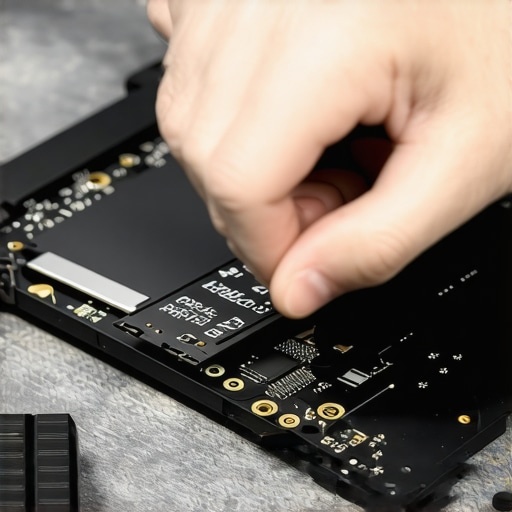
Use an External Adapter to Bridge the Gap
Once the drive is out and bone-dry—give it at least 24 hours in a cool, dry place—you do not put it back in the wet laptop. You need a USB-to-SATA or USB-to-NVMe adapter. This acts as a translator, allowing a healthy computer to read your old drive like a simple thumb drive. It is a moment of truth. When I first did this after my rainy Tuesday incident, my heart was pounding as I plugged the USB into my backup PC. If the drive spins up or the status light blinks, you are halfway home. However, if the computer recognizes a device but cannot see any files, you might be dealing with the signs your external hard drives enclosure is failing rather than the drive itself, so try a different adapter before you give up hope.
Watch for Errors That Suggest Deeper Damage
Sometimes you will get the drive to show up, but Windows will scream that the drive needs formatting. Do not format it. This usually means the file system is scrambled from the sudden power loss. I have spent hours recovering data from a drive with a cyclic redundancy check error because the liquid caused a microscopic write error right before the system died. If you hear a high-pitched whine or a rhythmic clicking, stop immediately. That is mechanical failure, and every second it is powered on, the internal needle is scratching the surface of your data like a key on a car door. At that point, software cannot help you; you need a clean-room environment.
One of the most dangerous myths I see floating around tech forums is the idea that you can ‘software’ your way out of every disaster. In reality, trying to use a ‘one-click’ recovery tool on a drive that has physical damage is like trying to run a marathon on a broken leg; you are just making the injury worse. I have seen countless people fall into ‘The CHKDSK Trap.’ When Windows detects an error, it often suggests running a disk repair. If your drive is physically failing, this command forces the drive to work overtime, scanning every sector and potentially grinding the read heads into the platters. Instead of fixing things, you end up with a paperweight. This is exactly why the trick to getting files off a drive with a corrupted file system involves cloning the drive first, rather than trying to repair the file structure on the original hardware. Have you ever fallen into this trap and tried a ‘fix’ that only made things worse? Let me know in the comments.
How Do You Know When the DIY Route Has Reached Its Limit?
The transition from ‘I can fix this’ to ‘I need a pro’ usually happens when you realize the difference between a logical error and a firmware lock. Modern SSDs are incredibly complex, and learning how to tell if your SSD is wearing out from too many writes isn’t always as simple as watching for slow boot times. Sometimes, the controller chip simply stops communicating to protect the data. According to Backblaze’s 2023 drive reliability report, SSDs do not always give the ‘clicking’ warning that mechanical drives do; they often just vanish from the BIOS entirely. If your drive isn’t showing up in the Disk Management tool at all, stop. You are likely dealing with a controller failure that no amount of home-brewed software can bypass. 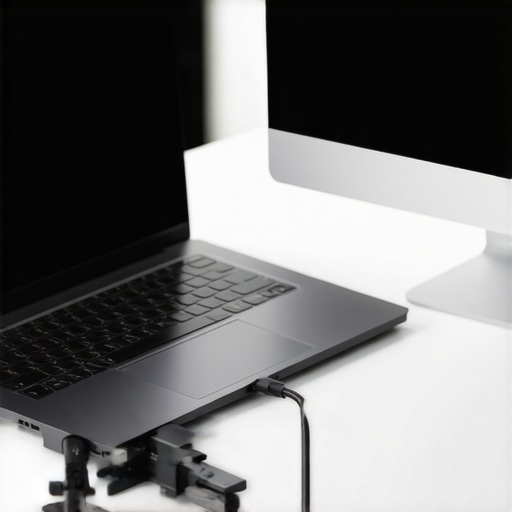
Why Managed IT is More Than Just a Safety Net
For business owners, the ‘Oops’ factor is exponentially more expensive. I often hear that professional oversight is only for the big players, but that is a costly misconception. In fact, effective managed IT solutions for growing companies are designed to prevent the ‘rainy Tuesday’ scenario from ever becoming a crisis. By the time you are researching the risk of ignoring a clicking external drive, you are already in a reactive, high-stress mode. A proactive strategy includes off-site backups and real-time health monitoring that flags a dying drive weeks before it actually fails. This is exactly why your business needs a documented disaster recovery plan today. It transforms a potential two-week work stoppage into a ten-minute file restore. Don’t wait for a sickening hardware pop to start taking your digital health seriously.
Once you have navigated the immediate crisis of a wet motherboard, you enter the phase where most amateurs fail: the long-term sustainment. I do not just want my files back; I want a system that is more resilient than the one that failed. My personal go-to for this is the Sabrent USB 3.2 Tool-Free Enclosure paired with Macrium Reflect. I use this specific enclosure because it handles heat dissipation better than the cheap plastic alternatives, and Macrium allows me to create a bit-for-bit clone. This is the move that protects your files when a Windows update fails or when your hardware starts to act erratic after a cleaning. When you are cloning a drive that has been exposed to moisture, you are essentially racing against the clock before remaining minerals on the board cause a permanent short.
#IMAGE_PLACE_HOLDER_D#
How do I maintain my hardware health after a major spill?
Maintenance is not a one-time event; it is a ritual. After a liquid incident, even if the machine starts up, I spend the next week monitoring the S.M.A.R.T. data of the drive. I am looking for a spike in ‘Reallocated Sectors’ or ‘Uncorrectable Errors.’ Learning how to tell if your SSD is wearing out from too many writes is vital here, because liquid damage can cause the controller to work overtime, prematurely aging the silicon. I also recommend checking your physical connections regularly. If you find yourself wondering how to fix a laptop that only charges at a certain angle, it is a sign that the liquid may have accelerated corrosion in the DC jack or USB-C port. Cleaning these with 99% isopropyl alcohol and a soft brush can save you a full motherboard replacement later.
I predict that in the next three to five years, we will see a shift toward AI-driven predictive maintenance built directly into consumer BIOS. We are already seeing the beginnings of this in enterprise-grade servers. Instead of waiting for a clicking sound, your laptop will likely alert you that the internal resistance in your SSD has changed, indicating a 90% chance of failure within 48 hours. This is why why managed IT is a game changer for growing companies; they already use these telemetry tools to swap hardware before the employee even knows there is a problem. While you are doing your own laptop screen repair diy tips for clearer displays, take a second to look at the health of your internal components. My advanced tip for you today: Download a free tool like CrystalDiskInfo and check your ‘Power-On Hours’ and ‘Total Host Writes’ right now. If that health bar is anything but blue, it is time to stop reading and start backing up.
Hard Truths I Learned While My Laptop Was Drying Out
Looking back at that rainy Tuesday, I realized that technical skills are only half the battle; mindset is the rest. First, I learned that corrosion is a silent thief. Even if your laptop seems fine today, the minerals left behind by water can slowly eat away at the motherboard over weeks. Second, I discovered that the biggest risk isn’t the water itself, but the panic that makes you try to ‘test’ if it still works. Every time you press that power button, you are gambling with your files. Finally, I realized that knowing data recovery secrets every business should know today isn’t just for IT pros—it is a survival skill for everyone with a digital life.
The Toolkit I Use to Keep My Data Breathing
When friends ask me what they should keep in their desk drawer for emergencies, I always point to three specific things. I trust the Sabrent Tool-Free enclosures because they allow for quick drive swaps without fumbling for specialized bits. For software, CrystalDiskInfo is my go-to for a quick health checkup, and Macrium Reflect is what I use for bit-for-bit cloning. If you are dealing with power issues after a spill, you might also need to learn how to tell if your laptop battery is swelling before it breaks the case, as liquid can often cause lithium-ion cells to react poorly over time. These tools aren’t just for recovery; they are part of a proactive maintenance routine.
#IMAGE_PLACEHOLDER_E#
Why This Spill Might Be the Best Thing for Your Data Habits
It sounds strange, but my laptop disaster was a wake-up call that actually saved me more money in the long run. It forced me to move toward managed IT solutions streamlining operations for small businesses, ensuring that I never have to worry about a single point of failure again. Whether you are fixing a connection because you need to know how to fix a laptop that only charges at a certain angle or you are performing a full drive transplant, remember that every step you take to understand your hardware makes you more resilient. You have the tools, the knowledge, and now the experience to handle whatever tech hurdles come your way. Your data is worth the effort.
Have you ever had a close call where you thought you lost everything but managed to pull it back at the last second? Let me know your story in the comments below!