

I remember walking into my small office at 3 AM once because I had forgotten my car keys, and the sight was enough to make me jump. The entire room was glowing. Every single monitor was awake, humming softly in the dark like they were holding a secret meeting without me. It felt visceral, almost eerie, seeing a dozen login screens staring back into an empty room. You might think your building is haunted, but after years of tinkering with hardware, I can tell you it is rarely a ghost. It is usually just a poorly configured setting or a rogue update task. We are going to dive into exactly why this happens and how you can reclaim your office’s silence and energy bill. Early in my career, I made the massive mistake of thinking a midnight wake-up was a sign of a deep-rooted virus. I actually wiped a client’s entire workstation—an embarrassing computer repair mistake I still cringe about—only to find out it was just a ‘Wake-on-LAN’ setting triggered by a faulty network switch. Don’t be like younger me.
Is this ghostly behavior actually worth the worry?
You might wonder if it’s just a harmless quirk of modern tech. While a PC waking up for a few minutes isn’t the end of the world, it can lead to hardware fatigue. If your machines are constantly spinning up, you might find yourself needing to check if your overheating is caused by dust that those fans are sucking in during the middle of the night. It also leaves your data vulnerable if the machine wakes and remains at a login screen without proper encryption active.
The Usual Suspects Behind the Midnight Wake-Up Call
Most of the time, the culprit is the Windows Update Orchestrator. According to research from the U.S. Department of Energy, idle office equipment is one of the largest sources of energy waste in commercial buildings, often due to these unintended wake cycles. If you aren’t using smart managed IT strategies, these updates can happen at the most inconvenient times. Another common trigger is the ‘Allow wake timers’ setting in your power options, which gives any random scheduled task the permission to kick your PC into high gear while you’re asleep. Have you ever walked into your office on a Monday morning only to find your computer already warm to the touch? Share your weirdest ‘ghost in the machine’ story with me below. We’re going to fix this by using the simple way to check for hidden background processes that are keeping your hardware from resting.
Hunt Down the Culprit with a Single Command
The most effective way to stop playing detective is to ask the computer directly what just happened. Open your Command Prompt as an administrator and type powercfg -lastwake. This command acts like a digital fingerprint kit; it tells you exactly which device or process kicked the system out of its slumber. I once used this on a server for a local law firm that kept rebooting at 2 AM. Everyone thought it was a sophisticated cyber attack, but the command revealed it was actually a legacy backup script that hadn’t been updated in five years. If the results are cryptic, you can also use powercfg -devicequery wake_armed to see every piece of hardware currently authorized to wake your PC. This is essential for troubleshooting common computer repair issues effectively before they escalate into hardware failure.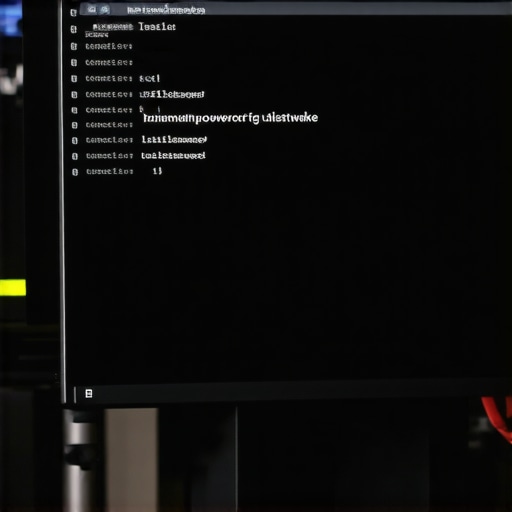
Taming Your Network Card Social Anxiety
Think of your Ethernet port like a guard dog that is a little too eager to bark at every passing car. In the Device Manager, under Network Adapters, you will find the “Power Management” tab for your controller. There is a checkbox labeled “Allow this device to wake the computer.” In a professional environment, this is often checked to allow for managed IT solutions streamlining operations like remote deployments, but for most office setups, it is just a nuisance. I remember a specific case where a “magic packet” from a printer was waking up an entire row of workstations every time it ran a self-test. Unchecking that box is like giving your PC a pair of noise-canceling headphones.
The Hidden Off Switch in Your Power Settings
Even if your hardware is quiet, Windows itself might be the instigator. You need to dive into your Advanced Power Settings—the place where most users rarely venture. Look for the “Sleep” tree and then find “Allow wake timers.” Switching this to “Disable” is a universal “Do Not Disturb” sign for your operating system. It prevents scheduled tasks, like a rogue disk defragmenter or a browser update, from overriding your sleep commands. This is a much safer approach than the “nuclear option” I took early in my career, and it avoids the need for a data recovery secrets session if a forced update happens to crash during a mid-sleep cycle.
Stop Your Mouse from Being Too Sensitive
Sometimes the “ghost” is literally physical. If you have a high-sensitivity gaming mouse or a slightly wobbly desk, even a heavy truck driving past your building can cause enough vibration to trigger a wake event. I spent three days trying to fix a “software glitch” for a client whose office was next to a subway line, only to realize the vibrations were moving the cursor by a single pixel every twenty minutes. The fix was simple: go back to the Device Manager, find the mouse, and uncheck its permission to wake the computer. If you are dealing with more complex hardware issues, like when your laptop touchpad is erratic or jumps around, these small configuration tweaks can save you from a complete teardown.
Audit Your Task Scheduler Regularly
The Task Scheduler is the brain’s calendar for your PC, and it is often cluttered with “ghost” appointments. Many third-party apps schedule “update checks” at odd hours. If you find your machine is still waking up after you have disabled wake timers, you may need to manually audit these tasks. Look for anything with the “Conditions” tab set to “Wake the computer to run this task.” This is especially vital when managed IT strategies to keep your business secure are in place, as you want to ensure that maintenance only happens during your designated windows, not whenever the software feels like it.
Everyone thinks that if a hard drive starts clicking, you just need more powerful software to reach the data. In my experience, that is the fastest way to turn a minor recovery into a $3,000 forensic nightmare. When a mechanical arm is failing, every second those platters spin is a second they are being physically scraped. You are essentially turning your important documents into literal dust. If you find yourself in this situation, understanding the risk of ignoring a clicking external drive is the difference between a successful save and a total loss. Most ‘advanced’ users make the mistake of running intensive scans on a dying drive, which generates heat and mechanical stress that the hardware simply cannot handle.
The Tiny Mistake That Kills a Thousand Dollar Screen
When it comes to hardware, the ‘Oops’ factor usually happens during the simplest tasks. I have seen countless DIYers attempt to fix a flickering display by reseating the video cable without fully disconnecting the battery first. In modern ultrabooks, the backlight circuit carries a constant live current even when the machine is ‘off.’ One slight slip of a metal tool and you have blown a fuse on the motherboard that requires microscopic soldering to fix. Before you dive into laptop screen repair to fix common issues at home, you must understand that ‘powered off’ does not mean ‘safe.’ This is especially true when you have to replace a soldered-in battery in a modern ultrabook, where the tolerances for error are nearly zero.
Wait, is your SSD actually dying or just sleeping too deeply?
A common myth is that SSDs are indestructible because they lack moving parts. However, high-end NVMe drives have complex power-state transitions that can mimic a total hardware failure. If your drive disappears from the BIOS, it might not be dead; it might be stuck in a ‘zombie’ power state. A study by storage specialists at Backblaze shows that drive failure rates fluctuate wildly based on environment and firmware versioning, not just age. If you are not utilizing data recovery secrets like power-cycling the controller, you might throw away a perfectly good drive. This is why why your managed IT provider should be doing quarterly audits; they should be catching these firmware-level bugs before they cause a company-wide outage. Have you ever fallen into this trap? Let me know in the comments.
Proactive Auditing Over Reactive Repair
Most business owners think Managed IT is just a glorified helpdesk they call when the internet goes down. That is a dangerous misunderstanding of managed IT strategies to keep your business secure. Real expertise lies in the boring stuff: auditing logs for thermal throttling and checking for how to tell if your laptop screen backlight is actually failing before the CEO’s presentation. If you are only reacting to problems, you are already behind. Professional troubleshooting requires a level of forensic detail that goes beyond basic troubleshooting common computer repair issues effectively. It involves watching for the subtle signs of component fatigue that an automated script will always miss.
I have been in the trenches long enough to know that a technician is only as good as their diagnostic software. For my personal workstations, I do not rely on the built-in Windows notifications because they are often too little, too late. Instead, I live by CrystalDiskInfo for storage and HWiNFO64 for everything else. These are not just toys; they provide the raw telemetry data that tells me if a capacitor is starting to whine or if my NVMe drive is nearing its total bytes written limit. When you start digging into the power of data recovery tools, you realize that monitoring is 90 percent of the battle. If you catch a reallocated sector count rising today, you avoid a frantic search for data recovery secrets tomorrow.
How do I maintain hardware health over time?
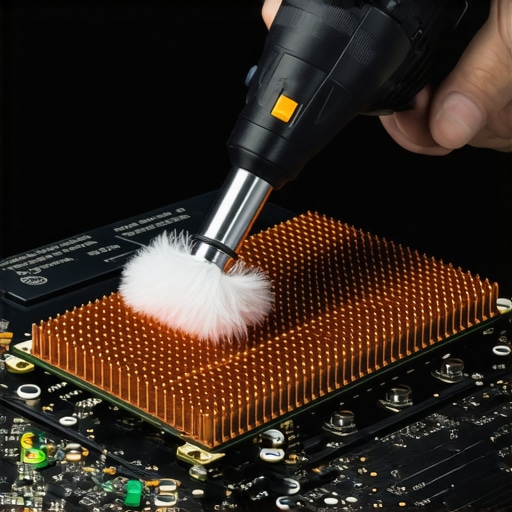
Long-term maintenance is less about constant tinkering and more about high-quality routines. For example, I have a strict rule about physical cleaning. Every six months, I use a specialized electric duster—never canned air, which can occasionally spit moisture—to clear the cooling fins. It is vital to learn how to clean a laptop fan without pushing dust deeper inside because a clogged heatsink is the number one killer of motherboard components. According to technical papers from the IEEE Xplore Digital Library, thermal cycling—the constant expansion and contraction of solder joints due to heat—is the leading cause of micro-fractures in modern electronics. By keeping your temps low, you are literally extending the physical life of the silicon.
Software Hygiene for Professional Results
Beyond the physical, your operating system needs a ‘colonoscopy’ once in a while. I recommend auditing your startup impact every month. If you see processes you do not recognize, use the simple way to check your pc for hidden background processes to kill the bloatware. For businesses, this is where effective managed IT solutions for growing companies become invaluable. They don’t just fix what is broken; they prevent the ‘software rot’ that makes a three-year-old laptop feel like a ten-year-old relic. I have seen workstations that were slated for the trash bin completely revived just by a clean OS install and a firmware update.
Predicting the Future of Self-Healing Hardware
Looking ahead to 2025 and beyond, we are going to see a massive shift toward AI-integrated BIOS systems. Imagine a motherboard that detects a failing voltage regulator and automatically throttles the CPU to prevent a permanent burnout before you even notice a flicker. We are already seeing the beginnings of this in managed IT strategies to keep your business secure, where predictive analytics can flag a failing hard drive days before the first ‘click’ of death. While this tech is exciting, it makes the basics even more important. You cannot automate a clean fan or a properly seated RAM stick. Whether you are doing a laptop screen repair at home or managing a server room, the fundamentals of heat and power management remain king. Take ten minutes today to run that powercfg -lastwake command I mentioned earlier; you might be surprised what your computer is doing behind your back.
Hard Lessons from the 3 AM Glow
I spent a decade thinking speed was the mark of a pro technician. I was wrong. The best technicians are the ones who sit on their hands for five minutes and think before touching a single screw. I’ve learned that a ‘quick fix’ often leads to a longer computer repair for beginners session because haste breeds mistakes. Also, never trust a Windows update at face value; it’s usually the reason your sleep settings reverted to default without your permission. Real growth happens when you stop being afraid of the ‘Advanced’ tab in your settings. It is better to spend ten minutes troubleshooting common computer repair issues effectively than to spend ten hours reinstalling an OS from scratch.
Tools That Live in My Digital Pockets
If you want to move beyond basic guessing, you need the right telemetry. I don’t go anywhere without CrystalDiskInfo for storage health and HWiNFO64 for real-time sensor data. These tools provide the raw truth that Windows often hides. For the physical side, a high-quality electric duster is worth its weight in gold to clean a laptop fan without pushing dust deeper inside. If you’re managing a team or a growing company, you should also be looking into managed IT strategies to keep your business secure in 2025 so you can automate these checks across dozens of machines at once and finally get some sleep.
#IMAGE_PLACEHOLDER_E#
Own Your Hardware’s Future
You don’t need a degree to stop your PC from behaving like a ghost. You just need the right habits and a little bit of curiosity. Taking care of your computer repair and maintenance needs proactively ensures your tech serves you, rather than you serving your tech. Don’t be afraid to poke around the power settings—that’s how you truly master your workstation. The silence of a dark office at 3 AM is a reward you have to earn through proper configuration. Have you found a rogue task in your scheduler that was waking your PC up at a weird time? Tell me what it was in the comments below.