

I sat there, tapping my pen against the desk, watching that little blue circle spin for what felt like an eternity. All I wanted to do was open a spreadsheet and check some numbers, but my old office PC had other plans. It groaned, it clicked, and it took its sweet time. I remember thinking, “That’s it, this thing belongs in the dumpster.” But before you go out and spend a thousand bucks on new hardware, let me tell you a secret I learned the hard way. Most of the time, your computer isn’t “old”—it’s just being choked by an ancient piece of technology that should have stayed in the 90s. We are going to talk about the one hardware swap that actually feels like magic and breathes life back into machines you thought were dead. [image]
Stop Blaming Your Processor for That Sluggish Performance
For years, I made the classic mistake of thinking more RAM was the cure-all for a slow machine. I would jam in more memory sticks, only to find that why your business computer is getting slower every Monday morning had nothing to do with memory and everything to do with that spinning mechanical hard drive (HDD). If you hear a faint clicking sound when you open files, you are hearing the mechanical arm of your hard drive struggling to find data on a spinning platter. It is inefficient, fragile, and frankly, it is a bottleneck that ruins your productivity. According to data from Crucial, traditional hard drives are up to 10 times slower than modern Solid State Drives (SSDs) in basic read/write tasks. Swapping that old clunker for an SSD is the single most effective way to how to extend the life of your office PCs by three years without a full system replacement. I remember my first swap; the computer went from a two-minute boot time to under twenty seconds. I felt like I had cheated the system. This upgrade is about more than just speed; it is about reclaiming your focus and preventing the frustration that leads to computer repair for beginners to avoid costly mistakes.
Is this hardware swap actually worth the hype?
I get the skepticism. You are worried about losing files or messing up the motherboard during the process. Trust me, I have been there—I once accidentally wiped a client’s drive because I didn’t verify the clone path. It was a nightmare that required hours of recovery, but it taught me the importance of using the easiest way to clone a failing hard drive to a new SSD safely. The reality is that the speed difference is night and day. You aren’t just getting a slight bump; you are getting a machine that responds instantly to your clicks. Have you ever felt like your PC was actively working against you just to get through a basic task? Drop a comment or reach out via our contact page if you are stuck in that “molasses” phase; I would love to hear your hardware horror stories. Before you start, you should also learn the sign your SSD is reaching its write limit so you can monitor your new drive’s health for years to come.
Verify your drive health before spending a dime
Before you rip the case open, you need to know if your drive is actually dying or just bloated with junk software. I use a simple diagnostic approach to determine if the hardware is at fault. You can how to check if your hard drive is about to fail using s-m-a-r-t-data by looking at the raw attributes of the drive. If the ‘Reallocated Sectors Count’ is anything higher than zero, your hard drive is a ticking time bomb. This is the moment I tell people to stop what they are doing and back up their files. I once tried to upgrade a workstation for a small law firm without checking these stats first. I assumed the machine was just bogged down by updates. Mid-transfer, the old HDD heads crashed permanently, and I spent twelve hours using data recovery secrets expert techniques to save your files fast because I skipped a five-minute diagnostic. Learn from my panic: always test the source drive before you touch a screwdriver.
Pick the right drive for your workload
Not all SSDs are created equal. For a basic office machine, a SATA SSD is usually plenty, but you have to consider longevity. There is a specific the hardware part you should never buy used for your business, and that is storage. Used drives have a limited lifespan based on how much data has been written to them. If you buy a second-hand drive, you might be buying someone else’s headache. Think of an SSD like a pencil eraser; every time you write data, it wears down a little bit. For a growing business, I suggest looking into why managed IT is a game changer for growing companies when it comes to hardware procurement, as they can often source enterprise-grade drives that last five times longer than consumer models.
Run a bit-for-bit clone of your operating system
This is where the magic happens. You don’t want to spend all day reinstalling Windows and hunting for your old license keys. Instead, you use software to mirror the old drive exactly onto the new one. Use the easiest way to clone a failing hard drive to a new SSD by connecting the new drive via a USB-to-SATA adapter. It is essentially creating a digital twin of your computer. Once the progress bar hits 100%, you just swap the physical drives. If you are dealing with a machine that hasn’t seen the light of day in years, check out how to pull data from an old desktop that hasn’t been turned on in years to ensure you aren’t missing any legacy files before you decommission the old hardware. 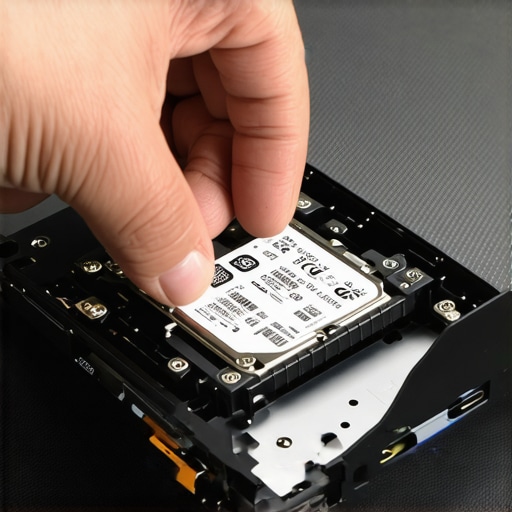
Handle the small hurdles of the first boot
The first time you turn the computer on after a swap, it might act a little strange. The motherboard might not recognize the new drive immediately, forcing you into the BIOS screen. This is a common part of troubleshooting common computer repair issues effectively. You may need to change the boot order to prioritize the new SSD. Also, if you find that your laptop screen repair how to fix common issues at home leads you to open the case anyway, take that opportunity to blow out the dust from the fans. A clean machine is a fast machine. If the system still feels glitchy, check your Task Manager to how to spot a suspicious process in your task manager that might be hogging the new speed you just unlocked. Most users are shocked to find that their ‘old’ computer was actually just waiting for a faster way to talk to the processor.One of the biggest myths I encounter in the tech world is the belief that software can fix every performance issue. It is a dangerous trap to assume a ‘slow’ computer just needs a registry cleaner or a fresh install when you are actually dealing with a hardware failure masquerading as a software bug. If your system hangs for a split second every time you click a folder, your drive might be retrying a read command hundreds of times. Running intense diagnostic software on a dying drive is like forcing a person with a broken leg to run a marathon; it just hastens the end. I have seen clients run ‘free recovery tools’ for twelve hours on a drive that was physically failing, only to find that they permanently shredded the magnetic platters. This is exactly why you should never open a clicking hard drive in a normal room. A single speck of dust is a mountain to a drive head, and a head crash in an uncertified environment usually makes professional recovery impossible. According to the 2023 Backblaze Drive Stats, while SSDs are generally more reliable than HDDs, they still face an annualized failure rate that begins to spike significantly after the four-year mark. If your drive is aging, do not wait for the blue screen to take action. 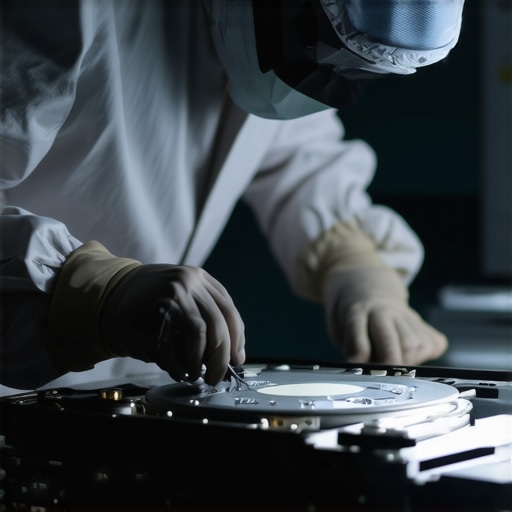
Can you really rescue files from a drive that shows up as unallocated?
Many people panic when they plug in an external drive and Windows asks to ‘format’ it because it appears as empty, unallocated space. Before you hit that ‘Format’ button, stop. You need to understand how to pull data from a drive that shows up as an unallocated space by focusing on the partition table rather than the files themselves. Usually, the data is still perfectly intact; the ‘map’ telling the operating system where the data lives is just corrupted or torn. I once had a client who formatted their drive three times trying to ‘fix’ this visibility issue, which is the classic mistake that makes your backups completely useless because it overwrites the very file headers you are trying to save. Have you ever fallen into this trap of clicking ‘OK’ on a prompt you didn’t fully understand? Let me know in the comments; I have seen it happen to even the most tech-savvy users.
Why the cloud is not a substitute for managed IT
Another nuance people miss is the ‘set it and forget it’ mentality regarding cloud storage. Thinking Google Drive or OneDrive is a comprehensive backup solution is a massive business risk. This is why managed IT is a game changer for growing companies; it provides a layered approach where local, off-site, and cloud backups are all synchronized and verified daily. If a ransomware attack hits, the cloud often syncs the encrypted files immediately, leaving you with nothing but a ransom note. Professional data recovery secrets expert techniques to save your files fast often involve rolling back to a physical snapshot that a standard cloud sync simply does not keep. Expertise in this field means knowing which tool to use and, more importantly, when to stop touching the keyboard before you make the damage permanent.
I have spent years in server rooms where the ambient air was a constant 68 degrees, yet the machines inside were dying from the internal heat. It taught me a valuable lesson: hardware longevity is about monitoring, not just luck. You can’t just buy a fast machine and expect it to stay that way for five years without a strategy. I’ve seen countless office PCs slow to a crawl because the owner ignored the vitals. Most people only realize there is a problem when they see the sign your cpu is thermal throttling and slowing down your work, but by then, the constant heat cycles may have already stressed the solder joints on the board. This is where you need to move from reactive fixing to proactive monitoring.
Stop the silent heat that kills your hardware
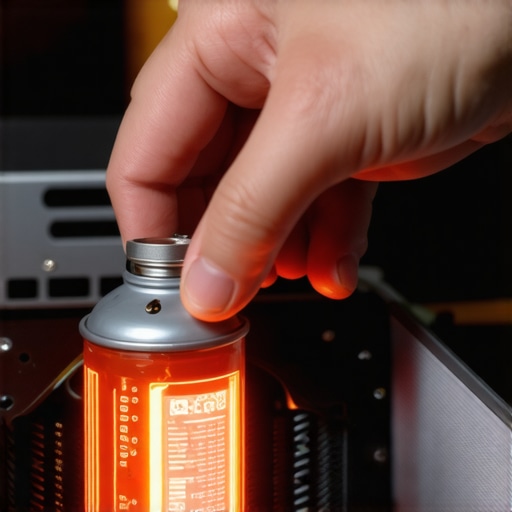
Heat is the ultimate hardware killer, and it is usually invisible until it is too late. I personally use a tool called HWiNFO64 every single week to check my sensor data. It is a deep-dive utility that gives you the raw numbers from every thermal probe in your machine. According to the HWiNFO technical documentation, tracking ‘Power Reporting Deviation’ can even tell you if your motherboard is misreporting power to the CPU, which can lead to premature failure. If you start hearing the fix for a noisy laptop fan that sounds like a jet engine, you are not just dealing with a nuisance; you are dealing with a system that is gasping for air. A simple blast of compressed air once a quarter can be the difference between a five-year lifespan and a two-year graveyard for your motherboard. I’ve had to learn how to test if your motherboard is dead or just sleeping more times than I’d like to admit, and 90% of the time, the root cause was simple dust accumulation in the heat sink fins.
How do I maintain my system performance over time?
The secret to keeping a machine fast is a combination of physical cleaning and software hygiene. Every month, I run a battery health check to how to verify if your laptop battery is actually failing or just needs a reset. Batteries that are failing often cause erratic power delivery, which results in those weird, unexplainable system freezes. Furthermore, the future of maintenance is moving toward predictive failure analysis. Within the next three years, I expect AI-driven tools to become standard in managed it strategies to keep your business secure in 2025, allowing us to replace a fan or a capacitor before the user even notices a dip in speed. For now, you have to be the AI. If your screen starts acting up, don’t wait for total darkness; learn how to fix a laptop screen that is suddenly too dark to read before the backlight inverter completely fails. My advice? Go download HWiNFO64 right now and check your ‘Max Temperature’ column while you have a few browser tabs open. If it is consistently hitting over 90 degrees Celsius, shut it down and clean those fans today.
Hard-Earned Lessons from the Tech Bench
After years of opening up cases and recovering lost data, I have realized that most tech disasters are preventable with just a little bit of foresight. One of the biggest shifts in my thinking happened when I stopped looking at software settings and started looking at how to spot a hardware failure masquerading as a software bug. It is a common trap that wastes hours of time and leads to unnecessary frustration.
- Trust the data, not your gut: Always use diagnostic software before making a purchase. Seeing a high sector count on a drive is the only way to know for sure if a physical swap is necessary.
- Maintenance is cheaper than recovery: Spending twenty minutes cleaning a fan or applying fresh thermal paste is much better than spending hundreds on data recovery secrets expert techniques to save your files fast after a heat-induced crash.
- Professional oversight saves money: Even a small office benefits from long-term oversight. This is why managed IT is a game changer for growing companies; it removes the guesswork from your daily operations and prevents hardware from aging out prematurely.
My Personal Toolkit for Keeping Systems Alive
I do not leave my hardware health to chance, and neither should you. Over the years, I have narrowed down my survival kit to a few essentials that have saved my clients thousands of dollars. First, HWiNFO64 is my go-to for checking if a machine is thermal throttling under load. Second, I always keep a USB-to-SATA adapter handy because it facilitates the easiest way to clone a failing hard drive to a new SSD without needing a dedicated cloning station. Finally, for anyone serious about DIY maintenance, the iFixit Pro Tech Toolkit is the gold standard for computer repair for beginners to avoid costly mistakes. These tools turn a scary repair into a predictable and successful process.
Take the Leap and Reclaim Your Machine
It is easy to get overwhelmed by the technical jargon, but at the end of the day, your computer is just a tool meant to serve you. Whether you are performing a simple SSD swap or troubleshooting common computer repair issues effectively, the most important step is simply starting. You do not need a degree in engineering to breathe new life into an old PC; you just need the right approach and a little bit of patience. Do not let a slow drive dictate your productivity—take control of your hardware today and see how much life is left in that old machine. Have you ever tried to upgrade your own hardware and run into a weird BIOS error message? Let me know in the comments below!