

I remember sitting in a dead-silent library, my palms sweating as I tried to finish a research paper for a client. I had exactly six tabs open—nothing crazy, or so I thought. Suddenly, my laptop started making a sound like a Boeing 747 preparing for takeoff. People actually turned around to stare at me. I was so embarrassed I just shoved the thing into my bag and ran, convinced the whole machine was about to melt into a puddle of plastic right there on the mahogany table. Have you ever had that happen? That moment where your computer sounds like it is struggling for its very life just because you wanted to look at a few extra websites at once? [IMAGE_PLACEHOLDER] Today, we are going to get to the bottom of why those innocent-looking browser tabs are actually secret resource hogs and how you can reclaim your peace and quiet.
Your Hardware Is Not Just Being Dramatic
It is easy to think your computer is just getting old or ‘cranky,’ but there is actual physics at play here. When you open a tab, your processor and RAM have to work in tandem to render scripts, load images, and keep background processes active. I once made the mistake of thinking my fans were simply defective, spending way too much money on fancy external cooling pads that did absolutely nothing because the problem was internal. If your fans are spinning at maximum speed, it is often the sign your cpu is thermal-throttling and slowing down-your-work to prevent permanent damage. Interestingly, a surprising fact is that modern web browsers can sometimes use more power than professional photo editing software. According to research from Digital Trends, Google Chrome can consume upwards of 2GB of RAM for just a few active tabs, putting immense pressure on your system’s resources and generating significant heat.
Is this noise a sign of a total hardware failure?
This is the biggest fear I hear from my neighbors and friends. They think the ‘jet engine’ sound means the end is near. In most cases, it is actually a cry for help regarding your settings or physical cleanliness rather than a dead motherboard. You can often find the fix for a noisy laptop fan that sounds like a jet engine by simply looking at what is running in the background. I highly recommend learning how to spot a suspicious process in your task manager before you assume the worst. If your machine is constantly choking, it might be time for the hardware upgrade that stops your browser from crashing with too many tabs, which is usually a lot cheaper than buying a whole new laptop. Have you ever felt like your computer was about to take flight during a simple browsing session? Tell me your story in the comments below, and let’s see if we can quiet that beast down together.
Stop the Resource Bloodbath Right Now
To fix a lagging computer, you have to think of your RAM like a physical workbench. Every browser tab you open is a new project taking up space on that bench. Eventually, you run out of room, and the computer has to start stacking projects on top of each other, which is exactly why your business computer is getting slower every monday morning. If you want the noise to stop, you need to clear the bench.
Open the Hood of Your Operating System
The first move is always to identify the culprit. On Windows, hit Ctrl+Shift+Esc; on a Mac, Command+Space and type ‘Activity Monitor.’ You are looking for anything using more than 10% of your CPU or a massive chunk of memory. I once worked with a client, Sarah, who brought in a laptop that sounded like a hair dryer. She was terrified of making computer repair for beginners mistakes, so she had not touched her settings in years. We found a single ‘coupon helper’ extension that was refreshing in the background every three seconds. Learning how to spot a suspicious process in your task manager saved her from buying a new machine she did not need.
Ditch the Extensions That Are Sucking You Dry
We all love our ad-blockers and price trackers, but they are often the hidden reason for a system meltdown. Every extension is essentially a ‘mini-app’ running inside your browser. If you have ten of them, you are basically running ten extra programs. If you cannot live without them, you should at least know how to remove a persistent browser toolbar that wont uninstall when it starts acting like a parasite. This is frequently the hardware upgrade that stops your browser from crashing with too many tabs—sometimes the ‘upgrade’ is just cleaning up the software you already have. 
Give Your Internal Hardware Some Room to Breathe
Sometimes the software is fine, but the physical path for heat is blocked. Dust is the silent killer of performance. When your fans are caked in grime, they have to spin twice as fast to move the same amount of air. If you ignore this, you will eventually see weird visual glitches, and you will be searching for how to fix a laptop screen that is flickering only on battery power because the heat is warping internal connections. I highly recommend finding the fix for a noisy laptop fan that sounds like a jet engine by using a can of compressed air to blow out the vents every few months. It sounds simple, but it is the difference between a laptop that lasts two years and one that lasts seven. If the noise persists even after a cleaning and a software purge, it is time to look at your power settings. Switching from ‘High Performance’ to ‘Balanced’ can often throttle the CPU just enough to keep the fans from hitting that obnoxious high-pitched whine while you are just trying to read the news.Wait, before you start downloading every ‘system optimizer’ on the internet, let’s talk about the biggest trap I see people fall into: the belief that more software can fix a hardware struggle. I call this the ‘digital Band-Aid’ fallacy. Most users think that if a computer is slow or files are missing, a quick download will solve it. In reality, if your system is already straining, adding more heavy-duty scanning software is like asking a marathon runner to carry a backpack full of bricks during the last mile.
The Great Software Recovery Myth
Everyone tells you to just ‘run a recovery tool’ the second you lose a file. In my years of experience, this is actually where most people permanently lose their data. If your drive is physically failing—which you can often tell by why your office pc makes a clicking sound when you open files—running software to scan every sector is the worst thing you can do. It forces the read-write heads to pass over damaged platters repeatedly, turning a minor issue into a catastrophic ‘head crash.’ This is the mistake that makes your backups completely useless because you are essentially destroying the source before the recovery even starts.
Can you actually save files from a drive that has physically crashed?
This is the advanced question I get from clients who have truly ‘been through it.’ The answer is yes, but not with simple software. True data recovery secrets expert techniques to save your files fast involve cleanroom environments and swapping internal components like the read/write head assembly. A study by Secure Data Recovery highlights that nearly 40% of data loss stems from mechanical failure, where DIY software attempts often result in a 0% success rate. If you hear a grinding noise, you need professional intervention to know how to pull critical data from a hard drive that makes a scratching sound safely. 
The ‘Oops’ Factor of DIY Repairs
There is a specific trap involving laptop screens and batteries that I see far too often. People notice a slight bulge in their case or a flicker and think, ‘I can just tighten a screw.’ However, if you don’t know how to safely remove a bulging laptop battery before it explodes, you are literally holding a fire hazard. Similarly, I’ve seen people try to fix a dark display only to realize too late they didn’t know how to fix a laptop screen that is suddenly too dark to read, and they end up shorting the motherboard because they didn’t disconnect the battery first. Before you dive in, you must learn how to identify a failing motherboard before it stops working entirely. For business owners, this nuance is even more critical. You shouldn’t just rely on the cloud and hope for the best; why your business needs a local backup even if you use the cloud is a lesson usually learned the hard way after an unexpected internet outage.
Managed IT Prevents the Meltdown
The hidden nuance in professional IT is that most businesses overpay for repairs because they treat technology like a car that only gets an oil change when the engine seizes. Real expertise involves watching the telemetry of your hardware. I’ve seen companies ignore the sign your office server is running out of disk space until the entire database corrupts. This is why why managed it is a game-changer for growing companies; it shifts the focus to proactive health. If you are struggling with encrypted volumes, you will also need the secret to pulling data from an encrypted drive that crashed before the sectors become totally unreadable. Have you ever fallen into the trap of trying to ‘software-fix’ a hardware problem? Let me know in the comments below, and let’s keep your gear running smooth.
Look for the Early Warning Signs
I don’t just wait for things to break; I listen for the warning signs that most users ignore. In my personal toolkit, the absolute most important utility isn’t a flashy recovery suite—it’s a simple S.M.A.R.T. monitoring tool. I personally use these to watch ‘reallocated sector counts’ like a hawk. If that number moves even once, it means the physical surface of the disk is deteriorating, and I’m cloning that drive before my next cup of coffee. You can easily learn how to check if your hard drive is about to fail using s-m-a-r-t data without needing a degree in computer science. This proactive stance is exactly why my personal machines often last twice as long as the average. According to the Backblaze 2023 Drive Stats Report, while some enterprise drives are built for punishment, consumer-grade hardware requires constant vigilance to avoid total data loss.
How can I maintain my computer’s health over several years?
The secret to true longevity is a disciplined mix of physical hygiene and aggressive power management. Every six months, I use a non-conductive brush and a vacuum (never on the motherboard, only the vents!) to clear the intake path. If you commit to this, you can actually how to extend the life of your office pcs by three years or more. Beyond the fans, I always how to verify if your laptop battery is actually failing or just needs a reset before I even think about clicking ‘buy’ on a replacement. Often, the software has just lost track of the battery’s true capacity, and a simple calibration saves me $100. 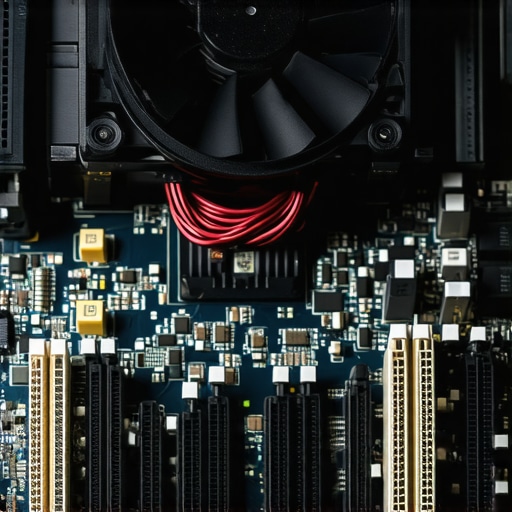
Why AI Will Soon Predict Your Next Hardware Failure
As we look toward 2025, the industry is shifting away from ‘break-fix’ models toward ‘Predictive IT.’ Instead of waiting for a blue screen, we’ll see more managed it strategies to keep your business secure in 2025 that use telemetry to predict a motherboard failure weeks before it happens. This isn’t just for big corporations; managed it solutions streamlining operations for small businesses are becoming the standard way to offload the mental burden of tech maintenance. When it comes to your display, stop using those ‘screen cleaning’ sprays from the grocery store. They contain ammonia that can eat through the protective coatings on modern panels. I stick to a dry microfiber cloth and, for stubborn smudges, a tiny drop of distilled water for laptop screen repair diy tips for clearer displays. If your screen still looks ‘off’ after a cleaning, it might be a driver issue. Always check why your screen looks washed out after a software update before you assume the hardware is failing. Try this right now: Download a free S.M.A.R.T. utility and check your ‘Power On Hours.’ If you are over 15,000 hours, you are officially in the ‘danger zone’ where mechanical parts begin to fatigue. Double-check your backups today, not tomorrow.
The Secrets Pros Keep About Silent Failures
In my years at the repair bench, I have discovered that the loudest computers are often the safest because they are still trying to save themselves. The real danger lies in the components that fail without making a sound. One of the hardest lessons I learned about data recovery is that an SSD doesn’t ‘click’ when it dies; it just disappears, taking your files with it. I always tell my clients that if you are troubleshooting common computer repair issues effectively, you should be more worried about a silent, hot laptop than a noisy, cool one. Another lightbulb moment for many is realizing that software ‘cleaners’ often do more harm than good by deleting registry keys that your system actually needs to stay stable. Lastly, remember that a backup is just a ‘wish’ until you have actually successfully restored a file from it. [IMAGE_PLACEHOLDER]
My Personal Survival Kit for Hardware Gremlins
I don’t rely on luck to keep my systems running; I rely on a specific set of tools that have never let me down. First, I always keep a copy of CrystalDiskInfo handy to monitor those S.M.A.R.T. attributes we discussed. Understanding the power of data recovery tools what you need to know starts with seeing the health of your drive before it hits 0%. Second, I highly recommend the iFixit community guides; they are the gold standard for knowing exactly which screw to turn without cracking your casing. For businesses, I suggest looking into effective managed it solutions for growing companies because having an automated eye on your server health is worth more than any one-time repair. Finally, for those ‘oops’ moments, I keep a bookmark for the ultimate-guide-to-data-recovery-after-accidental-deletion to act fast before the data is overwritten.
Take the Power Back from Your Silicon
You don’t have to be a victim of your technology or live in fear of that jet-engine fan noise. By being proactive with your physical cleaning and mindful of your browser’s resource hunger, you can keep your machine running like new for years. Computer repair isn’t just about fixing what is broken; it is about maintaining a relationship with the tools that power your life and business. Don’t be afraid to open that Task Manager or blow out those vents—your hardware will thank you with silence and speed. Have you ever successfully silenced a noisy laptop by yourself, or did it require a trip to the pros? Let me know your success stories in the comments below!