

I was halfway through a critical project pitch on Zoom when I smelled something terrifying: that faint, metallic scent of overheating electronics. I reached under my desk to check my power adapter and pulled my hand back immediately. It was blistering. I actually worried it might leave a mark on the carpet. For a second, I thought I was facing a total hardware meltdown, the kind where you start searching for data recovery secrets before the screen even goes black. But as it turns out, I wasn’t alone. This “lava brick” phenomenon is a classic sign that your hardware is being pushed to its absolute limit, and it’s a problem I’ve spent years troubleshooting for my neighbors and clients alike.
Your Power Brick is Working Harder Than You Think
When you jump on a video call, your laptop isn’t just “on.” It’s juggling high-definition video processing, real-time audio encoding, and often a dozen background tabs that are eating your network bandwidth. All that work requires a massive, sustained flow of electricity. If your charger feels like a hot potato, it’s often because your CPU and GPU are pulling every watt the adapter can provide. I remember one of my biggest early blunders: I bought a generic, $15 replacement charger off a random site because I lost my original one. That “bargain” ended up so hot it actually warped its own plastic casing. I learned the hard way that a cheap power supply is the biggest threat to your machine’s longevity. Today, I’m going to show you exactly how to diagnose if your charger is just “working hard” or if it’s a ticking time bomb, and what you can do to bring the temperature down before you need a costly computer repair.
Is my charger actually going to catch fire?
It’s the question everyone asks when they feel that heat. While modern chargers have thermal shut-off features, extreme heat can still lead to a failure that ruins your day. According to research from the IEEE, excessive heat is one of the primary drivers of premature component failure in power electronics. If your fan sounds like it’s ready for takeoff, you might also be seeing the sign your CPU is thermal throttling, which makes your video choppy and your laptop sluggish. Have you ever had to prop your charger up on its side or place it on a cold floor just to finish a meeting? Tell me your “hot charger” horror stories in the comments! Before we dive into the fixes, make sure you know why your computer smells like burnt plastic so you can tell the difference between a hard-working brick and a real emergency.
Stop Smothering Your Power Brick
The fastest way to kill a charger is to trap the heat it naturally generates. I once left a high-wattage gaming charger on a thick shag rug during a summer afternoon in a room without A/C. When I finally noticed the smell, the plastic was soft enough to leave a permanent indent from my thumb. That’s how I learned that chargers are like tiny furnaces; they need to breathe just as much as your CPU does. If you’re troubleshooting common computer repair issues effectively, the very first step is environmental: get that brick off the carpet and onto a hard, flat surface like wood or tile. If you’re working in a hot room, you can even prop it up on its side to increase the surface area exposed to the air.

Kill the Background Tasks That Drain Your Power
Every percentage of CPU usage requires more juice from the wall. If your task manager is a sea of red, your charger is essentially running a marathon at a sprint pace. I’ve found that many users who complain about heat are often dealing with “tab bloat.” Looking into the hardware upgrade that stops your browser from crashing with too many tabs isn’t just about speed; it’s about efficiency. When your RAM is maxed out, the system swaps data to the drive constantly, keeping the power draw at its absolute peak. Close those unused 4K video streams and background sync tools. You’ll notice the brick’s temperature drop significantly within ten minutes of lightening the load.
Verify Your Battery Health Before Buying New Parts
Sometimes the heat isn’t coming from the charger’s struggle with the wall, but from a failing battery that is demanding more current than it can safely handle. Before you assume you need a new adapter, you should learn how to verify if your laptop battery is actually failing or just needs a reset. A calibrated battery draws power more predictably. If the battery cells are degraded, they create internal resistance, which turns electricity into heat instead of stored energy. This is a classic trap in computer repair for beginners—buying a new charger when the real culprit is a chemical-heavy battery that has reached the end of its life.
The Danger of Using Non-OEM Bargain Chargers
I cannot stress this enough: that $12 charger from a generic marketplace is a literal fire hazard. Genuine chargers have sophisticated internal circuitry to manage ripple and voltage spikes. Cheap knockoffs cut corners by using smaller capacitors and less shielding, which means they run much hotter under the same load. This is exactly why a cheap power supply is the biggest threat to your hardware. If you’ve ever wondered how to fix a laptop that won’t charge even when plugged in, sometimes the answer is simply that the generic brick has already fried its own internal regulator. Always stick to the manufacturer’s recommended wattage; using a 45W charger on a laptop that asks for 90W is a guaranteed way to melt your desk and potentially damage your motherboard’s charging circuit.
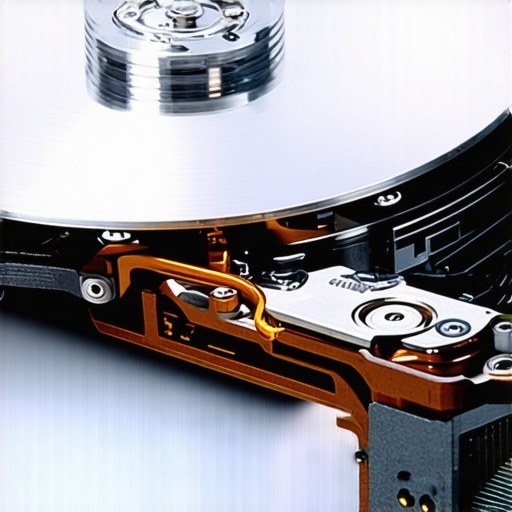
Everyone tells you to ‘just run a recovery tool’ the moment a drive starts acting up. But in my years on the bench, I’ve seen that advice destroy more data than it saves. If your drive is making noise, software is your enemy. Most people think ‘data recovery’ is a DIY project you can solve with a $40 download, but the reality is much grittier. When a drive is physically failing—think clicking or grinding—every second it’s powered on, the read/write heads are physically carving circles into your data. I’ve seen clients try to pull critical data from a hard drive that makes a scratching sound by running intensive scans, only to find they’ve literally ground the magnetic coating off the platters.
Why DIY Recovery Software Might Kill Your Data
The ‘Oops’ factor here is the classic Windows CHKDSK command. It’s the computer repair for beginners trap. CHKDSK is designed to fix file system errors, not failing hardware. If you run it on a drive with bad sectors, it will aggressively try to move data around, putting immense stress on a dying component. It’s like forcing a person with a broken leg to run a marathon to ‘see where it hurts.’ Instead, you need to recognize the sign your SSD is reaching its write limit and about to die before you even think about hitting ‘scan.’ Have you ever fallen into this trap? Let me know in the comments.
How do I differentiate between a logical glitch and a total mechanical failure?
This is where the pros separate themselves from the hobbyists. Mechanical failure usually presents with rhythmic sounds or a drive that disappears from the BIOS entirely. Logical failure is when the hardware is fine, but the ‘map’ of the data is scrambled. According to data from Backblaze’s annual drive stats, environmental factors like vibration and heat are the silent killers that transition a logical error into a physical one. If you’re seeing the move that saves your data when a partition table is corrupted, you might have a chance with software. But if that drive is warm to the touch and silent? You’re in deep water. This is why knowing data recovery secrets every business should know is vital for long-term stability.
The Screen Crack That Actually Fries Your Motherboard
We also see this hidden nuance with laptop screens. People ignore a small crack, thinking it’s just cosmetic. However, why a cracked laptop screen can eventually damage your motherboard is a real concern. Pressure from a hairline fracture can short-circuit the backlight fuse. It’s the same logic behind managed IT strategies to keep your business secure in 2025: small, ignored issues become catastrophic failures. If you aren’t identifying a failing motherboard before it stops working early, you’re just waiting for the smoke. Avoiding the mistake that makes your backups completely useless starts with realizing that ‘synced’ isn’t the same as ‘backed up.’ Real disaster recovery requires a plan made before the crisis hits, often involving a disaster recovery plan before the storm hits.
Once you have a disaster recovery plan in place, you need the right arsenal to execute it. In my professional kit, I don’t rely on the same ‘one-click’ solutions you see advertised on social media. When I’m dealing with a drive that is barely hanging on, I reach for R-Studio or specialized hardware imagers. If you really want to understand the power of data recovery tools, you have to realize that professional software allows us to control the read-head behavior and bypass damaged sectors rather than blindly pounding against them. According to the DeepSpar Disk Imager technical documentation, hardware-level cloning is the only way to safely bypass the ‘read-retry’ loops that often cause a failing drive’s firmware to crash entirely. If you aren’t using a tool that can handle sector-level timeouts, you’re likely just finishing off a dying drive.
Stop Betting Your Files on Freeware Tools
For the average user, the difference between success and failure often comes down to the quality of the interface. While I love open-source projects, data recovery is one area where I personally swear by paid, forensic-grade licenses. These tools provide granular control over partition offsets that basic tools simply ignore. It’s the difference between finding ‘some files’ and restoring the entire folder structure. I’ve seen businesses lose weeks of productivity because they tried to save a few dollars on software, only to realize too late that they were missing expert techniques to save your files fast. If your data is worth more than the cost of a utility license, buy the professional version.
Keep Your Displays Crisp for Years to Come
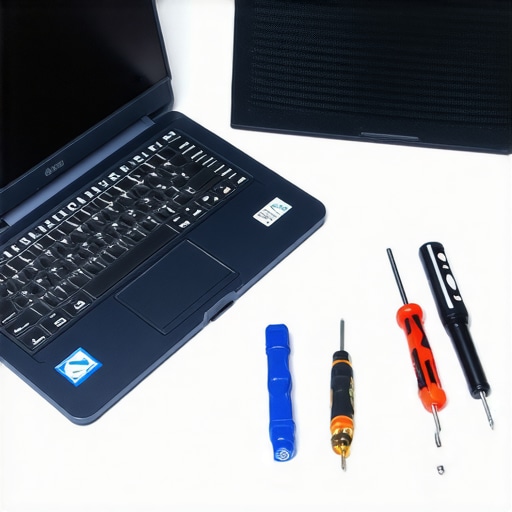
Maintenance isn’t just about the internal chips; it’s about the hardware you interact with every day. I often see clients bring in machines where the screen is failing not because of a drop, but because of improper cleaning or physical stress. Following a few laptop screen repair DIY tips for clearer displays can save you hundreds. I always recommend using a high-quality microfiber cloth and avoiding any cleaning agents that contain ammonia, which can strip the anti-reflective coating. If you notice a flicker when you move the hinge, don’t ignore it. That’s usually a sign that the LVDS cable is pinching, and addressing it now is far cheaper than a full laptop screen replacement later. Taking the time to learn how to extend the life of your office PCs through simple physical care is the best ROI you’ll ever get in tech.
How do I maintain my business tech without a full-time staff?
This is where managed IT solutions become a game-changer. For a growing company, you shouldn’t be the one checking for firmware updates at 2 AM. A solid provider uses RMM (Remote Monitoring and Management) tools to spot a failing power supply or a bloated battery before it causes a fire. I predict that in the next few years, we will see a massive shift toward AI-driven predictive failure analysis where your hardware will literally ‘call home’ to request a replacement part before the current one even stops working. By utilizing effective managed IT solutions for growing companies, you move from a reactive ‘break-fix’ cycle into a proactive growth phase. If you want to scale, you have to stop thinking about IT as a cost center and start viewing it as a foundation. My advice? Go download a free S.M.A.R.T. utility right now and see if your ‘Reallocated Sectors Count’ is anything other than zero—it’s the fastest way to learn how to check if your hard drive is about to fail before it’s too late.
Lessons from the Bench That Saved My Clients Thousands
After years of repairing everything from charred power supplies to shattered displays, I’ve realized that the difference between a minor tech hiccup and a total catastrophe is usually about thirty minutes of early intervention. If I’ve learned anything, it’s that hardware speaks its own language. A fan that spins up for no reason or a laptop screen that shows horizontal bars of color isn’t just acting up—it’s giving you a head-start on the inevitable failure. I always tell my clients that the Golden Hour of data recovery is real; the moment you realize something is wrong, stop everything. Every additional minute of power you give a failing drive is another minute you’re risking a permanent, unrecoverable status. I’ve seen too many people try to push through one last email only to lose a decade of family photos because they ignored the signs.
#IMAGE_PLACEHOLDER_E#
My Go-To Toolkit for Preventing a Digital Meltdown
You don’t need a degree in computer engineering to keep your gear alive, but you do need the right resources in your corner. These are the three things I never let my office clients live without:
- CrystalDiskInfo: This is my favorite free tool for checking S.M.A.R.T. data. It gives you a clear Health Status of your drive. If it says anything other than Good, it’s time to consult my ultimate guide to data recovery after accidental deletion before the drive disappears for good.
- Quality Surge Protection: Most people use cheap power strips that offer zero actual protection. Invest in a true UPS (Uninterruptible Power Supply) to prevent the voltage spikes that cause computer power supply failure during summer storms.
- Managed IT Logic: Don’t wait for things to break. Implementing managed IT strategies to keep your business secure in 2025 ensures that your software licenses and security patches aren’t falling behind, which often prevents hardware from being overworked by rogue processes.
Build a Tech Strategy That Doesn’t Keep You Up at Night
Taking care of your technology isn’t just about saving money; it’s about preserving your peace of mind. When you know how to extend the life of your office PCs by three years or when to call in the pros for expert techniques to save your files fast, you’re no longer at the mercy of your equipment. Technology should serve your goals, not the other way around. Start by clearing those background tasks and checking your drive health today. You’ll be surprised at how much longer your hardware—and your sanity—will last with just a little bit of proactive breathing room. Have you ever ignored a small tech issue like a noisy fan or a warm charger only for it to blow up into a bigger problem later? Let me know your experience in the comments below!