

I was sitting at my desk last Monday morning, three Chrome windows open and a massive Excel sheet begging for mercy, when it happened. My computer didn’t just slow down; it breathed its last digital breath and froze. I could hear the internal fan screaming, a sound I later learned was the sign your CPU is thermal throttling, and I felt that familiar surge of panic that usually ends in a costly trip to the Apple store. But I’ve learned the hard way that a shiny new $2,000 price tag isn’t always the answer. Years ago, I made the expensive mistake of replacing an entire workstation because I thought the processor was “dead,” only to realize later it just needed a fresh stick of memory. Today, I want to save you from that same frustration by focusing on the hardware swap that gives your old office PC a massive speed boost without draining your savings account.
Stop Buying New Laptops and Start Fixing the Bottlenecks
We often blame the age of the machine when the reality is just a lack of resources. If your computer feels like it’s wading through molasses, it’s usually not because the processor is old, but because it’s running out of “thinking space.” According to data from Crucial, increasing your RAM is often the single most cost-effective way to improve system performance across the board. This is especially true if you want to ensure that your browser stops crashing with too many tabs open. Have you ever felt that urge to toss your laptop out the window during a slow boot-up? Reach out and tell me your most frustrating tech-fail moment.
Will more memory really make a difference for my specific work?
It’s easy to be skeptical. We’ve been conditioned to think that software updates require more power than old hardware can provide. I used to think the same thing until I realized that why your business computer is getting slower every Monday morning often comes down to background processes eating up every last megabyte of available RAM. By doubling your memory, you aren’t just making the computer “faster”—you’re giving it the room it needs to breathe so it doesn’t have to swap data to the hard drive constantly. Let’s look at how to identify if this is your actual problem.
Spotting the Signs Before You Spend a Cent
Before you start tearing into the chassis, you need to verify that RAM is actually your culprit. Think of your computer’s processor like a chef and the RAM as the countertop. If the counter is tiny, the chef spends more time moving ingredients to and from the pantry (your hard drive) than actually cooking. This is usually why troubleshooting common computer repair issues effectively starts with the Task Manager. Press Ctrl+Shift+Esc and look at the Performance tab. If that ‘Memory’ graph is hovering above 80% with just your email and a few tabs open, you’ve found your bottleneck. This is one of the most reliable the 3 hardware swaps that stop your office pc from freezing every hour without requiring a full system rebuild.
Identify Your Module Type in Seconds
Not all memory sticks are created equal. You cannot just shove a DDR5 stick into a DDR4 slot—they are keyed differently so you literally cannot break the motherboard by mistake. Use a tool like CPU-Z or check your manufacturer’s support page. If you are managing multiple machines for a team, this is where managed IT solutions streamlining operations for small businesses become a lifesaver, as they track these hardware specs automatically across your entire network. 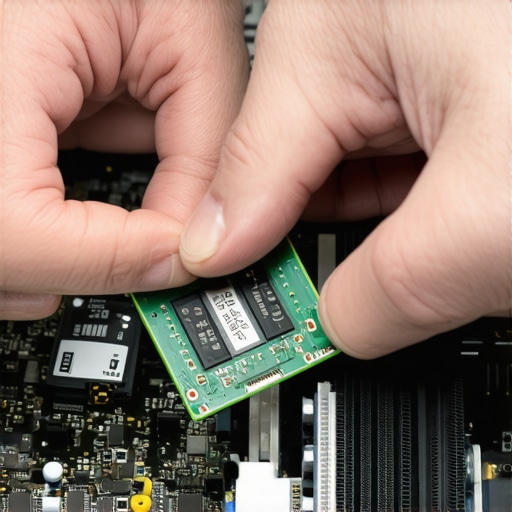
The Five-Minute Swap That Saves Your Workday
Once you have the right stick in hand, the actual installation is surprisingly low-tech. Power down the machine, unplug the power cable, and hold the power button for five seconds to drain any residual ‘ghost’ electricity. I once spent three hours sweating over an old Dell Latitude that would not turn on after an upgrade. I was certain I had killed it with static electricity and would need data recovery secrets expert techniques to save your files fast. It turned out I just had not pushed the stick in until I heard that satisfying ‘click.’ It was a total rookie move, but it taught me that computer repair for beginners involves avoiding costly mistakes like overreacting to a simple loose connection.
Seat the Stick Until You Hear the Click
Locate the long slots on your motherboard. If you are working on a laptop, they might be stacked or hidden under a small shield. Push the side tabs outward, align the notch on the RAM stick with the ridge in the slot, and press down firmly. It often requires more force than you might expect. If it does not click into place, your computer might ‘beep’ at you when you try to boot. That is just the BIOS telling you it cannot find the memory. This process is significantly easier than a laptop screen replacement step-by-step repair guide, but it still requires focus. Ensure you never buy this particular component second-hand from an unverified seller, as the hardware part you should never buy used for your business is often memory that has intermittent faults. If you have two slots, try to use two identical sticks to enable dual-channel mode. If you are looking for the hardware upgrade that improves video editing speed on office PCs, this dual-channel configuration is the secret to moving data twice as fast.
You might think a hairline fracture on your laptop bezel is just an eyesore, but I’ve seen those tiny cracks lead to a total system blackout. It’s a common myth that hardware issues stay ‘local’ to the part you can see. In reality, why a cracked laptop screen can eventually damage your motherboard is one of the most overlooked risks in home repair. If the LCD’s internal layers shift, they can create a voltage spike that travels straight back through the ribbon cable. Suddenly, your hundred-dollar screen fix turns into a six-hundred-dollar logic board replacement. Always inspect the internal cable seating before you declare a repair ‘finished.’
Your Cracked Screen is a Ticking Time Bomb for the Motherboard
Most users assume that if the display still works, the damage is only aesthetic. However, the structural integrity of the lid protects more than just the glass. When the frame is compromised, it puts lateral pressure on the delicate connections that feed power to the backlight. This is why troubleshooting common computer repair issues effectively requires looking at the secondary effects of physical damage. Have you ever fallen into this trap? Let me know in the comments.
Does Running Recovery Software Actually Guarantee You’ll Lose Your Files?
Another ‘pro-level’ mistake I see involves the ‘free software’ lure. If you hear a physical clicking, stop everything. The danger of using free file recovery tools on a failing mechanical drive is that these programs put massive stress on the read/write heads by forcing them to scan every sector repeatedly. According to data from the storage experts at Backblaze, drive failure often follows a ‘bathtub curve,’ and forcing a dying drive to run intensive software scans often kills the motor before a single file is saved. If you notice why your office pc makes a clicking sound when you open files, the absolute best move is to cut the power immediately. You need the data recovery secrets every business should know today to avoid turning a recoverable glitch into a permanent data graveyard.
Why Your Business Cloud Strategy Still Needs a Physical Safety Net
We’ve been told the ‘Cloud’ is the ultimate solution, but relying on it exclusively is a sophisticated trap. I’ve helped dozens of firms navigate the nightmare of an internet outage that coincided with a local server glitch. This is why your business needs a local backup even if you use the cloud; it provides near-instant recovery speeds that a standard Wi-Fi connection simply can’t match. For growing teams, effective managed IT solutions for growing companies always include a hybrid model. It’s not just about redundancy; it’s about the ‘Time to Recovery.’ If your office is offline for two days while you download a terabyte of data from a remote server, the cloud didn’t really save you—it just archived your failure.
Watch the Silent Killers Before They Strike
I’ve seen too many people lose everything because they ignored a single pop-up that lasted for half a second. If you aren’t looking at your S.M.A.R.T. data, you’re basically flying blind. This is how to check if your hard drive is about to fail using s m a r t data before the physical clicking starts. Backblaze, in their exhaustive 2023 Hard Drive Reliability Report, highlighted that while annual failure rates are low for new drives, they spike dramatically after year four. Ignoring the risk of ignoring that smart status bad warning on your pc is a gamble where the house always wins.
My Personal Software Arsenal for Hardware Health
I keep a specific set of tools on a bootable USB drive. I rely on HWiNFO for real-time sensor data because it catches the voltage drops that most built-in Windows tools miss. If you’ve ever wondered the reason your computer is freezing during high definition video calls, it’s often a fluctuating voltage on the motherboard that HWiNFO would flag in red. For my business clients, the power of data recovery tools what you need to know is that software like R-Studio can sometimes pull files from a logic-damaged drive that Windows simply won’t mount.
How do I maintain my hardware performance over time?
Maintenance isn’t just about deleting old files. It’s physical. I blow out my workstations with compressed air every six months to prevent the dust buildup that leads to how to fix a laptop that keeps telling you the fan has failed. If you are running an office, why your office network needs a battery backup for the main switch becomes apparent the moment a brownout hits. It’s not just about keeping the lights on; it’s about preventing the data corruption that happens when a write-cycle is interrupted. This small investment is the move that keeps your office data safe during a power outage.
Prepare Your Team for the Security Shifts of 2025
Looking ahead, hardware is becoming more integrated and harder to repair. We’re seeing more soldered components, which means how managed IT can elevate your business security in 2025 will involve more remote monitoring and proactive replacement cycles. As your company grows, the signs your business is outgrowing its current it infrastructure will likely manifest as network bottlenecks. Implementing managed IT strategies to keep your business secure in 2025 is no longer optional; it’s the only way to scale without a tech-induced breakdown. My advanced tip: download CrystalDiskInfo today and check your Reallocated Sectors Count. If it is anything other than zero, back up your data immediately.
What I Learned After My Hundredth Hardware Headache
If there is one thing that years of computer repair have taught me, it is that your gut is usually right, but your patience is your best tool. I’ve seen people rush a fix only to cause more damage, like when a simple loose cable turns into a need for a full laptop screen repair how to fix common issues at home because they pulled too hard on the bezel. Here are my non-negotiable rules for anyone maintaining their own gear. Listen to the fans: If they are screaming, your CPU is begging for help. Clean the dust out before the heat kills the silicon. Physical symptoms are warnings: A hinge that feels “crunchy” isn’t just annoying; it is the reason you’ll eventually need the fix for a laptop screen that only works at a certain angle because the ribbon cable is being pinched. Software isn’t magic: No “optimization” app can fix a drive with mechanical failure. If you learn how to identify a failing motherboard before it stops working, back up your files and prepare for a swap immediately.
My Personal Toolkit for Keeping Systems Alive
I don’t believe in over-complicating things. You don’t need a thousand-dollar lab to keep an office running smoothly. I trust these specific resources because they’ve saved my skin during late-night emergencies. For drive health, nothing beats CrystalDiskInfo for a quick check. If you’ve already hit a wall and lost files, understanding the ultimate guide to data recovery after accidental deletion is your first line of defense. I also recommend keeping a high-quality micro-fiber cloth and some 99% isopropyl alcohol nearby; you would be surprised how many “broken” displays just need laptop screen repair diy tips for clearer displays that start with a proper cleaning. Finally, for business owners, having a relationship with a team that provides why managed it is a game changer for growing companies is the best tool of all because they prevent the fires before they start.
Stop Waiting for the Next Blue Screen
Technology should serve you, not the other way around. By taking these small, proactive steps—upgrading your RAM, monitoring your drive health, and handling your hardware with care—you are reclaiming your productivity. Whether you are performing a DIY fix or looking to contact us for a complex recovery, the goal is the same: peace of mind. Don’t let a small glitch turn into a total loss. Have you ever successfully revived a “dead” computer with a simple hardware swap? Let me know your success stories below!