

I remember sitting in my home office at 11 PM, the low hum of my desktop the only sound in the room. I’d just finished a grueling project and clicked ‘Update and Restart,’ thinking I’d wake up to a fresh machine. Instead, I sat there for forty-five minutes watching those little white dots chase each other in a circle. The screen said ‘Getting Windows Ready. Don’t turn off your computer.’ I felt that familiar itch in my finger to just reach out and hit the power button. I’ve been there, and I know exactly how much it tests your patience.
The Night My PC Held Me Hostage
In my early days of tinkering, I made the absolute worst mistake you can make: I got impatient and pulled the plug. I thought I was bypassing a glitch, but instead, I ended up needing serious data recovery tools because my file system threw a tantrum. It turns out that ‘Getting Windows Ready’ isn’t just a suggestion; it’s the operating system performing a delicate surgery on its own heart. If you interrupt it, things get messy fast. We are going to solve this today without you having to lose a single file or resort to a hammer. The reason this matters so much right now is that Windows 10 and 11 have become increasingly aggressive with their background maintenance. Whether you are dealing with a laptop screen that won’t respond or a desktop that seems frozen, the ‘Ready’ screen is often the bottleneck that stops your productivity cold. According to Microsoft’s official support guidelines, some cumulative updates are so massive they can take hours to move, verify, and install, especially on older mechanical hard drives.
Is it actually worth waiting hours for a progress bar?
It’s a fair question. You have things to do. Why should you let a piece of software dictate your schedule? I used to think it was just poor design, but the truth is more complex. When Windows is ‘getting ready,’ it’s often cleaning up old driver fragments or setting up protection for your files in case the update fails. If you’ve ever felt like your computer is a black box that only speaks in riddles, you aren’t alone. I’ve spent years troubleshooting common computer repair issues, and I’ve learned that patience is usually the most underrated tool in your kit. But how long is too long? Have you ever actually timed your PC to see if it’s stuck or just slow? Let me know in the comments if you’ve ever left your computer on overnight only to find it still ‘Getting Ready’ the next morning. It’s a special kind of frustration that I wouldn’t wish on my worst enemy, but there is a light at the end of the tunnel. Before you decide to take it into a shop or start looking up beginner repair guides to avoid mistakes, let’s look at why this happens and when you should actually step in.
Give Your PC a Concrete Deadline
Set a Three Hour Limit Before You Panic
Think of a Windows update like a massive warehouse reorganization. The operating system is moving thousands of tiny files into new ‘bins.’ If you stop the workers halfway through, they leave boxes in the middle of the aisles, causing a mess that prevents the warehouse from functioning. This is why you wait. However, even the most complex reorganization has a limit. I generally recommend the ‘Three Hour Rule.’ If your screen hasn’t changed in three hours, the update process has likely encountered a logic loop or a hardware conflict. I once waited six hours on a client’s workstation during a routine maintenance session, hoping it would resolve. It didn’t. Eventually, I had to step in and use the simple way to check your pc for hidden background processes after the reboot to see what actually stalled. 
Force a Shutdown Without Killing Your Data
When you hit that three-hour mark, it is time for a hard reset. Hold the power button down for a full 10 to 15 seconds until the lights go out. This is the moment of truth. Usually, Windows is smart enough to realize the update failed and will attempt to ‘undo changes.’ This is where the move that protects your files when a windows update fails becomes your best friend. In most cases, the system reverts to its previous state, and you get your desktop back. I remember doing this for a small accounting firm that had five PCs stuck simultaneously. We forced them down, and four came back perfectly. The fifth required us to look into managed it solutions streamlining operations for small businesses because their legacy hardware simply couldn’t handle the modern update load.
Fix the Underlying Issues After the Reboot
Clear the Software Distribution Folder
Once you are back in Windows, don’t just go back to work and hope it doesn’t happen again. The most common reason for a hang-up is a corrupted update file sitting in your ‘SoftwareDistribution’ folder. It’s like a dented gear in a clock; it will keep snagging every time the clock tries to turn. You need to stop the Windows Update service, delete the contents of that folder, and restart the service. This forces Windows to download a ‘fresh’ version of the update. If you skip this, you’ll likely find yourself staring at that same spinning circle tomorrow. I’ve seen users ignore this and end up with a system that freezes every time you open chrome or other resource-heavy apps because the background update service is constantly failing and retrying in a loop.
Check for Driver Conflicts and Hardware Errors
Sometimes the software is fine, but the hardware is throwing a tantrum. If you have an external hard drive, a printer, or even a fancy gaming mouse plugged in, unplug them before trying the update again. These devices can sometimes ‘shout’ over the installation process, confusing the BIOS. While troubleshooting common computer repair issues effectively, I discovered that a faulty USB hub was once the sole reason a laptop refused to get ‘Ready.’ The system was trying to poll the USB port, and the port wasn’t answering, causing a permanent hang.Most people assume that when Windows hangs, the software is the only culprit. However, in my years of troubleshooting common computer repair issues effectively, I’ve noticed a pattern: software updates act as a ‘stress test’ for your hardware. If your power supply is fluctuating or your CPU is thermal throttling, a massive update will push those components to the edge, causing the system to freeze. Before you assume it’s a Windows bug, you need to determine how to tell if your laptops overheating is caused by dust or a dead fan, as heat is often the hidden hand behind a stalled installation.
Your Hardware Might Be Failing the Update Stress Test
The common belief is that more RAM or a faster processor makes your computer ‘safer,’ but the hidden nuance is component stability under load. When Windows is ‘getting ready,’ it is often rebuilding the registry and moving system-critical blocks of data. This generates significant heat. If your cooling system is even slightly compromised, the system might freeze to protect itself, leaving you staring at a static screen for hours. I always tell my clients that a clean fan is just as important as a clean registry.
Don’t Fall for the Format Trap
Here is the ultimate ‘Oops’ factor that I see constantly: a user experiences a failed update, reboots, and suddenly sees a pop-up saying, ‘You need to format the disk in drive X: before you can use it.’ The gut reaction is to click ‘Format’ to fix the error. Stop right there. This message often appears because the file system’s metadata was corrupted during the interrupted update, not because the data is gone. If you click format, you make the recovery process ten times harder. Instead, you should look into how to recover files from a drive that asks to be formatted without actually wiping it. Falling for this trap is one of the most common computer repair mistakes for beginners, and it’s usually avoidable with a bit of patience.
Can Your SSD Survive Another Massive Update Cycle?
Modern Solid State Drives (SSDs) are incredible, but they aren’t immortal. Every update writes gigabytes of data to your drive. A 2023 study by Backblaze on drive failure rates highlighted that while SSDs are generally more reliable than mechanical drives, they have a ‘cliff’—once they reach their write endurance limit, they can fail suddenly or become read-only. This is why an update might get stuck at 99%; the drive simply cannot write the last few blocks of data. You should regularly check how to tell if your SSD is wearing out from too many writes to ensure you aren’t trying to install a massive OS patch on a dying disk. 
Why Your Home Router is Your Biggest Business Security Leak
For those of you running a business from home, there is a dangerous misconception that a standard consumer router and a good antivirus are enough protection. In reality, residential hardware lacks the packet inspection capabilities needed to stop modern ‘low and slow’ attacks. I’ve seen entire office networks compromised because a single laptop was updating over a weak, unencrypted guest Wi-Fi. This is precisely why your business should never use residential-grade firewalls if you value your data integrity. Managed IT isn’t just for corporations; it’s for anyone who can’t afford a week of downtime. Have you ever fallen into the trap of formatting a drive too early or ignoring a noisy fan? Let me know in the comments below, and let’s keep your machines running smoothly.I’ve spent thousands of hours in the trenches of computer repair, and if there is one thing I’ve learned, it’s that the ‘average’ user waits for things to break, while the ‘power’ user watches for the cracks to form. My personal toolkit isn’t just a screwdriver and a prayer; it’s a suite of diagnostic software that I run every single month. First on that list is CrystalDiskInfo. It reads the S.M.A.R.T. data from your drive to give you a health percentage. If I see anything below 90%, I start moving files immediately because I know how to tell if your SSD is wearing out from too many writes before the blue screen appears. I also lean heavily on Process Explorer. Unlike the standard Task Manager, this gives me a deep dive into handle and DLL leaks. It’s the simple way to check your pc for hidden background processes that are eating your CPU cycles while you sleep. When I’m dealing with a client who says their machine is sluggish, I usually find they’ve been ignoring a subtle memory leak that is slowing down their workstation, often caused by a poorly coded browser extension or a legacy printer driver.
The Tool That Tells Me Exactly When Your Drive Will Die
Beyond simple monitoring, you need to know how to fix the foundations. As detailed in Microsoft’s official technical documentation for the Deployment Image Servicing and Management (DISM) tool, the command line interface is the only way to effectively repair the Windows image without a full reinstall. This tool reaches out to the Windows Update servers and replaces corrupted system files with fresh copies. It’s like having a digital mechanic swap out rusty parts while the engine is still running. If you’ve never used it, you are missing out on the power of data recovery tools that prevent the need for recovery in the first place. I’ve saved dozens of PCs from the scrap heap just by running a few DISM commands. 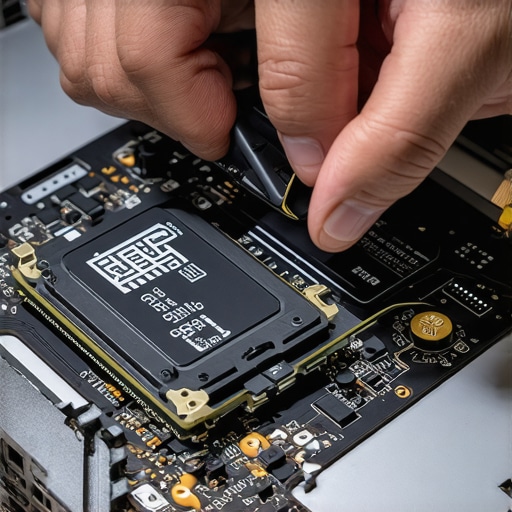
How do I maintain my PC performance over the long haul?
Maintenance isn’t just a software game; it’s a physical one. Once a quarter, I take my laptop apart—carefully. I’m looking for the ‘dust blanket’ that grows over the exhaust ports. Heat is the number one killer of silicon. If you don’t know how to tell if your laptops overheating is caused by dust or a dead fan, you’re basically playing Russian Roulette with your motherboard. I’ve seen $2,000 machines die because a ten-cent dust bunny stopped the fan from spinning. For my business clients, this maintenance extends to the network. We implement managed it strategies to keep your business secure in 2025, which includes physical checkups on server racks and UPS batteries.
Stop Relying on Your Router to Protect Your Livelihood
As we move toward more remote work, the trend is shifting toward ‘Edge Security.’ I predict that within three years, standard home routers will be completely obsolete for anyone handling sensitive data. You need a dedicated appliance that can handle real-time threat detection. This is why your office network needs a dedicated firewall appliance rather than just a software-based one. Software firewalls can be bypassed if the OS is compromised; a physical box cannot. If you’re serious about your digital life, you need to stop thinking like a consumer and start thinking like a sysadmin. Start small. I want you to try this tonight: open your command prompt as an admin and run ‘DISM /Online /Cleanup-Image /CheckHealth’—it takes thirty seconds and could save you three hours of waiting tomorrow. If it finds errors, you might need expert data recovery techniques to save your files fast before you try a major repair.
What I Learned from Three Decades of Failed Updates
I’ve learned that the most dangerous moment isn’t when the screen freezes, but when you react without a plan. Here are the hard truths I live by: First, never trust a ‘100% Complete’ message that stays there for more than ten minutes; the system has likely hit a logic wall. Second, your environment matters as much as your code. If you are trying to update in a room that is too warm, you are begging for a thermal throttle. This is exactly how to tell if your laptops overheating is caused by dust or a dead fan before it ruins your OS during a critical patch. Finally, always assume your backup is failed until you’ve actually tested it. A major OS update is the ultimate stress test for your documented disaster recovery plan.
My Personal Troubleshooting Arsenal
I don’t believe in ‘magic’ fix-it buttons, but I do believe in raw data. I use CrystalDiskInfo every month because I need to see the health percentage of my NAND flash. It is the only reliable way to know how to tell if your SSD is wearing out from too many writes before the drive turns into a brick. For real-time monitoring, Process Explorer is my go-to utility. It allows me to find a memory leak that is slowing down your workstation faster than any generic task manager. Lastly, I always keep a physical firewall appliance on my network. Relying on software-only protection is a risk I am not willing to take, and it is why your office network needs a dedicated firewall appliance for true professional security.
You Are the Master of Your Technology
It is easy to feel powerless when a spinning circle stands between you and your work, but remember that these are just tools, and tools can be managed. By moving from a reactive mindset to a proactive one, you turn a potential crisis into a simple maintenance task. Whether you are performing a complex computer repair or just cleaning out your corrupted update cache, you are building the skills to keep your digital life secure. Don’t be afraid to look under the hood; that is how experts are made. Have you ever had a Windows update hang for so long you considered buying a whole new computer? Let me know your experience in the comments below!