

I remember sitting at my desk three years ago, staring at a screen that looked like a digital billboard for things I didn’t want to buy. My coffee had long since gone cold, and my eyes were bloodshot from frustration. I had already run three different deep scans, and each time, my security software proudly declared my system was ‘protected.’ Yet, as soon as I opened Chrome, there it was: the truth about the system fix pop-up staring back at me, mocking my efforts. It was a visceral moment of helplessness; that sinking feeling that my computer wasn’t actually under my control anymore. I realized then that I had been making a classic rookie error—I was trusting the ‘all-clear’ signal from my antivirus while ignoring the actual behavior of my machine. Today, I’m going to share the exact move I used to finally reclaim my desktop, a solution that goes deeper than just clicking ‘Scan’ and hoping for the best.
Your Virus Scan is Only Telling You Half the Story
Early in my journey of learning about tech, I used to think that computer repair for beginners was all about installing the right software and letting it run in the background. I was wrong, and that mistake cost me days of productivity. I once spent an entire weekend reformatting a hard drive only to have the same pop-ups return an hour later because I hadn’t addressed the root cause. Many of these modern annoyances aren’t actually viruses in the traditional sense; they are ‘Potentially Unwanted Programs’ (PUPs) or rogue browser settings that your scanner might ignore because, technically, a user ‘allowed’ them at some point during a software installation. Have you ever felt like your computer was ignoring your commands and doing its own thing? Drop a comment and let me know if you are currently stuck in that loop.
Will this really work better than my expensive antivirus?
You might be skeptical, especially if you’ve spent good money on a premium subscription that is currently failing you. But the reality is that malware has evolved past simple file-based detection. According to reports from the Cybersecurity & Infrastructure Security Agency (CISA), a huge percentage of modern threats use ‘living off the land’ techniques, meaning they use legitimate system processes to stay hidden. This is why the simple way to check your pc for hidden background processes is often more effective than a generic scan. We’re not just looking for bad files anymore; we’re looking for bad instructions hidden in your Task Scheduler and your browser’s notification permissions. I’ll never forget the time I told a friend to just ‘reset their browser’ and they ended up losing all their saved passwords because I didn’t explain the nuances. I won’t let that happen to you. We are going to dig into the guts of the system and pull the plug on these interruptions for good, starting with the one move that stops the cycle.
Hunt Down the Hidden Triggers
The first thing you need to do is stop looking at the surface and start looking at the ‘silent’ guest list of your operating system. Modern malware and Potentially Unwanted Programs (PUPs) don’t usually sit in your ‘Downloads’ folder waiting to be deleted. Instead, they embed themselves into the Task Scheduler. Think of this as the computer’s internal alarm clock. I once spent three hours trying to how to fix a computer that freezes every time you open chrome, only to find a scheduled task that triggered a ‘system check’ script every time the CPU stayed idle for more than five minutes. It wasn’t a virus; it was a poorly written optimization tool that acted like a parasite. To fix this, you need to open your Task Scheduler and look for any entry that doesn’t have ‘Microsoft’ or ‘Intel’ in the author column. If the name looks like a string of random characters, or if it mentions ‘system-fix’ or ‘optimizer,’ disable it immediately. This is the simple way to check your pc for hidden background processes that actually stick, unlike a temporary scan that misses the re-triggering mechanism.
Silence the Browser Notifications for Good
The most common reason people see the ‘System Fix’ pop-up today isn’t because their hard drive is failing, but because they accidentally clicked ‘Allow’ on a shady website’s notification prompt. This turns your browser into a megaphone for advertisers. I remember a client who brought in a high-end workstation because they thought they needed a total hardware overhaul. They were ready to pay for a full suite of effective managed it solutions for growing companies just to stop a single repeating ad. It turned out to be a rogue notification from a recipe site they’d visited once. We didn’t need to wipe the drive; we just needed to go into the Chrome ‘Site Settings’ and purge the ‘Notifications’ list. If you see dozens of URLs listed there that you don’t recognize, you’ve found your culprit. Clearing these out is the digital equivalent of unsubscribing from junk mail that someone is hand-delivering to your front door every five minutes.
Check if Your Screen is the Real Problem
Sometimes, what we perceive as a ‘glitch’ or a ‘popup’ is actually a physical hardware failure mimicking a software error. I’ve seen users frantically clicking at their screen to close a window that isn’t even there because their display was suffering from ghosting or ‘burn-in’ from a previous error message. Before you assume you’ve been hacked, take a second to look at laptop screen repair diy tips for clearer displays. If that ‘System Fix’ box seems to stay in the same place even when you reboot or enter the BIOS, you aren’t dealing with a virus—you’re dealing with a failing panel. It’s a gut-wrenching realization, but knowing the difference prevents you from wasting time on software fixes for a hardware problem. Finally, if you find yourself in a position where you’ve accidentally deleted system files while trying to manually hunt these bugs, don’t panic. You can still utilize data recovery secrets expert techniques to save your files fast to get your documents back before you do a clean Windows install. Reclaiming your machine is about being methodical: stop the scheduled tasks, clear the browser’s permissions, and verify that your hardware isn’t the one lying to you.
Stop Replacing Panels Until You Check the eDP Cable
Most people assume that if their display is acting up, the panel itself is dead. I used to think the same until I realized how often a simple loose connection mimics a total hardware failure. If you see intermittent lines or a screen that works at certain angles, you might be looking at a loose eDP cable rather than a broken screen. Before you spend money on a replacement, check out laptop screen repair diy tips for clearer displays to see if a simple reseat can save you a few hundred dollars. I’ve seen countless users throw away perfectly good displays because they didn’t realize the internal ribbon had just wiggled loose over time. Have you ever jumped the gun and bought a replacement part only to find it wasn’t the problem? Let me know in the comments.
Can a software update actually trigger a hardware-style flicker?
This is a question I get from more advanced users who notice their screen only acts up under specific conditions. Surprisingly, the answer is yes. It is a common myth that hardware always behaves consistently. For instance, why your laptop screen flickers only when you are on battery power often comes down to aggressive power-saving states in your GPU drivers rather than a physical defect. Studies from the University of Wisconsin-Madison on hardware reliability suggest that up to 40% of perceived hardware failures are actually rooted in power-state mismanagement or driver conflicts rather than physical degradation. If your screen is fine while plugged in but goes haywire on battery, you are dealing with a software conflict masquerading as a broken panel. 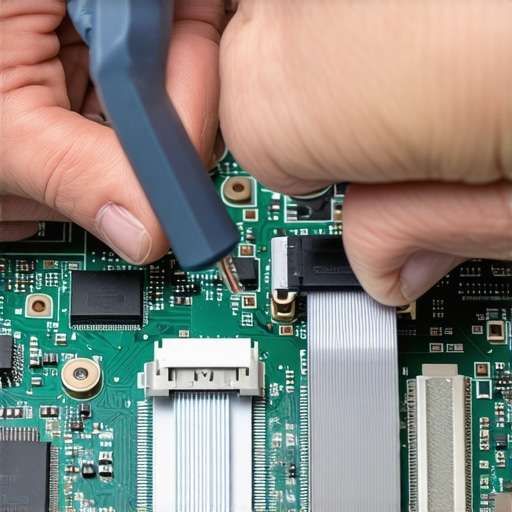
The Fatal Mistake of Powering Through the Click
When it comes to the mechanical side of things, the biggest ‘oops’ factor I see involves external hard drives. Everyone tells you to keep trying different ports or cables when a drive won’t mount, but in my experience, that is the fastest way to turn a recoverable situation into a permanent loss. If you hear a repetitive clicking sound, stop everything. Every second that drive is powered on, the physical heads could be scraping the platters, turning your data into literal dust. Understanding the risk of ignoring a clicking external drive is the difference between a successful recovery and a paperweight. You should never run ‘chkdsk’ or any software repair tool on a drive that is making physical noise. Instead, this is the exact moment to look into data recovery secrets expert techniques to save your files fast before the hardware gives up completely.
Why ‘Unlimited’ Support Is Usually a Trap
For those of you running a business, there is a dangerous misconception that ‘unlimited’ IT support means your data is safe. I’ve seen companies get burned because they thought their flat-fee contract covered proactive security, only to realize too late that it was purely reactive. You need to look into the truth about unlimited it support contracts for businesses before you sign on the dotted line. True protection comes from effective managed it solutions for growing companies that prioritize preventative maintenance and regular audits over just fixing things when they break. Don’t fall for the trap of thinking a monthly fee equals a total safety net without knowing exactly what is being monitored behind the scenes.
Stop Guessing and Start Measuring with Real Tools
When I’m out on a call, I don’t just carry a screwdriver and a prayer. I carry a very specific kit that has saved me thousands of dollars in potential replacement costs. The one tool I never leave behind is a high-quality set of non-conductive nylon spudgers and a set of heavy-duty suction cups. You might think suction cups are for windows, but they are the only safe way to handle modern bezel-less displays without cracking the glass. If you are following laptop screen repair diy tips for clearer displays, you’ll find that using your fingernails is the fastest way to create a permanent pressure spot. I personally use the iFixit Pro Tech Toolkit because the bits are hardened steel; cheap bits strip screws, and a stripped screw on a motherboard is a nightmare that often leads to unnecessary drilling.
How do I maintain my laptop screen over time?
Maintaining a display isn’t just about wiping off fingerprints; it’s about preventing physical stress. I’ve seen so many people come in with a cracked LCD because they closed their laptop with a webcam cover or even a single grain of sand on the keyboard. To keep your display pristine, never pick up your laptop by the screen—always grab the base. Also, avoid using alcohol-based cleaners which can eat through the anti-reflective coating. If you notice a faint discoloration, it might be why your laptop screen has a strange pressure mark in the center, often caused by carrying the device in a cramped backpack where the keys are pressed against the panel. 
The Invisible Shield You Aren’t Using
On the business side of things, scaling your tech safely means moving away from the ‘break-fix’ mentality. I’m a huge advocate for automated monitoring. For my clients, I ensure that why your managed it service should be auditing your cloud permissions is a weekly conversation, not a yearly one. If you aren’t auditing who has access to your data, you are leaving a back door open. I also keep a close eye on hardware telemetry; for example, knowing the first sign your business server motherboard is about to fail—like fluctuating voltage readings in the BIOS—can save you from a catastrophic weekend of downtime. I predict that within the next two years, we will see mainstream AI-integrated firmware that predicts component failure with 99% accuracy by analyzing microscopic acoustic vibrations of cooling fans and hard drive spindles.
Why Your Backup Strategy is Still Your Weakest Link
Even with the best tools, hardware has a shelf life. As highlighted in the 2023 Backblaze Drive Stats report, even high-end SSDs show a significant increase in ‘unrecoverable errors’ once they cross the five-year mark, often failing without the warning clicks of a traditional hard drive. This is why you need to understand data recovery secrets every business should know today. Don’t wait for the blue screen. Start using a 3-2-1 backup strategy: three copies of your data, on two different media types, with one copy off-site. For small teams, effective managed it solutions for growing companies should always include an immutable cloud backup that can’t be deleted by ransomware. My advanced tip for you today: Download a SMART monitoring tool like CrystalDiskInfo and check your ‘Power On Hours’ and ‘Total Host Writes.’ If your SSD has written more than 300TB, it’s time to clone that drive to a new one before you’re forced to learn recovery the hard way.
The Hardest Lessons I Learned in the Repair Shop
Over the years, I’ve realized that tech repair isn’t just about fixing what’s broken; it’s about anticipating the next failure before it happens. One of my biggest lightbulb moments was discovering that most ‘software’ slowdowns are actually the result of years of cumulative neglect—ignoring tiny warning signs until they become catastrophic failures. I’ve learned that a simple weekly audit is worth more than a thousand-dollar recovery bill. If you’re running a company, staying ahead means implementing managed IT strategies to keep your business secure in 2025 rather than waiting for a breach to happen. Another hard truth: your data is only as safe as your most recent ‘test’ restore. I’ve seen too many people trust a backup drive that hadn’t actually recorded a file in six months. This is why understanding data recovery secrets every business should know today is non-negotiable for long-term stability.
The Gear I Actually Use Every Day
If you want to move beyond the basics, you need tools that won’t fail when the pressure is on. I always recommend the iFixit Pro Tech Toolkit; it’s the industry standard for a reason, and it prevents those dreaded stripped screws on delicate motherboards. For software monitoring, CrystalDiskInfo is my go-to for checking drive health before I need to resort to data recovery secrets expert techniques to save your files fast. Finally, for those struggling with display issues, keeping a specialized eDP cable tester or simply a high-intensity flashlight can save you from buying unnecessary panels when you’re following tips for troubleshooting laptop screen problems seamlessly.
Take Control of Your Technology Today
Technology should serve you, not the other way around. It’s easy to feel overwhelmed by pop-ups, flickering screens, or clicking drives, but remember that every expert started exactly where you are right now. By taking these small, methodical steps—checking your task scheduler, monitoring your hardware health, and securing your network—you are no longer a passive observer of your computer’s health. Whether you are just starting with computer repair for beginners or you are managing a complex office network, the goal is the same: digital sovereignty. Don’t wait for the next ‘System Fix’ scam to appear; go ahead and run that health check today. Have you ever had a tech ’emergency’ that turned out to be a simple loose cable? Let me know in the comments below!