

I was right in the middle of a high-stakes presentation when my wireless headset decided to bail on me. One second I was articulating our Q4 strategy, and the next, I was shouting into a void while my client stared at my muted, moving lips. It wasn’t just embarrassing; it felt unprofessional. If you’ve ever wanted to throw your mouse across the room because it disconnected for the tenth time today, I’m here to tell you that you’re not alone. I’ve lived that frustration. We rely on these invisible threads to keep our peripherals alive, and when they snap, our workflow grinds to a halt. [image placeholder]
Why Wireless Stability is a Business Necessity
In the modern office, Bluetooth isn’t just a luxury—it’s a critical component of our toolkit. When your connection drops, it’s not just a minor glitch; it’s a direct hit to your productivity. I remember my first big blunder when I tried to fix a dying internal Bluetooth card with a five-dollar dongle from a gas station. I thought I was being savvy, but I ended up creating a mess of driver conflicts that took me days to resolve. You can avoid those beginner mistakes that cost you time by understanding what’s actually happening under the hood. We aren’t just dealing with hardware; we’re dealing with a crowded invisible landscape. Have you ever felt like your tech is specifically out to get you during your most important meetings?
Is Bluetooth actually reliable enough for serious work?
Many of my clients ask me if they should just give up and go back to cables. The skepticism is fair. According to the Bluetooth Special Interest Group (SIG), modern Bluetooth 5.0 and above is designed for industrial-level reliability, yet office interference remains a massive hurdle. The truth is that Bluetooth is incredibly robust, but it’s often sabotaged by poor power management settings or physical obstructions you wouldn’t even think of. It’s not that the tech is bad; it’s that your computer is likely trying to be ‘too smart’ for its own good.
Stop the Cycle of Disconnecting Peripherals
The most common reason your connection vanishes is actually a hidden power-saving feature. Windows has a habit of ‘putting to sleep’ the very hardware you need to stay active. This is one of the things we look at when we troubleshoot nagging computer repair issues for our local partners. It’s a frustrating paradox: your laptop tries to save five minutes of battery life by killing your mouse connection in the middle of a task. This often contributes to that feeling of your business computer acting up on a Monday morning just when you need it most. We’re going to dive into the specific device manager tweaks that force your PC to keep that connection alive, no matter what.
Force Windows to Stop Killing Your Hardware
The first thing you need to do is reclaim control from Windows’ overzealous power-saving routines. Think of Windows as a landlord who turns off the heat the second you stop moving to save a few cents on the utility bill. To stop this, right-click your Start button and open Device Manager. Look for the ‘Bluetooth’ section, right-click your specific adapter (usually Intel or Realtek), and hit ‘Properties’. Under the ‘Power Management’ tab, uncheck ‘Allow the computer to turn off this device to save power’. I can’t tell you how many times I’ve seen this one checkbox solve a week’s worth of headaches. It’s a classic move in troubleshooting common computer repair issues effectively.
Don’t forget the USB controllers
Don’t stop at the Bluetooth radio. Scroll down to ‘Universal Serial Bus controllers’ and repeat this process for the ‘USB Root Hub’ entries. If your Bluetooth module is internal, it’s often wired through a USB bus. If that bus goes to sleep, your headset dies. This is a common culprit when your computer freezes when you plug in a USB device or suddenly drops peripherals.
Kill the Interference at the Source
Bluetooth operates on the 2.4 GHz frequency, which is the ‘congested city street’ of wireless signals. Your office microwave, your old Wi-Fi router, and even poorly shielded USB 3.0 cables are all screaming for attention on that same street. I once spent four hours trying to fix a CEO’s stuttering mouse, only to realize his high-speed external drive was sitting right next to the Bluetooth receiver. The unshielded cable was leaking ‘noise’ that drowned out the mouse. When we moved the drive to the other side of the desk, the problem vanished instantly.
The hardware swap that actually works
If you’re using a desktop tucked under a metal desk, you’ve built a Faraday cage around your signal. The best $20 you’ll ever spend is on a USB extension cable to bring your Bluetooth dongle up onto the desk where it has a clear line of sight. This is the kind of practical hardware swap that gives your old office pc a massive speed boost in terms of overall usability and signal strength.
Scrub the Ghost Drivers
Sometimes the problem isn’t the current driver, but the ‘ghosts’ of three previous ones clashing in the background. In Device Manager, click ‘View’ and then ‘Show hidden devices’. You’ll likely see a dozen faded icons for ‘HID-compliant mouse’ or ‘Bluetooth Device’. These are remnants of every peripheral you’ve ever plugged in. Right-click and uninstall the grayed-out ones. It’s like clearing out digital cobwebs. For businesses, this kind of maintenance is why managed IT solutions streamlining operations for small businesses are so vital—they handle this hygiene before it becomes a crisis. If you are still seeing issues, you might be dealing with deeper hardware failure, similar to identifying a failing motherboard before it stops working entirely. Keeping your system lean by removing these ghosts prevents the driver conflicts that lead to that ‘stuttering’ audio we all hate.
The Big Myth About Your Cracked Laptop Screen
Most people treat a hairline crack on their laptop like a minor chip on a car windshield—annoying, but something you can ignore for a few months. In my professional experience, this is a dangerous gamble. I have seen countless cases where those tiny cracks lead to internal short circuits that eventually fry the entire logic board. When the liquid crystals leak or the digitizer starts sending erratic electrical signals, it’s no longer just a visual nuisance. This is exactly why a cracked laptop screen can eventually damage your motherboard beyond repair. It is always safer to handle laptop screen repair with these DIY tips or seek professional help before the damage migrates to your data.
Free Recovery Tools Often Do More Harm Than Good
Here is the ‘oops’ factor I see at least once a week: a business owner realizes they lost a critical folder, panics, and downloads a ‘free’ data recovery tool. They install it directly onto the same drive they are trying to save. Every single kilobyte written to that drive risks overwriting the very data they need. Even worse, if the drive is physically failing—perhaps you’ve noticed your office pc makes a clicking sound lately—running software scans is the equivalent of forcing a person with a broken leg to run a marathon. According to data recovery experts at Ontrack, physical drive failures account for over 40% of data loss cases, and amateur software intervention can make professional recovery impossible by physically grinding the platters. You must understand the danger of using free file recovery tools on a failing mechanical drive. If you hear a mechanical noise, stop immediately.
Why does your laptop display look pixelated even after a driver update?
You’ve updated the BIOS and reinstalled the graphics drivers, but the image still looks ‘off’ or grainy. This usually isn’t a software bug at all. It is often a sign of a failing LVDS cable—the physical ribbon that connects your screen to the motherboard. Every time you open and close your laptop, you are stressing that cable. Eventually, it frays, leading to color distortion, vertical lines, or that frustrating ‘screen door’ effect. This is one of the many tips for troubleshooting laptop screen problems seamlessly that separates the pros from the hobbyists. For growing teams, this kind of nuance is why managed IT solutions streamlining operations for small businesses are so vital; we catch the physical fatigue before your hardware goes dark during a pitch. Have you ever fallen into the trap of thinking a hardware problem was just a ‘Windows update’ issue? Let me know in the comments.
Build a Safety Net Before the Crash
The most important nuance in modern IT isn’t how you fix a broken computer; it’s how you ensure that a broken computer doesn’t stop your business. Many owners think ‘The Cloud’ is a magic bullet, but cloud-only strategies fail during internet outages or ransomware syncs. This is why your business needs a disaster recovery plan before the storm hits. A true professional setup involves local redundancy and immutable backups. Relying on why your business shouldnt rely on consumer grade antivirus alone is like locking your front door but leaving the windows wide open. If you want to keep your workflow bulletproof, you have to look at the whole ecosystem, from the Bluetooth dongle to the server rack.
Get Real Tools and Stop Guessing
Maintaining a fleet of computers requires moving past the ‘if it ain’t broke, don’t fix it’ mindset. I’ve seen too many businesses lose thousands because they ignored a five-minute maintenance task. When I’m in the field, I rely on a very specific set of tools. First, stop buying bargain-bin components; there is a specific hardware part you should never buy used for your business, primarily power supplies. I personally use CrystalDiskInfo for every single machine I touch. It’s a lightweight utility that reads S.M.A.R.T. data directly from your firmware. If I see a ‘Caution’ status, that drive is replaced before the lunch break. This is the bedrock of expert techniques to save your files fast—preventing the crash before it happens.
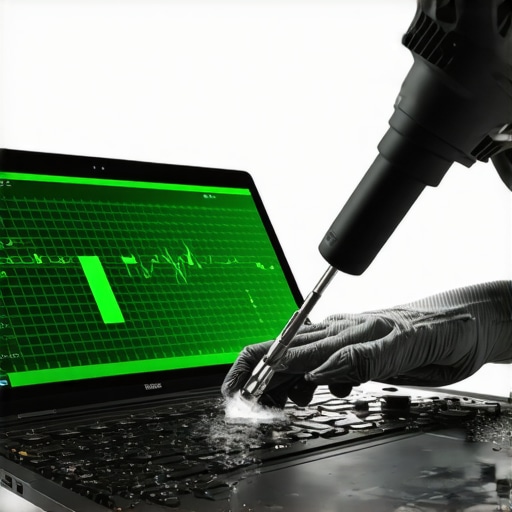
The Backblaze Hard Drive Reliability Report is my go-to citation for which brands to trust; their data consistently shows that certain enterprise drives have failure rates below 1%, while consumer models can spike significantly after year three. If you aren’t checking your own health stats, you’re flying blind. You can easily learn how to check if your hard drive is about to fail using s-m-a-r-t data and save yourself a $2,000 recovery bill.
How do I keep my workstation running like new for five years?
The secret isn’t software; it’s airflow. Every six months, I use a vacuum-safe electric duster—not canned air, which can spray moisture—to clear out the heat sinks. If you hear a noisy laptop fan that sounds like a jet engine, your computer is already dying a slow death. High heat causes thermal throttling, which is the sign your cpu is slowing down your work to protect itself from melting. For my managed clients, we automate these alerts so we can repaste a processor before it fails. This pro-active approach is why effective managed IT solutions for growing companies are worth the investment; they extend hardware life by years.
AI Is Coming for Your IT Department
I predict that by 2026, we won’t be running manual diagnostic tools anymore. We are already seeing the rise of ‘predictive failure’ sensors integrated into motherboards. Your laptop will likely send you a notification saying, ‘Your fan bearing will fail in 14 days,’ and order the part automatically. This shift toward self-healing hardware will redefine managed IT strategies to keep your business secure in 2025 and beyond. The ‘break-fix’ model is officially dead. My challenge to you: Download a portable version of a SMART monitor today and check your primary drive health. If it’s anything less than ‘Good,’ back up your data and seek a hardware audit immediately.
What I Learned the Hard Way After Decades in the Repair Shop
Over the years, I’ve realized that technology doesn’t just fail; it warns you first. That tiny flicker in your display or a peripheral that disconnects once a week isn’t a quirk—it’s a signal. One of the most expensive mistakes I see business owners make is ignoring these signals until they become a full-blown crisis. If you’ve been putting off a fix, remember that following a laptop screen replacement step-by-step repair guide might be the only thing standing between you and a dead motherboard if moisture or pressure points are involved.
Another lightbulb moment for me was realizing that “good enough” security is an invitation for disaster. Many people think they are safe because they are small, but automated bots don’t care about your company size. This is why managed IT is a game changer for growing companies—it shifts the burden from your shoulders to a system that never sleeps. Finally, remember that your power supply is the heart of your machine; understanding why a cheap power supply is the biggest threat to your office hardware is a lesson you do not want to learn through a literal puff of smoke in the middle of a workday.
The Toolkit I Use to Keep My Own Gear Alive
I don’t leave my productivity to chance, and neither should you. My go-to stack for a healthy office environment includes CrystalDiskInfo for real-time drive health monitoring. If I see a drive dip below 90% health, I’m already looking at the ultimate guide to data recovery after accidental deletion just to be prepared. I also swear by Bitwarden for password management and Macrium Reflect for creating local disk clones. These aren’t just utilities; they are insurance policies for your time and peace of mind.
Stop Reacting and Start Protecting Your Digital Life
Effective computer repair isn’t just about fixing what’s broken; it’s about building a system that is resilient enough to handle the unexpected. Whether it is a laptop that wont charge even when plugged in or a Bluetooth mouse that keeps dropping out, these are all hurdles that you now have the tools to jump over. Take one small action today—clean your fan, check your drive health, or update your backup—and your future self will thank you for the foresight. Hardware is the bedrock of your business, so treat it with the respect it deserves.
Have you ever had a piece of hardware fail at the absolute worst possible moment during a meeting or a major deadline? Let me know your horror stories in the comments below!