

I remember it like it was yesterday—the smell of fresh coffee, a deadline looming, and that heart-stopping moment I flipped open my laptop only to be greeted by a bright, featureless white abyss. No icons. No taskbar. Just a glowing rectangle mocking my productivity. My first thought was that the hardware had completely fried and I would lose every single file I hadn’t backed up yet. It is a visceral kind of panic that makes your stomach drop. We have all been there, staring at a screen that should be showing our desktop but is instead acting like a very expensive, very bright flashlight. Today, I am going to help you navigate this blinding fog and get your digital life back on track without losing your mind or your data in the process.
That Blinding White Screen Does Not Mean Your Laptop is Dead
It is often called the White Screen of Death, and it looks absolutely terminal. But after years of tinkering and helping people through computer repair for beginners, I have learned that this blank slate is usually just a communication breakdown between your motherboard and the display panel. Early in my journey, I made the massive mistake of ordering a $150 replacement panel for a friend, only to realize the issue was a tiny piece of grit stuck in the ribbon cable connector. Talk about a blow to the ego. I want to save you from those kinds of expensive, unnecessary leaps by troubleshooting common computer repair issues effectively before you reach for your wallet. We are going to look at everything from loose cables to driver glitches that cause this specific headache.
Is my data gone forever because of this white void?
This is the number one question I get, and the short answer is almost always a resounding no. A white screen typically indicates a failure in the display pipeline, not the storage where your memories and work live. Your files are likely sitting right where you left them, completely unaware that you are currently sweating over the hardware. In fact, if you are feeling anxious about your files, checking out the power of data recovery tools can give you some peace of mind while we fix the actual screen. According to the repair technicians at iFixit, a staggering majority of laptop display failures are related to the LVDS or eDP cables rather than a total system meltdown. Knowing this helps lower the temperature of the situation so you can focus on the fix.
Stop Tapping the Case and Start Testing the Hardware
Before you start searching for a laptop screen replacement step-by-step repair guide, we need to isolate exactly where the signal is getting lost. The easiest test in the world is plugging your laptop into an external monitor or a TV. If the external screen shows your desktop perfectly, your laptop is actually running fine, and the problem is strictly with your internal display or the ribbon cable. However, if the external monitor is also a white void, we are likely looking at a failing GPU, which is a common sign of a failing motherboard or graphics chip. Have you ever had your screen turn into a bright white wall right in the middle of a project? Let me know in the comments below because I want to know exactly what led up to the glitch before we jump into the hardware teardown.
Try the Ten-Second Reset Before Opening the Case
Static electricity is the silent ghost in the machine. Sometimes, your hardware gets a little bit of ‘confused’ residual charge that prevents the display from initializing correctly. I usually start by performing a hard reset: disconnect the power adapter, remove the battery if your model allows it, and hold the power button down for a full thirty seconds. This drains the capacitors and forces the motherboard to start from a completely clean slate. While it sounds too simple to be true, I have seen this clear a white screen more often than you would think. It is one of those tips for troubleshooting laptop screen problems seamlessly that saves people hours of frustration. If the screen stays white after this, we know for sure the issue is a physical connection or a deeper driver conflict.
Reseat the Video Cable to Bridge the Gap
If the power cycle fails, we have to look under the hood. The most common culprit is a loose LVDS or eDP cable—the thin ribbon that carries the visual data from your motherboard to the panel. I remember helping a neighbor with their old Dell XPS; the screen was a stark white sheet. After carefully popping the bezel and the keyboard, I found that the cable had simply wiggled out by a fraction of a millimeter due to the constant opening and closing of the lid. I unplugged it, blew out a tiny speck of dust, and snapped it back in. The screen instantly flickered back to life. It felt like magic, but it was just basic physics. If you are brave enough to open your device, following laptop screen repair diy tips for clearer displays can guide you through the delicate process of handling these fragile connectors without causing more damage. 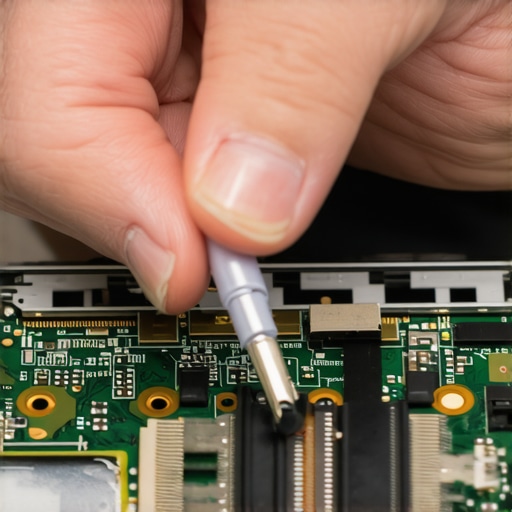
Test Your Luck in Safe Mode
Sometimes the hardware is perfectly fine, but your graphics driver has decided to go on strike. If you see the manufacturer logo (like HP, Dell, or Lenovo) when you first turn the laptop on, but it fades to white as Windows tries to load, you are likely dealing with a software glitch. This is a common hurdle when how to identify a dying backlight before your screen goes dark because a backlight failure looks different from a driver crash. Try booting into Safe Mode. This loads a generic video driver that bypasses all the fancy high-res settings. If the image appears in Safe Mode, you just need to uninstall your display adapter from the Device Manager and let Windows reinstall a fresh, clean version.
Watch the Hinge for Physical Weak Points
Laptops are designed to be mobile, but that mobility puts an incredible amount of stress on the hinges. The display cable runs right through that hinge mechanism, and over time, it can get pinched or frayed. I once saw a laptop where the user had to hold the screen at exactly a 45-degree angle to get an image; any further and it turned white. If you find the fix for a laptop screen that only works at a certain angle, you are definitely looking at a damaged cable that needs a full replacement. Additionally, check if your device behaves differently when unplugged, as some users need to learn how to fix a laptop screen that is flickering only on battery power, which points to power management settings rather than a dead LCD panel.The most common mistake I see in the tech world is the immediate assumption that a white screen equals a dead LCD. Everyone says you should just buy a new panel, but in my experience, the problem is frequently a handshake failure between the GPU and the panel’s Timing Controller (T-Con) board. If the screen is receiving power but no data, it defaults to a full-on white state. Before you spend a dime on parts, you need to understand that laptop screen repair how to fix common issues at home often starts with a multimeter, not a screwdriver. If you aren’t seeing the standard 3.3V LCD_VCC at the connector, a brand-new screen will remain just as blank as the old one.
The one mistake that kills motherboards during repair
There is a massive trap waiting for DIYers: the standby voltage. Never, ever plug or unplug a display cable while the laptop battery is still physically connected to the motherboard. Even if the device is powered off, modern boards keep a high-voltage rail (often 19V for the backlight) live on specific pins of the eDP connector. A slight wiggle during insertion can bridge those pins, instantly blowing a tiny SMD fuse or, worse, the CPU’s integrated graphics. This is why why a cracked laptop screen can eventually damage your motherboard is a very real warning; physical damage often leads to electrical shorts that cascade through the system. 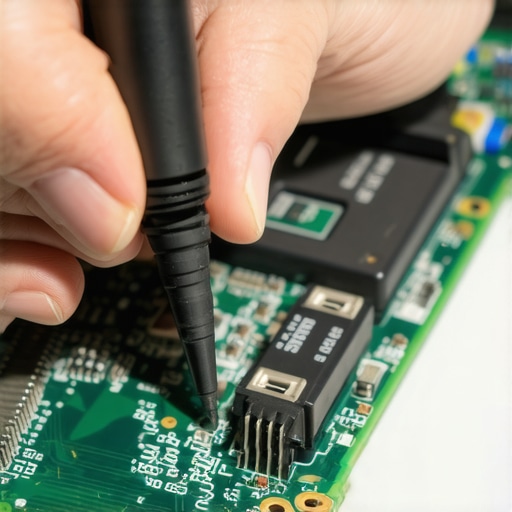
Could a corrupted BIOS actually be the reason your screen is blank?
Surprisingly, yes. I have encountered several high-end workstations where a failed background firmware update left the display initialization in a permanent loop. For growing businesses, this is where managed IT strategies to keep your business secure in 2025 provide value beyond just software patches. A professional it consultant who wont push unnecessary hardware will check the UEFI firmware integrity before recommending an expensive screen swap. According to research on Embedded DisplayPort (eDP) protocols, signal timing errors in the boot stage can mimic hardware death perfectly. Have you ever fallen into this trap and replaced a part that wasn’t actually broken? Let me know in the comments below.
Pick the right specs for your replacement
If you determine the panel is truly dead, don’t just search for your laptop model and buy the first result. You must match the specific pin count and lane configuration of your original cable. When you are deciding how to choose between a glossy or matte laptop screen replacement, ensure the replacement supports the same number of eDP lanes (e.g., 2-lane vs 4-lane). Installing a high-resolution 4-lane panel on a motherboard only wired for 2 lanes will result in a flickering mess or, you guessed it, another white screen. Taking the time to verify these nuances is the difference between a successful repair and a pile of useless components.
Stop Guessing and Start Using a Thermal Camera
When you are deep in the weeds of a complex repair, guessing which capacitor is shorting out is a recipe for disaster. I personally rely on a FLIR thermal imager because it turns an invisible electrical short into a bright, glowing beacon of heat. If you see a tiny component hitting 80 degrees Celsius the moment you plug in the power, you have found your white-screen culprit. This level of precision is exactly what separates hobbyists from pros. It is also a great way to identify the sign your cpu is thermal throttling and slowing down your work, as heat often cascades from the processor to the video chipset. Using these high-end tools allows you to solve the root cause rather than just slapping a band-aid on the symptoms. 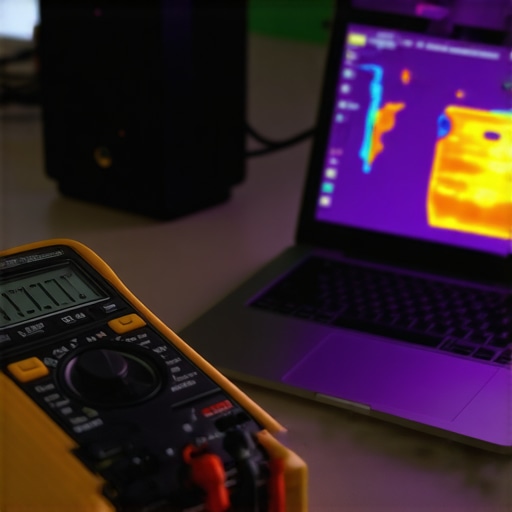
How do I keep my hardware healthy for the long haul?
Maintenance is not a one-time event; it is a ritual. For my personal machines, I perform a ‘de-dusting’ every six months and check the hinge tension. If your hinges are too tight, they put unnecessary torque on the display cable, eventually leading to those dreaded signal failures. For businesses, this manual check-up is impossible to scale, which is why managed IT strategies to keep your business secure in 2025 are becoming the industry standard. By utilizing effective managed IT solutions for growing companies, you can monitor the health of hundreds of displays and motherboards simultaneously, catching hardware errors before they turn into a full-day outage. It is about moving from a reactive mindset to a proactive one.
Predicting the end of manual troubleshooting
I believe we are entering an era where AI-driven telemetry will make ‘blind’ troubleshooting a thing of the past. Future laptops will likely include self-diagnostic chips that can tell you exactly which pin on an eDP cable has failed. Until then, we rely on standards and meticulous testing. According to technical documentation from VESA (Video Electronics Standards Association) regarding eDP 1.4+ protocols, many ‘white screen’ hangs are actually caused by Advanced Link Power Management (ALPM) timing errors during the wake-from-sleep cycle. If your screen is flickering, try disabling ‘Panel Self-Refresh’ in your graphics control panel; it is a small tweak that often fixes modern display glitches.
Don’t Let a Hardware Failure Kill Your Productivity
Even with the best tools, sometimes a panel is truly dead. If you find yourself in that position, make sure you aren’t just fixing the screen but also securing your information. I’ve seen people fix their hardware only to realize their OS partition is corrupt. Familiarizing yourself with the power of data recovery tools ensures that no matter what happens to the LCD, your work remains safe. If the situation is dire, specialized data recovery secrets expert techniques to save your files fast can be a lifesaver. Also, pay attention to the physical health of your panel—learning how to fix a laptop screen that has white pressure spots can help you extend the life of your current display before a full replacement becomes mandatory. My big advice for today? Grab a magnifying glass and a can of compressed air—inspect your display ports for tiny debris before you spend a single cent on a replacement panel. You might just find a 10-cent dust bunny is the only thing standing between you and a working computer.
Why I Stopped Assuming the Worst When My Screen Goes Blank
One of the biggest shifts in my mindset came after I realized that a white screen is usually a sign of life, not death. It means the panel is getting power but the data signal is lost, often due to a simple mechanical interruption. I used to panic about data loss, but now I know that the power of data recovery tools is there to catch me if things go south. I have also learned that patience is more valuable than a new screen; taking ten minutes to reseat a cable often saves $100 and a week of waiting for shipping. Static discharge is another silent killer that many overlook, so grounding yourself is not just a suggestion—it is a requirement. Lastly, if you see the manufacturer logo at boot, your panel is fine; your OS or drivers are the culprit. Knowing these distinctions turns a crisis into a manageable task.
The Gear I Never Start a Display Repair Without
If you want to take this seriously, you need more than just a standard screwdriver. I always keep a high-quality spudger kit nearby so I do not snap the delicate plastic clips on the bezel. For professional-level diagnosis, I highly recommend a thermal camera to spot shorts on the board, especially near the eDP connector. Also, if you are managing hardware for a team, looking into managed IT solutions streamlining operations for small businesses can help you track these hardware failures before they lead to downtime. Lastly, keep a spare eDP cable in your drawer; they are cheap and frequently the real culprit when a screen starts showing artifacts or goes completely white. I also rely on high-purity isopropyl alcohol and a soft brush to clean connectors that have become oxidized over time. #IMAGE_PLACEHOLDER_E#
Reclaiming Your Productivity One Fix at a Time
Repairing your own hardware is about more than just saving money; it is about taking back control over the tools you use every day. Whether you are dealing with a flicker or a total white-out, remember that you have the logical framework to find the solution. If the hardware is beyond repair, do not forget to look at data recovery secrets expert techniques to save your files fast to keep your business running smoothly while you wait for a replacement. You have the power to fix your own computer repair issues with a little bit of research and the right attitude. Did a simple power reset ever save your laptop screen, or did you have to dive into the hardware? Let me know in the comments below!