

It was 6:45 PM on a deadline Tuesday, and I was just about to hit ‘send’ on a massive file transfer when I realized I hadn’t eaten since breakfast. I tossed a container of leftovers into the office microwave, pressed the 30-second button, and watched in horror as my upload speed plummeted to zero. The Wi-Fi just… died. I sat there, illuminated by the dim glow of my monitor, wondering if I needed a laptop screen repair for some ghost in the machine. It felt personal. Like the universe didn’t want me to have dinner or finish my work. I spent way too much time troubleshooting common computer repair issues effectively only to find out that my snack was sabotaging my connectivity. If you have ever felt like your internet is gaslighting you, you are not alone. It is a real, physical interference that ruins productivity daily. Today, I am going to walk you through exactly why this happens and how to stop it without throwing your microwave out the window.
The Invisible Battle for Your Office Airwaves
The truth is, your microwave and your router are basically screaming at each other in the same language. Most older or budget-friendly office setups run on the 2.4GHz frequency. Guess what else lives there? Your microwave. When you start heating up that burrito, the microwave leaks a tiny bit of electromagnetic radiation. It’s not enough to hurt you, but it is more than enough to drown out the relatively weak signal coming from your router. I remember one of my first big mistakes was thinking I had a motherboard failure or a failing network card. I even considered if I needed computer repair for beginners advice because I was so lost. I bought three different high-gain antennas that did absolutely nothing because I didn’t understand the physics of the breakroom. According to the Institute of Electrical and Electronics Engineers (IEEE), most consumer microwaves operate at a frequency of 2.45 GHz, which overlaps almost perfectly with the most common Wi-Fi channels.
Does this mean I have to buy expensive new gear?
You might be skeptical. You are probably thinking, “My microwave is brand new, it shouldn’t be leaking anything!” But even the best-shielded consumer appliances can disrupt a signal if they are close enough to your workstation. If you have noticed that your wi-fi is fast in the lobby but dead in the back office, it might not be the walls—it might be the kitchen sitting right in the middle of your signal path. Have you ever been mid-call and suddenly lost everything the moment someone started making popcorn? It is a classic office hardware clash. We are going to talk about why your business needs a separate wi-fi network for smart devices and how switching to the 5GHz band can save your sanity. [IMAGE_PLACEHOLDER] I am here to tell you that you do not necessarily need a massive managed IT contract just to heat up your lunch, but you do need a strategy to separate your data from your dinner.
Force Your Devices onto the 5GHz Expressway
To fix this, you need to think like a traffic controller. Your first move is to force your devices onto the 5GHz band. Think of 2.4GHz as a muddy, two-lane backroad shared by tractors and slow-moving trucks. When the microwave turns on, it is like a massive wide-load semi-truck taking up both lanes. You are not getting past it. Switching to 5GHz is like moving to a ten-lane superhighway. It has a shorter range, but it handles way more traffic without the microwave interference. I remember one specific client who thought they needed managed IT solutions because their server disconnected every day at noon. We did not need a complex contract; we just spent five minutes in the router settings toggling the 5GHz SSID to be the default. Problem solved. If you are struggling with a persistent connection, knowing how to fix a laptop that keeps dropping the wi-fi signal usually starts with this simple frequency shift.
Put Some Distance Between Your Data and Your Dinner
If your router is sitting on top of the breakroom fridge, you are asking for trouble. Physics is a stubborn beast. Every foot of distance you put between the microwave and your networking gear drastically reduces the impact of interference. In my early days, I once spent four hours thinking a laptop wireless card was fried. I was even looking up laptop screen repair techniques because the screen would flicker whenever the internet cut out—a weird power surge issue. It turned out the router was placed directly against the back wall of the microwave. Moving the router just six feet away restored the signal instantly. It is one of those computer repair for beginners lessons I will never forget. 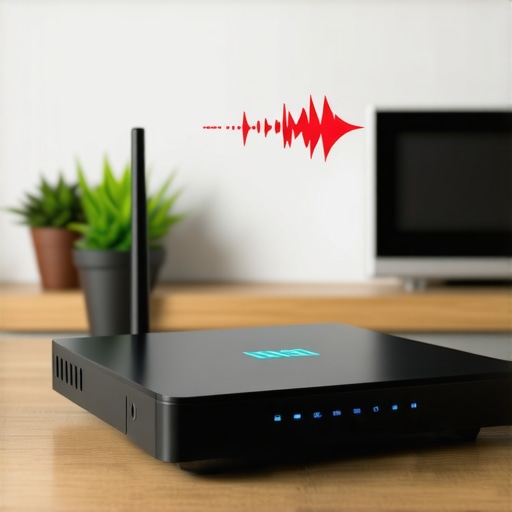
Pick a Channel That Is Not a War Zone
If you cannot switch to 5GHz because of old hardware, you have to get smart with your 2.4GHz channels. Most routers are set to ‘Auto’ by default, which is usually a disaster in a crowded building. You want to use channels 1, 6, or 11. These are the only channels that do not overlap with each other. If your microwave is screaming on channel 6, try forcing your router to stay on channel 1. You can use a free Wi-Fi analyzer app on your phone to see which channels are the most congested. This is a core part of troubleshooting common computer repair issues effectively without spending a dime on new parts.
Create a Border for Your Smart Devices
Your smart fridge, your thermostat, and your office light bulbs are all probably clogging up your main network. This is exactly why your business needs a separate wi-fi network for smart devices. By keeping these ‘chatty’ but low-priority gadgets on their own guest network, you clear the main airwaves for your actual work. I have seen offices where a smart toaster was causing more latency than a full-scale data recovery operation. It sounds ridiculous, but in the world of invisible radio waves, every little bit of noise counts against your productivity.People often assume that if their display starts acting up, they’ve reached the end of the road. I see this all the time: a client comes in convinced they need a laptop screen repair because of a persistent flickering or a sudden color shift. But here is the nuance most beginners miss: a flicker isn’t always a shattered panel. Sometimes, it’s a simple loose eDP cable or a grounding issue in the hinge that mimics a hardware death rattle. I’ve saved people hundreds by teaching them tips for troubleshooting laptop screen problems seamlessly before they commit to a full replacement. In fact, jumping straight to a replacement without checking the backlight circuit or understanding the first thing to check when your laptop screen goes white is a classic computer repair for beginners blunder that wastes perfectly good hardware. Modern screens are resilient, but their connection points are fragile; treat the cable with as much suspicion as the glass.
Can you really trust DIY software for a clicking hard drive?
This is where things get dangerous and where ‘standard’ advice often fails. There is a common belief that if a drive stops working, you should just run a ‘deep scan’ with the first data recovery tool you find on Google. If your drive is making a scraping or clicking sound, running software is the fastest way to turn a recoverable situation into a permanent disaster. According to research from the National Institute of Standards and Technology (NIST), physical media degradation accelerates significantly when a failing drive is powered on for extended periods during ‘stressful’ read operations like software scanning. This is exactly the risk of ignoring a clicking external drive. If you hear noise, stop everything. In those cases, why drive-savers remains the only choice for physically damaged drives becomes clear—they operate in cleanrooms where they can manually swap parts, something no software can ever do. Have you ever fallen into the ‘one more reboot’ trap? Let me know in the comments. 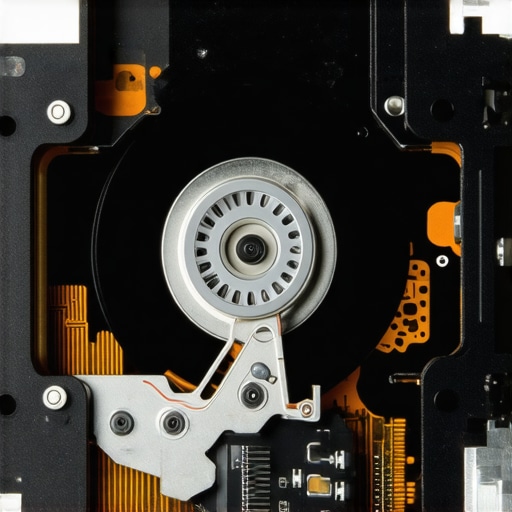
Why Proactive IT Beats Reactive Fixing Every Single Time
Beyond the hardware, I see the same ‘reactive’ mindset in how companies handle their networks. Most business owners think managed IT solutions are just for when the server catches fire. That is a massive mistake. The real ‘expertise’ in IT isn’t being great at fixing things; it’s being so good at managed IT strategies to keep your business secure in 2025 that things never break in the first place. If you are only calling an expert when you are down, you are already losing money. You should be looking for effective managed IT solutions for growing companies that prioritize security audits and redundancy over emergency house calls. Knowing how to tell if your laptop screen backlight is actually failing is a great skill for an individual, but for a business, knowing how to prevent the failure entirely through proactive monitoring is the true professional move.It starts with the right toolkit. I do not mean a cheap screwdriver from the junk drawer; I mean specialized tools like the iFixit Pro Tech Toolkit and software such as CrystalDiskInfo. When I am analyzing a system, I look at S.M.A.R.T. data first. If I see a high ‘Reallocated Sectors Count,’ I know we are in for an ultimate guide to data recovery after accidental deletion scenario—or worse—before the user even notices a slowdown. For laptops, I always check the power delivery first. Using a cheap knock-off charger is the fastest way to fry a motherboard, which is why I am so vocal about the truth about using generic chargers on expensive business laptops. I have seen those fifteen-dollar replacements melt DC jacks and kill charging circuits overnight. If you want to keep your system snappy, the hardware upgrade that actually speeds up your daily workflow is almost always a move to NVMe storage and a RAM bump, provided you know how to safely upgrade your ram without voiding the warranty first. 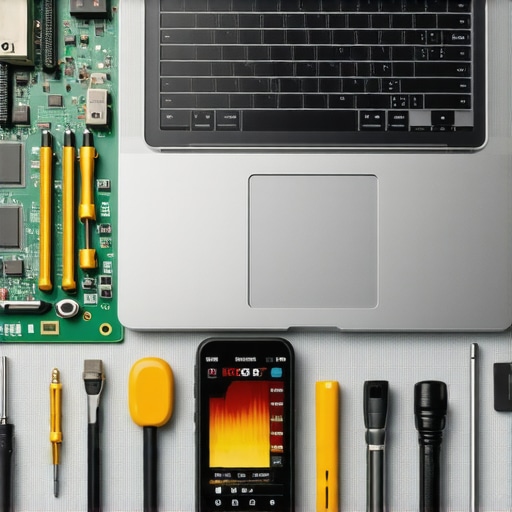
The Specialized Toolkit for Serious Technicians
In the field, we also use hardware-level diagnostics that go beyond what Windows can tell you. I personally swear by a USB-C power meter to check if a laptop is actually pulling the correct wattage. If it is only pulling 5V instead of 20V, the battery is not the problem; the power management chip is. This level of detail is what separates a quick fix from a permanent solution. If your server is acting up, knowing the first sign your business server motherboard is about to fail can save you from a catastrophic Monday morning. It is often as subtle as a USB port failing to register or a slight delay in the BIOS post. These are the nuances we track within how managed IT can elevate your business security in 2025 protocols.
How can I ensure my computer survives the long haul?
The secret is heat management and clean power. Dust is a silent killer; it acts as an insulator, trapping heat against sensitive capacitors and the VRM. I recommend a deep clean every six months. If you are not sure how, check out my laptop screen repair diy tips for clearer displays and physical cleaning guides. Beyond the physical, you need to think about your power source. A cheap power strip is not a surge protector. I always insist on a true Sine Wave UPS (Uninterruptible Power Supply) for office servers. It is the move that stops an ssd from failing during a power surge and ensures that dirty electricity does not degrade your silicon over time. According to technical documentation from APC (American Power Conversion), even minor voltage sags can cause logic errors that lead to stealthy data corruption.
The Shift Toward Self-Healing Hardware
As your business grows, you will eventually face a crossroad: how to choose between repairing an old workstation and buying a new one. This is where why managed IT is a game changer for growing companies really becomes apparent. In the near future, I predict we will see AI-integrated BIOS that can predict fan failure or battery swelling before the chassis even deforms. We are moving away from reactive break-fix and toward self-healing hardware. My advice? Do not wait for the future. Start by running a simple diagnostic on your battery health today—if your trackpad feels tight or jumpy, check for a swelling battery immediately. Try downloading a utility like HWMonitor right now; if your CPU idle temperatures are over 60 degrees Celsius, your fans need a cleaning before you lose the motherboard entirely.It was 6:45 PM on a deadline Tuesday, and I was just about to hit ‘send’ on a massive file transfer when I realized I hadn’t eaten since breakfast. I tossed a container of leftovers into the office microwave, pressed the 30-second button, and watched in horror as my upload speed plummeted to zero. The Wi-Fi just… died. I sat there, illuminated by the dim glow of my monitor, wondering if I needed a laptop screen repair for some ghost in the machine. It felt personal. Like the universe didn’t want me to have dinner or finish my work. I spent way too much time troubleshooting common computer repair issues effectively only to find out that my snack was sabotaging my connectivity. If you have ever felt like your internet is gaslighting you, you are not alone. It is a real, physical interference that ruins productivity daily. Today, I am going to walk you through exactly why this happens and how to stop it without throwing your microwave out the window.
The Invisible Battle for Your Office Airwaves
The truth is, your microwave and your router are basically screaming at each other in the same language. Most older or budget-friendly office setups run on the 2.4GHz frequency. Guess what else lives there? Your microwave. When you start heating up that burrito, the microwave leaks a tiny bit of electromagnetic radiation. It’s not enough to hurt you, but it is more than enough to drown out the relatively weak signal coming from your router. I remember one of my first big mistakes was thinking I had a motherboard failure or a failing network card. I even considered if I needed computer repair for beginners advice because I was so lost. I bought three different high-gain antennas that did absolutely nothing because I didn’t understand the physics of the breakroom. According to the Institute of Electrical and Electronics Engineers (IEEE), most consumer microwaves operate at a frequency of 2.45 GHz, which overlaps almost perfectly with the most common Wi-Fi channels.
Does this mean I have to buy expensive new gear?
You might be skeptical. You are probably thinking, “My microwave is brand new, it shouldn’t be leaking anything!” But even the best-shielded consumer appliances can disrupt a signal if they are close enough to your workstation. If you have noticed that your wi-fi is fast in the lobby but dead in the back office, it might not be the walls—it might be the kitchen sitting right in the middle of your signal path. Have you ever been mid-call and suddenly lost everything the moment someone started making popcorn? It is a classic office hardware clash. We are going to talk about why your business needs a separate wi-fi network for smart devices and how switching to the 5GHz band can save your sanity. I am here to tell you that you do not necessarily need a massive managed IT contract just to heat up your lunch, but you do need a strategy to separate your data from your dinner.
Force Your Devices onto the 5GHz Expressway
To fix this, you need to think like a traffic controller. Your first move is to force your devices onto the 5GHz band. Think of 2.4GHz as a muddy, two-lane backroad shared by tractors and slow-moving trucks. When the microwave turns on, it is like a massive wide-load semi-truck taking up both lanes. You are not getting past it. Switching to 5GHz is like moving to a ten-lane superhighway. It has a shorter range, but it handles way more traffic without the microwave interference. I remember one specific client who thought they needed managed IT solutions because their server disconnected every day at noon. We did not need a complex contract; we just spent five minutes in the router settings toggling the 5GHz SSID to be the default. Problem solved. If you are struggling with a persistent connection, knowing how to fix a laptop that keeps dropping the wi-fi signal usually starts with this simple frequency shift.
Put Some Distance Between Your Data and Your Dinner
If your router is sitting on top of the breakroom fridge, you are asking for trouble. Physics is a stubborn beast. Every foot of distance you put between the microwave and your networking gear drastically reduces the impact of interference. In my early days, I once spent four hours thinking a laptop wireless card was fried. I was even looking up laptop screen repair techniques because the screen would flicker whenever the internet cut out—a weird power surge issue. It turned out the router was placed directly against the back wall of the microwave. Moving the router just six feet away restored the signal instantly. It is one of those computer repair for beginners lessons I will never forget.
Pick a Channel That Is Not a War Zone
If you cannot switch to 5GHz because of old hardware, you have to get smart with your 2.4GHz channels. Most routers are set to ‘Auto’ by default, which is usually a disaster in a crowded building. You want to use channels 1, 6, or 11. These are the only channels that do not overlap with each other. If your microwave is screaming on channel 6, try forcing your router to stay on channel 1. You can use a free Wi-Fi analyzer app on your phone to see which channels are the most congested. This is a core part of troubleshooting common computer repair issues effectively without spending a dime on new parts.
Create a Border for Your Smart Devices
Your smart fridge, your thermostat, and your office light bulbs are all probably clogging up your main network. This is exactly why your business needs a separate wi-fi network for smart devices. By keeping these ‘chatty’ but low-priority gadgets on their own guest network, you clear the main airwaves for your actual work. I have seen offices where a smart toaster was causing more latency than a full-scale data recovery operation. It sounds ridiculous, but in the world of invisible radio waves, every little bit of noise counts against your productivity.People often assume that if their display starts acting up, they’ve reached the end of the road. I see this all the time: a client comes in convinced they need a laptop screen repair because of a persistent flickering or a sudden color shift. But here is the nuance most beginners miss: a flicker isn’t always a shattered panel. Sometimes, it’s a simple loose eDP cable or a grounding issue in the hinge that mimics a hardware death rattle. I’ve saved people hundreds by teaching them tips for troubleshooting laptop screen problems seamlessly before they commit to a full replacement. In fact, jumping straight to a replacement without checking the backlight circuit or understanding the first thing to check when your laptop screen goes white is a classic computer repair for beginners blunder that wastes perfectly good hardware. Modern screens are resilient, but their connection points are fragile; treat the cable with as much suspicion as the glass.
Can you really trust DIY software for a clicking hard drive?
This is where things get dangerous and where ‘standard’ advice often fails. There is a common belief that if a drive stops working, you should just run a ‘deep scan’ with the first data recovery tool you find on Google. If your drive is making a scraping or clicking sound, running software is the fastest way to turn a recoverable situation into a permanent disaster. According to research from the National Institute of Standards and Technology (NIST), physical media degradation accelerates significantly when a failing drive is powered on for extended periods during ‘stressful’ read operations like software scanning. This is exactly the risk of ignoring a clicking external drive. If you hear noise, stop everything. In those cases, why drive-savers remains the only choice for physically damaged drives becomes clear—they operate in cleanrooms where they can manually swap parts, something no software can ever do. Have you ever fallen into the ‘one more reboot’ trap? Let me know in the comments.
Why Proactive IT Beats Reactive Fixing Every Single Time
Beyond the hardware, I see the same ‘reactive’ mindset in how companies handle their networks. Most business owners think managed IT solutions are just for when the server catches fire. That is a massive mistake. The real ‘expertise’ in IT isn’t being great at fixing things; it’s being so good at managed IT strategies to keep your business secure in 2025 that things never break in the first place. If you are only calling an expert when you are down, you are already losing money. You should be looking for effective managed IT solutions for growing companies that prioritize security audits and redundancy over emergency house calls. Knowing how to tell if your laptop screen backlight is actually failing is a great skill for an individual, but for a business, knowing how to prevent the failure entirely through proactive monitoring is the true professional move.It starts with the right toolkit. I do not mean a cheap screwdriver from the junk drawer; I mean specialized tools like the iFixit Pro Tech Toolkit and software such as CrystalDiskInfo. When I am analyzing a system, I look at S.M.A.R.T. data first. If I see a high ‘Reallocated Sectors Count,’ I know we are in for an ultimate guide to data recovery after accidental deletion scenario—or worse—before the user even notices a slowdown. For laptops, I always check the power delivery first. Using a cheap knock-off charger is the fastest way to fry a motherboard, which is why I am so vocal about the truth about using generic chargers on expensive business laptops. I have seen those fifteen-dollar replacements melt DC jacks and kill charging circuits overnight. If you want to keep your system snappy, the hardware upgrade that actually speeds up your daily workflow is almost always a move to NVMe storage and a RAM bump, provided you know how to safely upgrade your ram without voiding the warranty first.
The Specialized Toolkit for Serious Technicians
In the field, we also use hardware-level diagnostics that go beyond what Windows can tell you. I personally swear by a USB-C power meter to check if a laptop is actually pulling the correct wattage. If it is only pulling 5V instead of 20V, the battery is not the problem; the power management chip is. This level of detail is what separates a quick fix from a permanent solution. If your server is acting up, knowing the first sign your business server motherboard is about to fail can save you from a catastrophic Monday morning. It is often as subtle as a USB port failing to register or a slight delay in the BIOS post. These are the nuances we track within how managed IT can elevate your business security in 2025 protocols.
How can I ensure my computer survives the long haul?
The secret is heat management and clean power. Dust is a silent killer; it acts as an insulator, trapping heat against sensitive capacitors and the VRM. I recommend a deep clean every six months. If you are not sure how, check out my laptop screen repair diy tips for clearer displays and physical cleaning guides. Beyond the physical, you need to think about your power source. A cheap power strip is not a surge protector. I always insist on a true Sine Wave UPS (Uninterruptible Power Supply) for office servers. It is the move that stops an ssd from failing during a power surge and ensures that dirty electricity does not degrade your silicon over time. According to technical documentation from APC (American Power Conversion), even minor voltage sags can cause logic errors that lead to stealthy data corruption.
The Shift Toward Self-Healing Hardware
As your business grows, you will eventually face a crossroad: how to choose between repairing an old workstation and buying a new one. This is where why managed IT is a game changer for growing companies really becomes apparent. In the near future, I predict we will see AI-integrated BIOS that can predict fan failure or battery swelling before the chassis even deforms. We are moving away from reactive break-fix and toward self-healing hardware. My advice? Do not wait for the future. Start by running a simple diagnostic on your battery health today—if your trackpad feels tight or jumpy, check for a swelling battery immediately. Try downloading a utility like HWMonitor right now; if your CPU idle temperatures are over 60 degrees Celsius, your fans need a cleaning before you lose the motherboard entirely.
The Hardest Lessons I Learned Managing High-Stakes Hardware
After years of being the person everyone calls when things go dark, I have developed a sixth sense for tech failure. The biggest revelation was realizing that most users assume the worst-case scenario when it is actually a simple fix. I have seen clients despairing over a dead workstation when they really just needed to know how to fix a desktop pc that turns on but gives no beep codes. Another hard truth? Data isn’t real until it’s in three places. I’ve held hands with business owners who lost everything because they ignored the risk of ignoring a clicking external drive. Finally, never underestimate the power of a clean network; I’ve fixed more ‘slow’ computers by looking at why your managed IT provider should be doing quarterly audits than I ever have by replacing CPUs. [IMAGE_PLACEHOLDER_E]
My Essential Toolkit for Technical Sanity
To maintain peak performance, you need the right instruments in your arsenal. I never walk into a server room without a dedicated USB-C Power Meter to verify wattage delivery. For any physical intervention, the iFixit Pro Tech Toolkit is the gold standard for navigating a laptop screen replacement step-by-step repair guide without stripping screws. On the software side, CrystalDiskInfo is my absolute favorite for monitoring the ticking clock of mechanical drives. Lastly, I trust APC Pure Sine Wave UPS units to provide the clean energy that keeps sensitive SSDs from bricking during a brownout.
Confidence Starts with Proactive Maintenance
Taking control of your office technology doesn’t require you to become an engineer overnight, but it does require a shift in mindset from reactive to proactive. Whether you are finally deciding to tackle a computer repair for beginners project or looking into effective managed IT solutions for growing companies, the goal is the same: eliminate the friction between you and your work. Your hardware should be a silent partner, not a source of daily anxiety. Have you ever had a weird kitchen appliance kill your Wi-Fi signal or a flickering screen that drove you absolutely mad? Let me know your tech horror stories in the comments below!