

I was mid-way through a client presentation last Tuesday when my workstation decided to start acting like it was running on a potato. Every time I clicked a button, the cursor turned into that little spinning circle of doom. I felt the cold sweat on my forehead. My fans were screaming, but I wasn’t even doing anything heavy. That is the classic panic of a memory leak. It is that frustrating moment when your hardware feels like it is failing, but in reality, a piece of software is just being a glutton. I have spent years tinkering with PCs, and I can tell you there is nothing more satisfying than hunting down that digital parasite and reclaiming your speed. Today, I am going to show you how to do exactly that without having to throw your PC out the window or spend a fortune on unnecessary hardware.
Stop Blaming Your Processor for Every Slowdown
The biggest mistake I made early in my career was assuming that a slow computer meant I needed a new one. I once spent hundreds of dollars on a RAM upgrade only to find out that a single poorly-coded browser extension was the culprit. Before you start looking into the easiest way to upgrade a slow pc without buying a new one, you need to verify if your software is actually the one leaking resources. A memory leak happens when a program asks for RAM but forgets to give it back when it is done. It is like a guest who keeps asking for more towels at a hotel but never returns the old ones until the laundry room is empty. Have you ever noticed your computer getting progressively slower the longer it stays turned on? That is a huge red flag.
Is This Just Windows Being Windows or a Real Problem?
Most people assume that computers just naturally get tired after a few hours of work. While a reboot can clear the slate, it is not a solution for a persistent leak. You might be skeptical, thinking your machine is just too old to keep up with modern demands. However, even a top-tier workstation can be brought to its knees by a leaky application. In fact, research by the University of California, Irvine suggests that it takes an average of 23 minutes to fully regain focus after a significant technical interruption—and a lagging cursor is the ultimate focus-killer. If you frequently find yourself wondering how to fix a computer that freezes every time you open chrome, you are likely dealing with a classic memory mismanagement issue.
The Simple Way to Spot the Culprit
The first thing I always tell my neighbors to do is to look under the hood. You do not need to be a coding genius to see what is happening. You can start by using the simple way to check your pc for hidden background processes to identify which application is eating more than its fair share. Look for programs where the memory usage is constantly climbing, even if you are not actively using them. That is the smoking gun. If you see a process that started at 200MB and is now at 4GB while you were at lunch, you have found your leak. We are going to dive into how to isolate these troublesome apps so you can get back to work without the stutter.
Hunt Down the Memory Vampire Using Task Manager
To start the hunt, right-click your taskbar and open Task Manager. Don’t just look at the ‘Processes’ tab—that’s just the surface level. You want to jump over to the ‘Details’ tab. This is where the real data lives. I once worked on a machine where the ‘Processes’ tab looked fine, but in ‘Details’, I could see a background service for an old printer climbing by 10MB every single second. It was like watching a leak in a dam grow in real-time. This kind of troubleshooting common computer repair issues effectively requires looking at the ‘Commit size’ column. If that number is significantly higher than the ‘Working set’ column, you’ve found your culprit. 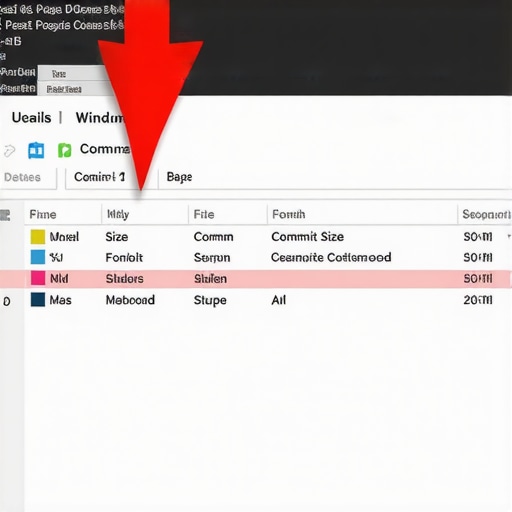 Once you have a suspect, you need to determine if it is a core system file or just bloatware. I always suggest that computer repair for beginners-avoid costly mistakes starts with a simple web search of the process name before you end it. If it is a non-essential app, kill it and see if your speed returns. If you are doing this for a company, managed IT strategies to keep your business secure in 2025 often include automated monitoring to catch these before an employee loses a day of work.
Use the Details Tab to Find the Real Culprit
When you are in the Details tab, right-click the column headers and click ‘Select Columns.’ Make sure ‘Commit Size’ is checked. Unlike ‘Memory (Private Working Set),’ which shows what the program is using right now, ‘Commit Size’ shows how much virtual memory the operating system has reserved for that process. In a memory leak scenario, this number will grow indefinitely. If you see a process for a tool you rarely use eating up gigabytes of commit space, you have isolated the digital parasite. This is far more effective than just guessing why your machine is stuttering.
My Battle with a Rogue Webcam Driver
I remember a specific case last summer. A local architect brought me a high-end laptop that was ‘overheating.’ The fans were at 100%, and he was worried about why your laptop fan is screaming even when you are not using it. Everyone told him he needed a new motherboard. It turned out to be a buggy RGB lighting controller software that was leaking memory and pegging the CPU. I uninstalled the software, and the ‘broken’ laptop suddenly felt brand new. It was a messy diagnostic process because the software did not even have a recognizable name in the process list, but tracing the PID (Process ID) back to the installation folder saved him two thousand dollars.
Test Your PC with a Clean Boot
To see if your issue is software-related, try a ‘Clean Boot.’ This starts Windows with only the bare essentials. If the slowdown disappears, you know it is a third-party app and not your hardware failing. This is a much better first step than learning how to safely upgrade your ram without voiding the warranty, which might not even fix the underlying problem if the software is still there to eat the new RAM. For those using laptops, a leak can also cause physical heat. Making the move that keeps your laptop from overheating on your lap often involves solving these software resource hogs first. Finally, if you are managing a fleet of PCs, keep an eye on why your IT budget is leaking money on unused software because those ‘ghost’ programs are usually the ones causing the most technical debt and performance lag.You might think that once you’ve killed that rogue process, your work is done. But in my experience, a recurring memory leak is usually a symptom of a much larger architectural mess. One of the biggest myths I encounter in the tech world is the belief that ‘unlimited IT support’ is the gold standard for a growing business. People hear ‘unlimited’ and think they are getting a safety net, but often, it’s a trap that encourages the provider to be reactive rather than proactive. If your IT guy only shows up when something is broken, he isn’t saving you money; he’s just managing your decline. Truly effective managed IT solutions for growing companies focus on preventing the fire, not just being the fastest guy with a hose.
Why Does My Fast Network Still Feel So Slow?
This is a question I get from power users all the time. They have gigabit fiber, but their file transfers crawl. The ‘hidden nuance’ here is often your hardware firewall. I’ve seen businesses try to save a few bucks by using home-grade equipment, but why your business should never use residential-grade firewalls comes down to throughput. A cheap router might claim high speeds, but once you turn on security features like deep packet inspection, its tiny processor chokes. Gartner research suggests that network downtime costs an average of $5,600 per minute, which makes that $100 router a very expensive liability. #IMAGE_PLACE_HOLDER_C# Let’s talk about the ‘Oops’ factor when it comes to hardware. I’ve seen countless office managers buy sleek, cheap ultrabooks for their staff, only to realize later that they are impossible to service. There is a massive hidden cost of buying cheap consumer laptops for your staff because they aren’t built for the 40-hour-a-week grind. When the screen dies, you’re often looking at a total replacement instead of a simple fix. If you are struggling with a flickering display right now, checking tips for troubleshooting laptop screen problems seamlessly might save the day, but the better move is buying enterprise-grade gear from the start. And don’t even get me started on the panic of a ‘dead’ drive. The common belief is that if the computer doesn’t see the disk, the data is gone forever. That is rarely the case. Whether it is a snapped USB stick or a clicking external drive, data recovery secrets and expert techniques can often pull files from the brink of digital oblivion. The trap is trying to ‘fix’ it yourself with free software from a sketchy site, which usually just overwrites the very data you’re trying to save. Have you ever fallen into this trap where you tried to save money on a ‘quick fix’ only for it to cost you more in the long run? Let me know in the comments. We’ve all been there—I certainly have—and acknowledging those ‘rookie’ mistakes is the first step toward building a truly resilient setup.I don’t trust the built-in Windows health reports as far as I can throw a heavy CRT monitor. They are often too vague and too late. When I want to know if a client’s machine is actually dying, I reach for CrystalDiskInfo. I use it because it gives me raw S.M.A.R.T. data—real numbers on reallocated sectors and power-on hours. If you’re not checking these, you’re essentially waiting for a disaster. According to the annual Hard Drive Reliability Report by Backblaze, certain drive models show failure rates that can spike after just 36 months, and without a tool like this, you’re flying blind. This is why I tell everyone that the risk of ignoring a clicking external drive is a gamble you will eventually lose.
How can I keep my hardware running smoothly for years?
It is not just about software; the physical environment matters. I have seen $3,000 workstations choked to death by cat hair and dust bunnies. Every six months, I take a can of compressed air and a soft brush to my setup. You have to be careful, though—there is a specific technique for how to clean a laptop fan without pushing dust deeper inside. If you just blast it blindly, you can actually spin the fan too fast and generate a back-voltage that fries the motherboard header. That is the kind of detail computer repair for beginners-avoid costly mistakes guides should always emphasize.#IMAGE_PLACE_HOLDER_D#Beyond the physical, you need a strategy for when things inevitably go sideways. If you are running a business, you cannot afford to wait for a crash. I have shifted most of my clients toward managed IT strategies to keep your business secure in 2025. This is not just about antivirus; it is about having a dedicated team that monitors your event logs for those ‘hidden’ errors before they turn into a blue screen. When I look at how managed IT can elevate your business security in 2025, I see a future where we are not even fixing computers anymore—we are replacing them before they even fail because the telemetry data told us a capacitor was bulging. The future of this industry is predictive. We are moving toward AI-driven diagnostics that can hear a fan bearing failing through the microphone before a human even notices the noise. It sounds like science fiction, but the tools are already being prototyped. For those dealing with visual issues, knowing laptop screen repair DIY tips for clearer displays is great for now, but soon your laptop might just calibrate its own backlight to compensate for aging pixels. My challenge to you today: do not wait for the lag. Download a hardware monitor—something like HWInfo or CrystalDiskInfo—and check your temperature and drive health. If your CPU is idling above 50°C, it is time to open that case. Let us be proactive before you are the one sweating through a presentation while your PC pretends to be a potato.
The Raw Truth about Performance After a Decade of Repairs
Over the years, I’ve realized that throwing more hardware at a problem isn’t always the solution to a poorly managed system. One of the biggest traps is believing the truth about the system fix pop-up on your desktop; these are almost always scams or bloatware that drain your resources further. Secondly, your data is only as safe as your last check-in. I have seen too many people lose everything because they ignored a slow system until it became a dead one. If you want a real competitive edge, realize that why managed IT is a game-changer for growing companies often comes down to the simple fact that professionals catch these leaks before they crash your workday. Finally, remember that software and hardware are a marriage; if one is toxic, the other will inevitably suffer. #IMAGE_PLACEHOLDER_E#
The Diagnostic Toolkit I Actually Carry in My Bag
If you want to stop guessing and start fixing, you need to understand the power of data recovery tools what you need to know before a drive actually fails. For monitoring, I swear by CrystalDiskInfo for drive health and HWInfo for spotting thermal throttling. If your display is acting up, you should also know how to fix a laptop screen that shows static like an old tv, as it is often a loose cable rather than a dying GPU. I also recommend keeping a physical toolkit with non-conductive tweezers and a grounded wrist strap to prevent static discharge when you are hunting for hardware faults.
Stop Waiting for the Blue Screen to Take Control
It is incredibly easy to feel like you are at the mercy of your technology, but you are the one in the driver’s seat. Whether you are dealing with a memory leak, a flicker, or just general sluggishness, the solution is always found in the data. Don’t be afraid to dig into the task manager or crack open a case to blow out the dust. Your computer repair journey doesn’t have to be expensive if you stay proactive and learn the rhythms of your machine. Have you ever found a weird background process that was eating all your RAM and refused to die? Let me know in the comments below.